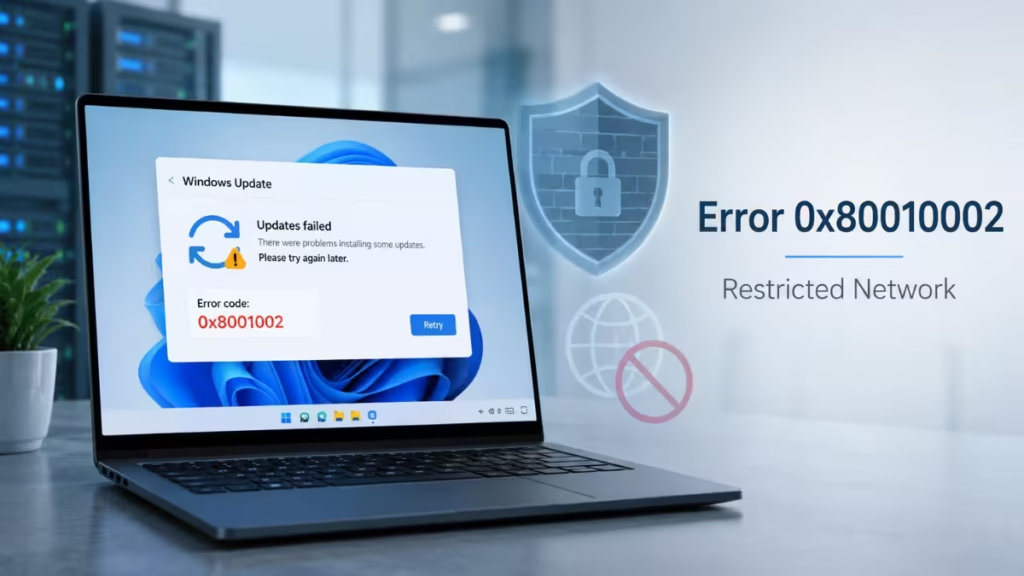
Windows Update error 0x80010002 is blocking update downloads on devices running in restricted or air-gapped network environments. Microsoft confirmed this known issue on May 19, 2026, and released a Known Issue Rollback (KIR) fix that IT administrators can deploy via Group Policy or Microsoft Intune.
This article explains what causes the error, which Windows versions it affects, and how to apply the fix step by step.
What Is Windows Update Error 0x80010002
Error code 0x80010002 appears on the Windows Update settings page when an affected device tries to download updates from the internet in a restricted network environment.
Affected devices can successfully download the February 2026 monthly security update, but then become unable to download updates released in March, April, or any later month. Each attempt returns the 0x80010002 error during the download phase, not the installation phase.
Microsoft confirmed the error is not related to device integrity or the device’s ability to install Windows updates. It only affects the ability to download updates from the internet via the Windows Update settings page.
Which Windows Versions Are Affected
The following versions encounter the 0x80010002 error in restricted environments:
- Windows 11 26H1
- Windows 11 25H2
- Windows 11 24H2
- Windows Server 2025
The issue appears on systems in restricted network environments, including fully isolated air-gapped systems and strictly firewalled corporate networks.
Why Does Windows Update Fail with Error 0x80010002 on Restricted Networks
The error results from recent changes in download timeout requirements introduced in the January 2026 optional non-security preview updates. After installing those preview updates, affected systems hit the new timeout behavior when attempting to start download operations on restricted networks.
This is the second significant Windows Update issue Microsoft has addressed in recent months. Earlier in May 2026, Microsoft also released a KIR fix for a known issue causing the May 2026 Windows 11 security update KB5089549 to fail on some systems with 0x800f0922 errors.
How to Fix Windows Update Error 0x80010002
Microsoft’s fix is a Known Issue Rollback. A KIR rolls back a specific change applied as part of a non-security Windows Update release while keeping all other changes from that release intact. This fix is temporary. Once Microsoft releases a corrected update, you can remove the KIR policy.
Download the KIR file for your Windows version before starting:
- Windows 11 26H1: KB5083806 Known Issue Rollback
- Windows 11 24H2, 25H2 and Windows Server 2025: KB5083631 Known Issue Rollback
Choose the deployment method below that matches your environment.
Method 1: Apply KIR on a Single Device via Local Group Policy
Use this method for standalone devices not joined to a domain.
- Download the KIR .msi file for your Windows version from the links above.
- Confirm the operating system listed in the .msi file name matches the device you want to fix.
- Run the .msi file. This installs the KIR policy definition into the Administrative Template.
- Press Win + R, type
gpedit.msc, and press Enter to open the Local Group Policy Editor. - Navigate to Local Computer Policy > Computer Configuration > Administrative Templates > KB5083806 (or KB5083631) Issue Rollback > Windows 11.
- Right-click the policy and select Edit.
- Set the policy to Disabled and click OK.
- Restart the device to apply the group policy setting.
After the restart the KIR takes effect and Windows Update downloads should resume normally.
Method 2: Deploy KIR via Group Policy in a Domain
Use this method for enterprise environments with managed devices in a hybrid Microsoft Entra ID or Active Directory Domain Services (AD DS) domain.
Step 1: Download and Install the KIR .msi Files
- Identify which Windows versions your managed devices run.
- Download the appropriate KIR .msi files to the computer you use to manage Group Policy for your domain.
- Run the .msi files to install the KIR policy definitions into the Administrative Template.
Note: Policy definitions install to
C:\Windows\PolicyDefinitions. If your domain uses the Group Policy Central Store, copy the .admx and .adml files to the Central Store.
Step 2: Create a Group Policy Object
- Open Group Policy Management Console.
- Navigate to Forest: DomainName > Domains.
- Right-click your domain name and select Create a GPO in this domain, and link it here.
- Name the new GPO (for example, KIR Fix 0x80010002) and click OK.
Step 3: Configure the GPO
- Right-click the GPO you created and select Edit.
- Navigate to Computer Configuration > Administrative Templates > KB5083806 (or KB5083631) Issue Rollback > Windows 11.
- Right-click the policy and select Edit.
- Set the policy to Disabled and click OK.
Step 4: Monitor Policy Deployment
In the default Group Policy configuration, managed devices apply new policies within 90 to 120 minutes. Run gpupdate on affected devices to manually trigger a policy refresh and speed up the process.
Restart each affected device after it applies the policy. The fix activates only after the restart.
Method 3: Deploy KIR via Microsoft Intune
Use this method if your devices are Intune-managed and are not in a traditional AD DS domain. Group Policy objects are not compatible with MDM-based solutions like Intune, so this method uses ADMX policy ingestion instead.
Requirement: Devices must have the cumulative update from July 26, 2022, or a later update installed before this method works.
Step 1: Download and Install the KIR .msi File
- Download the appropriate KIR .msi file to the device you use to sign in to Microsoft Intune.
- Run the .msi file to install the policy definition to
C:\Windows\PolicyDefinitions. - Open the installed .admx file in Notepad and record the
policy nameandparentCategoryvalues from the<policies>node near the end of the file. You need these values in the next steps.
Step 2: Create a Custom Configuration Profile
- Sign in to the Microsoft Intune admin center.
- Go to Devices > Configuration profiles > Create profile.
- Set Platform to Windows 10 and later and Profile to Templates > Custom, then click Create.
- In Basics, enter a descriptive name such as KIR Activation – Windows 11 24H2 and click Next.
Step 3: Add the ADMX Ingestion Setting
- In Configuration settings, click Add.
- Enter a name such as ADMX Ingestion: KIR 0x80010002.
- Set OMA-URI to the following, replacing
<ADMX Policy Name>with the value you recorded:
./Device/Vendor/MSFT/Policy/ConfigOperations/ADMXInstall/KIR/Policy/<ADMX Policy Name>- Set Data type to String.
- In Value, paste the entire contents of the .admx file.
- Click Save.
Step 4: Add the KIR Activation Policy Setting
- In Configuration settings, click Add again.
- Enter a name such as KIR Activation: 0x80010002 Fix.
- Set OMA-URI to the following, replacing both placeholders with the values you recorded:
./Device/Vendor/MSFT/Policy/Config/KIR~Policy~KnownIssueRollback~<Parent Category>/<ADMX Policy Name>- Set Data type to String.
- Set Value to
<disabled/>. - Click Save, then click Next.
Step 5: Assign Devices and Set Applicability Rules
- In Assignments, click Add all devices and click Next.
- In Applicability Rules, add a rule using OS Version targeting the correct Windows build range. Format build numbers as
10.0.MMMMM(for example,10.0.26100). You can find the OS version on a device by runningwinverfrom the Start menu. - Click Next, review your settings, and click Create.
Step 6: Monitor KIR Activation
- Go to Devices > Configuration profiles and select your new profile.
- Open the Overview tab and check the deployment status for each device.
Possible statuses:
| Status | Meaning |
|---|---|
| Succeeded | Policy applied successfully |
| Error | Policy did not apply, check the error code |
| Conflict | Two settings conflict on the same device, administrator review needed |
| Pending | Device has not checked in with Intune yet |
| Not applicable | Device OS does not match the applicability rule |
Restart all affected devices after the policy applies. The fix activates on the next boot.
Frequently Asked Questions
Does Windows Update error 0x80010002 affect home users?
No. This error only appears on devices inside restricted or air-gapped network environments, which are typically found in corporate and enterprise settings. Home users on a standard broadband connection do not encounter it.
Does Microsoft fix this automatically for non-enterprise devices?
Yes. For non-enterprise (home and personal) devices, Microsoft’s Windows Update process applies the KIR automatically with no action needed. The manual Group Policy deployment applies only to enterprise-managed devices where Microsoft cannot push the fix directly.
Will the KIR affect security updates or other patches?
No. KIRs apply only to non-security updates. The KIR reverses one specific change from the January 2026 preview update and leaves all security patches, cumulative updates, and other changes from that release fully intact.
How long does the KIR policy need to stay in place?
Until Microsoft releases a corrected update that permanently resolves the download timeout issue. Once that update publishes, the KIR policy is no longer needed and administrators can remove it from Group Policy or Intune. Microsoft posts updates on the Windows Release Health dashboard under WI1311742.
What if gpedit.msc is not available on the device?
The Local Group Policy Editor is not available on Windows 11 Home editions. If your affected device runs Windows 11 Home, use the Intune deployment method if the device is managed, or wait for Microsoft to automatically push the KIR fix to non-enterprise devices.

