Malware slows your PC, hijacks your browser, throws fake pop-ups, and sometimes steals data in the background. Malwarebytes catches the threats that traditional antivirus tools often miss, including adware, browser hijackers, potentially unwanted programs (PUPs), and stubborn trojans. This guide walks you through every step you need to use Malwarebytes to remove malware from a Windows PC, including what to do when an infection blocks the scan.
What You Need Before You Start
Gather these things first so the cleanup runs without interruptions:
- A Windows 10 or Windows 11 PC (the steps also work on Windows 7 and 8.1).
- An active internet connection to download the installer and threat database.
- Administrator rights on the account you sign in with.
- A few minutes to back up important files in case you need to restart the system.
If malware already blocks your browser or downloads, skip ahead to the Safe Mode section. You can install Malwarebytes there instead.
How to Download and Install Malwarebytes
Follow these steps to get a clean, official copy of the program:
- Open your browser and go to the official Malwarebytes website at malwarebytes.com.
- Click the Free Download button and save the installer to your Downloads folder.
- Double-click the downloaded file named
MBSetup.exe. - When Windows asks for permission, click Yes to allow the installer to run.
- Choose Personal Computer when the setup asks how you plan to use it, then click Install.
- Wait for the installer to finish, then click Open Malwarebytes or Done.
The free version gives you full manual scanning and removal, which is all you need to clean an active infection. The premium trial adds real-time protection, but you can decline it and the free scanner still works.
How to Use Malwarebytes to Remove Malware with a Full Scan
Once the program opens, run a scan to find and quarantine threats:
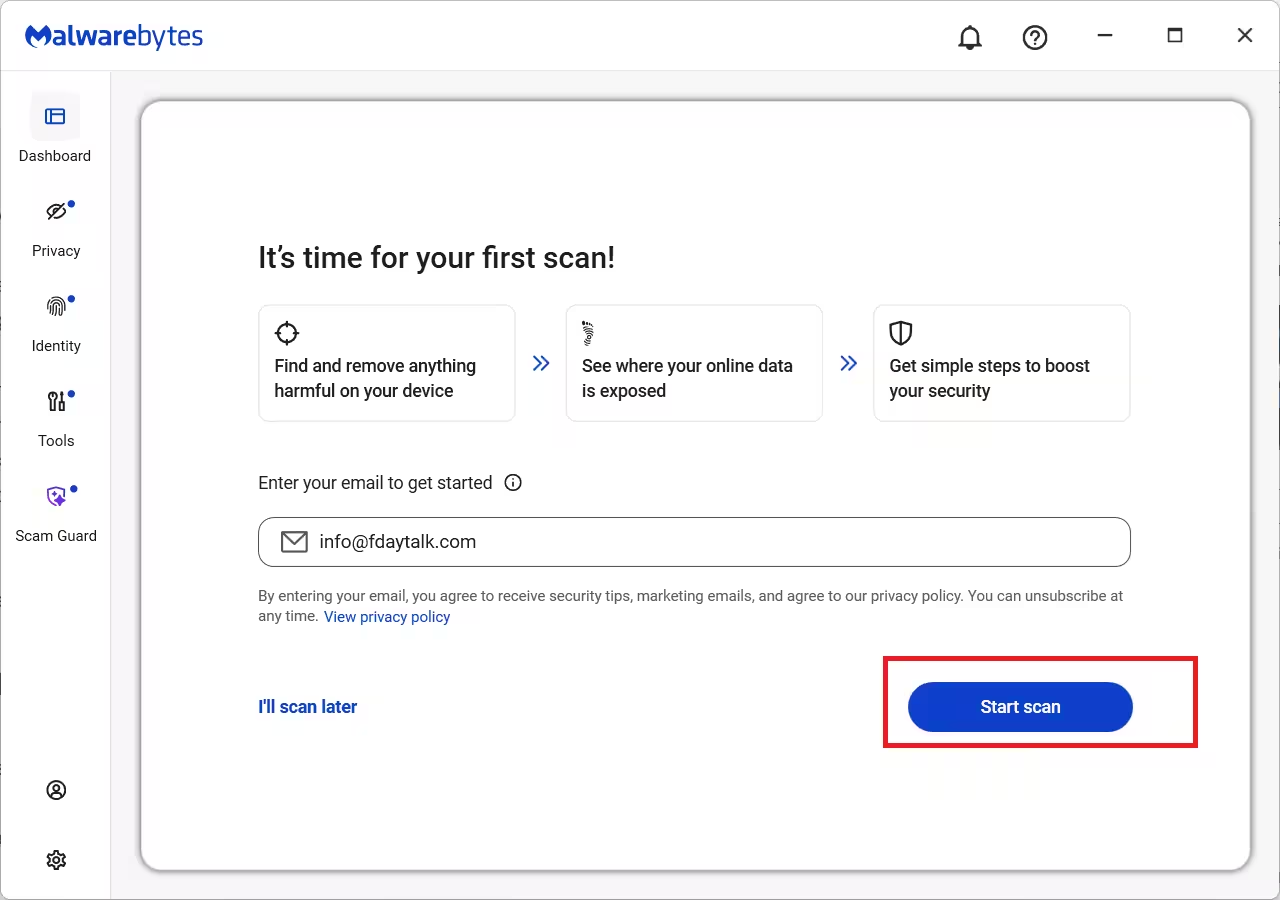
- On the Malwarebytes dashboard, click the blue Scan button to start a Threat Scan. This checks memory, startup items, the registry, and common infection folders.
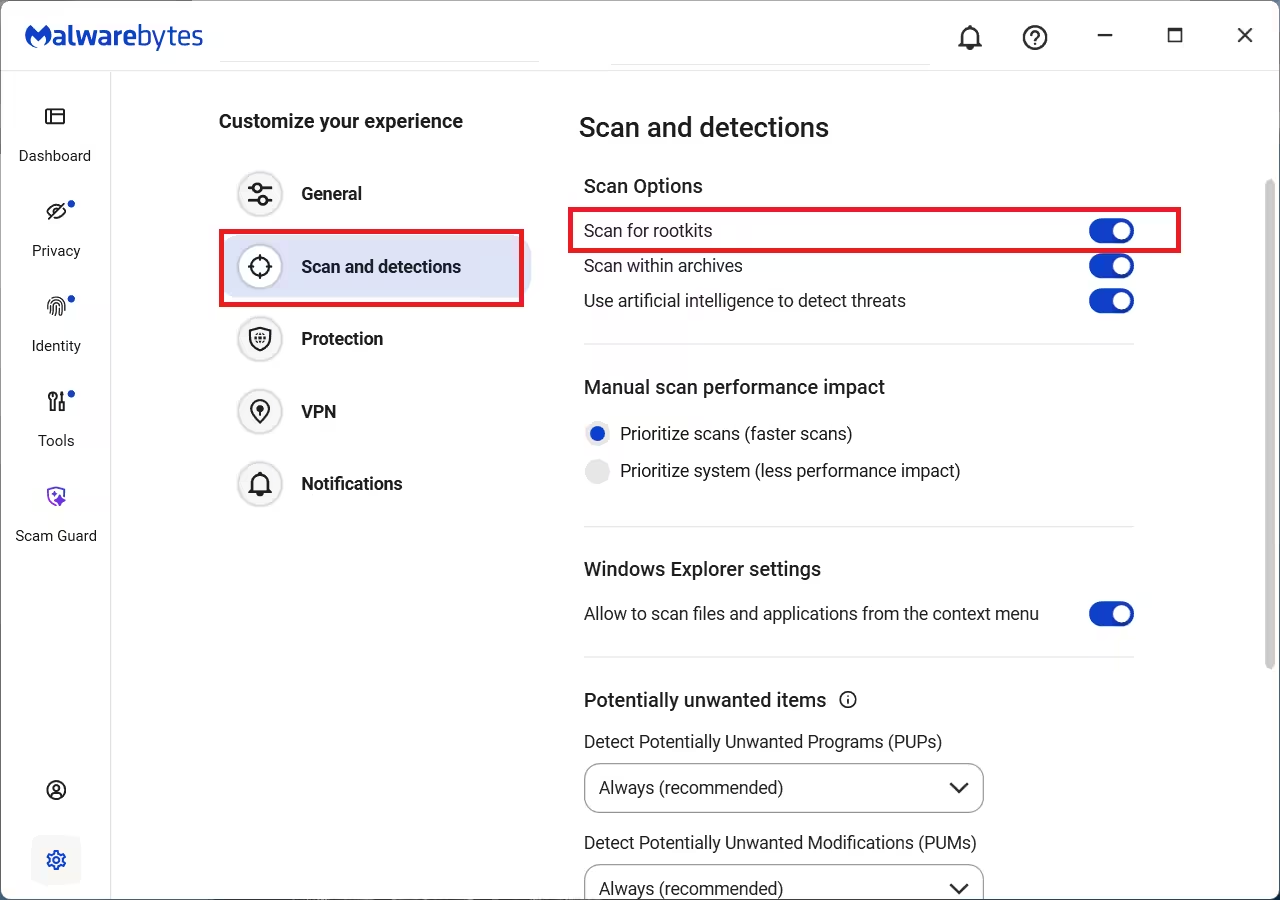
- For a deeper sweep, click the three-dot icon in the Scanner tab on the dashboard and select Settings. On the Scan and detections page, toggle on Scan for rootkits.
- Click Scan and let the program work. A Threat Scan usually takes 5 to 15 minutes. A full custom scan across large drives can take an hour or more.
- Watch the progress bar. Malwarebytes lists each detection as it finds it, so you can see threats build up in real time.
Leave the PC alone while it scans. Avoid opening other apps, since active malware can interfere with the results.
How to Quarantine and Delete Detected Threats
When the scan finishes, Malwarebytes shows a list of everything it found:
- Review the detection list. Each item shows a name, the threat type, and its location on disk.
- Keep every box checked unless you recognize a flagged item as a safe program you installed on purpose.
- Click Quarantine. Malwarebytes moves the threats into an isolated folder where they cannot run or spread.
- If the program prompts you to restart, click Yes and let Windows reboot. Some malware only releases its hold after a restart.
After the reboot, open Malwarebytes again, go to Detection History, and review the Quarantine tab. Once you confirm your PC runs normally, select the quarantined items and click Delete to remove them for good.
How to Use Malwarebytes to Remove Malware in Safe Mode
Some infections block scans, kill the Malwarebytes process, or refuse to let it install. Safe Mode loads Windows with only essential drivers, which stops most malware from running.
- Press Windows + I to open Settings, go to System, then Recovery.
- Under Advanced startup, click Restart now.
- After the PC restarts, choose Troubleshoot, then Advanced options, then Startup Settings, and click Restart.
- When the menu appears, press 5 or F5 to start Safe Mode with Networking.
- Once Windows loads, open Malwarebytes (or download and install it now if the threat blocked it earlier) and run a full Threat Scan.
- Quarantine everything it finds, then restart the PC normally.
Safe Mode with Networking keeps your internet active, so you can still update the threat database before you scan.
How to Schedule Regular Scans
A scheduled scan keeps your PC clean without you remembering to run it manually:
- Open Malwarebytes and click Settings (the gear icon).
- Go to the Scan Schedule tab.
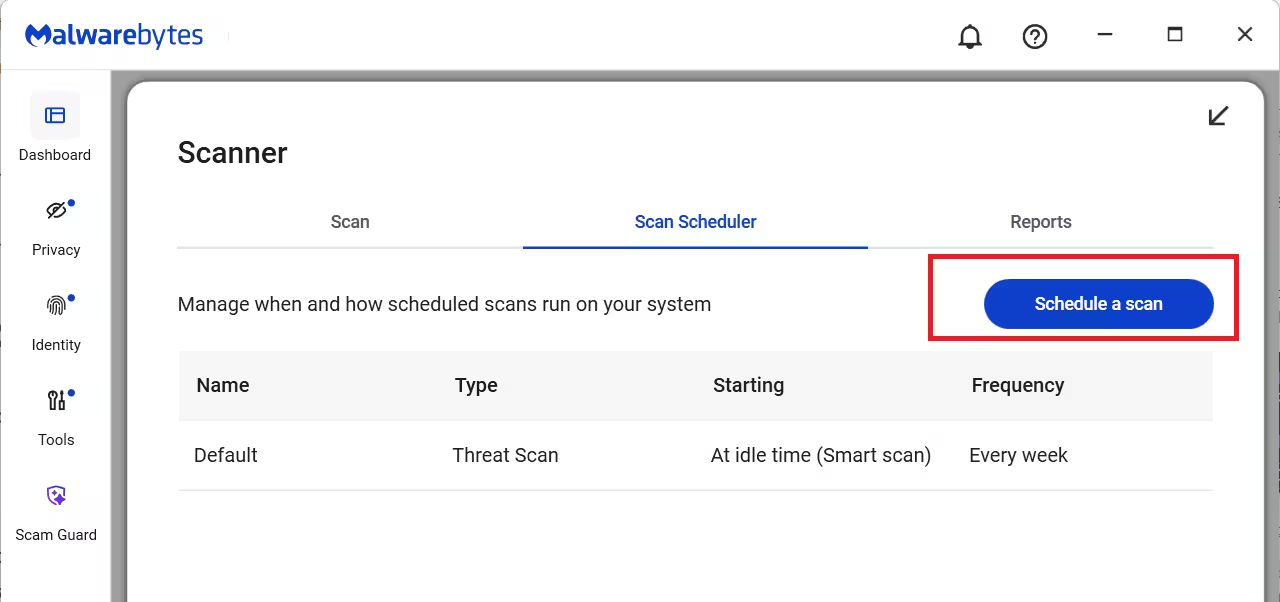
- Click Add to create a new schedule.
- Pick a scan type, set a day and time, and choose a frequency such as daily or weekly.
- Click Save.
Set the scan for a time when the PC stays on but you do not use it, such as early morning. Weekly scans catch anything that slips past your other defenses.
What to Do If Malwarebytes Will Not Open or Install
Aggressive malware sometimes targets security tools directly. Try these fixes in order:
- Rename the installer: Right-click
MBSetup.exe, rename it to something random likecleanup.exe, then run it. Some malware blocks files by their original name. - Use the Malwarebytes Support Tool: Download it from the official site, run a clean install, and let it repair a broken installation.
- Boot into Safe Mode with Networking using the steps above, then install or run the scan there.
- Check Windows Defender: Run an offline scan from Windows Security to clear the threat blocking Malwarebytes, then install Malwarebytes afterward.
If the PC still refuses to cooperate, the infection may have damaged core system files, and a Windows reset becomes the safer option.
Frequently Asked Questions
Does Malwarebytes remove all malware?
Malwarebytes catches a wide range of threats, including adware, PUPs, trojans, and browser hijackers. No single tool detects everything, so pair it with Windows Defender or another antivirus for layered protection.
Is the free version enough to remove malware?
Yes. The free version runs full manual scans and removes what it finds. It lacks real-time protection, so it cannot block new threats automatically, but it cleans an active infection just as well as the premium version.
Can I run Malwarebytes alongside another antivirus?
Yes. Malwarebytes runs well next to Windows Defender or most third-party antivirus tools because it focuses on threats those tools tend to overlook.
How long does a Malwarebytes scan take?
A standard Threat Scan finishes in 5 to 15 minutes. A custom scan of large drives with rootkit checking can run an hour or longer.
Do I need to restart after removing malware?
Often yes. Some threats only release their grip after a reboot, so restart when Malwarebytes asks and run one more scan to confirm the PC is clean
Related Tech How-To Guides
- How to Remove Trojan Virus from Windows 11 PC (Step-by-Step Guide)
- How to Run a Microsoft Defender Virus Scan (Beginner-Friendly)
- How to Remove Fake TotalAV Pop-Up Virus Alerts on Windows 11
- How to Remove the “Your Norton Antivirus or McAfee Antivirus Expired” Popup
- Bitdefender Family Plans Review 2026: Is It the Best Family Antivirus You Can Buy?

