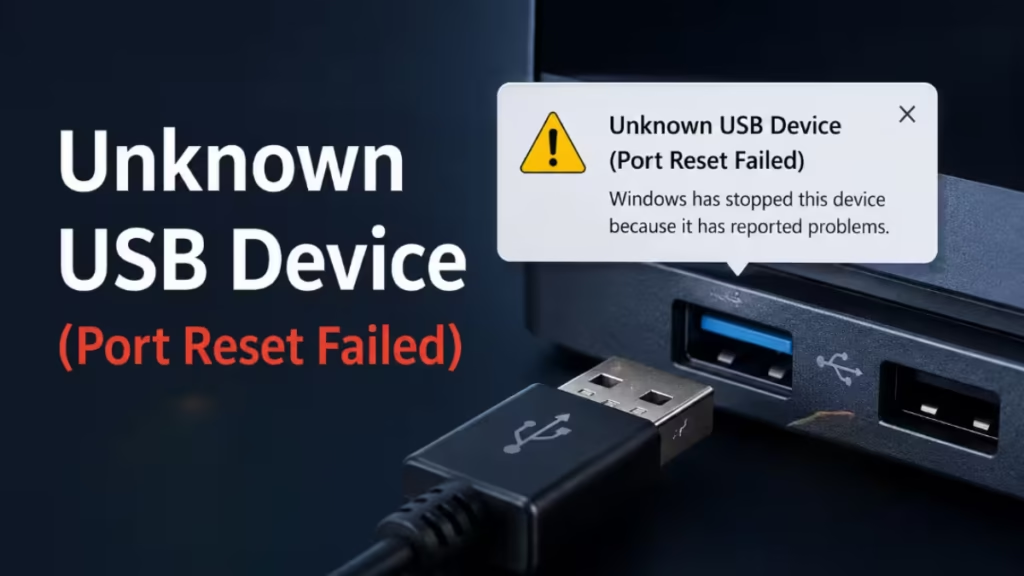
The Unknown USB Device (Port Reset Failed) error shows up in Device Manager under Universal Serial Bus Controllers with a yellow exclamation mark. When this error appears, Windows cannot recognize the connected USB device and the device stops working entirely.
This error has several known causes:
- Outdated, corrupted, or partially installed USB drivers
- Windows power management suspending the USB controller or device
- USB Selective Suspend putting the device into an unrecoverable sleep state
- A faulty USB port, cable, or the device itself
- BIOS-level power states interfering with USB reset on certain laptops and docks
Work through the fixes below in order. Most users resolve this within the first three steps.
Quick Hardware Checks First
Before touching any settings, rule out hardware as the cause:
- Try a different USB cable: A damaged cable is a common and easy-to-miss cause.
- Plug the device into a different USB port: This confirms whether the port itself is broken.
- Connect the device to another computer: If it fails there too, the device is likely damaged.
- Remove any external USB hub: Connect the device directly to a port on your PC or laptop.
- Restart your computer: A simple restart clears temporary driver states and often fixes the error immediately.
If the device works on another PC and the cable is fine, the problem is on your Windows machine. Continue with the fixes below.
Fix 1: Uninstall the Unknown USB Device Driver
Removing the broken driver entry forces Windows to reinstall a clean version on reboot.
- Press Win + X and select Device Manager.
- Expand Universal Serial Bus controllers.
- Right-click Unknown USB Device (Port Reset Failed) and select Uninstall device.
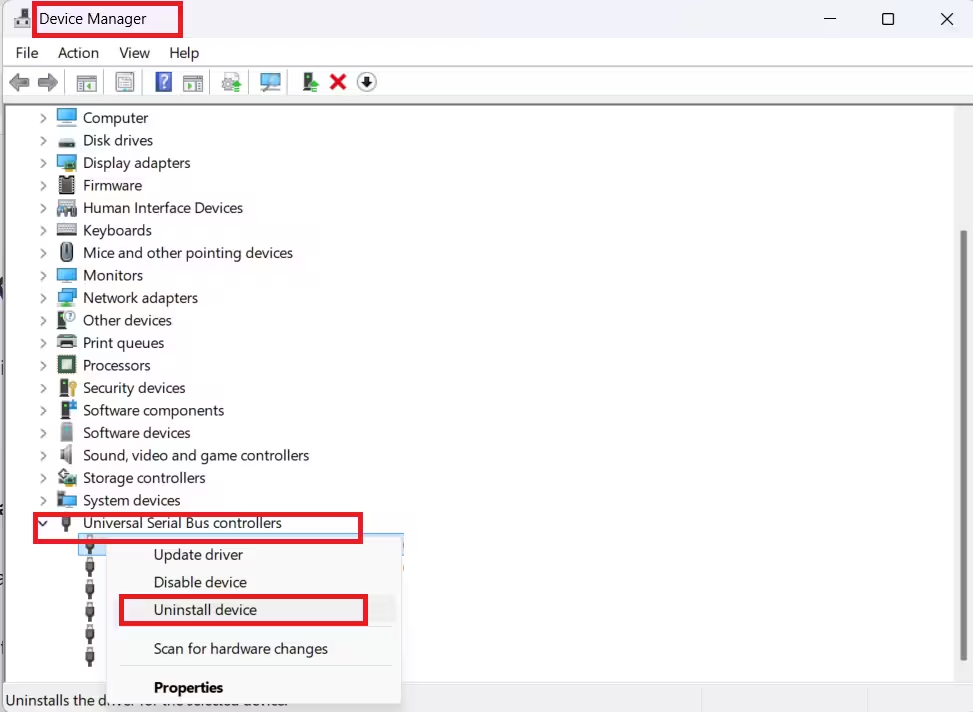
- Confirm the uninstall prompt.
- Restart your PC. Windows automatically detects and reinstalls the device driver.
After the restart, check Device Manager again to see if the yellow warning is gone.
Fix 2: Update the Generic USB Hub Driver
An outdated Generic USB Hub driver can block proper communication with connected devices.
- Open Device Manager (Win + X > Device Manager).
- Expand Universal Serial Bus controllers.
- Right-click Generic USB Hub and select Update driver.
- Choose Browse my computer for drivers.
- Select Let me pick from a list of available drivers on my computer.
- Check Show compatible hardware, then select Generic USB Hub from the list.
- Click Next and let Windows install the driver.
Repeat this for every Generic USB Hub entry listed under Universal Serial Bus controllers. Restart after updating all entries.
Fix 3: Disable USB Power Management
Windows shuts down USB controllers automatically to save power. Sometimes it fails to bring them back online, which triggers the Port Reset Failed error.
- Open Device Manager.
- Expand Universal Serial Bus controllers.
- Double-click USB Root Hub to open its properties.
- Go to the Power Management tab.
- Uncheck Allow the computer to turn off this device to save power.
- Click OK.
Repeat this for every USB Root Hub entry in the list. Restart your PC after making all changes.
Fix 4: Disable USB Selective Suspend
USB Selective Suspend powers down individual USB devices during idle periods. Windows occasionally fails to wake them back up, which causes the port reset to fail.
On Windows 10:
- Open Control Panel and go to Hardware and Sound > Power Options.
- Click Change plan settings next to your active power plan.
- Click Change advanced power settings.
- Expand USB settings > USB selective suspend setting.
- Set it to Disabled for both On battery and Plugged in.
- Click Apply, then OK.
On Windows 11:
- Press Win + S, search for Edit power plan, and open it.
- Click Change advanced power settings.
- Follow steps 4 to 6 above.
Restart after applying the change.
Fix 5: Run the Hardware and Devices Troubleshooter
Windows includes a built-in troubleshooter that detects and fixes common USB hardware problems automatically.
Windows 10:
- Go to Settings > Update and Security > Troubleshoot.
- Scroll down to Hardware and Devices and click Run the troubleshooter.
- Follow the on-screen instructions.
Windows 11:
The Hardware and Devices troubleshooter does not appear in the Settings menu on Windows 11. Run it through the command line instead:
- Press Win + R, type
msdt.exe -id DeviceDiagnostic, and press Enter. - Click Next and follow the prompts.
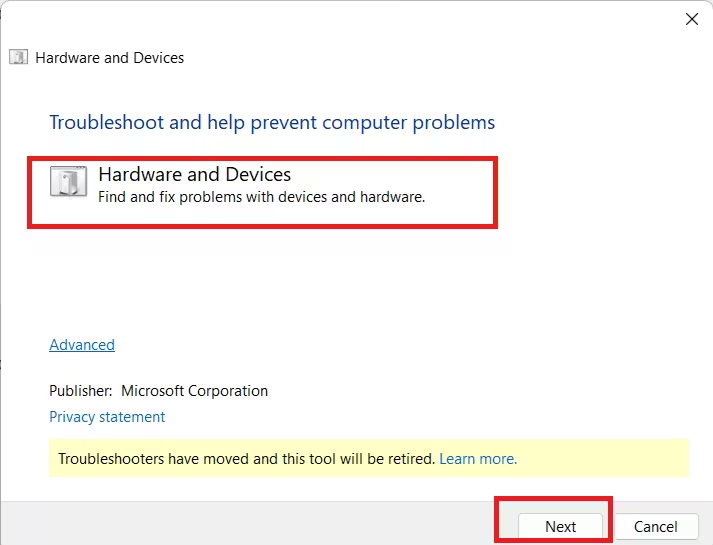
Apply any recommended fixes and restart your PC.
Fix 6: Uninstall and Reinstall All USB Controllers
Corrupted USB controller drivers can prevent any USB device from initializing correctly. Removing all USB controllers at once and letting Windows reinstall them resolves this.
- Open Device Manager.
- Expand Universal Serial Bus controllers.
- Right-click each USB controller entry and select Uninstall device. Work through the entire list one by one.
- Restart your PC.
Windows automatically detects and reinstalls all USB controllers during the reboot. Plug in your USB device after the restart and check if Windows recognizes it.
Note: Your mouse and keyboard may stop responding temporarily during this process if they are USB-connected. Complete the uninstall steps and restart the PC to restore them.
Fix 7: Disable C-State in BIOS (Lenovo and Dock Users)
C-states are CPU power-saving modes. On some Lenovo laptops connected via Thunderbolt docks, deep C-states interfere with USB port reset operations. Disabling C-state in BIOS resolves the conflict.
- Restart your PC and enter BIOS by pressing F2, F1, Del, or the key shown on your boot screen.
- Navigate to the Advanced or Power tab.
- Find C-State Control or C State Support and set it to Disabled.
- Save and exit BIOS.
The exact location of the C-state setting varies by manufacturer. Check your laptop’s documentation if you cannot find it. If disabling C-state does not help, re-enable it before trying the next fix.
Fix 8: Enable USB Debug in BIOS (Dell Only)
On Dell PCs and laptops, a BIOS setting called USB Debug controls USB 3.0 compatibility. Enabling it resolves port reset failures on certain Dell hardware.
- Restart your Dell PC and press F2 during boot to enter BIOS.
- Navigate to the Advanced tab.
- Select Miscellaneous Devices.
- Find USB Debug and change it from Disabled to Enabled.
- Go to Exit, select Exit Saving Changes, and let the PC restart.
Check Device Manager after the restart to confirm the error is gone.
Fix 9: Update Your System BIOS
An outdated BIOS version can cause USB compatibility issues, especially with newer devices. Updating the BIOS installs the latest firmware fixes from your PC manufacturer.
- Go to your PC or laptop manufacturer’s support website.
- Enter your model number and locate the BIOS or firmware section.
- Download the latest BIOS update for your model.
- Follow the manufacturer’s installation instructions carefully.
Do not interrupt a BIOS update. Keep your laptop plugged in during the process.
The Unknown USB Device (Port Reset Failed) error on Windows usually comes down to a driver issue or a power management setting blocking the USB reset. Uninstalling the device driver or disabling USB power management fixes it for most users. If the basic fixes do not work, move through the USB controller reinstall and BIOS-level options for dock or laptop-specific cases.

