Google Gemini displays “Something Went Wrong (1100)” when it loses communication with the servers it needs to generate a response. You submit a prompt, Gemini stalls, and the 1100 message appears instead of an answer. Some users see Error 1097 immediately after, which means the session problem has not cleared and Gemini keeps rejecting follow-up requests.
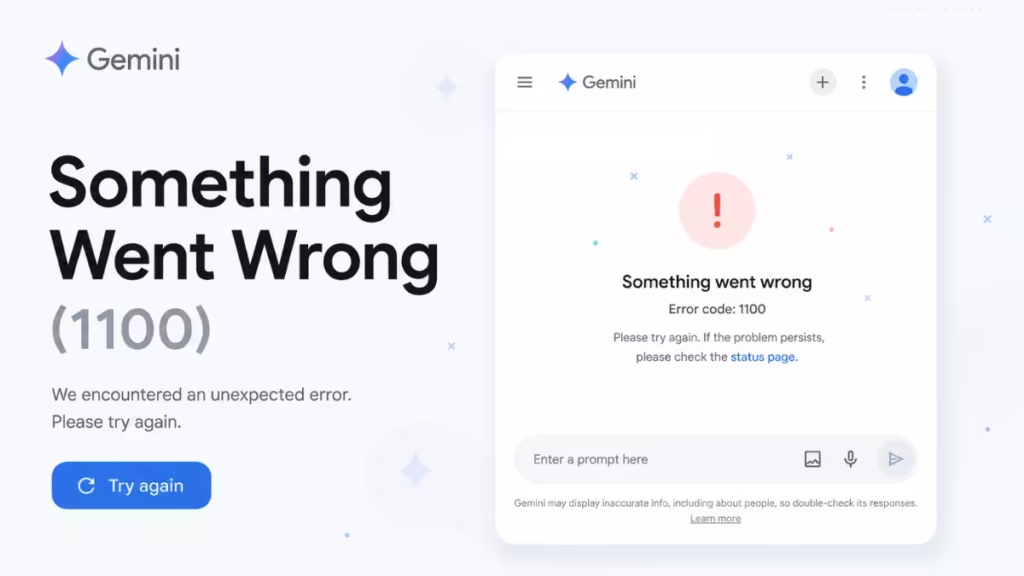
This error is not permanent. In most cases it traces back to your browser environment rather than a Gemini platform outage, so a few targeted steps resolve it in minutes.
Quick Fixes for Gemini Something Went Wrong 1100
Try these in order if you are short on time:
- Clear Gemini-specific site data in your browser
- Disable browser extensions and reload Gemini
- Open Gemini in Incognito Mode
- Sign out and sign back into your Google account
- Toggle Gemini Apps Activity off, wait one minute, then turn it back on
- Load gemini.google.com/gems/create to reset the session
- Update your browser to the latest version
- Try a different browser
- Check your internet connection
Important: Do not clear your entire browser history. Removing only Gemini site data is enough and keeps you signed into other websites.
What Does Gemini Error 1100 Mean?
Error 1100 appears when Gemini cannot complete a request or maintain the connection it needs to generate a response. Google has not published a formal definition for the code, but user reports and troubleshooting patterns narrow it down consistently.
You are most likely to hit this error when:
- Opening Gemini after a long browser session
- Submitting a prompt in a fresh tab
- Switching between conversations
- Using Gemini after installing a new browser extension
- Accessing Gemini through a Google Workspace account
When the error fires, you may see the message “Gemini web couldn’t load this chat,” a blank response area, or the interface stops loading entirely.
What Causes Gemini Error 1100?
Corrupted browser cache or site data is the most common trigger. Browsers store cookies, cached files, permissions, and authentication tokens for every site. Over time those files become outdated or corrupted. When Gemini tries to use them, authentication fails and Error 1100 appears.
Browser extension conflicts rank second. Ad blockers, privacy tools, VPN extensions, script blockers, and AI assistant add-ons all modify how pages load. They sometimes block requests that Gemini depends on, which breaks the communication chain.
Expired login sessions come third. If your Google account session becomes stale or partially corrupted, Gemini cannot verify your identity and throws the error instead of loading.
Outdated browser versions create compatibility problems. Gemini depends on modern browser technologies, and older builds sometimes cannot handle its current frontend correctly.
Browser-specific profile issues explain why Gemini fails in Chrome but works in Edge or Firefox. The fault lives in local browser settings, not in Gemini itself.
Fix 1: Clear Gemini Site Data
Clearing Gemini-specific site data resolves Error 1100 more often than any other step. It removes corrupted cookies, cached files, and permissions so the browser builds a clean session.
In Google Chrome:
- Close all open Gemini tabs, including any Gemini panel in the Chrome sidebar.
- Click the three-dot menu in the top right corner of Chrome.
- Select Settings.
- Click Privacy and Security in the left sidebar.
- Select Third-Party Cookies (or Cookies and site data in older versions).
- Scroll down and click See All Site Data and Permissions.
- Type gemini or google in the search bar at the top right of the list.
- Click the trash icon next to every Gemini-related entry to delete the stored data.
- Close Settings, reopen Gemini in a fresh tab, and send a test prompt.
In Microsoft Edge:
- Click the three-dot menu and go to Settings.
- Select Cookies and site permissions.
- Click Manage and delete cookies and site data.
- Click See all cookies and site data and search for gemini.
- Delete all matching entries and reload Gemini.
In Mozilla Firefox:
- Click the three-line menu and go to Settings.
- Select Privacy and Security.
- Under Cookies and Site Data, click Manage Data.
- Search for google or gemini, select the entries, and click Remove Selected.
- Save changes and reload Gemini.
Fix 2: Disable Browser Extensions
Extensions that modify scripts, block requests, or filter content can break Gemini’s authentication and communication processes. Privacy tools, ad blockers, VPN extensions, and AI assistant add-ons are the most common offenders.
- Click the puzzle piece icon in your browser toolbar and select Manage Extensions.
- Disable all extensions by toggling each one off.
- Press Ctrl + Shift + R (Windows) or Cmd + Shift + R (Mac) on your Gemini tab to force a fresh load.
- Send a test prompt. If Gemini works, an extension caused the error.
- Re-enable extensions one at a time, refreshing Gemini after each, until the error returns. The last extension you re-enabled is the problem.
Fix 3: Open Gemini in Incognito Mode
Incognito Mode creates a clean browsing environment. Most extensions are disabled automatically and no stored Gemini cookies carry over, so it serves as a reliable diagnostic test.
- Press Ctrl + Shift + N (Windows) or Cmd + Shift + N (Mac) to open an Incognito window.
- Navigate to gemini.google.com.
- Sign into your Google account.
- Send a test prompt.
If Gemini works in Incognito but not in your normal window, the cause is either cached data or a browser extension in your regular profile. Clear Gemini site data as described in Fix 1, then disable extensions per Fix 2.
Fix 4: Sign Out and Sign Back Into Your Google Account
A stale or partially corrupted account session causes Gemini to fail authentication on every request. Signing out and back in replaces the expired session token.
- Click your profile picture in the top right corner of Gemini.
- Select Sign out. If you use multiple Google accounts in the same browser, sign out of all of them.
- Close all Gemini tabs and related Google service tabs.
- Fully close your browser so it stops running in the background.
- Reopen the browser and sign back into your primary Google account.
- Load Gemini and send a test prompt.
Fix 5: Toggle Gemini Apps Activity
A desync between your Google account activity data and Gemini forces the error even when your session appears active. Toggling the Gemini Apps Activity setting triggers a forced sync and clears the disconnect.
- Go to myactivity.google.com.
- Find and open Gemini Apps Activity.
- Switch the setting Off.
- Wait at least one minute.
- Switch the setting back On.
- Reload Gemini and send a prompt.
Fix 6: Use the Gems Page to Reset the Session
When the main Gemini URL keeps returning Error 1100, navigating to the Gems creation page forces a session reinitialisation. This breaks the loop that causes Gemini to keep rejecting requests.
- Open a new tab and go to gemini.google.com/gems/create.
- Let the page load fully.
- Navigate back to the main Gemini chat.
- Send a prompt.
This workaround resolves stubborn cases where the standard page stays stuck even after clearing site data.
Fix 7: Update Your Browser
An outdated browser build can conflict with Gemini’s frontend. Update to the latest version, restart the browser, and reload Gemini.
Google Chrome:
- Click the three-dot menu in the top right.
- Hover over Help and select About Google Chrome.
- Chrome scans for updates automatically. Install any available update.
- Click Relaunch.
Microsoft Edge:
- Click the three-dot menu.
- Go to Help and Feedback, then select About Microsoft Edge.
- Install any pending update and restart.
Mozilla Firefox:
- Click the three-line menu.
- Select Help, then click About Firefox.
- Install any available update and restart.
Fix 8: Try a Different Browser
If Gemini still fails after all the steps above, open it in a different browser. A successful load confirms the problem lives in your original browser’s profile or settings. Popular alternatives to test include Microsoft Edge, Mozilla Firefox, Brave, and Opera.
If Gemini works in the alternative browser, create a new profile in your original browser or perform a full cache clear to resolve the profile-level corruption.
Fix 9: Check Your Internet Connection
A brief network drop during a prompt can surface as Error 1100. Try these steps:
- Restart your router and wait 30 seconds before reconnecting.
- Disable any active VPN and reload Gemini.
- Switch to a mobile hotspot to rule out your home network.
- Test on a different Wi-Fi network.
If Gemini fails across all networks and multiple browsers, check the Google Workspace Status Dashboard to confirm whether a platform-level outage is active. A confirmed outage means the error clears automatically once Google restores service.
How to Prevent Gemini Error 1100
Once you resolve the error, these habits keep it from returning:
- Clear Gemini site data every few weeks to prevent cache buildup.
- Keep your browser updated to the latest stable version.
- Avoid installing unnecessary extensions, especially privacy and content-blocking tools.
- Sign out and back into your Google account occasionally to refresh authentication tokens.
- Maintain a stable internet connection during long Gemini sessions.
Frequently Asked Questions
Is Gemini Error 1100 permanent?
No. Error 1100 is temporary. Clearing Gemini site data or refreshing your account session resolves it in most cases.
Why does Gemini work in Incognito but not normal mode?
Incognito Mode disables most extensions and creates a fresh browsing session. If Gemini works there, the cause is either corrupted cached data or a conflicting extension in your regular profile.
Does Gemini Error 1100 affect paid users?
Yes. Both free and Gemini Advanced subscribers encounter Error 1100. The error is browser and session related, not tied to your subscription tier.
Can a VPN cause Gemini Error 1100?
Yes. VPN extensions and active VPN connections can interrupt the communication between your browser and Google’s servers. Disable your VPN and test Gemini to rule this out.
What is the difference between Gemini Error 1100 and Error 1097?
Error 1100 signals that the current request failed. Error 1097 often appears immediately after 1100 and means Gemini is still rejecting requests because the original session problem has not cleared. Run the full fix chain starting with clearing site data to resolve both.
What if none of these fixes work?
Use the Help and Feedback option in the bottom left corner of Gemini, submit your system logs and a screenshot, and let Google’s support team investigate the backend fault.
Related Guides
- How to Fix Gemini Error 1152 (Something Went Wrong)
- How to Fix Gemini Error 1076 (Something Went Wrong)
- How to Fix Gemini Error 1099 (Something Went Wrong During Analysis)
- How to Fix Gemini Error 13 (Text Input Not Working on Google Account)
- How to Fix “Something Went Wrong (1097)” on Google Gemini
- How to Fix “Something Went Wrong (1096)” on Google Gemini

