A mouse that stops responding on Windows 11 usually traces back to power delivery, a driver conflict, or a stale device entry rather than a dead mouse. This guide walks through the fixes in the order that resolves the issue fastest, covering wired, wireless USB, and Bluetooth mice.
Since you may not have mouse control while troubleshooting, use Tab, Shift + Tab, Enter, and the arrow keys to move through every menu below.
What Causes a Mouse to Stop Working on Windows 11
- Dead or low batteries, or unstable power delivery through a USB port or hub
- A corrupted mouse driver or a stale HID (Human Interface Device) entry left behind after an update
- USB selective suspend or Fast Startup preventing the device from reinitializing after sleep or a restart
- A broken Bluetooth pairing state or a Bluetooth service that fails to start
Fix 1: Power-Cycle the Mouse and the Laptop
Turn the mouse off if it has a switch, remove the batteries if it uses them, and unplug any wired mouse. Then hold the laptop power button for about 10 seconds until it shuts down completely, wait 10 seconds, and power it back on.
Fix 2: Replace Batteries or Reseat the USB Connection
Wireless USB and Bluetooth mice often fail quietly on low batteries well before they die completely, so swap in fresh batteries even if the old ones still show some charge.
- Wired mouse: Unplug and replug it, then try a different USB port. Avoid hubs and front-panel ports, since they are more likely to have unstable power delivery.
- Legacy desktop: If your PC has a round PS/2 port, the mouse connector goes into the green port. The purple port is for the keyboard, and a mismatch here will stop the mouse from working entirely.
Fix 3: Test the Mouse on Another Device
Plug the mouse into a different PC, or a smart TV USB port if one is available. If it fails there too, the mouse hardware itself is the problem. If it works fine elsewhere, the issue sits with Windows 11, the driver, Bluetooth pairing, or a power setting on your laptop.
Fix 4: Restart the Windows Explorer Process
If clicks stop registering specifically (rather than the cursor freezing entirely), Windows Explorer is a common cause since it handles the desktop and taskbar input.
- Press
Ctrl + Shift + Escto open Task Manager. - Use the arrow keys to highlight Windows Explorer, then
Tabto the Restart option and pressEnter. - The taskbar and desktop icons will briefly disappear and reload. Test the mouse again once they return.
Fix 5: Update or Reinstall the Mouse Driver
Driver issues cause specific, recognizable symptoms: the cursor freezes, only one button responds, or tracking stops after sleep.
- Press
Win + X, then select Device Manager. - Expand Mice and other pointing devices.
- Right-click the mouse entry (often listed as HID-compliant mouse) and choose Update driver, then Search automatically for drivers.
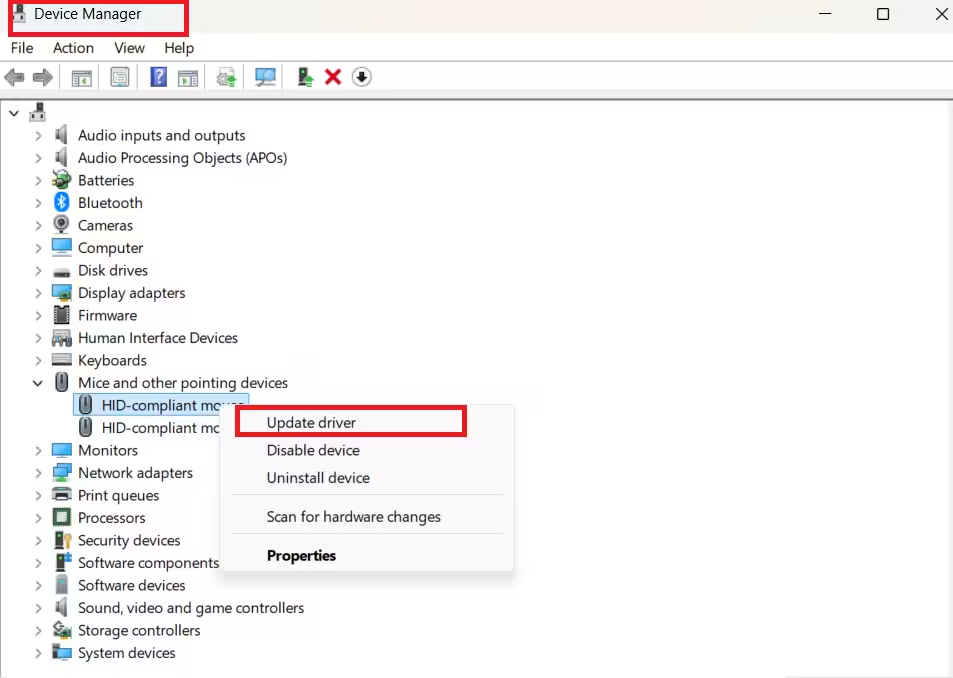
- If that does not help, right-click the same entry and choose Uninstall device, then reboot. Windows reinstalls the driver automatically on restart.
Uninstalling the device here only removes the driver entry, not any personal files.
Fix 6: Remove Stale HID Device Entries
Windows sometimes keeps an old HID entry active after a driver update or after connecting a docking station, and this can conflict with the current device.
- Open Device Manager and expand Human Interface Devices.
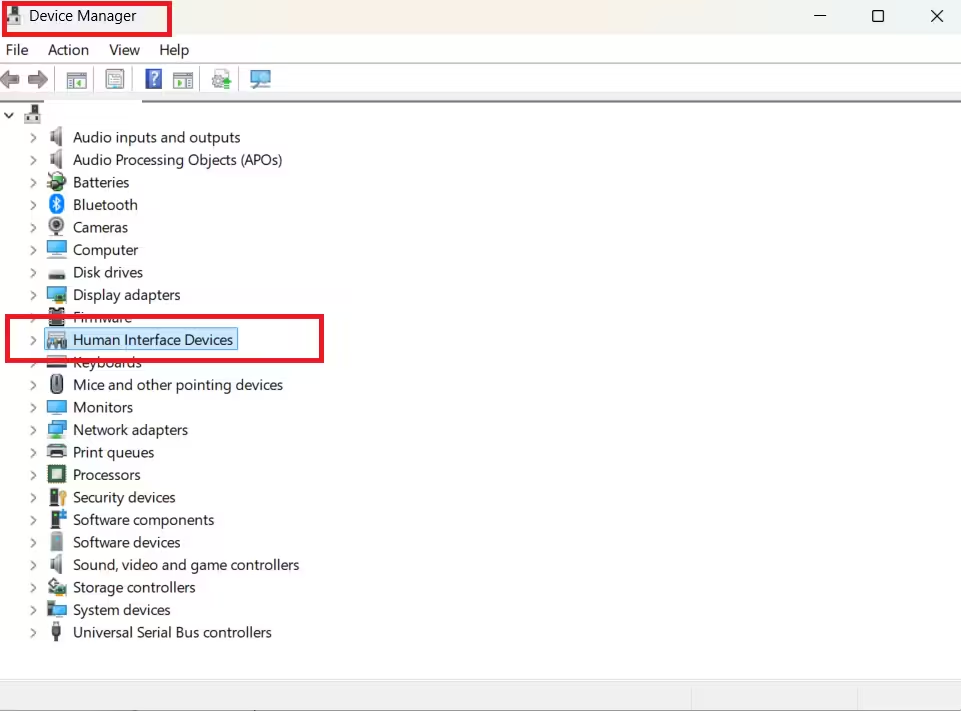
- Right-click any entry tied to your mouse or HID controller and select Uninstall device.
- If a checkbox for “Attempt to remove the driver” appears, leave it unchecked unless you intend a permanent removal.
- Reboot to let Windows rebuild the entries.
Fix 7: Disable USB Selective Suspend and Power Saving
This fix targets one specific pattern: a mouse that works fine before sleep but stops responding after the laptop wakes up.
- Open Device Manager and expand Universal Serial Bus controllers.
- Right-click USB Root Hub, open Properties, then go to the Power Management tab.
- Uncheck Allow the computer to turn off this device to save power.
- Repeat this for every USB Root Hub entry listed, since some laptops have more than one.
Fix 8: Disable Fast Startup
Fast Startup can prevent USB and Bluetooth hardware from fully reinitializing on boot, which shows up as a mouse that works in BIOS but not once Windows loads.
- Open Control Panel and go to Power Options.
- Click Choose what the power buttons do.
- Select Change settings that are currently unavailable.
- Uncheck Turn on fast startup, then save and restart.
Fix 9: Re-Pair the Bluetooth Mouse and Restart the Bluetooth Support Service
For Bluetooth mice specifically, a corrupted pairing state is a common and specific failure point.
- Press
Win + I, go to Bluetooth & devices, turn Bluetooth off, wait 5 seconds, then turn it back on. - Select the mouse entry and choose Remove device, then put the mouse back into pairing mode and use Add device to reconnect.
- Separately, press
Win + R, typeservices.msc, and pressEnter. - Find Bluetooth Support Service, right-click it, and choose Restart. If it will not restart, choose Start instead and test the mouse again.
Fix 10: Check Mouse Settings for Button Mapping and ClickLock
If the cursor moves but clicks do not register correctly, the setting itself may be misconfigured rather than broken.
- Press
Win + I, go to Bluetooth & devices, then open Mouse. - Confirm the Primary mouse button dropdown is set to the button you actually use, since some users unintentionally have it set to right-click as primary.
- Open Additional mouse settings, go to the Pointer Options tab, and make sure Turn on ClickLock is unchecked, since this feature is known to interfere with normal clicking.
Fix 11: Run the Hardware and Devices Troubleshooter
Windows 11 still includes this troubleshooter even though it is no longer surfaced directly in Settings.
- Press
Win + R, typemsdt.exe -id DeviceDiagnostic, and pressEnter. - Follow the on-screen prompts using
Taband the arrow keys to complete the scan.
If Nothing Else Works: Roll Back the Update or Run DISM and SFC
If the mouse broke immediately after a Windows update, roll back that specific update rather than reinstalling Windows.
- Go to
Win + I→ Windows Update → Update history → Uninstall updates, and remove the most recent update. - If the problem persists, open Windows Terminal as admin and run:
Dism /Online /Cleanup-Image /RestoreHealth- Follow it with:
sfc /scannowThese repair corrupted system files that can affect input device handling.
For mice with dedicated software, such as Logitech’s Unifying software or Dell Peripheral Manager, update through that tool as well, since these utilities manage their own firmware and re-pairing separate from Windows Device Manager.
If none of these fixes resolve the issue and the mouse also fails on another device, the hardware itself has likely failed and needs replacement.
Frequently Asked Questions
Will uninstalling the mouse driver in Device Manager delete my files?
No. It only removes the driver entry. Windows redetects and reinstalls the correct driver after a reboot.
Why does my mouse stop working right after Windows login?
This usually points to a startup driver issue or a Bluetooth service that has not started yet. Reinstalling the driver (Fix 5) and restarting the Bluetooth Support Service (Fix 9) resolve most cases.
Could a bad USB cable cause this instead of a software issue?
Yes. If the cursor only works when you move or hold the cable a certain way, test the mouse on another device with a different cable before assuming it is a Windows problem.
Should I reinstall Windows to fix this?
Reserve this as a last resort. Driver reinstalls, USB power settings, and Bluetooth resets fix the vast majority of cases without needing a full reinstall.
Read More:

