Medal is a popular clip recording app for gamers, but a failed installation can stop you from capturing your best moments before you even get started. Most installation failures come down to a handful of known causes, and each one has a direct fix. This guide walks through every working method in order of success rate.
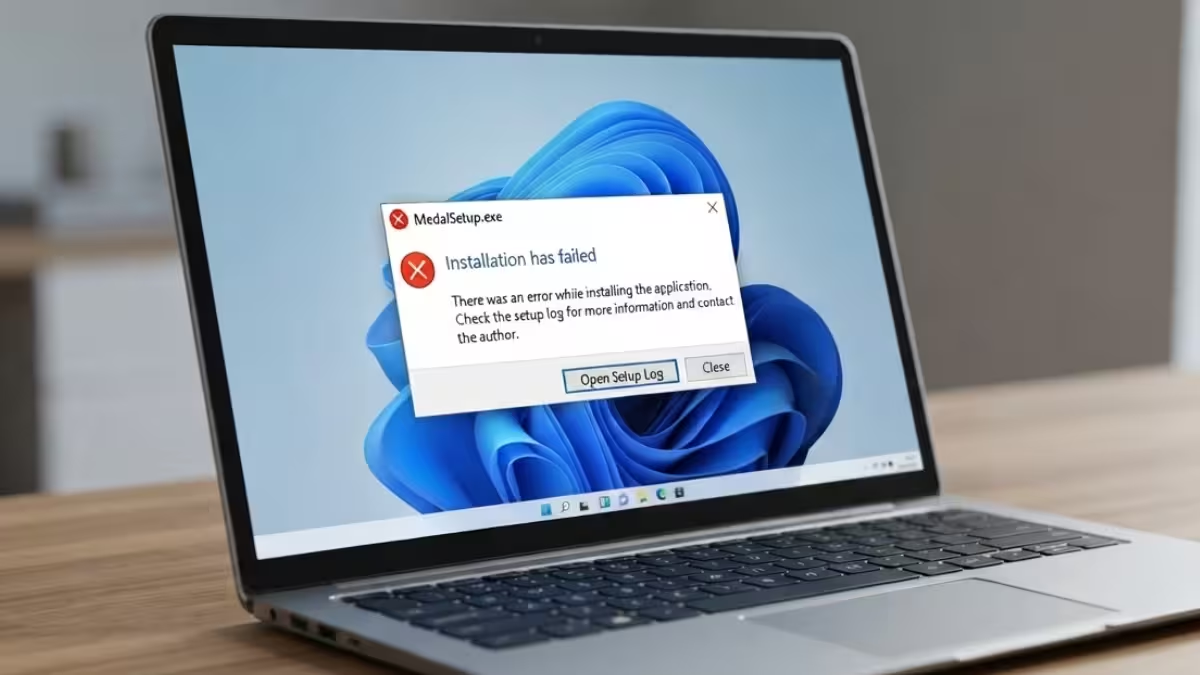
Medal shows this error during setup:
“Installation has failed. There was an error while installing the application. Check the setup log for more information and contact the author.”
What Causes the Medal Installation to Fail
A few specific conditions are responsible for most failed Medal installations on Windows.
- Leftover files from a previous incomplete or improper uninstall
- Windows user permission conflicts that block the setup folder
- An unsupported 32-bit version of Windows
- Antivirus software or Controlled Folder Access quarantining or blocking installer files
- ISP or regional network restrictions blocking access to Medal’s servers
Fix 1: Restart Your PC Before Reinstalling
If Medal’s setup logs show references to the Squirrel Updater, Medal uses the same updater framework as other apps like Discord, so seeing other companies’ installation entries in the log is normal and not the actual error.
If you see the “Installation has Failed” message, restart your PC first, then try installing Medal again. This matters even more if you recently uninstalled Medal, since Windows needs a restart to fully delete all of Medal’s files from your system. Skipping this step can leave old files behind that block the new install.
Fix 2: Force Install Through the User Folder
On Windows systems with multiple user accounts, each with different permissions, Medal’s setup can fail to install to its default location because of a permissions conflict.
To work around this:
- Open File Explorer and go to C: Drive > Users > your PC username.
- Paste the MedalSetup installer file into this folder.
- Run the installer directly from there.
Installing from your own user folder removes the permission conflict that blocks the default install path.
Fix 3: Check Windows Compatibility
Medal only supports 64-bit versions of Windows 8, 10, and 11. If your system is running a 32-bit version, the installation will fail every time, and there’s no workaround except upgrading Windows itself.
On Windows 8 and 10, check your system type this way:
- Open the Start Menu or Search Bar and type This PC.
- Right-click This PC and select Properties.
- Under Device specifications, check the System type field for 32-bit or 64-bit.
If it shows 64-bit, move on to the next fixes below. If it shows 32-bit, Medal cannot be installed on that machine, and you would need to reinstall Windows and select the 64-bit option to run Medal at all.
Fix 4: Run MedalSetup.exe as Administrator
Some installations fail because the setup process needs administrator permissions it isn’t getting by default. Right-click MedalSetup.exe and select Run as administrator.
This fix works best when combined with Fix 5, a full purge and reinstall, rather than used on its own.
Fix 5: Purge and Reinstall Medal
If Medal was previously installed and not uninstalled correctly, corrupted leftover files are often the reason the new installation keeps failing. A Purge performs a full clean reinstall by clearing out these old files before Medal installs again.
Fix 6: Check Your Antivirus Software
Although Medal is whitelisted by most major antivirus programs, some antivirus software may still quarantine specific installer files during setup, which causes the installation to fail or stall. Check your antivirus’s quarantine list and allow Medal’s files if they were flagged.
Fix 7: Disable Controlled Folder Access
Windows’ built-in Controlled Folder Access feature can block installer processes from writing files to protected folders, which can cause Medal’s setup to fail without a clear error message. Turning this off, or adding Medal as an allowed app, resolves installs blocked by this feature specifically.
Fix 8: Lower or Disable UAC
If the fixes above don’t resolve the issue, Windows User Account Control (UAC) set to a high level can prevent Medal from installing.
- Open the Start Menu or Search Bar and type UAC, then select Change User Account Control settings.
- Lower the UAC slider to the lowest level to allow installation, then restore it to your preferred setting afterward.
Fix 9: Use a VPN If Your Region Blocks Access
If your region or ISP blocks access to the websites Medal needs to install or connect, the installation can fail at the download or verification stage. A VPN routes around this restriction. Options mentioned for this include PrivateInternetAccess, ExpressVPN, ProtonVPN, and TunnelBear.
Fix 10: Change Your DNS Settings
An ISP’s DNS can also block access to the specific sites Medal relies on during installation. Switching to a public DNS server bypasses this restriction.
- Open Control Panel and select Network and Sharing Centre.
- Select Change adapter settings.
- Right-click your network adapter and select Properties.
- In the Networking tab, select Internet Protocol Version 4 (TCP/IPv4), then click Properties.
- Choose Use the following DNS server addresses and enter one of these trusted servers:
- Google Public DNS:
8.8.8.8and8.8.4.4(IPv4) - Cloudflare DNS:
1.1.1.1and1.0.0.1(IPv4)
If you’ve worked through all ten fixes above and Medal still won’t install, the issue likely needs a closer look from Medal’s support team. Submit a support ticket with details of which fixes you’ve already tried so they can dig deeper into your specific case.
Frequently Asked Questions
Does Medal support 32-bit Windows?
No. Medal only installs on 64-bit versions of Windows 8, 10, and 11. A 32-bit system cannot run Medal at all.
Why does the Medal setup log mention other companies like Discord?
Medal uses the Squirrel Updater, the same installer framework used by several other apps including Discord. Seeing other companies’ installation entries in the log is normal and not an error on its own.
Do I need to restart my PC after uninstalling Medal?
Yes. Windows needs a restart to fully remove all of Medal’s files after an uninstall. Skipping this can leave behind files that block a clean reinstall.
What is a Purge in Medal, and when should I use it?
A Purge is a complete reinstall that clears out corrupted or leftover files from a previous installation. Use it when Medal was installed before and wasn’t uninstalled correctly.
Read More

