Microsoft is rolling out a new Copilot skill called PC Insights to Windows 11. It lets you ask Copilot plain-language questions about your computer instead of digging through Settings, Task Manager, or File Explorer to find the same information. It’s worth knowing upfront that this is still an opt-in experimental feature, so Microsoft cautions that answers may occasionally be incomplete as the tool continues to evolve.
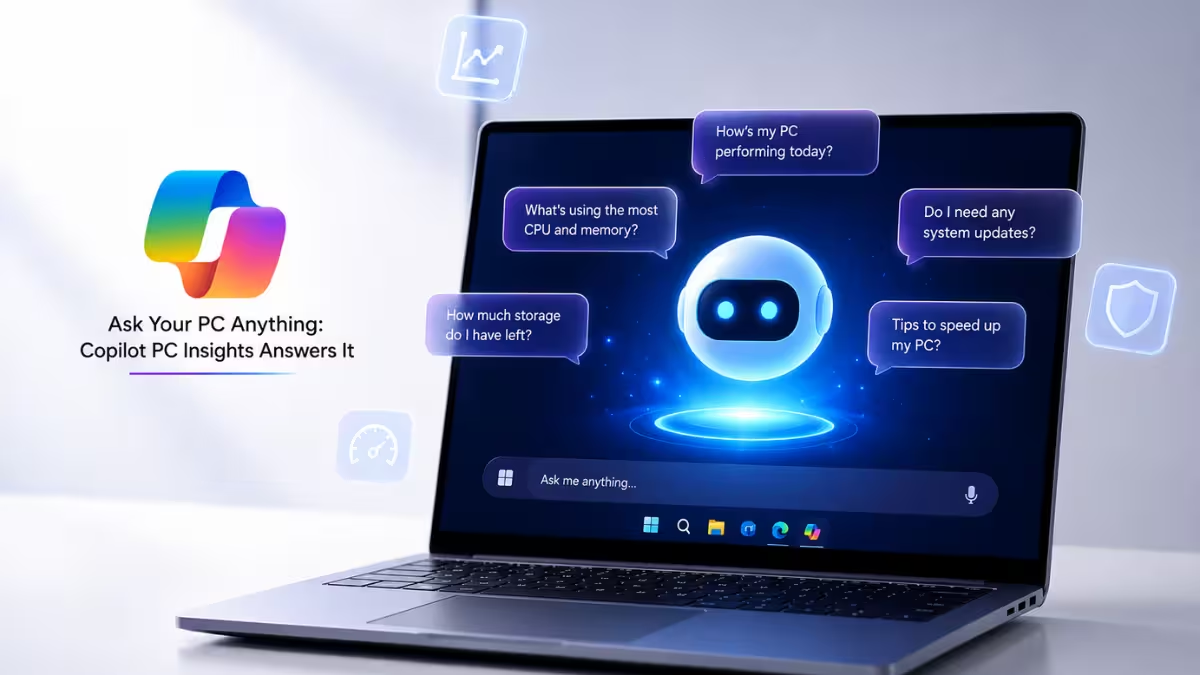
Copilot PC Insights Turns Your PC Into a Q&A Session
PC Insights turns Copilot into a system information assistant. Instead of guessing or relying on general AI knowledge, Copilot pulls live data straight from your PC and answers based on its current state.
Say you want to know how much free storage is left on your drive, whether your webcam is being detected, or what BIOS version you’re running. Instead of digging through three different menus, you type the question into Copilot. Once you give the go-ahead, Copilot pulls the exact data it needs and turns it into a plain-language answer instead of a raw settings dump.
Everything Copilot PC Insights Can See on Your PC
PC Insights covers a wide range of system details once you grant permission for a specific request.
- CPU, RAM, and GPU usage, along with total and available storage space
- Folder and file sizes, including Downloads and Documents, without opening the files themselves
- Connected USB devices, external drives, printers, and webcams
- Wi-Fi and Bluetooth status
- Battery health, antivirus status, BIOS version, and general hardware specifications
Copilot can also combine this local data with information it finds on the web. For example, if you ask whether a specific game will fit on your drive, it checks your free storage and compares it against the game’s listed requirements.
How to Use Copilot PC Insights on Windows 11
Getting started with PC Insights takes just a few steps.
- Install or open the Copilot app for Windows 11 if you don’t already have it.
- Ask a question about your system in natural language, such as whether your antivirus is currently active or how much space is left in your Documents folder.
- Approve the permission prompt Copilot shows before it accesses the relevant data.
- Read the plain-language answer Copilot generates based on your PC’s current state.
You can choose how much access to grant. Copilot gives you three options for each prompt: approve just that one request, switch on ongoing approval for similar questions, or turn the request down entirely for the current session. A session ends when you close the app or restart your PC.
Copilot Can Diagnose Your PC, But It Won’t Fix It
PC Insights is strictly read-only. Copilot can explain why your storage is running low, confirm whether your antivirus is active, or report current CPU usage, but the AI stops short of taking action on any of it. It won’t touch your settings, push driver updates, clear out files, or run a troubleshooting sequence for you. If it spots a potential issue, it can suggest what to do next, but you still have to make the fix yourself.
This limits how far the feature goes, but it also keeps Copilot from making unsupervised changes to your system, which matters for a tool that now has direct visibility into your hardware and files.
Does Copilot PC Insights Store or Train on Your Data?
Microsoft says Copilot waits for your go-ahead before it touches any system data, and it isn’t running quiet background scans of your PC. According to Microsoft’s own PC Insights support documentation, the feature leaves personal file contents untouched unless you specifically grant that access, and none of your files or system details get used to train its AI models. Prompts and responses may still feed into model improvement depending on your privacy settings, so it’s worth checking those settings if that distinction matters to you.
The Catch: Copilot Itself Can Eat Up to 1GB of RAM
There’s a catch worth knowing before you lean on PC Insights to fix a slow PC. The Copilot app for Windows now ships with its own private copy of Microsoft Edge and runs as a full web app, which Windows Latest found pushes its RAM usage up to 1GB even when it’s sitting idle. Testing on other outlets puts the number at roughly half a gigabyte just sitting in the background, and it doesn’t take much interaction for that figure to double. Older, native versions of Copilot barely registered on the RAM meter by comparison.
The bloat traces back to how the app is built now. Rather than a lightweight native client, Copilot runs on a bundled Edge browser engine under the hood, which is also why Task Manager sometimes lists it as “Browser” rather than “Copilot.” On a desktop with plenty of memory to spare, this overhead won’t be noticeable. On an 8GB laptop already running a browser, Outlook, and Teams, it can be the difference between smooth multitasking and visible lag, which is a rough look for a feature whose whole pitch is diagnosing what’s making your PC slow.
Is Copilot PC Insights Available on Your PC Yet?
PC Insights is rolling out gradually and is currently limited to users in the United States. Not everyone with the Copilot Windows app will see the skill yet, and Microsoft has not confirmed a full rollout timeline.
Frequently Asked Questions
Does Copilot PC Insights work offline?
No. Copilot needs an active connection to process your question and, in some cases, combine your system data with information it looks up online.
Can I turn off PC Insights permissions later?
Yes. You can revoke any permission you granted earlier by going to Copilot’s privacy settings at any time.
Will PC Insights slow down my PC?
No. It only pulls data when you ask a question and approve the request. It does not run continuous background scans.
Is PC Insights available on all Windows 11 devices?
Not yet. The feature is rolling out gradually in the United States, so it may not appear in your Copilot app right away even if you’re on the latest version.
Can PC Insights access my work emails, Teams chats, or calendar?
No. PC Insights is limited to your Windows device and doesn’t touch work emails, Teams chats, calendar entries, or other data stored in your organization’s Microsoft 365 environment.

