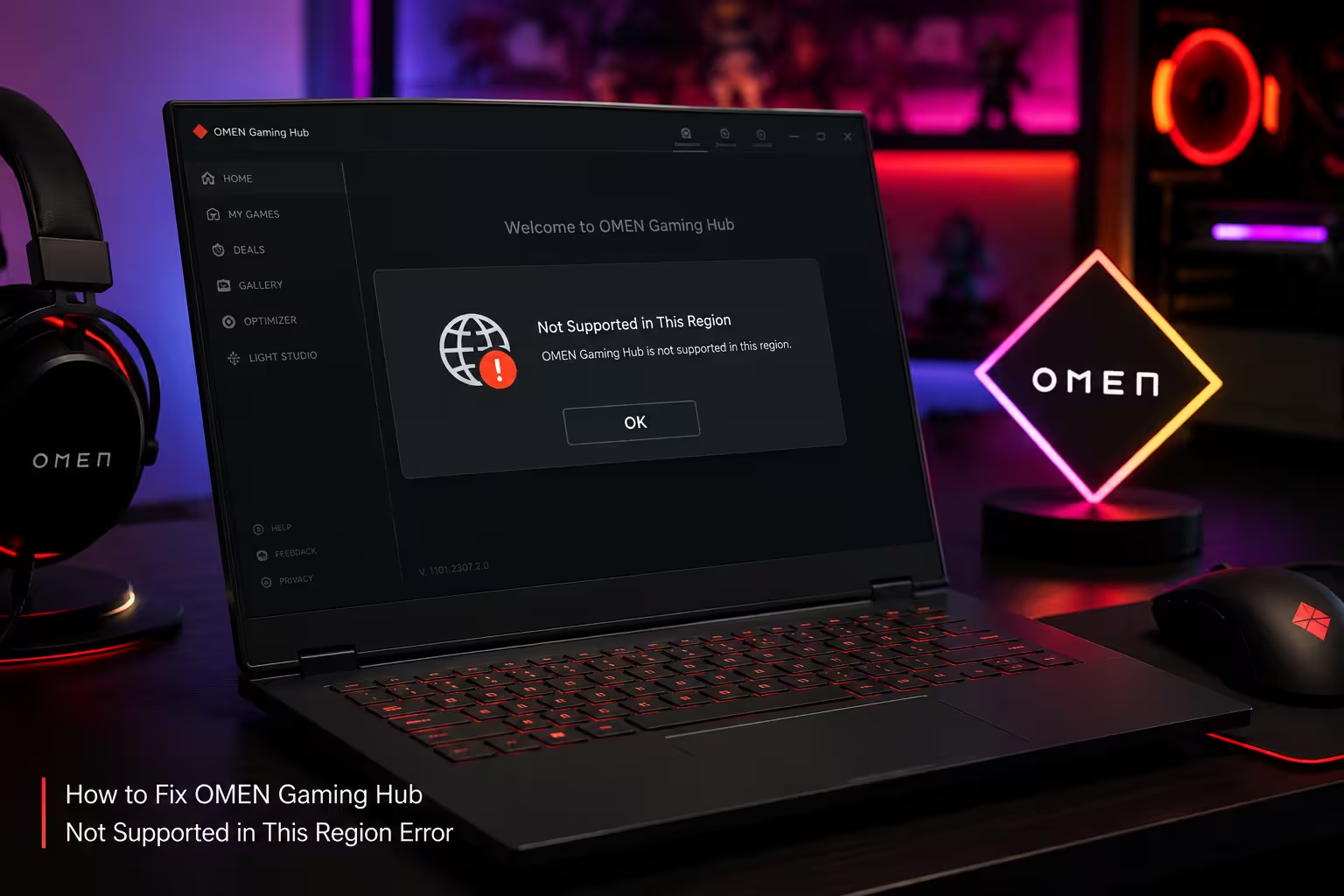
OMEN Gaming Hub sometimes fails to load properly, showing a “Not Supported in This Region” message or opening to a completely blank white or black screen. This usually points to a Microsoft Store account region mismatch or a corrupted app cache rather than an actual regional block. Here is how to fix it.
What Causes the OMEN Gaming Hub Region or Blank Screen Error
A few root causes are behind this issue on most affected systems.
- The Microsoft Store account region does not match the region OMEN Gaming Hub expects for licensing
- The app’s local cache or WebView2 component has become corrupted after an update
- A VPN or proxy is making the app detect the wrong location
- Corrupted Windows system files are preventing the Store app from rendering
- OMEN Gaming Hub was installed through a region where HP has not enabled the service
Fix 1: Check and Correct Your Microsoft Store Region
OMEN Gaming Hub pulls its regional licensing from the Microsoft Store account tied to your Windows profile, so a mismatched region is the most common trigger for this error.
- Press
Win + Ito open Settings - Go to Time & Language then Language & Region
- Confirm the Country or region field matches where you actually live
- Open the Microsoft Store app, click your profile icon, and select Settings
- Under App preferences, scroll to confirm the account region matches your Windows region
- If they do not match, sign out of the Microsoft Store account and sign back in with the correct regional account
- Restart your PC and relaunch OMEN Gaming Hub
Fix 2: Disable VPN or Proxy
A VPN or proxy can make OMEN Gaming Hub detect the wrong location, which directly triggers the region error even when your Windows and Microsoft Store settings are correct.
- Disconnect any active VPN client or browser VPN extension
- Press
Win + Ito open Settings and go to Network & Internet then Proxy - Turn off Use a proxy server if it is enabled
- Restart OMEN Gaming Hub and check if the app loads normally
Fix 3: Repair Corrupted System Files
Damaged Windows system files can prevent Microsoft Store apps like OMEN Gaming Hub from rendering, which can show up as a blank screen.
- Open Command Prompt as administrator
- Run
sfc /scannowand let the scan finish - Run
DISM /Online /Cleanup-Image /RestoreHealth - Restart your PC and relaunch OMEN Gaming Hub
Fix 4: Clear the App Cache and Reset OMEN Gaming Hub
A corrupted cache from a previous update can cause the app to load a blank screen even when the region setting is correct.
- Close OMEN Gaming Hub completely from the system tray
- Open Settings and go to Apps then Installed apps
- Find OMEN Gaming Hub, click the three-dot menu, and select Advanced options
- Click Reset, then confirm
- Also click Repair first if the Reset option does not fully resolve the blank screen
- Reopen OMEN Gaming Hub and let it reload from a clean state
Fix 5: Reinstall Microsoft Edge WebView2 Runtime
OMEN Gaming Hub renders its interface using the WebView2 component, and a missing or outdated version commonly causes a blank white screen.
- Uninstall OMEN Gaming Hub from Installed apps in Settings
- Download the latest Evergreen Bootstrapper from the official Microsoft Edge WebView2 runtime page
- Run the installer and let it complete
- Reinstall OMEN Gaming Hub from the Microsoft Store
- Launch the app and check if the interface now loads correctly
Fix 6: Reinstall OMEN Gaming Hub From the Correct Regional Store Listing
If the app was originally installed while your Microsoft account was set to a different country, reinstalling after correcting the region forces a fresh regional license check.
- Confirm your Microsoft Store region is already corrected using Fix 1
- Uninstall OMEN Gaming Hub completely
- Restart the PC
- Open the Microsoft Store, search for OMEN Gaming Hub, and install it fresh
- Sign in and check whether the region error is gone
Frequently Asked Questions
Why does OMEN Gaming Hub say it is not supported in my region if I already live there?
This happens when the Microsoft Store account region on your Windows profile does not match your actual country, since the app checks the store account setting rather than your physical location.
Will resetting OMEN Gaming Hub delete my saved settings?
Resetting clears cached data and app preferences such as fan curve profiles and performance modes, so it is worth noting your custom settings before resetting.
Does a VPN cause the blank screen or region error?
Yes, running a VPN can conflict with the store’s region check and cause either error, so disable it before troubleshooting further.
Can I fix the blank screen without reinstalling OMEN Gaming Hub?
Yes, repairing the app, clearing its cache, or reinstalling the WebView2 runtime often resolves the blank screen without needing a full reinstall.
Is the region error caused by my actual physical location?
No, the app relies on the region tied to your Microsoft Store account and Windows settings rather than GPS or IP-based location, so correcting those settings usually fixes the error.

