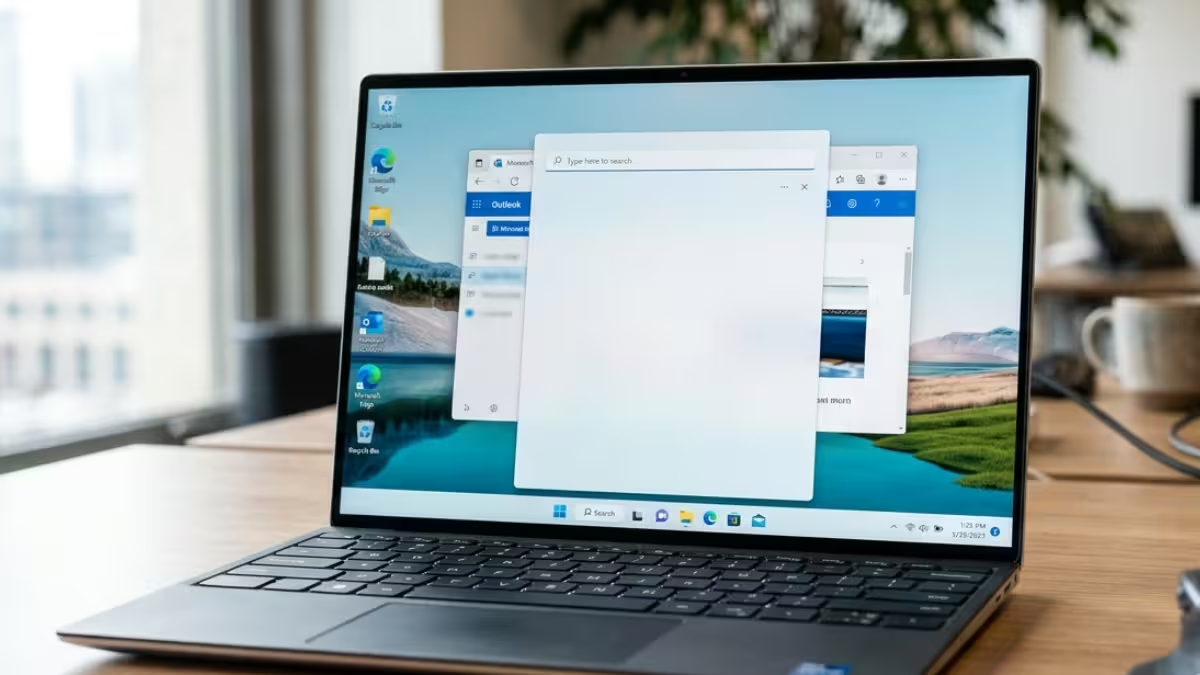
You click the Search icon on Windows 11, and the panel opens to a blank white screen for 15 to 20 seconds before anything loads. Results eventually show up, but the wait makes the feature feel broken. This happens because the Search app’s background permission is restricted, which delays its components from loading in time. The fixes below get rid of the delay and get results appearing instantly again.
What Causes the Windows 11 Search Bar White Screen
The search panel goes white because its background components load late instead of on click.
- The Search app’s background permission is set to a restricted mode instead of Always
- Corrupted cache inside the Search app forces it to rebuild on every launch
- A recent Windows update reset the app’s background settings
- SearchHost.exe fails to render its UI before pulling in results data
- The GPU fails to repaint the search panel properly, leaving it stuck white until the display refreshes
Fix 1: Force a Quick Graphics Refresh
Try this first if the panel looks frozen or stuck white rather than slowly loading.
- Press
Win + Ctrl + Shift + Btogether - The screen goes black for a moment and you’ll hear a short beep
- This forces Windows to restart the graphics driver and repaint the display
- Reopen the search bar to check if it now renders normally
This works when the white screen is a rendering glitch rather than the Search app genuinely being slow. If the panel still shows white after this, move to the fixes below since the cause is likely tied to the app’s own settings instead of the display.
Fix 2: Allow Search to Run in the Background
This is the setting responsible for the delay in most cases.
- Open the Search bar and leave it open instead of closing it right away
- Wait roughly 15 to 20 seconds until the word “Get Started” appears inside the panel
- Right-click “Get Started” and select App settings to open the Search app’s own settings page
- Scroll to Background app permissions and switch the value to Always
With this enabled, Search can prepare its components ahead of time in the background, so nothing has to load from scratch the moment you click the icon.
Fix 3: Repair and Reset the Search App
Corrupted internal state inside the Search app can keep causing the delay even after the permission change.
- On the same App settings page, select Repair first
- Repair patches broken files inside the app while leaving your data untouched
- If the delay continues, go back and run Reset instead
- Reset wipes the app’s cached data and gives it a fresh start without touching your files or the main Windows search index
Fix 4: Restart Windows Search Service
Restarting the service forces SearchHost to reload cleanly.
- Press
Win + R, typeservices.msc, and press Enter - Find Windows Search in the list
- Right-click it and select Restart
- Close and reopen the search bar to check if results now appear instantly
Fix 5: Rebuild the Search Index
A stalled or corrupted index can leave the panel blank while it tries to catch up.
- Open Control Panel and go to Indexing Options
- Select Advanced, then choose Rebuild
- Let the process finish in the background, since it can take a while depending on how many files are indexed
- Test the search bar again once indexing completes
Fix 6: Run System File Checker
Corrupt system files can affect how the Search UI renders.
- Open Command Prompt as administrator
- Run
sfc /scannowand let it finish scanning - If it reports errors it can’t fix, run
DISM /Online /Cleanup-Image /RestoreHealthto repair the underlying Windows image the OS relies on, a fix also recommended on the Microsoft Q&A forum for this exact issue - Restart your PC once both commands complete
Restart Your PC After Applying the Fixes
A restart after changing background permissions or resetting the app helps the fix stick.
Permissions apply fully, SearchHost components reload without leftover state, and Explorer stabilizes. Open the search bar again after rebooting to confirm the white screen delay is gone.
If the Problem Returns After a Few Days
A recurring white screen usually points back to the same setting getting reset.
- Background app permissions were changed again, sometimes by a system cleanup tool
- A Windows update reset the Search app’s settings
- Third party debloat or optimization tools disabled background permissions
Recheck the Background app permissions setting first since it resolves the issue again in most repeat cases.
Frequently Asked Questions
Does resetting the Search app delete my files?
No. Resetting only clears the app’s cached data and restarts it in a clean state. Your files and Windows search index stay untouched.
Why does the search bar only turn white in Dark theme?
Some systems keep the search panel background white even after switching to Dark theme due to a leftover registry value under the Search Flighting key. Switching the default app mode or restarting the Windows Search service usually corrects it.
Is the white screen delay linked to high RAM or GPU usage?
Yes, in some cases. The Search interface runs as a web based process, and when it malfunctions, it can consume extra memory and GPU resources while it struggles to render, which is more noticeable on systems with 8GB of RAM or less.
Will changing background app permissions affect other apps?
No. The Background app permissions setting inside Search’s own App settings page only controls the Search app. It does not change background permissions for any other app on your system.
Do I need admin rights to fix this?
Changing the Background app permissions setting and using Repair or Reset don’t need admin rights. Running sfc /scannow and DISM /Online /Cleanup-Image /RestoreHealth does require an administrator Command Prompt.
Read More

