Windows Sandbox gives you a temporary, isolated desktop environment for testing untrusted apps and files without risking your main system. It runs as a separate, disposable instance of Windows on top of your existing installation, so anything you download, install, or run inside it stays completely walled off from your real files, drivers, and registry. This makes it useful for opening suspicious email attachments, trying out software from unfamiliar sources, or testing installers before rolling them out on a production machine.
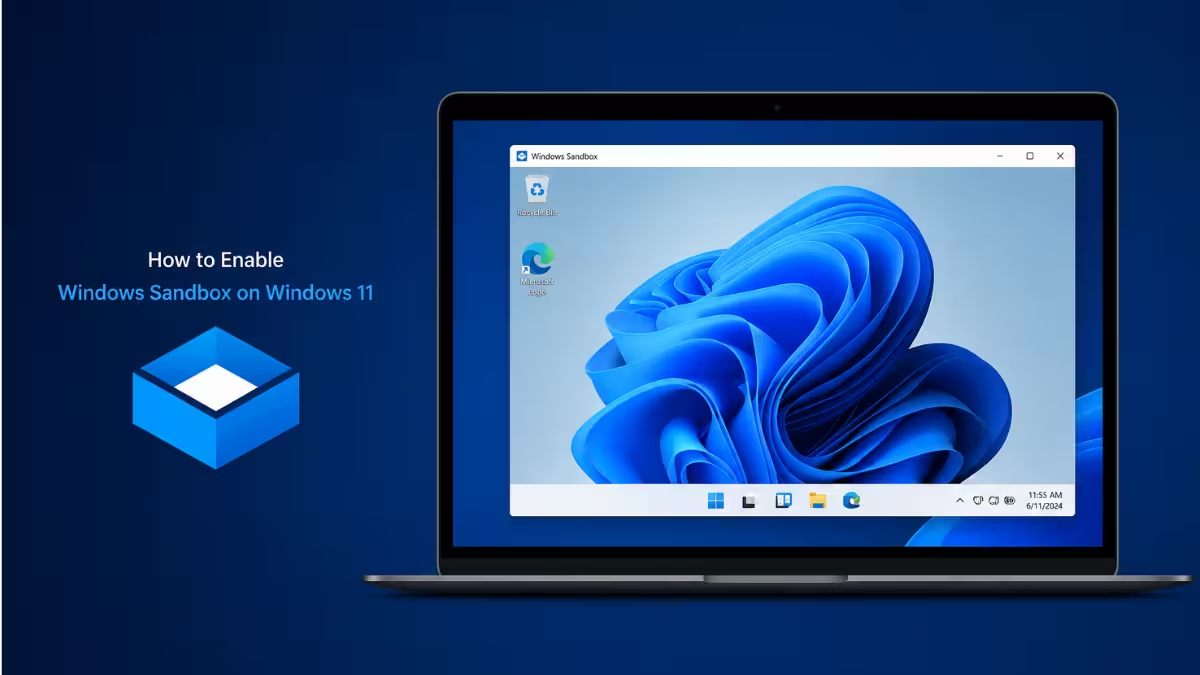
Unlike a full virtual machine, it needs no separate disk image or setup wizard, since it uses your existing Windows installation. On Windows 11 version 22H2 and later, data persists through restarts you trigger from inside the sandbox itself, though the entire environment is still wiped the moment you close the window. Network access is also enabled by default inside the sandbox, which is worth turning off if you are opening something you don't fully trust. Here is how to turn it on and start using it on both Windows 11 and Windows 10.
What Is Windows Sandbox
Windows Sandbox is a lightweight virtual machine built into Windows that runs a clean copy of Windows for temporary use. Everything inside it is discarded the moment you close it, so nothing you install or run there affects your actual PC.
Beyond testing unknown installers, it is also useful for secure browsing of unfamiliar websites, demoing new software before committing to a full install, and running a separate sandbox for each version of a dev tool or language you need to test against.
Requirements Before You Enable It
Check these requirements first, since Windows Sandbox will not enable without them.
- Windows 11 Pro, Enterprise, or Education (Home edition does not support it)
- Windows 10 Pro, Enterprise, or Education, version 1903 or later, build 18362 or later
- 64-bit processor with virtualization support enabled in the BIOS or UEFI
- At least 4 GB of RAM (8 GB recommended)
- At least 1 GB of free disk space (SSD recommended)
- At least 2 CPU cores (4 cores with hyperthreading recommended)
Method 1: Enable Virtualization in BIOS/UEFI
Windows Sandbox depends on hardware virtualization, so this needs to be turned on before Windows will let you enable the feature.
- Restart your PC and enter BIOS/UEFI setup (usually by pressing
F2,F10,Del, orEscduring startup, depending on your motherboard). - Look for a setting named Intel VT-x, Intel Virtualization Technology, or AMD-V under CPU or Advanced settings.
- Set it to Enabled.
- Save changes and exit (usually
F10). - Once Windows boots, open Task Manager, go to the Performance tab, and confirm Virtualization shows as Enabled.
Method 2: Enable Windows Sandbox via Settings
On Windows 11 24H2 and later, the Settings app is the primary way to turn on Windows Sandbox, replacing the older Windows Features route for most users.
- Open Settings.
- Click System.
- Click Advanced.
- Click Virtual Workspaces.
- Turn on the Windows Sandbox toggle.
- Click Restart now to apply the change.
Method 3: Enable Windows Sandbox via Windows Features
This method still works on both Windows 11 and Windows 10, and remains the only option on builds where the Settings toggle is not yet available.
- Press
Win + R, typeoptionalfeatures, and press Enter. - In the Windows Features window, scroll down and check the box next to Windows Sandbox.
- Click OK and wait for Windows to apply the changes.
- Restart your PC when prompted.
- After restart, search for "Windows Sandbox" in the Start menu and open it to confirm it launches correctly.
Method 4: Enable Windows Sandbox Using PowerShell
If neither of the above panels shows the option, or you prefer a command-based method for scripting across multiple PCs, PowerShell works as an alternative.
- Right-click Start and select Windows Terminal (Admin) or PowerShell (Admin).
- Run the following command:
Enable-WindowsOptionalFeature -FeatureName "Containers-DisposableClientVM" -All -Online- Restart your PC when the command finishes.
- Open Windows Sandbox from the Start menu to verify it works.
Disable Windows Sandbox
If you no longer need the feature, you can turn it off using whichever method you used to enable it.
- Settings: Go back to Settings > System > Advanced > Virtual Workspaces and turn the Windows Sandbox toggle off, then restart.
- Windows Features: Open
optionalfeatures, clear the Windows Sandbox checkbox, click OK, then restart. - PowerShell: Run
Disable-WindowsOptionalFeature -FeatureName "Containers-DisposableClientVM" -Onlineas administrator, then restart.
Why Windows Sandbox May Not Be Available on Your PC
- Virtualization is disabled in BIOS/UEFI, or the PC is running inside another virtual machine
- The Windows edition is Home, which does not support Windows Sandbox
- Windows is not fully updated to a build that includes the feature
- Another hypervisor (such as VirtualBox in certain configurations) is conflicting with Hyper-V based virtualization
Frequently Asked Questions
Which Windows editions support Windows Sandbox?
Windows Sandbox is available on the Pro, Enterprise, and Education editions of Windows 11 and Windows 10. It is not supported on the Home edition.
What happens to files and apps after closing Windows Sandbox?
Everything inside Windows Sandbox is discarded the moment you close it. Installed apps, downloaded files, and any changes made during the session do not carry over to the next time you open it.
Why is the Windows Sandbox option missing from Windows Features or Settings?
This usually happens because the PC is running Windows Home, virtualization is disabled in BIOS/UEFI, or another hypervisor is conflicting with the virtualization components Sandbox depends on.
Does Windows Sandbox use a lot of disk space?
The base image is small, around 100 MB, though usage grows temporarily while a session is running. All of that space is reclaimed automatically once the Sandbox window is closed.
Can I run multiple Windows Sandbox instances at once?
No. Windows Sandbox currently supports only one running instance at a time.
Does Windows Sandbox have internet access by default?
Yes. Networking is enabled by default inside Windows Sandbox. If you are testing something untrusted, you can disable it using a Windows Sandbox configuration file
Related Tech How-To
- How to Enable Hyper-V on Windows 11: Step-by-Step Guide
- How to Install VMware Workstation Pro 25H2 on Windows 11 (Free)
- Windows 11 Requirements for VMware and Hyper-V (Complete Setup Guide)
Errors & Fixes