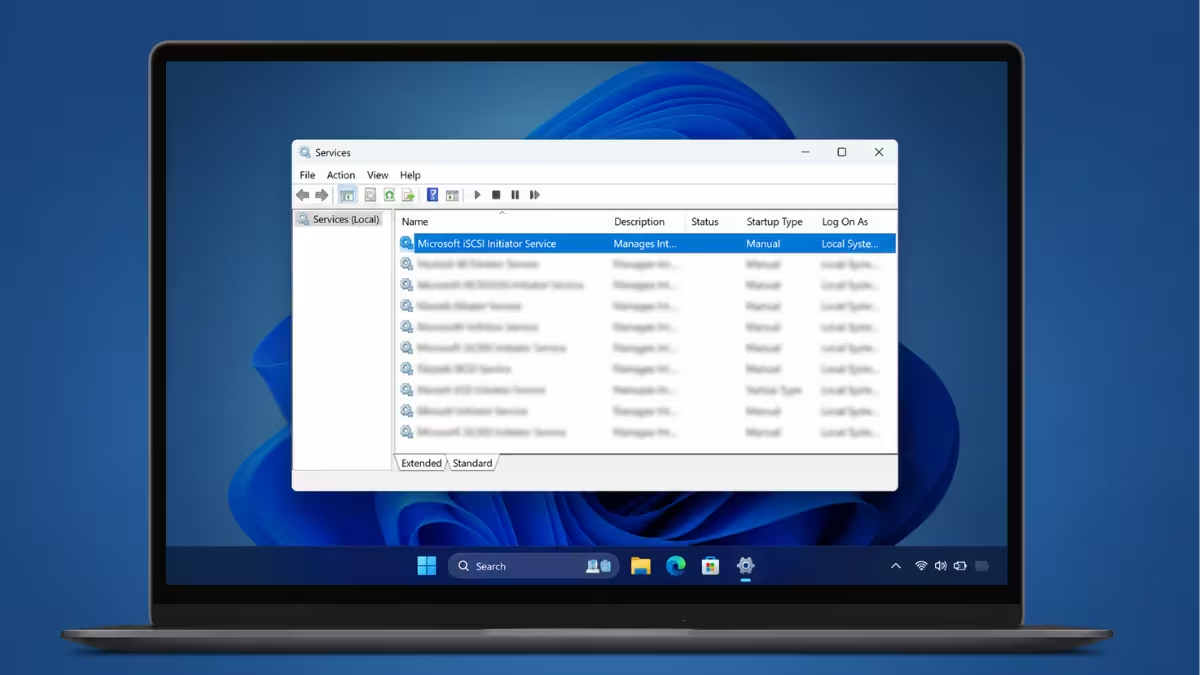
The Microsoft iSCSI Initiator Service (MSiSCSI) connects a Windows 11 machine to remote storage devices such as NAS or SAN over a network. When this service refuses to start, access to that storage is lost immediately. This post covers how to fix the Microsoft iSCSI service not running error on Windows 11.
What Causes the Microsoft iSCSI Service Not Running Error
This error usually points to a service configuration or permissions problem rather than a hardware fault.
- The MSiSCSI service is set to Manual or Disabled instead of Automatic.
- The Windows Event Log service, which MSiSCSI depends on, is stopped or has broken registry permissions.
- The account running the service lacks the required permissions.
- Corrupted service registry entries are blocking startup.
- The iscsiexe.dll file the service depends on is missing or corrupted.
Fix 1: Start the iSCSI Service Manually
The Services app lets you start MSiSCSI directly and check its current status.
- Press
Win + R, typeservices.msc, and press Enter. - Scroll down and locate Microsoft iSCSI Initiator Service.
- Right-click it and select Start.
- If it starts without error, right-click again, choose Properties, and set Startup type to Automatic.
- Click Apply, then OK.
If the service fails to start from here, the error message usually names the specific fault, which narrows down the next step.
Fix 2: Restart Windows Event Log and Fix Its Registry Permissions
MSiSCSI depends on the Windows Event Log service, so a stuck Event Log or broken registry permissions on it will block MSiSCSI with an Access Denied error.
- Open
services.msc, locate Windows Event Log, and confirm Startup type is Automatic and Status is Running. - If it is stopped, right-click and select Start. If it is already running, right-click and select Restart.
- Press
Win + R, typeregedit, and press Enter. - Navigate to
HKEY_LOCAL_MACHINE\SYSTEM\CurrentControlSet\Services\EventLog\System. - Right-click the System key, select Permissions, and confirm SYSTEM has Full Control.
- Add NETWORK SERVICE to the list and grant it Read permission.
- Close Registry Editor and try starting the iSCSI service again.
Fix 3: Force-Start the Service Using PowerShell
If the Services window does not respond or the Start button stays greyed out, PowerShell can start the service directly.
- Press
Win + R, typepowershell, and press Ctrl + Shift + Enter to open it as administrator. - Run the following command to start the service immediately:
Start-Service -Name MSiSCSI- Run the following command to set it to start automatically on every boot:
Set-Service -Name MSiSCSI -StartupType Automatic- Restart the computer and confirm the service stays running.
Fix 4: Reset Service Permissions via Command Prompt
Incorrect permissions on the service can silently block it from starting even when configured correctly.
- Press
Win + R, typecmd, and press Ctrl + Shift + Enter to open an elevated Command Prompt. - Run the following command to reset the service security descriptor:
sc sdset msiscsi D:(A;;CCLCSWRPWPDTLOCRRC;;;SY)(A;;CCDCLCSWRPWPDTLOCRSDRCWDWO;;;BA)(A;;CCLCSWLOCRRC;;;IU)(A;;CCLCSWLOCRRC;;;SU)- Restart the computer.
- Open
services.mscand confirm Microsoft iSCSI Initiator Service now starts and stays running.
Fix 5: Restore a Missing or Corrupted iscsiexe.dll File
The MSiSCSI service depends on iscsiexe.dll in the System32 folder, and a missing or corrupted copy stops the service from starting.
- Open File Explorer and navigate to
C:\Windows\System32. - Search for
iscsiexe.dlland confirm it exists. - If the file is missing, insert a Windows 11 installation USB or mount the ISO.
- Open an elevated Command Prompt and run the following, replacing
D:with the installation media’s drive letter:
expand D:\sources\install.wim /F:iscsiexe.dll C:\Windows\System32- Restart the computer and check whether the service starts without the error.
The Microsoft iSCSI service not running error on Windows 11 is almost always tied to service startup settings, the Event Log dependency, or permissions rather than the storage hardware itself. Working through the service configuration, Event Log fix, and permission resets in order resolves the issue in most cases.
Frequently Asked Questions
Why does Windows say the Microsoft iSCSI service is not running?
This message appears when the MSiSCSI service is set to Manual or Disabled, or when a dependency like Windows Event Log has stopped or has broken permissions.
Is it safe to set the Microsoft iSCSI service to Automatic?
Yes, setting it to Automatic only affects the iSCSI Initiator service itself and does not change any other Windows startup behavior.
Why does starting the iSCSI service give an Access Denied error?
This usually happens when the Windows Event Log service is stopped or its registry permissions have been changed, since MSiSCSI depends on it to start.
Can I fix this error without editing the registry?
Yes, Fix 1 and Fix 3 use the Services app and PowerShell only, and resolve the issue for most users without touching the registry.
Do I need Windows installation media to fix this error?
Only if the cause is a missing or corrupted iscsiexe.dll file, which is covered in Fix 5. The other fixes do not require installation media.
