Old or unused user accounts take up storage space, clutter the sign-in screen, and can leave stale data behind on a shared PC. Windows 11 offers several built-in ways to remove a local or Microsoft account: through Settings, Control Panel, Command Prompt, Netplwiz, or PowerShell. Each method handles the account’s files a little differently, so it helps to know which one to use and what to expect before deleting an account.
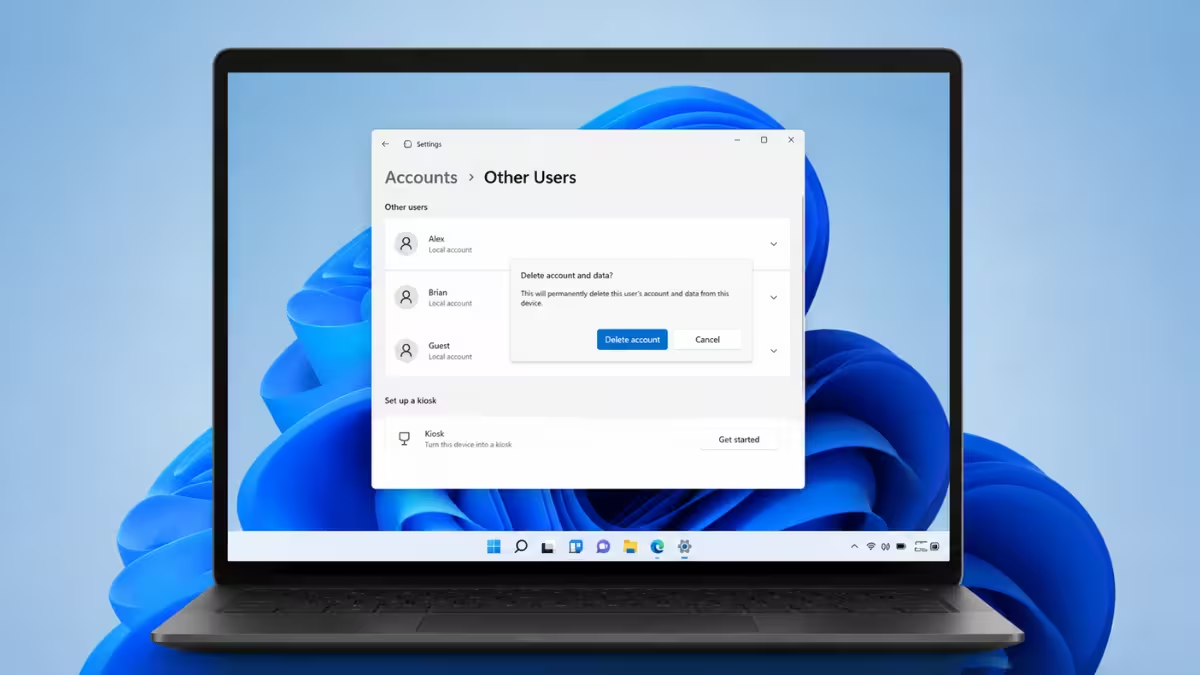
Method 1: Delete a User Account via Settings
The Settings app is the easiest way to remove a user account on Windows 11.
- Open Settings using
Win + I. - Go to Accounts > Other users.
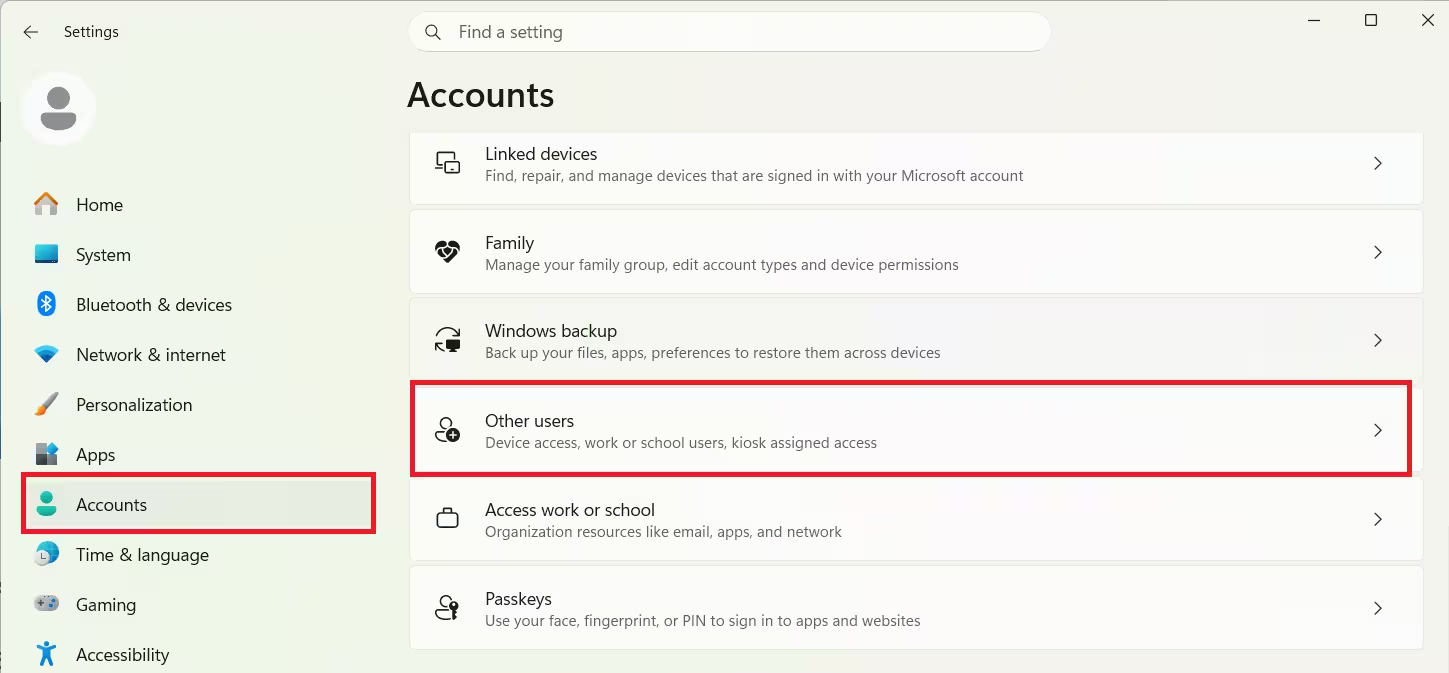
- Select the account to remove.
- Click Remove.
- Confirm by selecting Delete account and data.
Selecting delete account and data permanently removes the account’s files unless they are backed up beforehand.
Method 2: Delete a User Account via Control Panel
Control Panel still works for account management on Windows 11 and gives more control over what happens to the account’s files.
- Open Control Panel and go to User Accounts > Manage another account.
- Select the account to delete.
- Click Delete the account.
- Choose to Keep Files or Delete Files.
Keeping files saves the account’s desktop, documents, favorites, music, pictures, and videos to a folder on the desktop before the account is removed.
Method 3: Delete a User Account via Command Prompt
Command Prompt is useful for quickly removing an account without navigating menus.
- Open Command Prompt as administrator.
- Run the following command, replacing “username” with the actual account name:
net user "username" /deleteThis command removes the account immediately, but it does not delete the account’s user folder from C:\Users or its Registry profile entry, so both need to be removed manually if no longer needed.
Method 4: Delete a User Account via Netplwiz
Netplwiz offers a quick way to remove a local account without going through Settings or Control Panel.
- Press
Win + R, typenetplwiz, and press Enter. - Select the account to remove.
- Click Remove.
- Confirm by clicking Yes.
Netplwiz removes the account but leaves the user’s folder and Registry profile entry behind, so manual cleanup is needed afterward.
Method 5: Delete a User Account via PowerShell
PowerShell works well for administrators managing accounts through scripts or on remote machines.
- Open Start, search for PowerShell, right-click the top result, and select Run as administrator.
- Run the following command to view all accounts:
Get-LocalUser- Run the following command to delete the account, replacing “Username” with the actual account name:
Remove-LocalUser -Name "Username"This command deletes the account but does not remove its user folder or Registry profile, so those need to be cleaned up separately.
How to Clean Up Leftover Files and Registry Entries
Netplwiz, Command Prompt, and PowerShell all remove the account without deleting its files or Registry profile. These leftovers need to be removed manually.
Delete the user folder:
- Open File Explorer and go to
C:\Users. - Right-click the deleted account’s folder.
- Click Delete.
Delete the Registry profile entry:
- Open Registry Editor.
- Navigate to
HKEY_LOCAL_MACHINE\SOFTWARE\Microsoft\Windows NT\CurrentVersion\ProfileList. - Select each subkey and check the ProfileImagePath value to identify the deleted account.
- Right-click the matching subkey and click Delete.
Back up the Registry before making changes, since incorrect edits can cause system instability.
What Causes Account Deletion Issues
- The account being deleted is the one currently signed in, which Windows does not allow.
- The signed-in account does not have administrator privileges.
- The account is a domain or work/school account managed by an organization policy.
- Files in the account’s user folder are open in another program during deletion.
Frequently Asked Questions
Can I recover a deleted user account on Windows 11?
No, once an account and its data are deleted, Windows does not provide a built-in way to restore them unless a backup was made beforehand.
Does deleting a Microsoft account from a PC delete the account itself?
No, removing a Microsoft account from a Windows 11 PC only removes local access. The Microsoft account remains active and accessible from other devices.
Where are the kept files stored after deleting a Control Panel account?
Windows saves them to a folder on the desktop of the account that performed the deletion, named after the deleted account.
Why can’t I delete a user account on Windows 11?
This usually happens if the account is currently signed in, the signed-in user lacks administrator rights, or the account is managed by a work or school organization policy.
Does the net user command delete the account’s files?
No, running net user "username" /delete removes the account itself but leaves the user folder in C:\Users untouched, so it needs to be deleted manually if no longer needed.

