Your Windows 11 username appears on the login screen, Start menu, and user folder. Whether you set it up incorrectly or just want a fresh name, changing it takes only a few minutes. This guide covers every method, including Microsoft accounts, local accounts, and the command line.
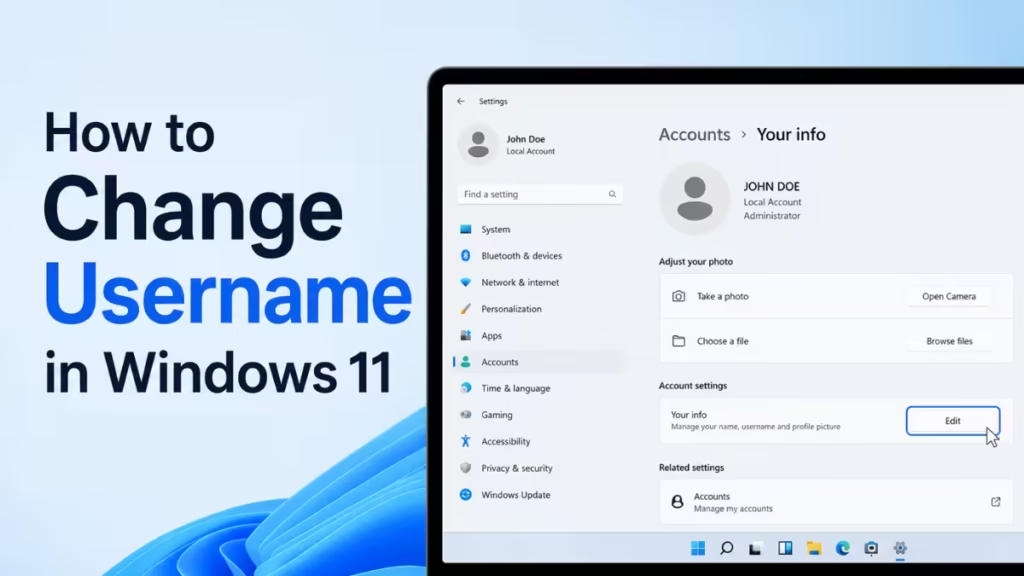
Method 1: Change Your Microsoft Account Display Name (Online)
If you sign into Windows 11 with a Microsoft account, your display name is tied to your online profile. You change it from the Microsoft website, not from within Windows.
- Open a browser and go to account.microsoft.com.
- Sign in with your Microsoft account credentials.
- Click Your info at the top.
- Select Edit name.
- Enter your new first and last name. The combined first and last name supports up to 64 characters.
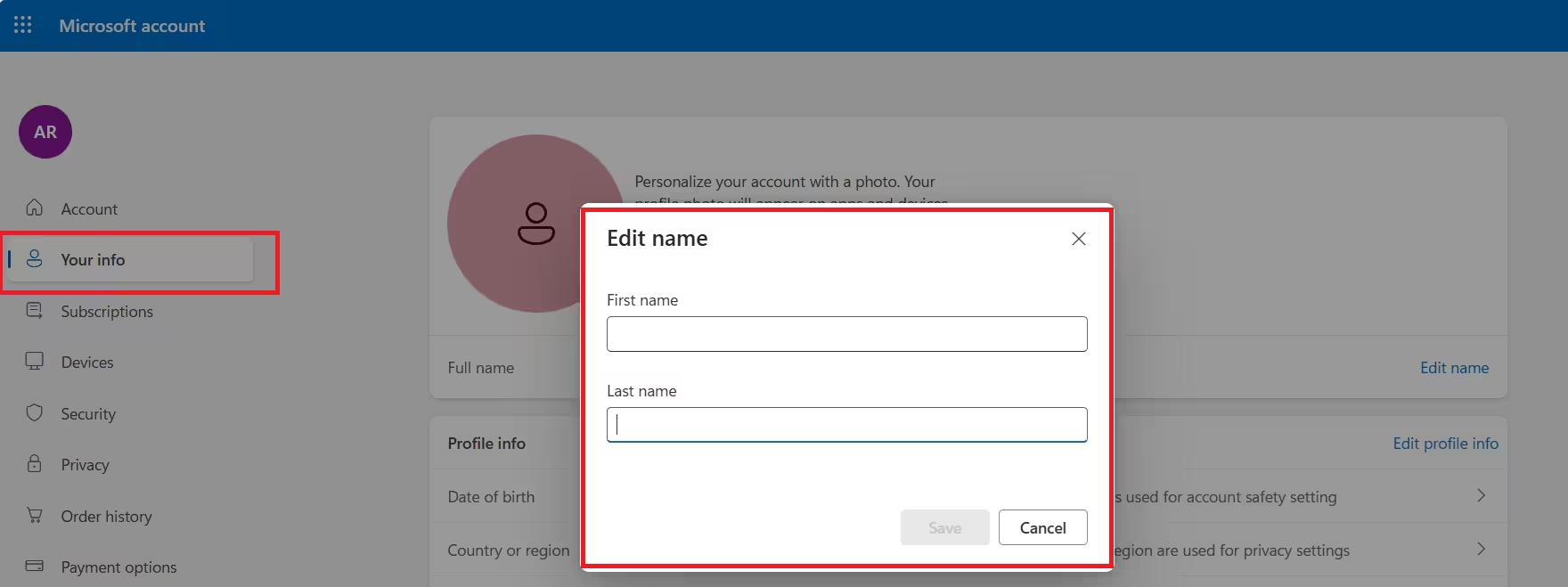
- Complete the CAPTCHA and click Save.
- Sign out of Windows and sign back in. The new name appears on the Start menu and lock screen within a few minutes.
Primary alias limit: You can change your Microsoft account primary alias (the email or phone number used to sign in) only twice per week. Display name changes through Edit name have no such restriction.
Note: Name changes can take up to 24 hours to update everywhere across Microsoft services. This also does not rename your user profile folder (C:\Users\YourName).
Gamertag: Changing your Microsoft display name does not change your Xbox gamertag. To update your gamertag, visit your Xbox profile settings separately.
Work or school account: If your Windows 11 device is linked to a work or school account, your display name is managed by your organization. You cannot change it yourself. Contact your IT administrator to request a name update.
Method 2: Change a Local Account Username via Settings
For local accounts, you can rename your account directly from Windows Settings.
- Press Windows + I to open Settings.
- Go to Accounts > Your info.
- Scroll down and click Manage my accounts or look for the account name displayed at the top.
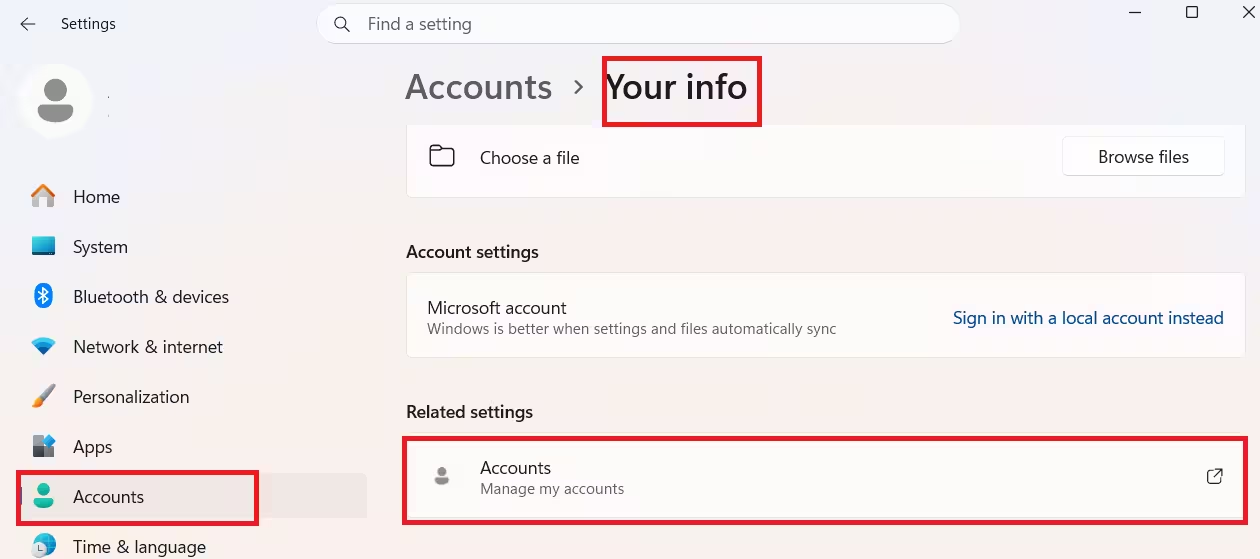
- If you see an option to sign in with a Microsoft account instead, skip it.
- Open the Start menu, search for Control Panel, and open it. (Settings does not expose a direct rename option for local accounts, so Control Panel is the faster path.)
Method 3: Change a Local Account Username via Control Panel
This is the most reliable method for local accounts.
- Press Windows + R, type
control, and press Enter. - Click User Accounts.
- Click User Accounts again.
- Select Change your account name.
- Type your new username in the text field. Local account usernames support up to 20 characters.
- Click Change Name.
- Restart your PC for the change to take full effect on the login screen.
Tip: This method changes your account display name but does not rename your user profile folder under C:\Users.
Method 4: Change Username via netplwiz (User Accounts Panel)
The netplwiz tool gives you direct access to all user accounts on the PC.
- Press Windows + R, type
netplwiz, and press Enter. - Select the account you want to rename under the Users tab.
- Click Properties.
- In the User name field, type the new username.
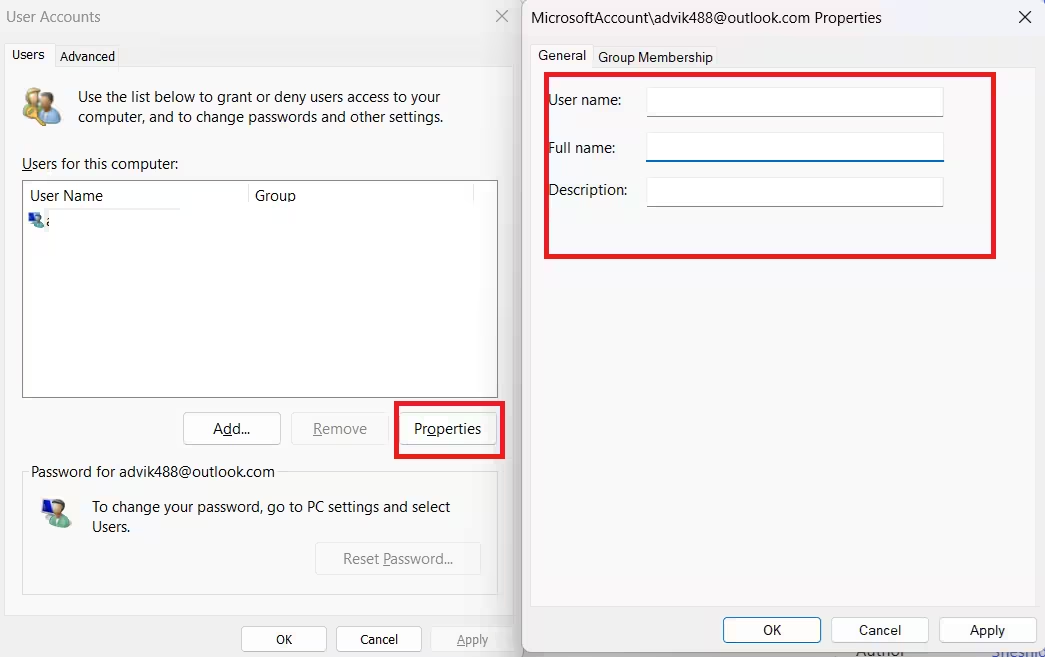
- You can also update the Full name and description fields here.
- Click Apply, then OK.
- Restart your PC.
Method 5: Change Username Using Command Prompt
If you prefer the command line, you can rename a local account in seconds.
- Press Windows + S, type cmd, right-click Command Prompt, and select Run as administrator.
- Run this command, replacing the names with your own:
wmic useraccount where name="OldUsername" rename "NewUsername"- Press Enter. You should see the message: Method execution successful.
- Restart your PC.
To list all user accounts on your PC first, run:
wmic useraccount get nameMethod 6: Rename the User Profile Folder (Advanced)
The methods above change your account display name. They do not rename the folder at C:\Users\OldName. If you want the folder name to match, follow these steps carefully, as mistakes can prevent Windows from loading your profile.
- Create a new temporary administrator account.
- Sign out of your main account and sign into the temporary one.
- Press Windows + R, type
netplwiz, and rename the main account using Method 4 above. - Open File Explorer, navigate to C:\Users, and rename the folder to your new username.
- Open the Registry Editor (press Windows + R, type
regedit, press Enter). - Navigate to:
HKEY_LOCAL_MACHINE\SOFTWARE\Microsoft\Windows NT\CurrentVersion\ProfileList - Find the key whose ProfileImagePath value points to your old folder (e.g.,
C:\Users\OldName). - Double-click ProfileImagePath and update the path to the new folder name.
- Close Registry Editor, sign out of the temporary account, and sign back into your main account.
- Verify everything works, then delete the temporary administrator account.
Warning: Back up your files before editing the registry. A typo in the registry path can make your profile inaccessible.
Which Method Should You Use?
| Situation | Best Method |
|---|---|
| Microsoft account user | Method 1 (online via account.microsoft.com) |
| Local account, quick rename | Method 3 (Control Panel) |
| Rename with full control | Method 4 (netplwiz) |
| Command line preferred | Method 5 (CMD) |
| Rename profile folder too | Method 6 (Advanced) |
Frequently Asked Questions
Does changing my username delete my files?
No. Changing the display name does not affect your files, apps, or settings.
Why does my old name still show in C:\Users?
The methods above change only the account display name. Renaming the profile folder requires the advanced steps in Method 6.
Can I change another user’s name on Windows 11?
Yes. Open netplwiz or Control Panel > User Accounts, select the other account, and follow the same steps. You need administrator rights.
Will this affect my Microsoft account password?
No. Changing your display name does not change your password or email address.
Is there a character limit for usernames?
Yes. Local account usernames support up to 20 characters. Microsoft account first and last names combined support up to 64 characters.
How often can I change my Microsoft account name?
You can change your display name as often as you want. However, you can only switch your primary alias (the email or phone number used to sign in) twice per week.
Does changing my display name update my Xbox gamertag?
No. Your Microsoft display name and Xbox gamertag are separate. You need to change your gamertag from your Xbox profile settings independently.

