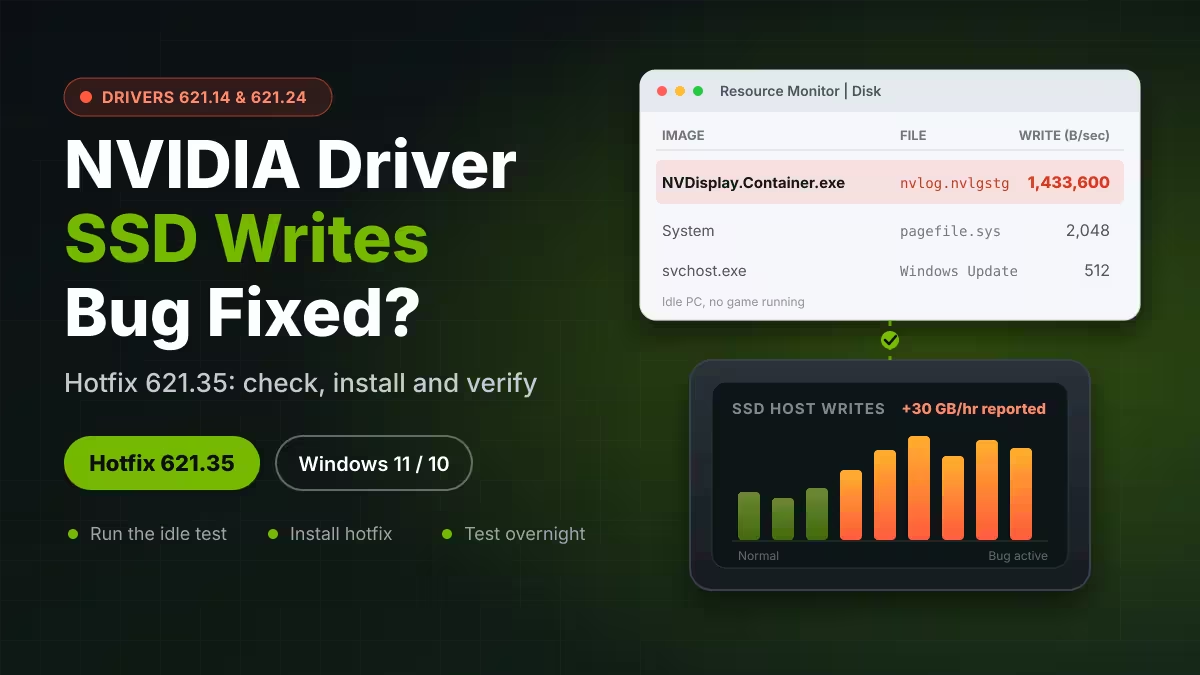
NVIDIA has shipped GeForce Hotfix Display Driver 621.35 to stop a driver bug that keeps writing data to your SSD while the PC sits idle. The bug lives in Game Ready drivers 621.14 and 621.24, and it makes the NVIDIA Display Container process rewrite a small log file over and over. On some systems, that adds up to gigabytes of pointless writes every hour.
If you run a GeForce card on one of those drivers, you should confirm whether your PC has the problem, install the hotfix if it does, and then keep an eye on it for a day. Early user tests show that a quick check right after installation does not always tell the whole story.
NVIDIA SSD Writes Bug: Quick Fix Steps
- Affected drivers: Game Ready 621.14 and 621.24.
- Fix: install Hotfix 621.35 from NVIDIA's support site, then test again after an overnight idle period.
- If the writes return: clear the log file, or roll back to 621.01 (RTX 40 Series and older only).
Why NVDisplay.Container.exe Keeps Writing to Your SSD
The culprit is NVDisplay.Container.exe, the background process behind the NVIDIA Display Container LS service. This service powers the NVIDIA Control Panel and parts of the NVIDIA App, so it runs on almost every GeForce PC.
On the affected drivers, the process keeps overwriting a binary log file called nvlog.nvlgstg. You will find it here:
C:\ProgramData\NVIDIA Corporation\nvtopps\nct\nvlog.nvlgstg
The file size barely changes, which is why most people never notice anything. Each rewrite still sends fresh data to the drive, so the write counter keeps climbing even when you are not gaming, browsing or doing anything at all.
Users reported a wide range of numbers:
- A Windows 11 PC with an RTX 4070 Super logged about 515MB of process writes in just five idle minutes. The same test on driver 621.01 stayed under 2MB.
- The system drive on that PC recorded roughly 270MB of real writes in the same window, which matched the SSD's SMART counter.
- One user on 621.24 described close to 30GB of writes per hour, and more than 70GB across long sessions, even with NVIDIA App telemetry switched off.
- An idle RTX 4090 reportedly wrote around 1.43MB every second with ShadowPlay, Highlights and the overlay disabled.
Not every PC shows the bug. Some users on the same drivers saw normal disk activity, so you need to test your own system before you change anything.
Resource Monitor vs SSD SMART: Why the Write Numbers Don't Match
You may notice that Windows reports more writes from the NVIDIA process than your SSD actually records. That gap is normal.
Resource Monitor counts what an application asks Windows to write. Windows then caches and combines some of those requests before it sends them to storage. Your SSD's SMART data, shown as Total Host Writes or Data Units Written on NVMe drives, counts what actually reached the drive controller.
So the process figure shows how busy the bug keeps the driver, while the SMART figure shows the real wear on your SSD. You want both numbers when you test.
Is Your PC Affected? Test Idle Disk Writes in Windows 11
Start by checking your driver version in the NVIDIA App or NVIDIA Control Panel. If you are not on 621.14 or 621.24, this bug is probably not the cause of any disk activity you see.
If you are on one of those versions, run this quick test:
- Press Win + R, type
resmon, and press Enter to open Resource Monitor. - Switch to the Disk tab.
- Expand Processes with Disk Activity and click the Write (B/sec) column to sort it.
- Leave the PC alone for a few minutes and watch for NVDisplay.Container.exe.
- Expand Disk Activity and look for repeated writes to nvlog.nvlgstg.
If the process keeps writing to that file every few seconds while the PC does nothing, your system has the bug.
Measure the Real SSD Writes
For a more accurate picture, check the SSD itself:
- Open CrystalDiskInfo or your SSD maker's own utility.
- Note the Total Host Writes or Data Units Written value for your system drive.
- Let the PC idle for 30 to 60 minutes. Close sync apps and pause Windows Update first so they do not skew the result.
- Read the counter again and subtract the first value.
If the tool shows the raw NVMe counter, multiply the difference by 512,000 to get an approximate byte count. If it rounds to whole gigabytes, use a longer idle period so the change shows up clearly.
NVIDIA Hotfix 621.35: What It Fixes and Where to Download It
NVIDIA released Hotfix 621.35 on November 20. The release notes list the fix as bug 7116722, which covers excessive background writes to nvlog.nvlgstg.
Keep these details in mind before you install it:
- The hotfix builds on Game Ready Driver 621.24, so you keep all the fixes from that release.
- NVIDIA labels it an optional beta driver. It goes through a shorter QA process than regular WHQL releases.
- It supports 64-bit Windows 10 and Windows 11.
- You will not get it through the NVIDIA App. You need to download it from NVIDIA's driver support page.
- NVIDIA plans to roll the fix into its next WHQL-certified Game Ready driver.
To install it:
- Download the 621.35 hotfix installer from NVIDIA's support site.
- Open your Downloads folder in File Explorer.
- Double-click the installer and follow the prompts.
- Restart the PC when the installer asks you to.
If you prefer certified drivers and your PC does not show the bug, you can skip the hotfix and wait for the next WHQL release, then update the graphics driver the usual way.
Why a Quick Check After Installing 621.35 Isn't Enough
Do not trust a single check right after a reboot. Several users saw almost no activity in the first hour after installing 621.35, and then watched the writes come back.
One RTX 4090 owner on Windows 11 reported clean results at first. After about nine hours of idle time, the NVIDIA process had logged another 40.85GB of writes, and the SSD host write counter had grown by 36GB. Other users on X and Reddit described similar overnight jumps.
These remain a handful of user reports, not a large, controlled test. They still give you a good reason to verify properly:
- Repeat the Resource Monitor check after the PC has settled from startup.
- Note your SSD's host write counter before you go to bed.
- Leave the PC idle overnight.
- Check the counter again in the morning.
If the overnight number looks normal for your usage, the hotfix works on your system. If it jumps by tens of gigabytes, move on to the workarounds below.
Workarounds If Hotfix 621.35 Doesn't Stop the Writes
Every option here has a trade-off, and none of them counts as a complete fix.
| Option | What it does | Downside |
|---|---|---|
| Restart the PC and test again | Rules out a one-off glitch | Does not help if the bug truly returns |
| Roll back to driver 621.01 | Users report normal write levels on this version | Can bring back video playback freezes and black screens on some RTX 50 Series cards |
| Stop the service and delete the log | Cuts writes sharply for a while | The service recreates the file and the writes return |
| Set the service to Manual | Stops the writes completely | Breaks the NVIDIA Control Panel and NVIDIA App |
Roll Back to Driver 621.01
Driver 621.01 came out before the bug, and users consistently report normal disk activity on it. One test showed only about 260KB of writes over a full hour.
RTX 50 Series owners should avoid this step. NVIDIA released 621.14 specifically to fix playback freezes and black screens that 621.01 caused on some RTX 50 cards. RTX 40 Series and older cards do not face that issue.
To roll back through Device Manager:
- Right-click Start and open Device Manager.
- Expand Display adapters, right-click your NVIDIA card and choose Properties.
- Open the Driver tab and click Roll Back Driver.
- Pick a reason, confirm with Yes, and restart if prompted.
If the button appears grayed out, Windows has no older driver saved. In that case, download 621.01 from NVIDIA's driver archive and install it manually. Our guide on how to use DDU walks you through removing the current driver first.
After the rollback, you can disable automatic driver install so Windows does not replace 621.01 on its own.
Clear the Log File as a Stopgap
You can reset the log to buy some time:
- Press Win + R, type
services.msc, and press Enter. - Find NVIDIA Display Container LS, right-click it and choose Stop.
- Delete
nvlog.nvlgstgfromC:\ProgramData\NVIDIA Corporation\nvtopps\nct\. - Return to the service and click Start.
One user saw writes drop by about 91% after this. The file grows back over time, so you will need to repeat it.
What Not to Try: DDU Reinstalls and Telemetry Toggles
- Clean reinstalls with DDU. One user ran three DDU clean installs on 621.24 and saw no change, because the bug sits in the driver itself.
- Turning off NVIDIA App telemetry. A user who had telemetry disabled still saw the writes.
- Deleting the log file without stopping the service. The process simply writes it again.
How Much SSD Life Do These Extra Writes Actually Use?
Not much, but you should not ignore it either.
SSDs store data on NAND flash, which wears a little with every write. Manufacturers express that limit as a TBW (terabytes written) rating. A typical 1TB drive, such as the Samsung 9100 PRO, carries a 600TBW warranty rating.
At the lighter measured rate of about 270MB every five minutes, a PC that never shuts down would add roughly 28TB of writes per year. That eats close to 5% of a 600TBW drive's rating annually. At the heavier 30GB per hour figure, eight hours of daily use would consume about 15% of that rating each year.
A healthy SSD will not die overnight from this. Wear leveling spreads writes across the flash, and most drives outlast their TBW ratings. Still, a graphics driver has no reason to burn through your drive's endurance while the PC idles. Smaller and budget drives with lower TBW ratings have the most to lose, so owners of those should act sooner.
If your SSD already shows declining health in CrystalDiskInfo, back up your important files now, whether or not this bug affects you.
Related Bug: AMD's Adrenalin 26.11.1 SSD Write Fix
NVIDIA is not alone here. AMD recently fixed a bug in its Radeon drivers where the AMD External Events Utility (atieclxx.exe) wrote roughly 5MB per second to storage, which could exceed 400GB a day. AMD patched it in Radeon Software Adrenalin Edition 26.11.1.
The two bugs involve different components. AMD's issue came from repeated file copying, while NVIDIA's comes from a log file that keeps rewriting itself. Both show how much damage a background helper can do when nobody watches its disk activity.
Frequently Asked Questions
Which NVIDIA drivers cause excessive SSD writes?
Game Ready drivers 621.14 and 621.24 cause the bug. Driver 621.01 and earlier do not show it, and Hotfix 621.35 targets the fix.
What is nvlog.nvlgstg?
It is a binary log file that the NVIDIA Display Container service maintains. It sits in C:\ProgramData\NVIDIA Corporation\nvtopps\nct\. On the affected drivers, the service rewrites it constantly instead of adding to it.
Can I get Hotfix 621.35 through the NVIDIA App?
No. NVIDIA distributes this hotfix only through its support website. You need to download and run the standalone installer.
Is Hotfix 621.35 safe to install?
It builds on the stable 621.24 Game Ready driver, but NVIDIA treats it as an optional beta with lighter testing. Most users can install it safely. If your PC runs fine and shows no excessive writes, you can wait for the next WHQL driver instead.
Will disabling the NVIDIA Display Container service fix the problem?
Setting the service to Manual stops the writes, but it also breaks the NVIDIA Control Panel and NVIDIA App. Use it only if you never need to change graphics settings through those tools.
Should RTX 50 Series owners roll back to 621.01?
No. Driver 621.01 can cause video playback freezes and black screens on some RTX 50 Series cards. Those owners should stay on Hotfix 621.35 and clear the log file if writes return.
Does this bug damage my SSD?
It adds unnecessary wear but does not cause immediate failure. The real impact depends on how long the bug runs and your drive's TBW rating. Reports so far describe wasted endurance, not dead drives.
Related Guides
- How to Use DDU to Remove GPU Drivers Completely on Windows 10 and 11
- How to Update Graphics Driver in Windows 11 (Step-by-Step Guide)
- How to Disable Automatic Driver Install on Windows 11 (5 Ways)
- How to Fix Blue Screen After Installing Graphics Driver
- NVIDIA Control Panel Officially Discontinued After 20 Years: Here Is What Changes