Windows lets you switch the display language, add new languages, and adjust keyboard layouts without reinstalling the operating system. This guide focuses on Windows 11, with Windows 10 steps included wherever the process differs.
How to Check What Languages Are Installed on Windows
Before you switch languages, confirm which ones are already installed on your system.
- Open Settings.
- Click Time & language.
- Click Language & region.
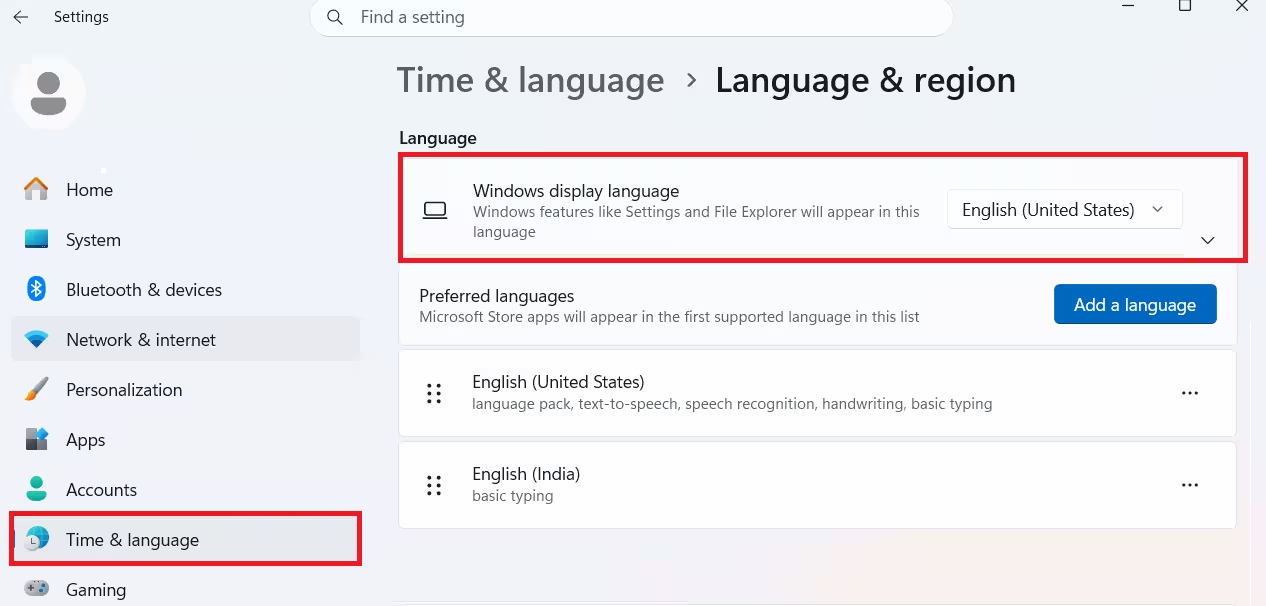
The Language section lists every language currently installed on your device.
How to Install a Language Pack on Windows 11
Windows must download a language pack before you can use it as your display language. Connect your device to the internet first, since the system fetches the pack online.
- Open Settings and go to Time & language > Language & region.
- Click Add a language next to Preferred languages.
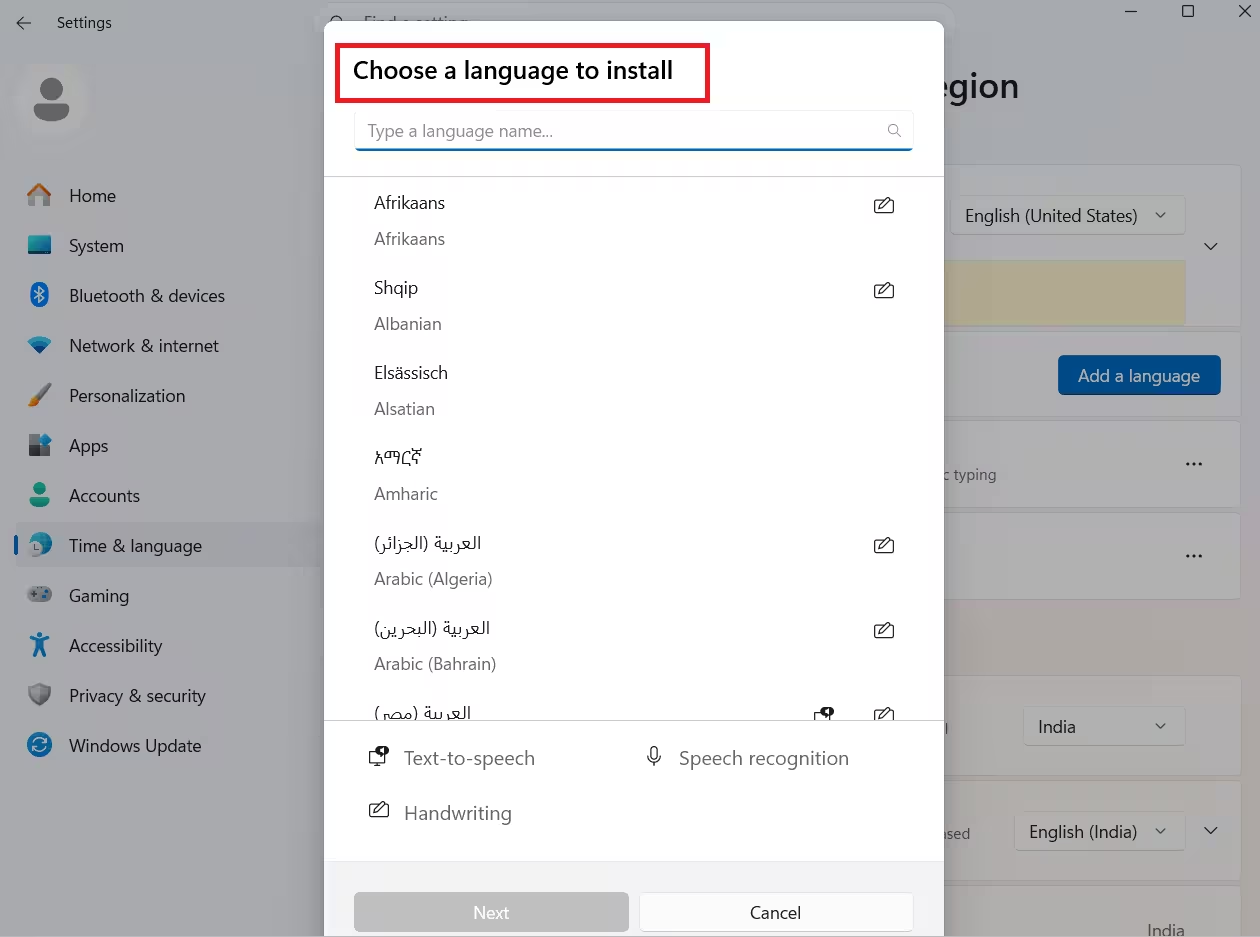
- Type the language name or scroll the list, then select it and click Next.
- Confirm Language pack is checked under Optional language features. Add extras like speech recognition if you need them.
- Check Set as my Windows display language if you want this language to become the default.
- Click Install.
Windows downloads and installs the language in the background. You can track the progress in the language list. Once the install finishes, the new language appears under the Language section.
If you selected it as your display language, Windows asks you to sign out. Click Sign out when prompted. If the button doesn’t appear, right-click Start, choose Shut down or sign out, then select Sign out. Sign back in and Windows applies the new display language automatically.
Keep in mind that switching the display language can also change your keyboard layout to match. Check the input language icon on the sign-in screen before you type your password, since an unexpected layout can cause login errors. You can switch the keyboard layout from that same icon without changing the display language.
On Windows 10
- Open Settings > Time & Language > Language.
- Under Preferred languages, click Add a language.
- Search for the language or country name and select it from the results.
- Click Next.
- Check Install language pack.
- Check Set as my Windows display language.
- Add any extra features you need, such as text-to-speech or handwriting support.
- Click Install.
- Click Yes, sign out now and sign back into your account.
Windows 10 updates the language across the sign-in screen, Settings app, File Explorer, desktop, apps, and browser.
How to Change the Display Language on Windows 11
The display language controls the text shown across the Windows interface, including the Settings app and File Explorer. Switching it also moves that language to the top of your Preferred languages list, which determines the language Microsoft Store apps and websites use.
- Make sure the language you want is already installed. If not, install it first using the steps above.
- Save your work and close open apps.
- Open Settings > Time & language > Language & region.
- Select your preferred language from the Windows display language drop-down menu.
If the language you want doesn’t show up in this menu, you need to install it first. After you select a new display language, Windows prompts you to sign out. Click Sign out, then sign back in to apply the change.
Some languages aren’t fully localized, so a few elements may still show up in the first fully localized language on your Preferred languages list.
On Windows 10
- Open Settings > Time & Language > Language.
- Under Preferred languages, select the language you want as your display language.
- Click Set as default if the option appears.
If the language isn’t in your Preferred languages list yet, install it first using the steps in the How to Install a Language Pack on Windows 11 section above, since installing a language pack on Windows 10 also gives you the option to set it as the display language. After the change applies, sign out and sign back in to see the new language across the interface.
How to Change Microsoft Store and Website Language on Windows 11
You can set a different language for Microsoft Store apps and websites than the one Windows uses for its interface.
- Open Settings > Time & language > Language & region.
- Under Preferred languages, find the language list showing your current order.
- Drag the language you want apps and websites to use to the top of the list, or use the menu next to a language entry to move it up.
The first supported language in this list determines what Microsoft Store apps and websites display, separately from your Windows display language.
On Windows 10
- Open Settings > Time & Language > Language.
- Under Preferred languages, select the language you want apps and websites to use.
- Click Move up to bring it to the top of the list.
Windows 10 uses the topmost supported language in this list for Microsoft Store apps and websites, even if your display language stays the same.
How to Add or Remove a Keyboard Layout on Windows 11
- Open Settings > Time & language > Language & region.
- Click the language you want to manage, then click Language options.
- Under Keyboards, click Add a keyboard and choose the layout you need.
- To remove one, click the layout and select Remove.
On Windows 10
- Open Settings > Time & Language > Language.
- Click the language you want to manage, then click Options.
- Under Keyboards, click Add a keyboard and select the layout you need.
- To remove a layout, click it and select Remove.
How to Change Region Settings on Windows 11
If you moved to a new location, update your region settings alongside your language settings.
- Open Settings > Time & language > Language & region.
- Under the Region section, set Country or region to your current location.
- Adjust Regional format to match local date and time formats. Click Change formats for more control over the calendar, first day of the week, and time format.
- Click Administrative language settings under Related settings.
- Open the Administrative tab and click Change system locale.
- Select the new locale and click OK.
- Click Copy settings, then check Welcome screen and system accounts and New user accounts.
- Click OK, then OK again, and Restart now.
Your device applies the new region settings after it restarts.
On Windows 10
- Open Settings > Time & Language > Region.
- Set Country or region to your current location.
- Select the correct date and time formats under Regional format.
- Click Language, then click Administrative language settings under Related settings.
- Open the Administrative tab and click Change system locale.
- Pick the new locale from the drop-down menu and click OK.
- Click Copy settings on the Administrative tab.
- Check Welcome screen and system accounts and New user accounts, then click OK twice.
- Click Restart now to apply the changes.
Changing the region also affects which Microsoft Store apps and services are available, since some content is restricted by location. If an app you need isn’t showing up in your region, switching the region setting can sometimes restore access.
How to Disable Language Sync on Windows 10
If you sign in with a Microsoft account, Windows 10 can sync your language preferences across devices. Turn this off if you only want the change to apply to the current device. This option is exclusive to Windows 10. Windows 11 removed the individual sync settings page, so there’s no toggle to disable language sync specifically on Windows 11.
- Open Settings and click Accounts.
- Click Sync your settings.
- Turn off the Language preferences toggle under Individual sync settings.
Changing the language in Windows takes only a few clicks once you know where to look in Settings. Install the language pack first, set it as your display language, then adjust the keyboard layout and region settings to match. These steps work the same way whether you’re setting up a new device or switching languages after moving to a different country.

