If Device Manager shows the message Windows cannot initialize the device driver for this hardware (Code 37), the driver installed for that device failed to initialize. Windows loads the driver, but the DriverEntry routine returns an error, so the device sits in a broken state until you resolve it.
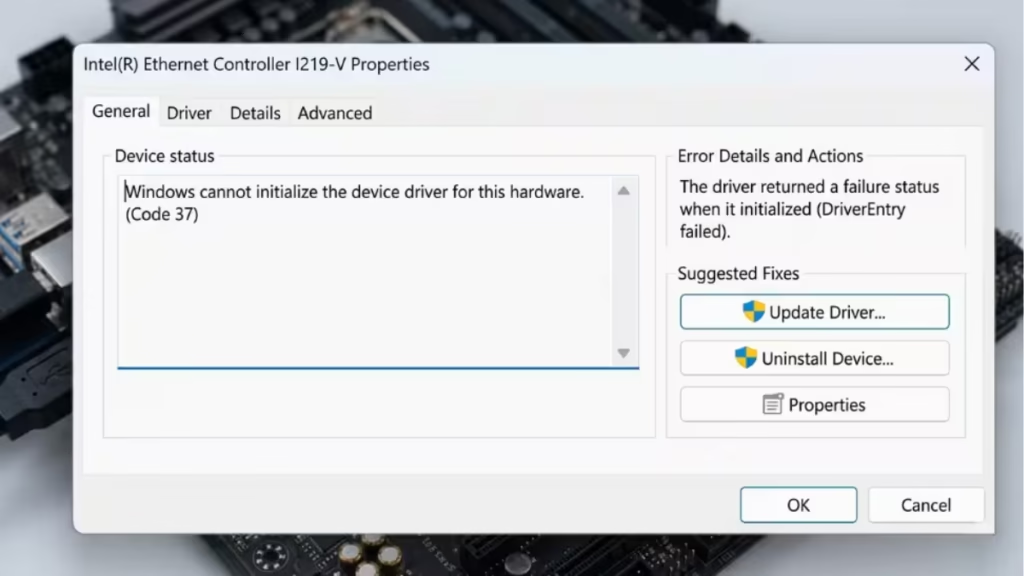
Code 37 appears on USB devices, optical drives (Blu-ray, DVD, CD), video cards, and other hardware. The fixes below work on Windows 11, Windows 10, Windows 8, and Windows 7.
Why Windows Cannot Initialize the Device Driver for This Hardware
The DriverEntry routine runs every time Windows loads a driver. When it returns a failure code, Windows marks the device with Code 37 and stops it from working. Common reasons this happens:
- The installed driver is corrupted
- The driver version does not match your Windows edition (32-bit driver on 64-bit Windows, for example)
- Registry filter values are damaged
- Corrupted Windows system files prevent the driver from loading
Code 37 is one of several Device Manager error codes that point to a driver initialization failure rather than a hardware failure.
How to Find Code 37 in Device Manager
- Press Win + R, type
devmgmt.msc, and click OK. - Expand the device category with the problem device.
- Right-click the device and select Properties.
- Check the Device status area. It will read: Windows cannot initialize the device driver for this hardware. (Code 37)
Fix 1: Restart Your Computer
A temporary driver fault sometimes clears itself after a restart. Before trying anything else, restart your PC and reopen Device Manager to see if Code 37 is still present.
Fix 2: Scan for Hardware Changes
Windows can detect and reinstall a driver automatically through a hardware scan.
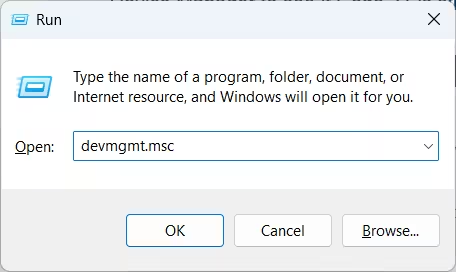
- Press Win + R, type
devmgmt.msc, and click OK. - Click Action in the top menu.
- Select Scan for hardware changes.
Windows scans for devices that need a driver and reinstalls or upgrades it automatically. Restart your PC after the scan and check the device status again.
Fix 3: Reinstall the Device Driver
Reinstalling the driver removes the broken installation and replaces it with a clean copy. This is different from simply updating a driver.
- Open Device Manager (
Win + R>devmgmt.msc). - Right-click the device showing Code 37 and select Uninstall device.
- Check Delete the driver software for this device if the option appears, then confirm.
- Click Action > Scan for hardware changes.
Windows locates and reinstalls the driver from scratch. If Windows cannot find a driver automatically, download the correct driver from your device manufacturer’s website and install it manually.
For USB devices, uninstall every item listed under Universal Serial Bus controllers in Device Manager, including USB Mass Storage Device, USB Host Controller, and USB Root Hub entries, then run the hardware scan again.
Fix 4: Install the Correct Driver Version for Your Windows
A 32-bit driver will not work on 64-bit Windows, and vice versa. If you installed a driver from an older machine or a different Windows version, Code 37 can appear because the driver is incompatible.
Driver version mismatches also trigger upgrade failures. If you have seen driver rollback errors during Windows updates, driver compatibility is often the underlying cause.
To install the right driver:
- Open Device Manager, right-click the device, and select Uninstall device.
- Go to the device manufacturer’s website.
- Download the driver that matches your Windows version and architecture (32-bit or 64-bit).
- Install the driver and restart your PC.
To check whether your Windows is 32-bit or 64-bit, press Win + Pause/Break or go to Settings > System > About and look at System type.
Fix 5: Delete UpperFilters and LowerFilters Registry Values
Corrupted UpperFilters and LowerFilters registry values are a known cause of Code 37 on DVD, CD, and Blu-ray drives. These values store references to filter drivers, and when they get corrupted, the driver stack fails to initialize.
Back up your registry before making any changes.
- Press Win + R, type
regedit, and click OK. - Navigate to:
HKEY_LOCAL_MACHINE\SYSTEM\CurrentControlSet\Control\Class\{4D36E965-E325-11CE-BFC1-08002BE10318}- In the right pane, look for UpperFilters and LowerFilters.
- Right-click each value and select Delete.
- Close Registry Editor and restart your PC.
This registry path targets optical drives. If Code 37 appears on a different device type, locate the class key for that device and check for the same filter values there.
Fix 6: Try a Different USB Port
If the Code 37 error appears on a USB device, the port itself may be the issue. Older devices sometimes only work reliably on USB 2.0 ports. If your system has both USB 2.0 and USB 3.0 ports, move the device from the faster port to the slower one and check if the error clears.
Fix 7: Run System File Checker
Corrupted Windows system files can prevent drivers from loading correctly. System File Checker scans for damaged files and replaces them automatically.
- Press Win + S, type
cmd, right-click Command Prompt, and select Run as administrator. - Run the following command:
sfc /scannow- Wait for the scan to finish. It can take several minutes.
- Restart your PC and check Device Manager again.
Some Code 37 errors that do not respond to driver reinstalls clear after running SFC, because the root cause is a corrupted Windows file rather than the driver itself.
Fix 8: Update the Driver
If reinstalling the driver did not help, check for a newer version from the manufacturer. GPU-related driver failures can also cause video driver crashes and BSOD errors when the installed version is outdated or corrupt.
To update manually:
- Open Device Manager and right-click the problem device.
- Select Update driver.
- Choose Search automatically for drivers and let Windows check online.
If Windows does not find an update, visit the manufacturer’s website directly and download the latest driver for your hardware and Windows version.
Fix 9: Replace the Hardware
If none of the fixes above work, the device itself may be failing. Code 37 points to a driver issue in most cases, but hardware faults can also prevent the driver from initializing correctly.
Before replacing the hardware, check the Windows Hardware Compatibility List to confirm that your device supports your version of Windows. Very old hardware may not have compatible drivers for Windows 10 or Windows 11.
If you confirm the hardware is at fault, replace the device. If you suspect a deeper Windows problem rather than a hardware failure, a repair install of Windows is worth trying before a clean install.

