Star Citizen uses Easy Anti-Cheat (EAC) to block cheating and unauthorized software in multiplayer sessions. When EAC detects a problem, it stops the game from launching and throws errors that can leave players locked out entirely. This guide covers every known Star Citizen Easy Anti-Cheat error, including Error 0, Error Code 0, the 70k error series, CPU priority crashes, and the Windows 11 memory management blue screen.
What Is Easy Anti-Cheat in Star Citizen
Easy Anti-Cheat is a third-party anti-cheat service that Roberts Space Industries integrated into Star Citizen to protect the multiplayer environment. It runs alongside the game and actively scans for modified files, unauthorized third-party programs, and OS-level conflicts.
EAC operates at a low level, which means even tools that seem harmless, such as performance overlays, file monitors, or mod utilities, can trigger a block if they touch Star Citizen game files in any way.
You can find general information about EAC at easy.ac.
What Causes Star Citizen EAC Errors
EAC errors in Star Citizen typically fall into a few categories:
- Modified or missing game files detected by EAC during startup
- Third-party programs interfering with game processes
- OS version conflicts, particularly with Windows versions older than Windows 10
- Corrupt EAC installation files inside the game directory
- Windows 11 24H2 incompatibility causing memory management blue screens
- CPU priority overrides conflicting with EAC process control
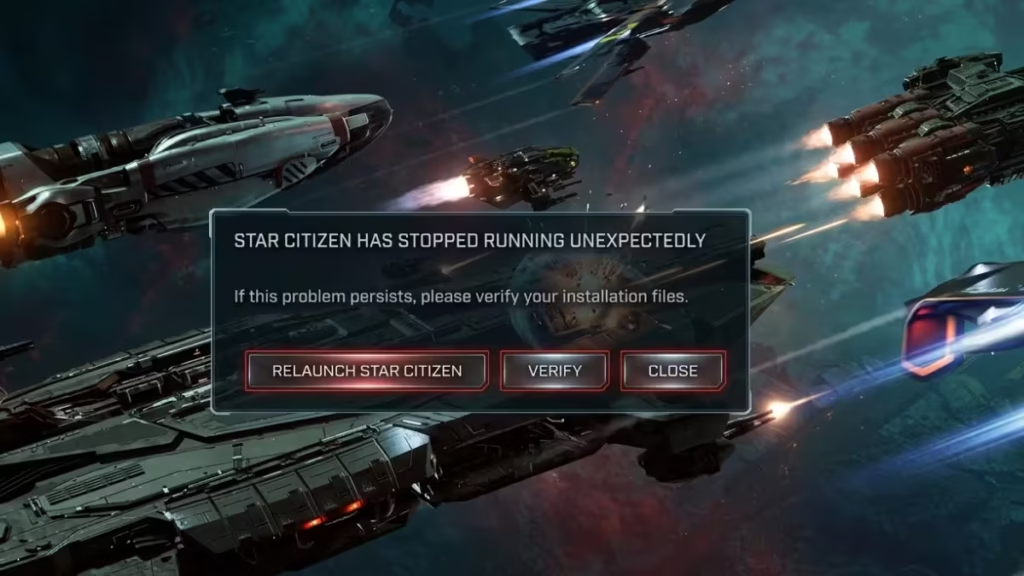
When EAC blocks a login attempt, you will usually see one of two error types: a Windows-level error that references specific file names, or a general RSI Launcher error stating that the game stopped running unexpectedly.
How to Fix Star Citizen Easy Anti-Cheat Errors
Follow these steps to resolve most EAC-related login and startup errors:
- Exit the game completely and close the RSI Launcher.
- Remove any modded files from the Star Citizen directory.
- Reinstall the game using the RSI Launcher.
- Relaunch Star Citizen with no modded files and no third-party programs running in the background.
If the above steps do not work, fully delete all game files from your drive first, confirm that nothing remains, then perform a fresh install.
If you are also seeing login failures that go beyond EAC, such as authentication problems, check the fix for Star Citizen Error 19000 Authentication Failed as the two can sometimes appear together.
Fix Star Citizen EAC Error 0 / Code 0
Error 0 and Code 0 are EAC-specific failures that RSI is actively investigating. To resolve them:
- Navigate to your
Roberts Space Industries\StarCitizen\LIVEfolder. - Delete the EAC folder inside it.
- Fully close the RSI Launcher. Open Task Manager and kill the RSI Launcher process if it continues running in the background.
- Reopen the RSI Launcher.
- Click the SETTINGS option.
- Press the VERIFY button next to “Analyze game files.”
- Wait for the verification process to finish before attempting to launch the game.
If the error persists after verification, uninstall the game entirely, delete all remaining related files, and perform a clean reinstall to make sure every game file is correct.
Fix Star Citizen Error 70k (70004 and Similar)
Error codes in the 70k range, including 70004, indicate that an EAC check has failed during startup. These are EAC integrity errors rather than network or account errors.
To fix 70k errors, follow the general EAC troubleshooting steps in the section above. Start with the file removal and reinstall process. If that does not clear it, use the EAC folder deletion and file verification method described in the Error 0 section.
Fix EAC CPU Priority Crashes and Lag
Many players set their games to run at high CPU priority to improve performance. Unfortunately, EAC can interfere with this setting and cause lag spikes or crashes in Star Citizen.
To fix this without disabling EAC, you need to make a specific registry edit that sets the CPU priority independently of EAC’s process controls.
Warning: Registry edits affect core Windows settings. Only make the changes listed below. Do not modify anything else while in the Registry Editor.
Steps:
- Open the Registry Editor by typing
regeditinto the Windows search bar and pressing Enter. - Navigate to:
HKEY_LOCAL_MACHINE\SOFTWARE\Microsoft\Windows NT\CurrentVersion\Image File Execution Options- Right-click on the Image File Execution Options folder and create a new key named
StarCitizen.exe. - Right-click on the new StarCitizen.exe key and create a new key named
PerfOptions. - Right-click on PerfOptions and create a new DWORD (32-bit) Value named
CpuPriorityClass. - Double-click CpuPriorityClass and set the value to
3. - Close the Registry Editor and restart your PC.
This registry entry tells Windows to apply the priority setting at a level that EAC does not override.
Fix Memory Management Blue Screen on Windows 11 (EAC Conflict)
Windows 11 version 24H2 has a known incompatibility with EAC that can cause memory management blue screen errors (BSOD) when launching Star Citizen. Microsoft is working with EAC to address this at the system level.
While waiting for a permanent fix, enabling Memory Integrity under Windows Security has resolved the issue for some users.
Steps to enable Memory Integrity:
- Open Windows Security from the Start menu.
- Go to Device Security.
- Click Core Isolation Details.
- Toggle Memory Integrity to On.
- Restart your PC.
Note that enabling Memory Integrity can reduce PC performance slightly. On most Windows 11 machines, this setting is already on by default. If it was turned off previously, enabling it may resolve the BSOD.
EAC and Windows OS Compatibility
EAC supports Windows 10 and Windows 11 with the latest service packs installed. Star Citizen itself only supports these two Windows versions, since Microsoft no longer supports earlier releases.
If you run Star Citizen on Windows 7, Windows 8, or Windows 8.1, EAC will block the launch with an OS conflict error. This is hardcoded into EAC and RSI support agents cannot override it. The only fix is upgrading to Windows 10 or Windows 11.
Still Having Problems with Easy Anti-Cheat
If you have followed all of the steps above and EAC still prevents Star Citizen from running, report the issue to the RSI Issue Council. Include the phrase “Easy Anti-Cheat” in your report so the development team can track and investigate the problem.
For general feedback on EAC implementation in Star Citizen, the RSI Spectrum forums are the recommended place to post.

