Error Code 130 in Dead by Daylight (DBD) shows up as a “SAVE GAME ERROR” message on the loading screen and closes the game before it finishes loading. It affects returning players who have been away for a long time, but it also appears during high-traffic events like PTB launches when too many players try to connect at once.
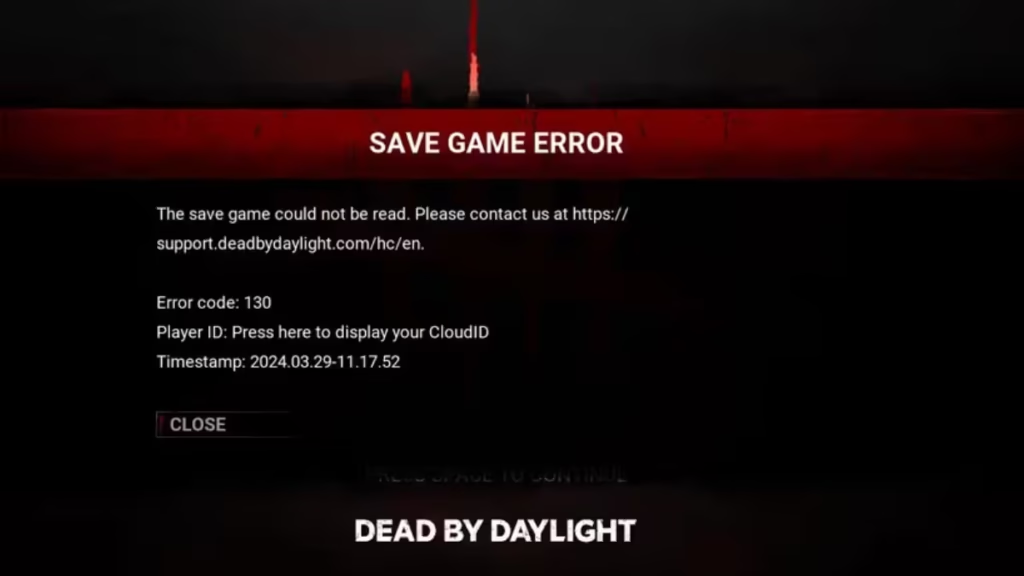
This guide covers every confirmed fix for DBD error code 130 on both PC and Xbox.
What Causes Error Code 130 in Dead by Daylight?
Before jumping into fixes, here is what actually triggers this error:
- Outdated or missing save files: Players returning after a year or more often lack a valid local save file, causing a sync failure with the game servers.
- High server load: During PTB launches or major content drops, too many simultaneous connections can trigger this error for everyone, not just returning players.
- Account-specific sync failure: The error is tied to your DBD account, not your device hardware.
- Corrupted game components: Damaged local files or a broken EasyAntiCheat installation can block the save sync process.
- Connection or DNS problems: An unstable internet connection or slow DNS resolution can prevent the game from syncing save data on launch.
Before You Start: Quick Pre-Checks
Run through these before trying the full fixes:
- Check Dead by Daylight server status on DownDetector or the official DBD social pages. If the servers are down or overloaded, wait and retry.
- Power-cycle your PC or console and your internet router.
- Confirm the game is updated to the latest version.
- Temporarily disable your antivirus and firewall to rule out interference.
If the servers are confirmed busy (such as during a PTB launch), waiting 30 to 60 minutes often resolves the issue on its own.
How to Fix DBD Error Code 130 (Step-by-Step)
Work through these fixes in order from easiest to most advanced.
1. Update the Game to the Latest Version
Running an outdated version is one of the most common causes. The current live version is 9.6.1 (released May 5, 2026). Make sure you are not behind on updates before trying anything else.
- On Steam or Epic: Right-click the game > Properties > Updates > set auto-update to high priority, then relaunch Steam.
- On Console: Go to the game’s info menu and check for updates manually.
Install any available update and restart the game before trying other fixes.
2. Change Your DNS Settings (PC)
A slow or unresponsive DNS server can prevent DBD from connecting to the save sync service. Switching to Google DNS resolves this for many players.
- Press Win + I to open Windows Settings.
- Go to Network and Internet, then select Wi-Fi or Ethernet.
- Find DNS server assignment and click Edit.
- Select Manual and toggle on IPv4.
- Set the preferred DNS to 8.8.8.8 and the alternate to 8.8.4.4.
- Click Save and restart your PC.
- Launch DBD and check if the error is gone.
3. Verify Integrity of Game Files
Corrupted or missing local files can block the save sync process. Verifying files is safe and non-destructive.
Steam:
- Right-click Dead by Daylight > Properties > Installed Files.
- Click Verify Integrity of Game Files.
- Restart Steam after it finishes.
Epic Games:
- Go to Library > click the three-dot menu on DBD > Verify.
4. Repair EasyAntiCheat
A broken EasyAntiCheat installation can trigger error 130. Repairing it takes under two minutes.
- Navigate to the Dead by Daylight installation directory.
- Open the EasyAntiCheat folder.
- Double-click EasyAntiCheat_Setup.exe.
- Select Repair or Reinstall.
- Restart your PC and relaunch DBD.
5. Try Logging In on a Different Account (Device Test)
If the error persists, test whether the problem is account-specific or device-specific.
- Log in with a new DBD account or a friend’s account.
- If the game loads correctly, your device and network are fine, and the issue is tied to your main account.
This narrows down whether you need to contact support or keep troubleshooting locally. Do not delete your original account during this test.
6. Try This Local Save Fix (Advanced PC Users Only)
Some players have resolved persistent error 130 by resetting the local save cache. Only attempt this if you are comfortable with file management.
- Navigate to:
C:\Users\[YourName]\AppData\Local\DeadByDaylight\Saved - Back up the entire Saved folder to a safe location.
- Delete the contents of the SaveGames folder inside it.
- Disable Steam Cloud Save for DBD: right-click the game > Properties > General > uncheck Steam Cloud.
- Restart DBD.
Deleting save data without a working cloud backup can result in lost progress. Proceed with caution.
How to Fix DBD Error Code 130 on Xbox
Xbox players have a dedicated fix that does not apply to PC.
- Press the Xbox button on your controller and go to Settings.
- Navigate to Devices and Connections > Blu-ray.
- Select Persistent Storage.
- Tap Clear Persistent Storage.
- Relaunch Dead by Daylight.
If this does not work, check for a pending game update and install it. Updating Xbox firmware is also worth trying if the error continues.
Contact Dead by Daylight Support (Last Resort)
If none of the above fixes work and the error is account-specific, you need a manual fix from the support team.
Submit a ticket at the Dead by Daylight Help Center.
Include the following in your ticket:
- Your platform (Steam, Epic, PS5, Xbox, etc.)
- A screenshot of the error with the timestamp and Cloud ID visible
- The approximate date you last played
- Every fix you have already tried
Players have received 150,000 to 300,000 Bloodpoints as compensation for account-level issues related to this bug.

