Windows Recovery Environment (WinRE) is the built-in recovery tool that powers features like Reset This PC, Startup Repair, System Restore, and Cloud Rebuild. It sits on a hidden recovery partition and loads automatically when Windows fails to boot normally.
Most PCs ship with WinRE turned on by default, but it’s easy to disable it by mistake, or you may want to turn it off intentionally in a dual-boot or enterprise setup. This guide covers how to check its status, and how to turn it on or off using Command Prompt.
Check the Current WinRE Status
Always check the current status first before making any changes.
- Open Command Prompt as administrator.
- Type
reagentc /infoand pressEnter.
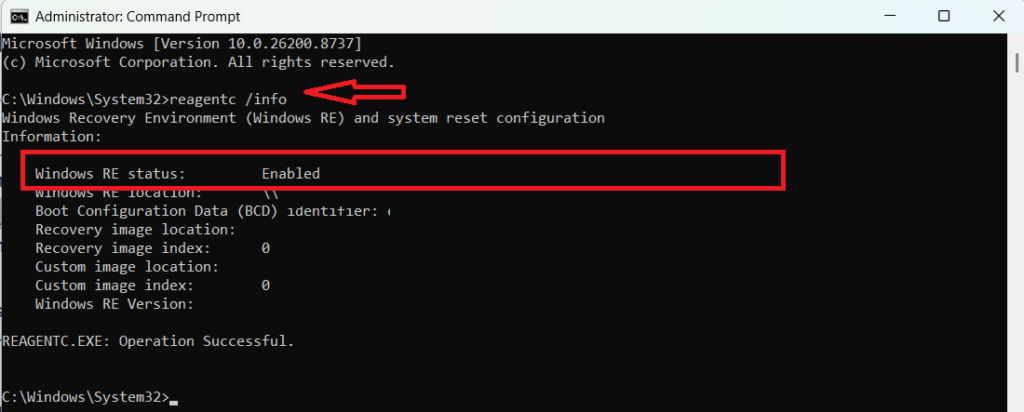
- Look at the Windows RE status line in the output. It will show either Enabled or Disabled.
This command also shows the path to your recovery image and its Boot Configuration Data (BCD) identifier, which confirms WinRE is properly linked to your boot manager.
Suspend BitLocker First
If your drive is encrypted with BitLocker, suspend it before changing WinRE settings. Skipping this step can trigger unwanted recovery prompts or lock you out at boot.
- Open Command Prompt as administrator.
- Type
manage-bde -off C:and pressEnterto suspend BitLocker on your system drive. - Once you’re done enabling or disabling WinRE, type
manage-bde -on C:and pressEnterto turn it back on.
How to Enable WinRE
- Open Command Prompt as administrator.
- Type
reagentc /enableand pressEnter. - Wait for the confirmation message REAGENTC.EXE: Operation Successful.
- Type
reagentc /infoand pressEnterto confirm the status now shows Enabled.
Enabling WinRE reattaches the winre.wim image to your system, re-registers it in the Boot Configuration Data, and restores access to recovery tools during startup.
How to Disable WinRE
- Open Command Prompt as administrator.
- Type
reagentc /disableand pressEnter. - Wait for the confirmation message REAGENTC.EXE: Operation Successful.
- Type
reagentc /infoand pressEnterto confirm the status now shows Disabled.
Disabling WinRE removes the recovery entry from the Boot Configuration Data and detaches the winre.wim file. You will no longer be able to access the recovery environment during boot.
What You Lose When WinRE Is Disabled
Disabling WinRE doesn’t just turn off one feature. It takes several recovery tools with it.
- Reset This PC, which lets you reinstall Windows while keeping or removing your files
- Startup Repair, which automatically fixes common boot problems
- System Restore accessed through Advanced Startup
- Cloud Rebuild, since it runs entirely inside WinRE
If your PC ever fails to boot normally, none of these tools will be available until WinRE is re-enabled.
Why Some Users Disable WinRE
Turning WinRE off isn’t always a mistake. A few situations make it a deliberate choice.
- To simplify boot configuration on PCs running multiple operating systems
- To reduce image size in custom Windows deployments
- To replace the default recovery image with a customized one in managed IT environments
Boot Into WinRE Manually
Once WinRE is enabled, you can boot into it in a few ways.
- Hold
Shiftand click Restart from the Start menu. - Or open Command Prompt as administrator, type
shutdown /f /r /o /t 0, and pressEnter. - Or type
reagentc /boottoreand pressEnterto force the next restart into WinRE.
Windows also boots into WinRE automatically if it fails to start normally three times in a row.
Frequently Asked Questions
Do I need administrator access to enable or disable WinRE?
Yes. Both reagentc /enable and reagentc /disable require Command Prompt running as administrator.
Does disabling WinRE delete the recovery partition?
No. It detaches the recovery image from the boot process, but the partition and files remain on your drive unless you remove them separately.
What if reagentc /enable fails with “image was not found”?
This means the winre.wim file is missing or the path is broken, usually after the recovery partition was resized or deleted. This needs a separate repair process before WinRE can be enabled again.

