Windows 11 version 26H2 introduces a new recovery option called Cloud Rebuild inside Windows Recovery Environment (WinRE). It downloads a fresh copy of Windows straight from Windows Update. It also downloads the drivers your PC needs. Then it reinstalls Windows completely, even if your current installation won’t boot.
Unlike Reset this PC, which uses recovery files already stored on your device, Cloud Rebuild pulls everything fresh from Microsoft’s servers. This makes it a good option when your system files are too damaged for regular recovery tools to fix.
This guide walks through the requirements, the exact steps to run Cloud Rebuild, and fixes for the two error codes users are currently reporting.
What Cloud Rebuild Does
Cloud Rebuild wipes your system drive and installs Windows 11 from scratch using files it downloads from Windows Update. It also downloads the drivers your device needs to run properly. This gives you a completely clean setup, instead of a patched-up version of your old one.
The whole process runs inside WinRE. You don’t need a USB installer, a recovery partition, or a custom image on hand. As long as your PC can connect to the internet from WinRE, it can rebuild itself.
The feature is currently in preview. This means Microsoft is still testing it, and it’s only rolling out to some devices for now. Treat it as a backup option, and avoid using it on a computer you rely on daily until Microsoft releases it fully.
Before You Start: Requirements and Warnings
Cloud Rebuild only works if your PC meets a few conditions, and it comes with one big trade-off: it erases your drive. Here’s what to check and what to expect before you begin.
Can your PC even run it?
- Your PC needs to support Windows 11 in the first place. If your hardware doesn’t meet Microsoft’s minimum requirements, Cloud Rebuild won’t complete.
- WinRE needs to be working on your device, since Cloud Rebuild runs entirely inside it. Most PCs have this enabled by default. If yours is turned off, switch it back on first.
- WinRE also needs a working network driver already installed. Without it, your PC can’t reach Windows Update from the recovery screen.
Note: If WinRE is turned off on your PC, here’s how to turn it back on:
- Open Command Prompt as administrator.
- Type
reagentc /infoand pressEnterto check the current WinRE status. - If it shows as disabled, type
reagentc /enableand pressEnter. - Restart your PC once you see the confirmation message.
What will you lose?
- Cloud Rebuild formats your system drive completely. Every local app, account, saved file, and setting on that drive gets erased.
- Anything already backed up to OneDrive or another cloud service stays safe, since it isn’t stored on the drive being wiped.
- Back up anything important first, and avoid running this on a PC you can’t afford to lose data from.
If your PC is managed by your workplace or school through Microsoft Intune, IT can run Cloud Rebuild on it remotely. This isn’t available for personal home PCs yet.
Also keep your PC plugged into a power source the whole time and with an active internet connection. The rebuild restarts your PC multiple times on its own, and losing power or connection midway can leave Windows unable to start afterward.
Finally, remember this feature is still in preview. Microsoft is actively testing it, so stick to using it on a spare or non-essential PC for now rather than your main daily driver.
Steps to Run Cloud Rebuild in Windows 11
Follow these steps to reinstall Windows 11 using Cloud Rebuild.
- Open Settings (
Win + I). - Go to System > Recovery.
- Under Advanced startup, click Restart now.
- On the Choose an option screen, select Troubleshoot.
- Select Cloud rebuild.
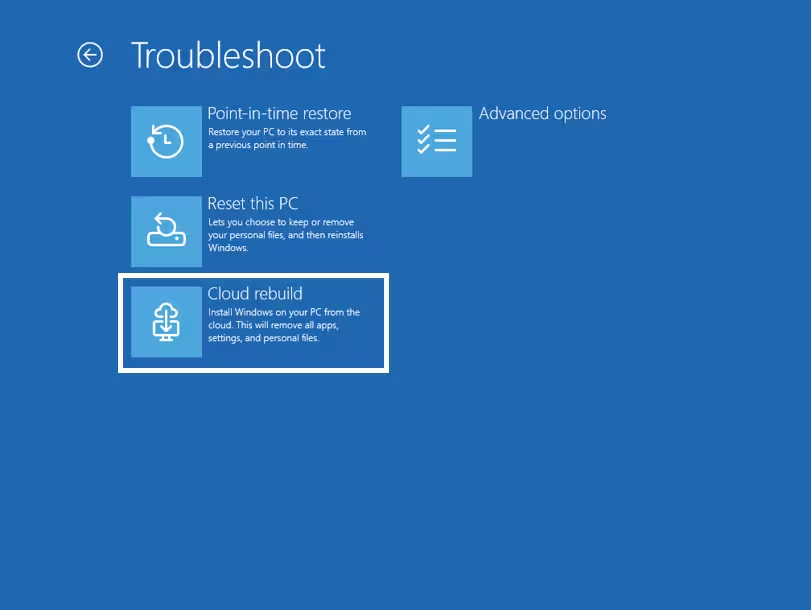
- Wait for it to connect to the internet. Ethernet connects automatically; for Wi-Fi, enter your network password when prompted.
- Wait while Cloud Rebuild downloads the drivers it needs and checks which version of Windows to install.
- Review the screen showing the Windows version, edition, and language it will install.
- Click Continue if this information looks correct.
- A warning screen will appear telling you that your data will be lost.
- Click Install once you understand and accept this.
- Wait while your PC prepares, downloads, and installs Windows. This takes time, and your PC will restart several times on its own.
- Do not turn off your PC manually during this process.
- Once installation finishes, follow the on-screen setup steps to create your account and choose your settings.
If your PC is managed by your workplace through Intune, it will reconnect automatically after setup and reinstall your assigned apps and settings.
If you can’t reach WinRE at all, check that your recovery partition hasn’t been deleted before trying Cloud Rebuild. You may need to reinstall Windows a different way first.
How Cloud Rebuild Differs from Reset This PC
Reset this PC can reinstall Windows in two ways: using files already stored on your PC, or downloading files from the cloud. Even with the cloud option, it still depends partly on your existing recovery setup, and it doesn’t download fresh drivers for your hardware.
Cloud Rebuild works differently. It downloads both the Windows files and the correct drivers directly from Windows Update. Because of this, it doesn’t depend on the health of your current Windows installation at all. The result is close to installing Windows fresh from a USB drive, except you don’t need the USB drive.
Common Cloud Rebuild Errors
Users have run into two error codes with this feature so far. Here is what causes each one and how to fix it.
1. Cloud Rebuild Error 0xc1900200
This error shows up when a required driver is missing, or when your PC doesn’t meet the minimum requirements for Windows 11.
First, check that TPM is turned on. TPM stands for Trusted Platform Module. It’s a security chip built into most modern PCs, and Windows 11 requires it to be enabled. You can usually turn it on from your PC’s startup settings screen, sometimes called BIOS or UEFI settings. This screen appears briefly when your PC first turns on, before Windows loads.
If TPM is already on and the error keeps happening, your PC’s manufacturer likely hasn’t made all the required drivers available through Windows Update yet. Contact your device manufacturer to check.
2. Cloud Rebuild Error 0x800704C6
This error means your PC has no internet connection during the rebuild. Cloud Rebuild needs internet access to download drivers and Windows files from Windows Update.
To fix it, follow these steps:
- Click Cancel on the failure screen.
- Go back to Troubleshoot > Cloud rebuild.
- Connect using a Wi-Fi network with WPA2-Personal security, or a wired Ethernet connection. These are the only two connection types WinRE currently supports.
What Causes Cloud Rebuild to Fail
- Missing or outdated network and storage drivers inside WinRE
- Hardware that doesn’t meet Windows 11’s minimum requirements, including a disabled TPM
- An unsupported Wi-Fi connection, or an Ethernet cable that gets disconnected during the process
Frequently Asked Questions
How do I perform a Cloud Reset on Windows 11?
Open Settings, go to System > Recovery, and click Reset PC next to the Reset this PC option. Choose either Keep my files or Remove everything. Then select Cloud download to reinstall Windows using files pulled from the cloud.
How do I rebuild a Windows 11 PC?
You have a few options. Reset this PC restores your system using local or cloud files, and can keep some of your settings depending on what you choose. Reinstalling Windows 11 through Windows Update keeps your apps, files, and settings in place. Cloud Rebuild goes further than both: it performs a full reinstall with fresh drivers, entirely from WinRE, without needing a USB drive.
Can I use Cloud Rebuild without an internet connection?
No. Cloud Rebuild needs an active internet connection through WinRE to download the Windows files and drivers from Windows Update. Without it, the process fails and shows error 0x800704C6.