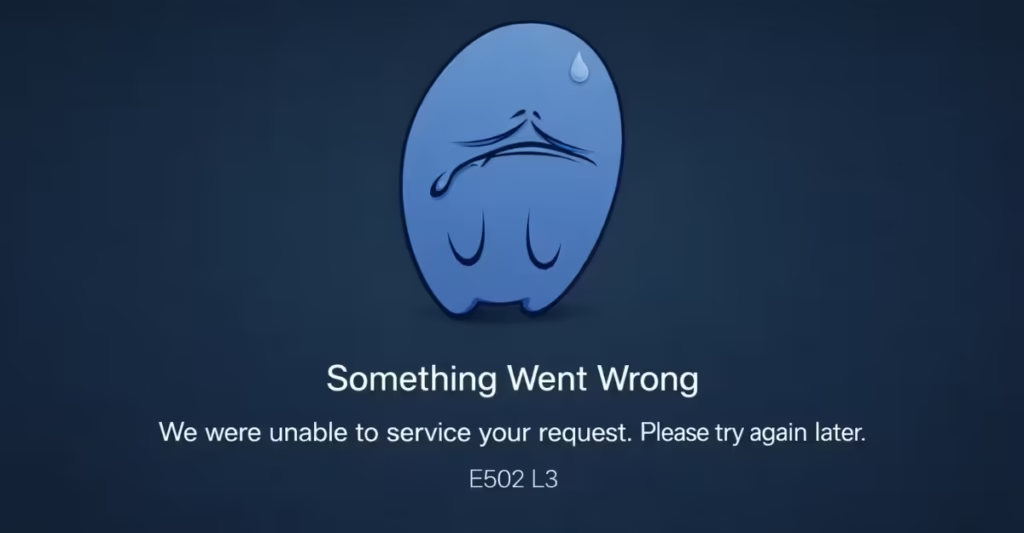
Steam Error E502 L3 appears when the Steam client or website fails to process a request. The message usually reads: "Something went wrong. We were unable to service your request. Please try again later."
E502 L3 is an HTTP 502 Bad Gateway error, meaning Steam's servers received your request but could not complete it. This is different from a connection failure -- your computer reached Steam, but Steam could not respond properly.
This error often appears when you try to open the Steam Store, Community page, or login service. In most cases, the issue comes from Steam's servers, not your computer.
When Does Steam Error E502 L3 Appear?
Players most often see this error during high-traffic events, including:
- Steam Summer Sale
- Steam Winter Sale
- Major game launches
- Limited-time promotions
- Platform maintenance
During these events, millions of users access the Steam Store at the same time, which can overload the service and trigger E502 L3 errors.
Check Steam Server Status First
Before troubleshooting, confirm whether Steam servers are experiencing issues.
Open these sites:
If the Steam Store or Community servers show outages, the only solution is to wait until Valve restores the service. When servers recover, the error disappears automatically.
1. Restart the Steam Client
Restarting Steam refreshes the connection between your computer and Steam servers.
Follow these steps:
- Close Steam completely.
- Press Ctrl + Shift + Esc to open Task Manager.
- End any running Steam processes.
- Launch Steam again.
This simple step resolves many temporary connection problems.
2. Clear the Steam Download Cache
Steam stores temporary data that helps the client load faster. If this cache becomes corrupted, the client may fail to load store pages.
Clear the cache using these steps:
- Open Steam.
- Click Steam in the top-left corner.
- Select Settings.
- Open the Downloads tab.
- Click Clear Download Cache.
- Restart Steam and log in again.
Steam rebuilds the cache automatically after restarting.
3. Change Your Steam Download Region
Sometimes a specific Steam server cluster becomes overloaded. Switching regions forces the client to connect to a different server.
Follow these steps:
- Open Steam Settings.
- Go to Downloads.
- Find Download Region.
- Select another nearby region.
- Restart Steam.
Choose a region close to your location for the best performance.
4. Flush Your DNS Cache
Network routing problems can prevent your computer from reaching Steam servers correctly.
Flush your DNS cache using these steps:
- Press Windows + R.
- Type cmd and press Enter.
- Run this command:
ipconfig /flushdns- Restart Steam after completing the process.
5. Try Accessing Steam From a Browser
If the Steam client fails to load pages, open the Steam Store in your browser.
Visit: store.steampowered.com
Sometimes the web version works while the client experiences server errors.
If the browser version also fails, clear your browser cache and cookies. Stored browser data can cause the Steam website to load incorrectly.
To clear cache in Chrome: go to Settings > Privacy and Security > Delete Browsing Data, then check Cached Images and Files and Cookies, and click Delete Data.
6. Open Steam in an Incognito Window
Browser extensions and saved login data can sometimes interfere with how the Steam website loads. Testing in a private window rules this out.
Open your browser in Incognito or Private mode and visit store.steampowered.com.
- Chrome: Ctrl + Shift + N
- Firefox: Ctrl + Shift + P
- Edge: Ctrl + Shift + N
If the Steam Store loads correctly in Incognito, a browser extension is likely causing the issue. Disable extensions one by one to find the cause.
7. Wait for Steam Servers to Recover
If the issue comes from Steam's servers, troubleshooting will not help. Valve must restore the service.
Outages usually resolve within:
- 10 to 30 minutes during minor outages
- 1 to 2 hours during major sales or updates
Once servers recover, Steam loads normally again.
Steam Error E502 L3 usually signals a temporary server issue, not a problem with your computer. Restarting Steam, clearing cache, or changing the download region may help in some cases. However, most users simply need to wait until Steam servers recover.
If the problem continues for several hours, check Steam server status again or test your internet connection.