Google now offers a dedicated Gemini app for Apple CarPlay. iPhone owners can open it straight from the car dashboard and hold a full voice conversation with Gemini Live without touching the phone. You can ask about your schedule, hear a summary of your emails, find a lunch stop, or rehearse a pitch while you drive.

This guide walks you through the setup, shows you how to start and manage a chat on the car screen, and lists the limits you should know before you rely on it.
Gemini CarPlay Requirements: What You Need First
Check these basics first so the Gemini icon shows up the moment you plug in:
- An iPhone with the latest version of the Gemini app from the App Store
- A car or head unit that supports Apple CarPlay (wired or wireless)
- A Google account signed in to the Gemini app
- A language that Gemini Live supports on your account
Google rolls the feature out worldwide to every Gemini user on iOS, so both free and paid accounts get it. Google has not named a minimum iOS version or a list of approved car models. Any CarPlay system should work as long as your iPhone runs a recent iOS build that supports conversational AI apps in CarPlay.
Step 1: Update the Gemini App on Your iPhone
Open the App Store, tap your profile picture, and scroll to the pending updates list. If Gemini appears there, tap Update. Older builds of the app do not include the CarPlay component, so this step matters even if you installed Gemini recently.
Step 2: Turn On Microphone Access for Gemini
Gemini on CarPlay works by voice, so it needs your mic.
- Open Settings on your iPhone.
- Scroll down and tap Gemini.
- Turn on the Microphone toggle.
If you denied the permission earlier, the app cannot hear you in the car, and the conversation will not start.
Step 3: Use Gemini Live Once on Your iPhone
CarPlay only shows the Gemini app after you have used Gemini Live on the phone at least one time. Open the Gemini app, tap the Live button (the waveform icon near the text box), and say a few words. End the session once Gemini replies. That single run completes the setup.
Step 4: Find the Gemini Icon on Your CarPlay Screen
Plug your iPhone into the car's USB port or let it pair over wireless CarPlay. Wait for the CarPlay home screen to load on the dashboard display.
You will find the Gemini icon on the CarPlay home screen. Some cars also show it in the side rail (the narrow strip of recent apps on the left or right edge). If you do not see it, swipe to the next home screen page.
Tip: To move Gemini to the first page, open Settings > General > CarPlay on your iPhone, pick your car, tap Customize, and drag the Gemini icon higher in the list.
Step 5: Start or Resume a Gemini Chat on CarPlay
Tap the Gemini icon. The app gives you two options:
- Resume a recent chat: pick up a thread you started earlier on your phone or in the car.
- Start a new conversation: open a fresh session with a clean slate.
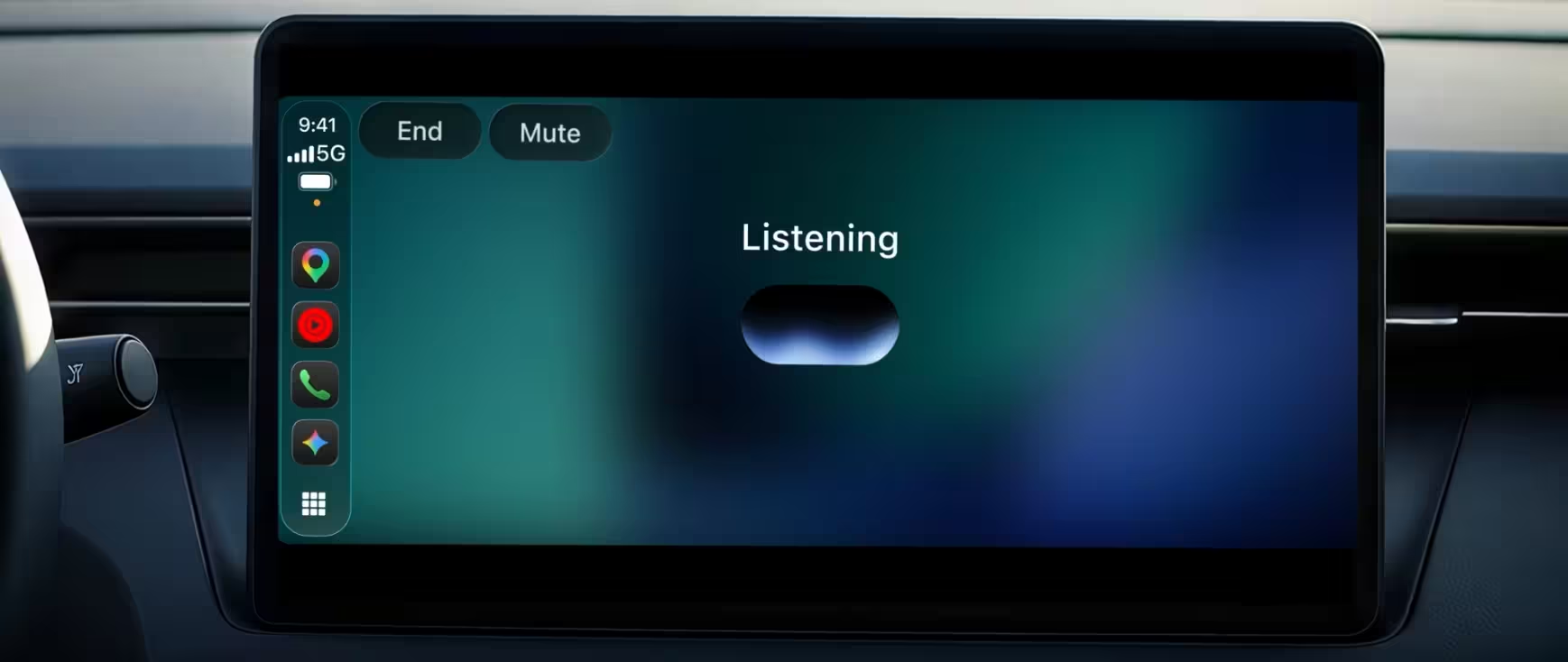
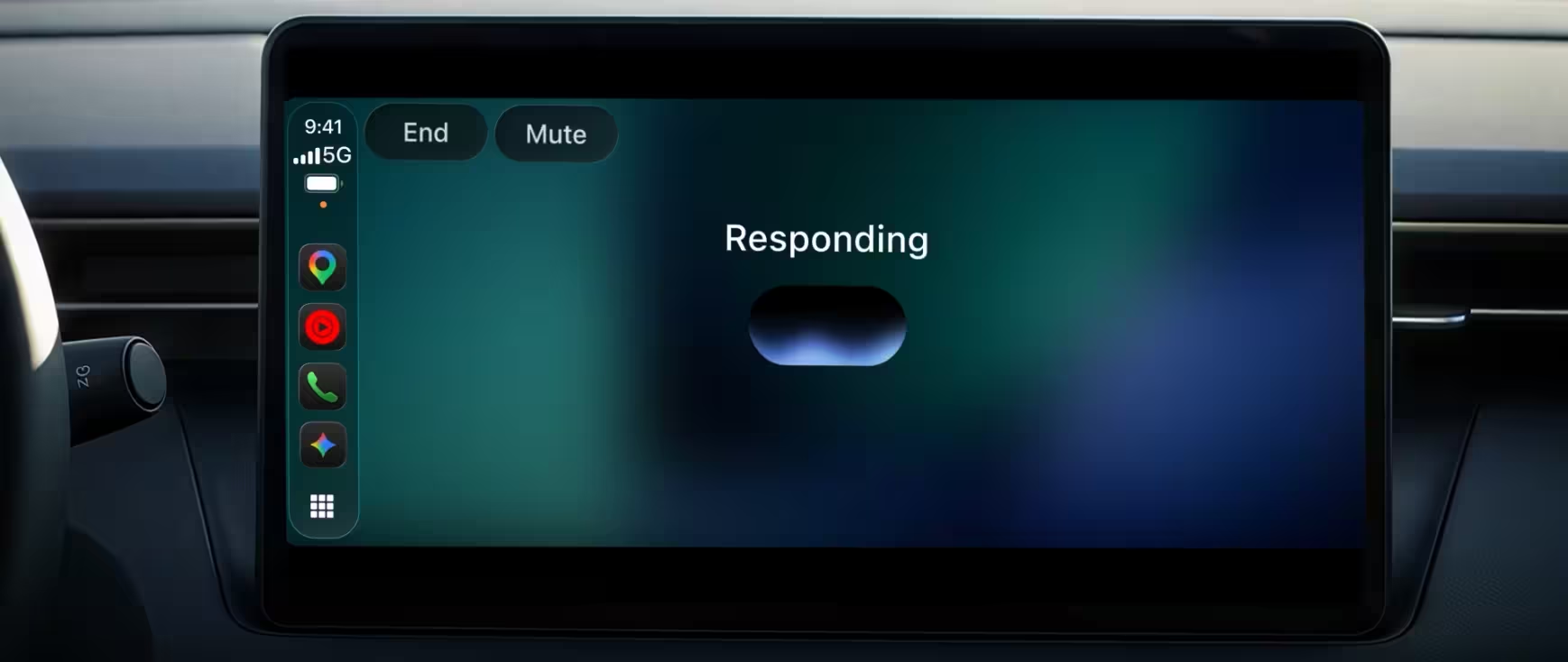
Once Gemini starts listening, just talk. The screen stays minimal on purpose. A waveform shows when Gemini is listening, thinking, or replying, and two buttons sit in the corner: End closes the session and Mute stops the mic without closing it.
How to Talk to Gemini on CarPlay While Driving
Gemini Live does not force you into a strict question and answer pattern. You can:
- Interrupt Gemini mid reply to add a detail or correct it
- Switch topics without starting a new chat
- Pause by tapping Mute when traffic needs your full attention, then unmute to continue
Treat it like talking to a passenger. Speak in full sentences and let Gemini keep the thread of the discussion for you.
Best Gemini CarPlay Prompts for Commutes and Road Trips
Gemini ties into Gmail, Google Calendar, and other Google Workspace apps, which makes it handy during a commute. Try these prompts.
Plan your day
Ask Gemini to read your calendar, tell you when to leave for the next meeting, or help you think through what you want to say.
- "What's on my schedule this morning?"
- "When should I leave to reach my 2pm appointment on time?"
- "Help me prepare talking points for my call with the sales team."
Catch up on email
Gemini can give you a Daily Brief, list unread messages, sum up long threads, and draft a quick reply you dictate.
- "Read me my Daily Brief."
- "Any unread emails from my manager?"
- "Summarize the vendor contract thread and draft a short reply saying I'll review it tonight."
Find places along the way
Ask for food, coffee, fuel stops, or the history behind a landmark you pass.
- "Find a fast breakfast place near my route that has easy parking."
- "Tell me the story behind the bridge coming up ahead."
Think out loud
A quiet car is a good place to practice. Use Gemini as a sparring partner.
- "Pretend you're a tough investor and question my product pitch."
- "Explain how heat pumps work in plain words."
- "Help me plan how to ask my landlord for a lease extension."
How Gemini CarPlay Chats Sync to Your iPhone
Every conversation you have in the car syncs to the Gemini app on your iPhone. After you park, open the app and check your chat history. You will find the summaries, notes, and ideas from the drive waiting there, ready to copy into a doc or an email.
Gemini CarPlay Limits: Daily Brief, Age and Region
Keep these points in mind:
- Daily Brief needs setup. Turn on Daily Brief inside the Gemini app before you ask for it in the car.
- Age limit. Google blocks Daily Brief and some other personalization features for users under 18.
- Region limits. Daily Brief and certain personalization features do not work in the European Economic Area (all EU countries plus Iceland, Liechtenstein, and Norway) or in Nigeria. Drivers in those regions still get standard Gemini Live conversations.
- Usage limits. Google has not said whether CarPlay sessions count toward the Gemini app's usage limit, so heavy users on the free tier may hit the same limits they see on the phone.
- Rollout timing. Google releases the feature in stages, so it may take a few days to reach your account.
Gemini App vs Gemini in Google Maps on CarPlay
Google added Gemini inside the Google Maps on CarPlay app a few weeks before this launch. That version focuses on navigation help, such as finding stops along a route. The standalone Gemini app covers far more ground: general chat, calendar, email, brainstorming, and learning. If you only want route help, Maps does the job. For everything else, open the Gemini app.
Gemini Not Showing on CarPlay? 7 Fixes
If the icon does not appear, work through this list:
- Update again. Confirm the App Store shows no pending Gemini update.
- Check the mic toggle. Go to Settings > Gemini and make sure Microphone is on.
- Run Gemini Live once more. Open the app on your phone and complete a short Live session.
- Reconnect. Unplug the phone or turn Bluetooth off and on, then let CarPlay load again. If the problem is wider than Gemini, see this guide on CarPlay not working.
- Check the CarPlay app list. Open Settings > General > CarPlay > your car > Customize and confirm Gemini is not hidden.
- Update iOS. Go to Settings > General > Software Update and install any pending update.
- Wait for the rollout. If all else checks out, your account may not have the feature yet. Try again in a day or two.
Frequently Asked Questions
Is Gemini on Apple CarPlay free?
Yes. Google offers it to all Gemini users on iOS, including free accounts. Paid plans may give you higher usage limits.
Do I need to unlock my phone to use Gemini on CarPlay?
No. After the one-time setup on your iPhone, you control everything from the car screen and by voice.
Can Gemini read and reply to my emails while I drive?
Yes. Gemini connects to Gmail, reads unread messages, summarizes long threads, and drafts replies that you dictate.
Why can't I use Daily Brief in my car?
You either have not enabled Daily Brief in the Gemini app, or you live in the EEA or Nigeria, or your account belongs to someone under 18. Google blocks the feature in those cases.
Does Gemini replace Siri on CarPlay?
No. Siri stays on CarPlay as Apple's built-in assistant. Gemini runs as a separate app that you open by tapping its icon.
Will my car conversations show up on my iPhone?
Yes. Gemini syncs every CarPlay chat to the app on your iPhone, so you can review it in your chat history later.
Related Guides
- How to Fix Apple CarPlay Not Working on iPhone: 10 Proven Fixes
- How to Improve Google Maps on CarPlay and Stop Apple Maps From Opening by Default
- How to Set Up Gemini Daily Brief on Android
- How to Check and Manage Your Gemini Usage Limit (Before You Get Locked Out)
- Mark Gurman Siri Upgrade Timeline Reveals Gemini-Powered AI Rollout and iOS 27 Overhaul