Tubi TV is a free, ad-supported streaming platform with thousands of movies and TV shows. To watch on a Smart TV, Roku, Fire Stick, Apple TV, PlayStation, or Xbox, you must activate the device by linking it to your Tubi account through tubitv.com/activate. Without activation, the app cannot load your account or stream content.
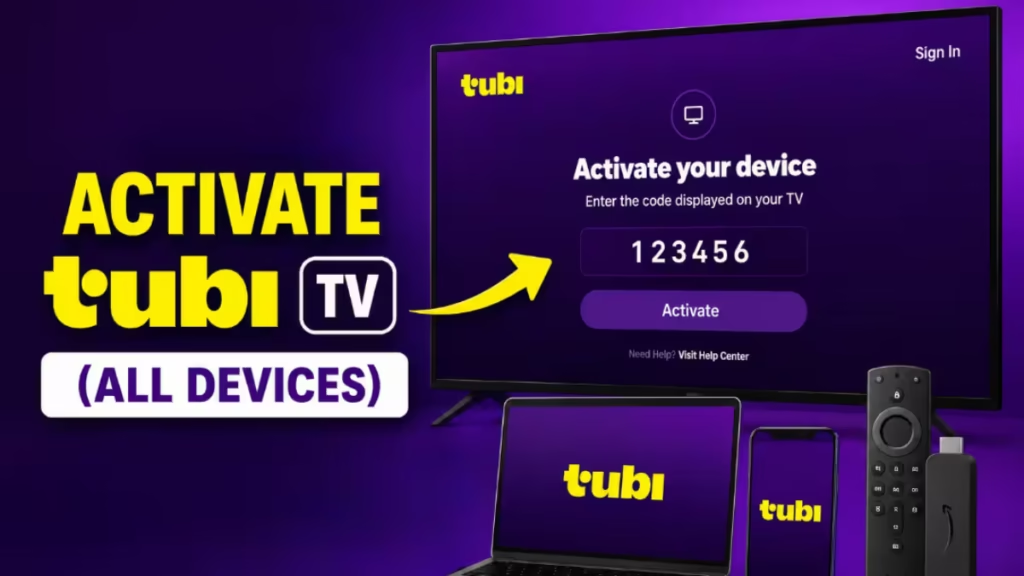
This guide covers the exact activation steps for every major device, plus targeted fixes when the activation code does not work.
What You Need Before You Start
- A free Tubi account (create one at tubi.tv or during activation)
- A phone, tablet, or computer with a web browser
- A stable internet connection on both devices
- The Tubi app installed and open on your streaming device
How to Activate Tubi TV (Universal Steps)
These steps apply to all devices. The only difference between platforms is how you reach the Sign In screen.
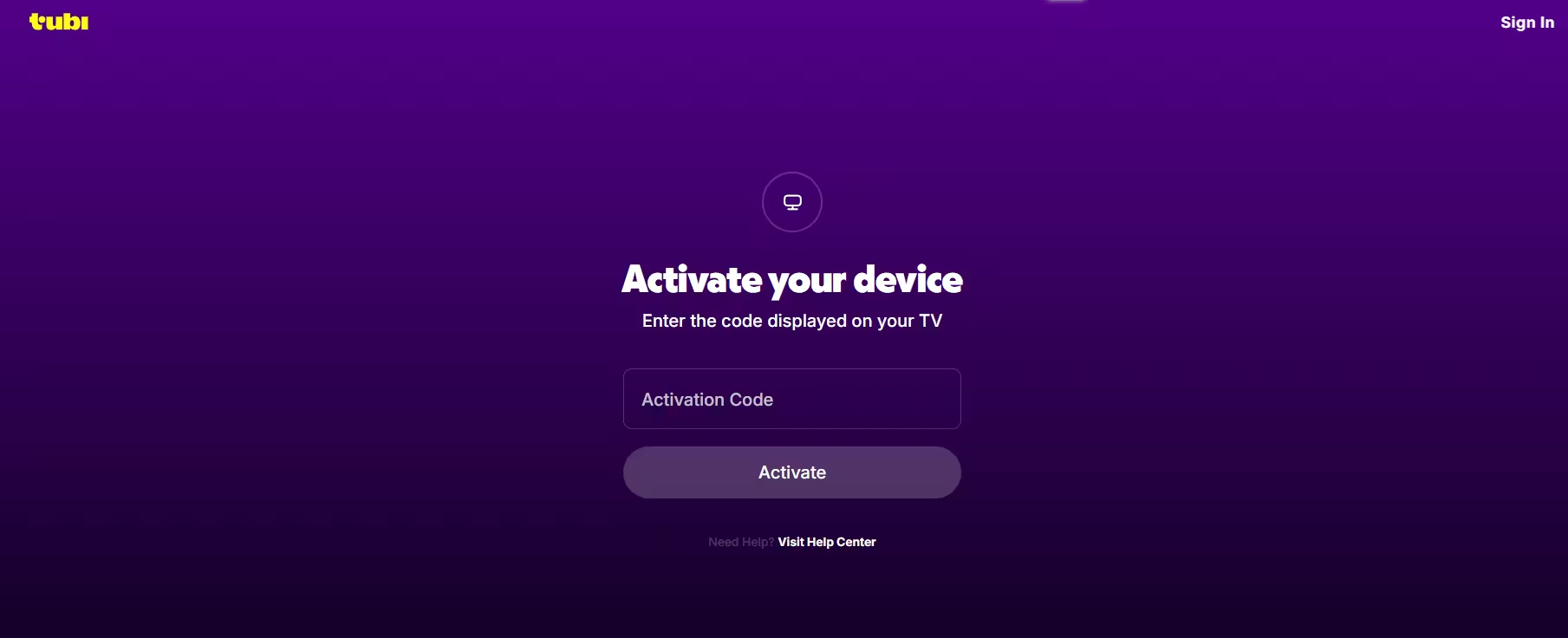
- Open the Tubi app on your streaming device.
- Select Sign In from the top of the navigation menu or home screen.
- Choose Sign in Online (some devices label this Activate Device or Sign in on the Web).
- Note the activation code displayed on screen. It is alphanumeric, usually formatted as
AB12-CD34. - On your phone, tablet, or computer, open a browser and go to tubitv.com/activate.
- Sign in to your Tubi account, or create a free account if you do not have one.
- Enter the activation code exactly as shown on your TV screen. Match the case and include any hyphens.
- Click Activate Device.
- Your streaming device refreshes automatically and loads your Tubi library.
Important: Activation codes expire in 10 to 15 minutes. If your device shows an expired code error, go back and select Sign In again to generate a fresh code.
Activate Tubi on Specific Devices
Samsung Smart TV
- Open the Play Store on your Samsung Smart TV.
- Search for Tubi and install the app.
- Launch Tubi and select Sign In.
- Choose Sign in Online. Your TV displays an activation code.
- On a browser, go to tubitv.com/activate.
- Log in with your email address or Facebook account.
- Enter the activation code and click Submit.
Amazon Fire TV Stick
- Press the Search icon on your Fire Stick remote and type Tubi TV.
- Select the app from results and install it.
- Open Tubi and select Sign Up or Sign In.
- Copy the activation code shown on screen.
- On a browser, navigate to tubitv.com/activate.
- Paste the activation code and click Submit.
Roku
- On your Roku home screen, select Add Channel and open the Channel Store.
- Search for Tubi and install the channel.
- Launch the Tubi channel and select Sign In.
- Note the activation code on screen.
- Open a browser such as Chrome and go to tubi.tv/activate.
- Paste the activation code and click Activate.
If your Roku shows software update errors during this process, check our Roku Error 004 fix guide before retrying activation.
Apple TV
- Open the App Store on your Apple TV.
- Search for Tubi and click Get to install.
- Launch the app and select Sign In, then Sign in Online.
- Your Apple TV displays an activation code.
- On a browser, go to tubitv.com/activate.
- Log in, enter the code, and click Submit.
Android TV
- On your Android TV home screen, scroll to Apps and open Google Play Store.
- Search for Tubi and install it.
- Launch Tubi and select Sign In, then Sign in Online.
- Note the activation code on screen.
- On a browser, go to tubitv.com/activate.
- Log in with your credentials, enter the activation code, and click Submit.
PlayStation 4 / PlayStation 5
- On your PlayStation, navigate to TV and Videos and find Tubi.
- Launch the app and click Sign In from the top row. Create an account if you do not have one.
- After signing in, your screen shows an activation code.
- On a browser, go to tubitv.com/activate.
- Log in or register, enter the activation code, and click Submit.
Xbox One
Option 1: Sign in with email directly
- Open the Tubi app on Xbox One.
- Select Sign In and choose the email login option.
- Enter your Tubi account email and password.
- Click Sign In.
Option 2: Sign in online via browser
- Launch Tubi and select Sign In, then Sign in on the Web.
- Your Xbox One screen displays an activation code.
- On a browser, go to tubitv.com/activate and log in.
- Enter the code and click Submit.
TiVo
TiVo devices come with Tubi pre-installed. No separate download is needed.
- Open the Tubi app on your TiVo.
- Select Sign In or Register.
- Note the activation code displayed on screen.
- On a browser, go to tubitv.com/activate.
- Log in or register, enter the code, and submit.
Troubleshooting Tubi Activation Issues
Activation Code Expired or Not Working
Tubi codes are valid for 10 to 15 minutes only. If you see an Invalid Code or Code Expired error:
- Close the Tubi app completely.
- Reopen it and select Sign In again.
- A new activation code generates immediately.
- Enter the new code at tubitv.com/activate within the validity window.
- Check your device’s date and time settings. If the clock is incorrect, go to Settings > Date and Time and enable Automatic (Network) Time Sync. A mismatched clock causes code validation failures even with a fresh code.
Activation Failed or Network Error
This error means Tubi’s servers cannot communicate with your device during registration.
- Restart your streaming device and router. Wait 30 seconds before powering them back on.
- Reconnect to Wi-Fi or switch to a wired Ethernet connection for a more stable signal.
- Disable any VPN or proxy running on your device or router. VPNs interfere with Tubi’s device registration servers.
- Open your router settings and confirm ports 80 and 443 are not blocked. These are required for Tubi’s activation servers.
- Change your DNS to Google DNS (8.8.8.8 / 8.8.4.4) or Cloudflare DNS (1.1.1.1). On most streaming devices, go to Settings > Network > Advanced to enter custom DNS.
- Check Tubi’s status page to confirm there is no ongoing server outage.
- If the error persists, uninstall the Tubi app, reinstall it, and repeat the activation process.
Device Not Recognized After Activation
If activation completes but the device still shows a sign-in screen or fails to load your account:
- Force-close the Tubi app and reopen it.
- Clear the app cache. On Fire TV go to Settings > Applications > Manage Installed Applications > Tubi > Clear Cache. On Android TV navigate to Settings > Apps > Tubi > Clear Cache.
- Check that your Tubi app is on the latest version. Outdated app versions can fail to sync activation status. Update through your device’s app store.
- Update your device firmware. Go to Settings > System > Software Update on most platforms and install any available updates.
- Confirm your Tubi account is active by signing into tubitv.com in a browser. If you cannot sign in there, reset your password before retrying device activation.
Playback Errors After Activation
If the device activates successfully but streams fail to load or show errors, that is a separate playback issue. See the guide on Tubi Error RO-2-100-404 for targeted playback fixes.
FAQs
What is the website to activate Tubi TV?
Go to tubitv.com/activate on any browser, sign in to your Tubi account, and enter the code shown on your streaming device.
Why is my Tubi activation code not working?
Activation codes expire in 10 to 15 minutes. Go back to the Tubi app, select Sign In again, and use the new code immediately at tubitv.com/activate.
Can I activate Tubi TV without creating an account?
No. You must sign in or create a free Tubi account at tubitv.com/activate to complete device activation.
How many devices can I activate on one Tubi account?
Tubi lets you link multiple devices to one account and stream on several devices at the same time.
Why does my device still show the sign-in screen after activation?
Force-close the Tubi app and reopen it. If that does not work, clear the app cache in your device settings and restart the device.

