Battlefield 6 errors can stop you before you even enter a match. You may face login failures, connection drops, anti-cheat crashes, or the game refusing to launch at all.
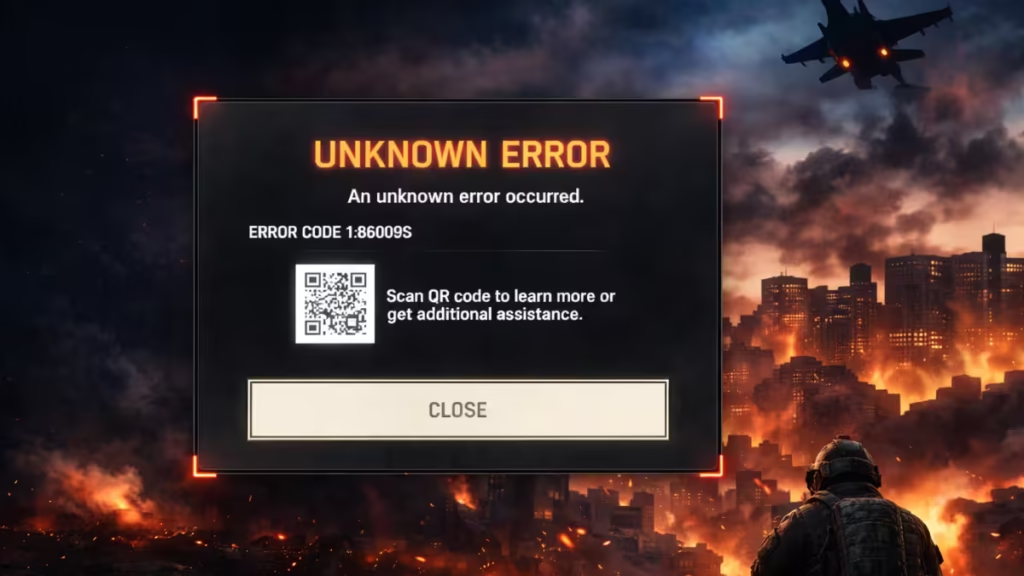
Most of these problems come from account sync issues, EA server overload, or corrupted files. This guide covers every known Battlefield 6 error code and how to fix each one step by step.
Table of Contents
Battlefield 6 Error Codes Fix: Start Here First
Before diving into specific errors, run through this in order:
- Close the game completely
- Exit the EA App or Steam from the system tray
- Restart your PC or console
- Restart your router
- Relaunch and check if the error is gone
This clears stuck sessions and fixes a large number of temporary glitches.
If the error returns, check the EA server status at EA Help or the official @BattlefieldComm Twitter/X account. If servers are down, nothing will work until EA resolves it.
Error Code 1:8600 and 1:86001S
This error blocks you from launching the game and usually appears before the main menu. It is tied to the authentication process that verifies your EA account and checks your PC for disallowed software.
Common causes:
- EA account not properly logged in
- Shadowban or account flag
- Battlefield 6 blocked by Windows Firewall
- External USB drives triggering EA Javelin anti-cheat
- Unstable internet during the authentication process
How to fix it:
- Open the EA App and confirm you are logged in with the correct account
- Enable the EA App in-game overlay (Settings > Origin In-Game or EA App overlay)
- Check Windows Firewall and make sure Battlefield 6 and the EA App are allowed through
- Disconnect any external USB drives or external HDDs before launching
- If none of the above works, contact EA Support to verify your account is not flagged or banned
Error Code 1:85009S
This error causes disconnections during matches or prevents you from connecting at all. It is commonly triggered by VPN usage or unstable DNS settings.
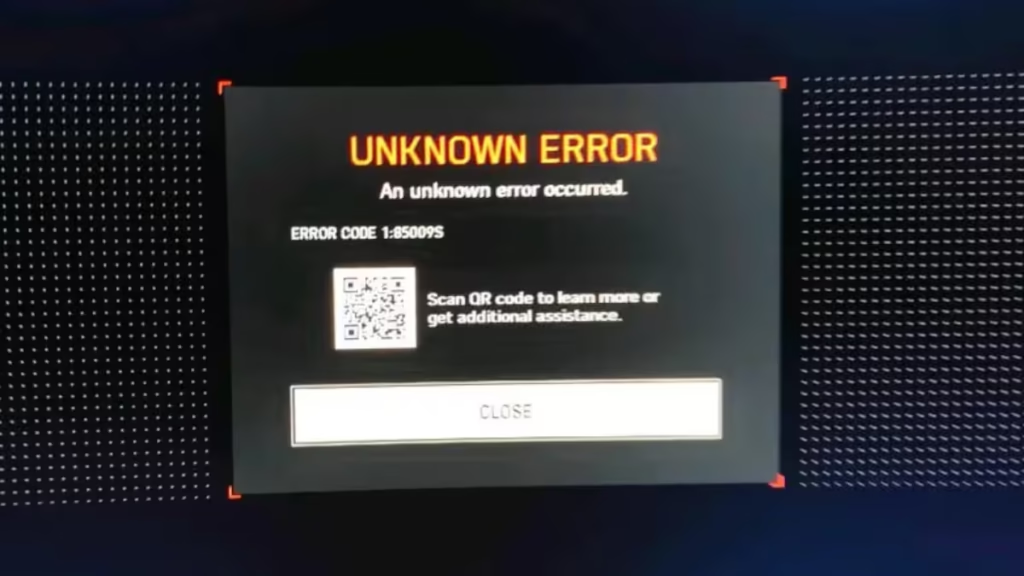
How to fix it:
- Disable any active VPN
- Change your DNS to one of the following:
- Google DNS:
8.8.8.8and8.8.4.4 - Cloudflare DNS:
1.1.1.1and1.0.0.1(multiple players report this works better for BF6)
- Google DNS:
- Flush your DNS on PC by opening Command Prompt as administrator and running:
ipconfig /flushdns- Switch to a wired Ethernet connection if you are on Wi-Fi
Error Code 1:85008S
This error is reported as both a connection failure and an authentication failure. The exact cause is not officially documented by EA, but community reports point to network instability during login.
How to fix it:
- Disable your VPN if active
- Restart your router
- Switch to Cloudflare DNS (
1.1.1.1) - Flush DNS using the command above
- Run the EA App as administrator, then relaunch the game
Error Code 1:8500
A general connectivity or server timeout error. It appears when the game loses connection to EA servers during launch or matchmaking.
How to fix it:
- Check EA server status first
- Restart the game and EA App
- Switch to a wired connection
- Disable firewall or antivirus temporarily to test
- Repair game files (EA App: Library > Battlefield 6 > Repair)
Error Code DiceOnlineError_Unknown [84002S]
This is a general in-game error that appears when something fails but the game cannot identify the exact cause. EA officially recommends repairing the game for this one.
How to fix it:
- EA App: Library > Battlefield 6 > Repair
- Steam: Library > Right-click Battlefield 6 > Properties > Installed Files > Verify Integrity of Game Files
- Clear EA App cache: Menu > Help > App Recovery > Clear Cache
- Restart the game after repairs are complete
Error Code 84008S
Similar to 1:86001S, this error is caused by connection or network problems when connecting to EA servers.
How to fix it:
- Restart your router and modem
- Switch to a wired connection
- Disable VPN
- Change DNS to Google (
8.8.8.8) or Cloudflare (1.1.1.1) - Check EA server status
EA Javelin Anti-Cheat Error and Exit Code 0xC0000604
If the game crashes on launch and Event Viewer shows EA Javelin errors with exit code 0xC0000604, the anti-cheat failed to start. This has been reported after specific BF6 updates.
Disallowed programs that trigger this error include:
- AutoHotkey
- ReWASD
- Rivatuner Statistics Server (RTSS) when used alongside MSI Afterburner in some configurations
- Other macro or input remapper software
How to fix it:
- Close all overlay and macro software before launching
- Run the EA App as administrator
- If the error appeared after a recent update, try repairing EA Javelin:
- Open the EA App > Library > Battlefield 6 > Repair
- If repair does not work, uninstall and reinstall EA Javelin:
- Go to
C:\Program Files\EA Javelinand run the uninstaller - Relaunch the game through the EA App and it will reinstall automatically
- Go to
- If you use MSI Afterburner, try disabling Rivatuner and launching the game without it
ExceptionCode c0000005 (Access Violation Crash)
This is a crash to desktop with an access violation error. It often appears after game updates and is a memory-related crash.
How to fix it:
- Update your GPU drivers (NVIDIA or AMD)
- Run the game as administrator
- Repair game files through the EA App or Steam
- Disable all overlays (GeForce Experience, Discord, Steam overlay)
- If it persists, report it in the EA Forums with your full crash log
DirectX Errors (DXGI_ERROR_DEVICE_HUNG and AMD Driver Errors)
DirectX errors cause crashes or black screens, usually during gameplay.
DXGI_ERROR_DEVICE_HUNG means a background application is interfering and the GPU got stuck.
How to fix it:
- Fully restart your PC (not just the game)
- Close all background apps before launching
- Update GPU drivers:
- NVIDIA: Use GeForce Experience or download from nvidia.com
- AMD: Use AMD Software or download from amd.com
- Remove old GPU drivers cleanly using DDU (Display Driver Uninstaller) before installing new ones
- Disable in-game overlays
Game Not Released Error on Steam
Some players see a “Game Not Released” error in their Steam installation queue.
How to fix it:
- Exit Steam completely (Steam > Exit, not just close the window)
- Restart Steam
- Restart your PC
- If the error continues, it is a server-side issue on Steam or EA’s end. Wait and retry
Error 111
A community-reported startup error linked to account verification or server-side rejection. No official documentation from EA exists for this code.
How to fix it:
- Sign out of your EA account and sign back in
- Restart the EA App
- Repair game files
- If the error continues after several attempts, contact EA Support
Secure Boot Error
Battlefield 6 requires Secure Boot to be enabled on PC. If it is disabled, the game will not launch.
How to fix it:
- Restart your PC and enter BIOS (usually by pressing Delete, F2, or F12 during startup)
- Find the Secure Boot option under Boot or Security settings
- Enable Secure Boot
- Set Boot Mode to UEFI if it is not already
- Save changes and restart
Multiplayer Not Working or Not Installed
If multiplayer is locked or greyed out:
- Open Settings in the game
- Go to Install/Uninstall Content
- Check if multiplayer files are installed
- If missing, install them and restart the game
If multiplayer connects but breaks mid-match with a playlist error, restart the game client. This is a known matchmaking bug where playlists become unavailable after finishing a match. The official fix from DICE is to restart.
Undefined Error in Portal Mode
This error is mostly limited to the Portal game mode and has no official fix from EA. Most players report that saving and republishing an existing Portal experience resolves it.
Login and Authentication Errors
If you cannot log in at all:
- Sign out from all devices logged into your EA account
- Log back in with the correct credentials
- Enable Two-Factor Authentication (2FA) on your EA account
- If you are not receiving verification codes, check your spam folder or update your email/phone on EA’s website
- If you hit “Too Many Attempts. Please try again later,” your account is temporarily locked. Wait 30 minutes before trying again
Matchmaking and Server Queue Errors
During peak hours and after updates, BF6 server queues can be long but they move faster than the numbers suggest. A queue of 300,000 players can clear in under 10 minutes based on player reports.
If you are stuck in queue:
- Wait it out. Restarting resets your queue position.
- If the error says playlists are unavailable, restart the game once and rejoin.
- Enable cross-play in settings to access a wider pool of servers.
- Check if a specific server region is down (EA forums and @BattlefieldComm are the fastest sources).
Challenges Not Tracking
If challenge progress is not counting:
- Check if your current rank meets the challenge requirement
- Restart the game
- Check EA’s known issues page for active bugs affecting challenges
Some challenges have hidden unlock conditions and will not progress until you meet them.
FAQs: Battlefield 6 Error Codes
Why does Battlefield 6 keep showing unknown error?
Unknown errors usually appear during server overload, especially after updates or during peak hours. Restart the game, repair files, and check server status. If servers are overloaded, wait and retry.
How do I fix Battlefield 6 connection failed error?
Switch to a wired connection, change DNS to 8.8.8.8 or 1.1.1.1, flush DNS, disable VPN, and check EA server status. Most connection errors are resolved with these steps.
Why is Battlefield 6 multiplayer not working?
Multiplayer can fail due to missing installation files, server issues, or anti-cheat conflicts. Check that multiplayer is installed under game settings, then repair files and restart.
Can outdated drivers cause Battlefield 6 crashes?
Yes. Outdated GPU drivers are one of the most common causes of DirectX crashes and black screens. Always update drivers before troubleshooting further.
Do Battlefield 6 errors fix themselves?
Server-related errors (DiceOnlineError, connection codes, queue errors) often resolve on their own once EA patches the issue. Account and file errors will not fix themselves and need manual steps.

