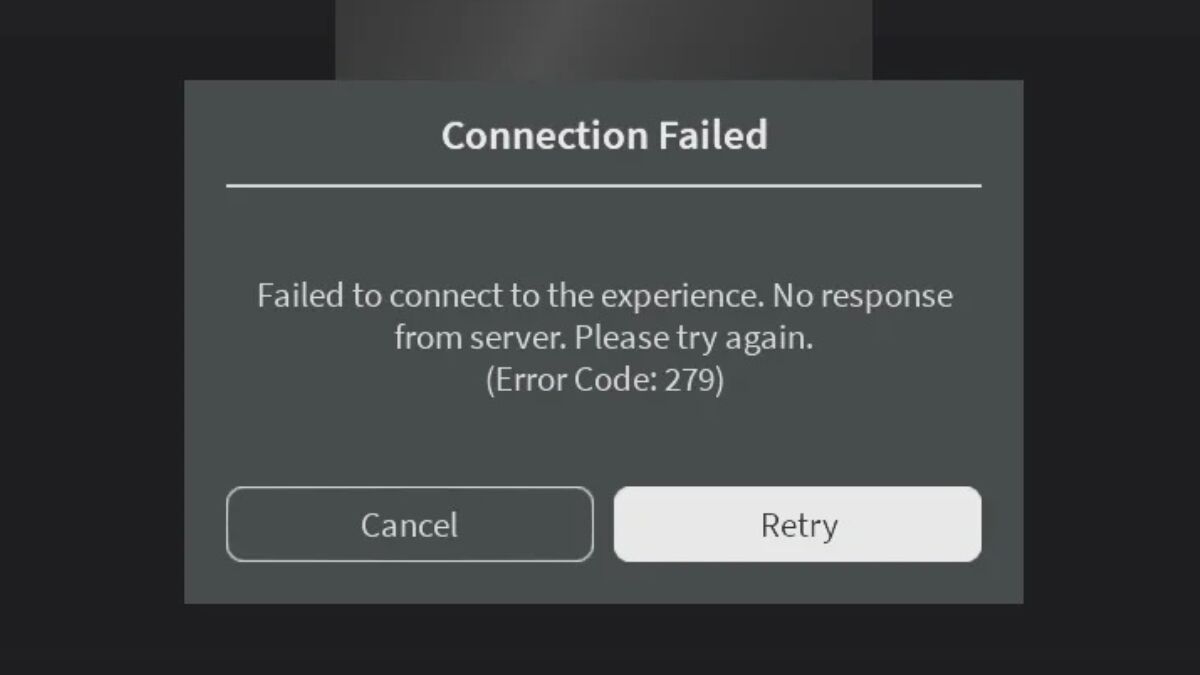
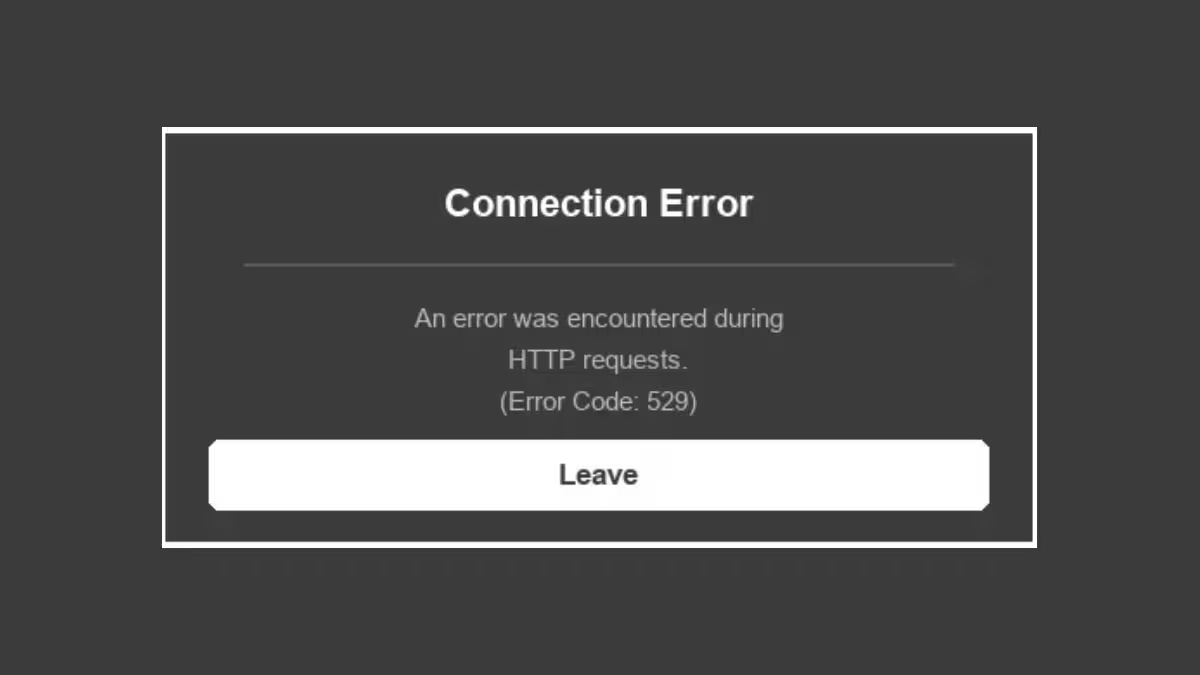
You launch Roblox, pick a game to join, and get hit with Error Code 279 before you even load in. Your internet works fine on everything else, which makes the error feel random.
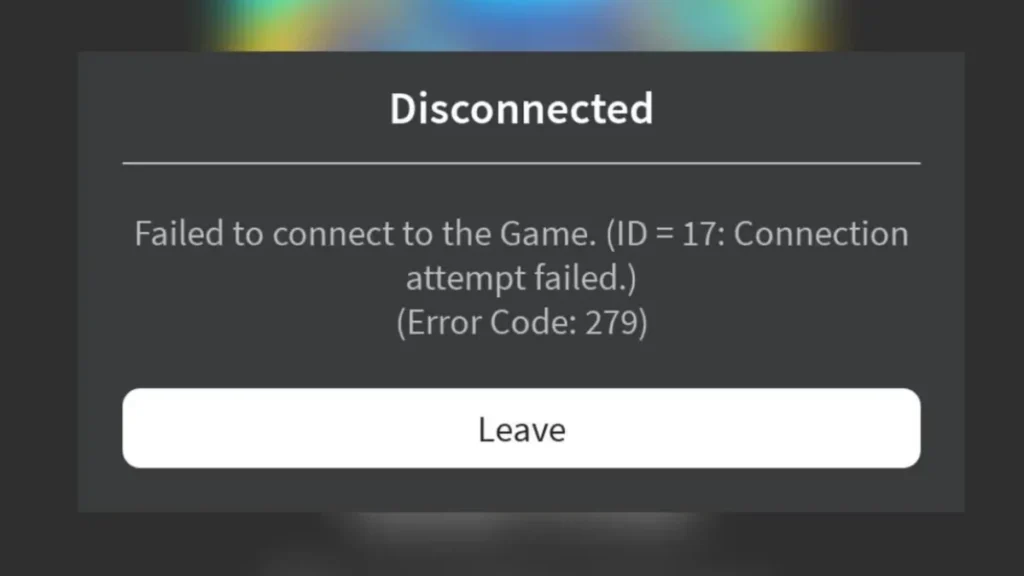
It is not random. Error Code 279 means your device failed to establish or maintain a stable connection to Roblox's game servers. This is not a ban, and it is not an account issue. It is a network problem, and most of the time you can clear it in a few minutes.
What Is Roblox Error Code 279?
Error Code 279 appears when the Roblox client cannot connect to a game server. You may also see it paired with the message "ID=17: Connection attempt failed" or "An Error Occurred While Starting Roblox."
Your device sends a request to join a game, but that request never completes. The connection gets blocked, times out, or drops before Roblox can load the experience.
This error can show up on Windows, macOS, Android, iOS, and Xbox.
What Causes Roblox Error Code 279?
Several things can interrupt the connection between your device and Roblox's servers:
- Unstable or slow internet (speed drops, packet loss, or high ping)
- Roblox server outage or maintenance
- Firewall or antivirus blocking Roblox's network traffic
- VPN or proxy rerouting your connection in a way Roblox does not accept
- Corrupted or outdated Roblox files
- Browser extensions blocking the Roblox launcher (PC browser users)
- Too many devices using bandwidth on the same network
- A problem with one specific game's server rather than Roblox itself
- Strict NAT type set by your ISP or router
Fix 1: Check Roblox Server Status First
Before changing any settings on your end, confirm the problem is not on Roblox's side.
Visit status.roblox.com and check if any services show an incident or outage. You can also search Roblox on DownDetector to see if other players are reporting the same problem.
If Roblox servers are down, no local fix will help. Wait for the platform to restore service, then try again.
Fix 2: Test With a Different Game
Try joining a different Roblox experience before touching any settings.
If other games load fine and only one game triggers Error Code 279, the issue is with that specific game's server. The developer needs to fix it on their end. There is nothing you can do except wait for an update.
If multiple games or all games fail, the problem is on your side. Continue with the fixes below.
Fix 3: Restart Your Device and Router
A full restart clears temporary network glitches on both your device and your router.
- Turn off your device completely.
- Turn off your router.
- Wait 60 seconds.
- Power on your router and let it fully initialize before touching anything else.
- Turn on your device.
- Open Roblox and try joining a game.
This single step resolves a lot of connection issues that look complicated on the surface.
Fix 4: Check Your Connection Speed and Try a Different Network
Roblox needs a stable connection, not just a fast one. Run a speed test at fast.com or speedtest.net on the device you use for Roblox. You need at least 4 to 8 Mbps download, ping under 100 ms, and zero packet loss.
If results look fine but the error persists, pause background downloads, reduce devices on the network, and switch from Wi-Fi to a wired Ethernet connection if possible.
Still unstable? Connect to a mobile hotspot or a different Wi-Fi network. If Roblox works there, your original connection or router is the problem.
Fix 5: Turn Off VPN or Proxy
A VPN or proxy changes your routing path and can interfere with how Roblox connects to its servers.
Turn off your VPN completely. Disconnect any proxy settings active on your device. Restart Roblox and try joining a game.
If Roblox loads without Error Code 279 after you disable the VPN, the VPN is causing the conflict. You can try switching to a different VPN server location, or contact your VPN provider for a server that works with Roblox.
Fix 6: Allow Roblox Through Your Firewall and Antivirus
Your firewall or antivirus may block Roblox's network requests, especially after a system update or software change.
On Windows
- Open Windows Security.
- Go to Firewall and network protection.
- Click Allow an app through firewall.
- Click Change settings, then click Allow another app.
- Click Browse and navigate to your Roblox installation folder. The default path is:
C:\Users\YourUsername\AppData\Local\Roblox\Versions\ - Select RobloxPlayerLauncher.exe and click Add.
- Check both Private and Public boxes next to Roblox.
- Click OK and restart Roblox.
On macOS
- Open System Settings (or System Preferences on older macOS).
- Go to Network, then open Firewall.
- Unlock the settings with your password if prompted.
- Click Options (or Firewall Options).
- Click + and add Roblox from your Applications folder.
- Set it to Allow incoming connections.
- Save and restart Roblox.
If you use third-party antivirus software, open its settings and add Roblox to the exceptions or whitelist. This prevents the antivirus from blocking Roblox's outgoing traffic.
Fix 7: Fix Browser Issues (PC)
If you launch Roblox through a browser rather than the desktop app, browser extensions or profile settings can prevent the Roblox client from launching.
Switch to a different browser first. If you normally use Chrome, try Edge or Firefox. If Roblox works in a different browser, your main browser is causing the conflict.
Next, disable your extensions, especially ad blockers. Roblox support specifically calls out ad-blocking extensions as a common cause of this error.
You can also create a fresh browser profile with no extensions installed and test Roblox there:
- Chrome: Click your profile icon and select Add Chrome Profile.
- Edge: Click your profile icon and select Set up new personal profile.
- Firefox: Type
about:profilesin the address bar, press Enter, and click Create a New Profile.
If Roblox works in the clean profile, one of your installed extensions is the culprit.
Fix 8: Update or Reinstall Roblox
An outdated or partially broken Roblox installation can cause persistent connection errors.
Open Roblox and let it run its automatic update check. If the update fails or the error continues, do a clean reinstall:
- Uninstall Roblox from your device.
- Delete any leftover Roblox files:
- Windows: Press Win + R, type
%localappdata%, and delete the Roblox folder. - macOS: Open Finder, press Command + Shift + G, go to
~/Library/Caches/, and delete the com.roblox.RobloxPlayer folder.
- Windows: Press Win + R, type
- Restart your device.
- Download the latest Roblox installer from roblox.com and install it fresh.
On Android
Open the Google Play Store, search for Roblox, and tap Update if one is available. To reinstall: tap your profile icon, go to Manage apps and devices, find Roblox, tap Uninstall, then download it again from the Play Store.
On iPhone or iPad
Open the App Store, tap your profile icon, find Roblox under upcoming updates, and tap Update. To reinstall: press and hold the Roblox app icon, tap Delete App, then reinstall from the App Store.
Fix 9: Change Your DNS Settings
Switching to a faster and more reliable DNS server can help your device reach Roblox's servers more consistently.
On Windows
- Open Settings and go to Network and Internet.
- Click on your active connection (Wi-Fi or Ethernet).
- Scroll down and click Edit under DNS server assignment.
- Switch from Automatic to Manual.
- Enter one of these DNS options:
- Google DNS:
8.8.8.8(Primary),8.8.4.4(Secondary) - Cloudflare DNS:
1.1.1.1(Primary),1.0.0.1(Secondary)
- Google DNS:
- Save the changes and restart your connection.
On macOS
- Open System Settings and go to Network.
- Select your active connection and click Details.
- Go to the DNS tab.
- Click + to add a new DNS server and enter the values above.
- Click OK and apply.
Fix 10: Reset Winsock and Flush DNS Cache (Windows)
Corrupt network catalog entries or a bloated DNS cache can prevent Roblox from reaching its servers. This fix resets both on Windows.
- Open the Start menu and type cmd.
- Right-click Command Prompt and select Run as administrator.
- Type the following command and press Enter:
netsh winsock reset- Once that completes, type this command and press Enter:
ipconfig /flushdns- Restart your device after both commands finish.
Fix 11: Check Your NAT Type and Port Forwarding
Roblox requires specific ports to stay open for game connections. A strict NAT type or blocked ports will prevent the game from connecting.
Roblox uses the following ports:
- Port 80: Standard HTTP traffic
- Port 443: Secure HTTPS traffic
- Ports 49152 to 65535: Dynamic range for game connections (UDP)
If your router blocks any of these, you need to set up port forwarding:
- Open your router's admin panel (usually accessed at
192.168.1.1or192.168.0.1in a browser). - Log in with your router credentials.
- Find the Port Forwarding section under Internet or Advanced settings.
- Enter your device's local IP address.
- Set the port range to 49152 to 65535 and select UDP as the protocol.
- Save and restart your router.
If you are unsure about your NAT type or port settings, contact your ISP for help opening the required ports.
Fix 12: Try the Other Roblox Edition (Windows Only)
Windows users can install Roblox in two ways, and if one version triggers Error Code 279, the other may work fine.
- Roblox Player: Download the executable installer directly from roblox.com by clicking on any experience.
- Roblox App: Install the UWP version for free from the Microsoft Store.
If you currently use the downloaded Player version and it keeps failing, install the Microsoft Store version instead, or vice versa.
How to Reduce Roblox Error Code 279 in the Future
No method eliminates this error entirely, but these habits keep it from showing up as often:
- Keep Roblox updated to the latest version at all times.
- Use a wired Ethernet connection when playing on PC.
- Restart your router once a week to clear accumulated connection issues.
- Avoid running large downloads or video streams while playing Roblox.
- Keep your firewall exceptions updated whenever Roblox updates.
- Avoid VPNs during active gameplay sessions.