Roblox Error Code 260 appears with the message “There was a problem receiving data, please reconnect (Error Code: 260).” The error kicks you out of the experience and prevents you from rejoining until you fix the underlying cause.
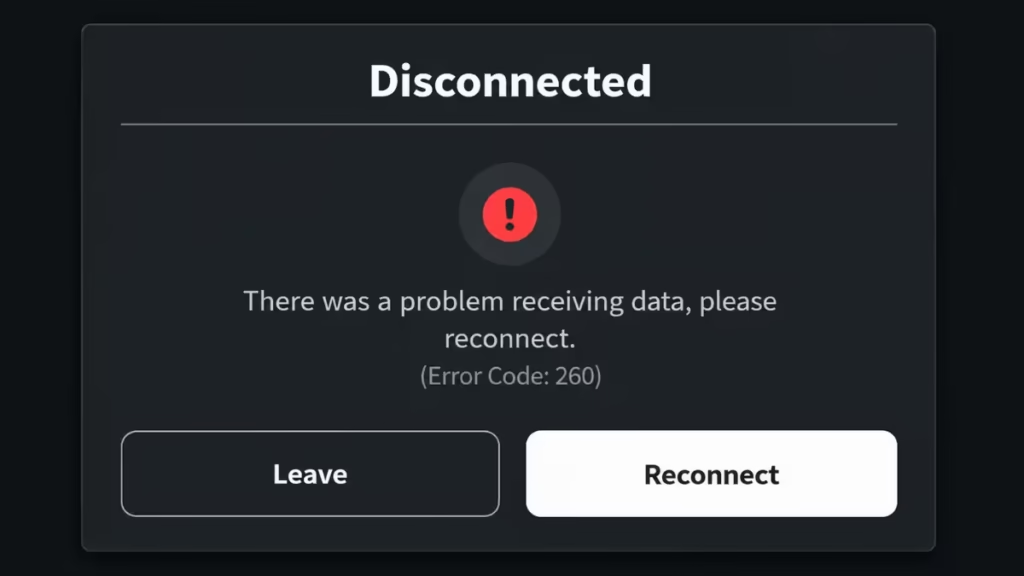
Unlike Roblox Error Code 2, which fails before you even enter a game, Error Code 260 often hits mid-session. It shares some overlap with Roblox Error Code 277 and Roblox Error Code 280 as a disconnection-class error, but the root causes behind 260 are different and require specific fixes.
What Causes Roblox Error Code 260?
Before jumping into fixes, it helps to know exactly what triggers this error:
- Windows Firewall blocking Roblox’s network port (UDP 49152–65535): This is the most common cause on Windows PCs. The firewall treats Roblox’s outbound data as a threat and silently drops packets.
- Roblox app not allowed through Firewall: Even if the port is open, Windows may block the Roblox executable itself.
- Active VPN connection: Most VPNs route traffic through tunneled IPs that Roblox’s servers reject or throttle heavily.
- Login session glitch: A stale authentication token prevents your account from syncing properly with the game server.
- Router-level network block: Certain router firmware updates or ISP-level settings block game traffic silently.
- High packet loss: Packet loss above 3–5% causes the game server to stop receiving your data stream, triggering 260.
- Account ban: A platform ban or game-specific ban can surface as Error Code 260 rather than a clear ban message.
- Corrupted browser cache: Players using the browser version can encounter this when the browser cache conflicts with Roblox’s session data.
How to Fix Roblox Error Code 260
1. Check Whether Your Account Is Banned
Before touching any settings, confirm your account is in good standing. A ban will cause this error on every server, and no other fix will work until you resolve it.
Open a browser and go to https://www.roblox.com/users/YOUR_USER_ID/profile. Replace YOUR_USER_ID with your actual Roblox user ID. If your profile page loads normally, your account exists and is not permanently banned.
Next, check your Roblox inbox for any moderation warning or ban notification. If Error Code 260 only appears on one specific game, the game developer has restricted your access to that experience rather than Roblox itself. That situation is similar to Roblox Error Code 600, where game-level access restrictions block entry without a clear explanation.
If your account has a platform-level ban, contact Roblox Support directly. No client-side fix will help.
2. Add Roblox’s UDP Port to Windows Firewall (Outbound Rule)
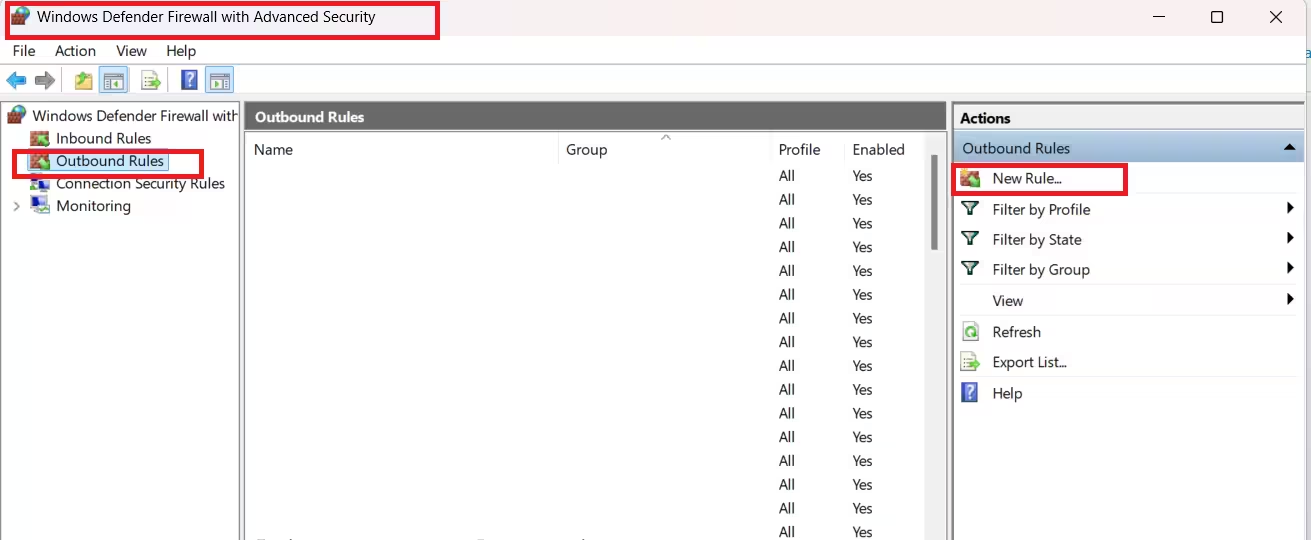
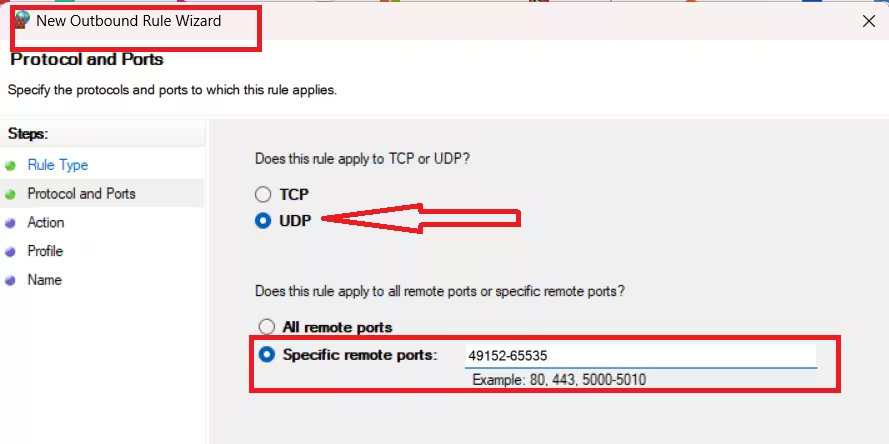
This is the most effective fix for Error Code 260 on Windows. Roblox uses UDP ports 49152–65535 for outbound game data. When Windows Firewall blocks those ports, the game server stops receiving your packets and throws Error Code 260.
Steps:
- Press Windows + S, type Windows Defender Firewall with Advanced Security, and open it.
- Click Outbound Rules in the left panel.
- In the right panel under Actions, click New Rule.
- Select Port and click Next.
- Select UDP, then choose Specific remote ports and enter
49152-65535. Click Next. - Select Allow the connection and click Next.
- Check all three profiles: Domain, Private, and Public. Click Next.
- Give the rule a name such as
Roblox UDP Outboundand click Finish.
Restart Roblox and attempt to join a game. This fix resolves Error Code 260 in most cases where network settings are the culprit.
3. Allow the Roblox App Through Windows Firewall
If the port rule alone does not fix it, make sure the Roblox application itself has explicit firewall permission.
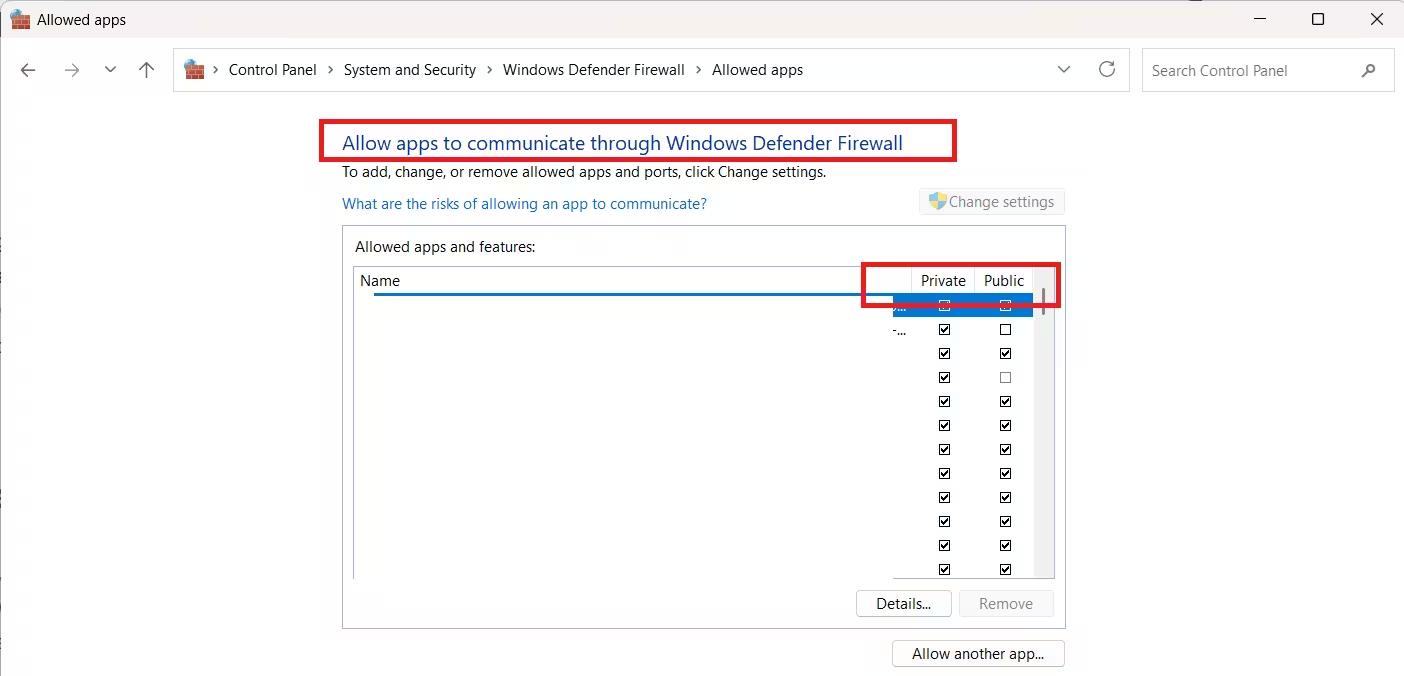
- Press Windows + S and search for Windows Defender Firewall.
- Click Allow an app or feature through Windows Defender Firewall.
- Click Change settings, then Allow another app.
- Click Browse and navigate to the Roblox installation folder. The default path is
C:\Users\YOUR_USERNAME\AppData\Local\Roblox\Versions\. SelectRobloxPlayerBeta.exe. - Enable the checkbox for Private and Public networks.
- Click OK to save.
4. Disable Your VPN
If a VPN is active, turn it off before launching Roblox. Roblox does not support VPN connections and will often drop the data stream, which triggers Error Code 260. This is the same reason Roblox Error Code 279 appears when using a VPN, and the same principle applies here.
After disabling the VPN, close Roblox completely, wait 10 seconds, and relaunch. Do not use a VPN while playing Roblox on any platform.
5. Fix the Login Glitch (Sign Out and Back In)
A stale login session can cause the game client to fail its authentication handshake with the server mid-game, which surfaces as Error Code 260. This is different from the Unable to Authenticate error (Error Code 0), but the session-reset approach works the same way.
Steps:
- Open Roblox and sign out completely.
- Close the Roblox client and also close your browser if you play in a browser.
- Wait 30 seconds.
- Sign back in and try joining a game.
If this does not work, try signing in on a different platform. Switch from the Windows app to a browser, or try the Android app. If the error disappears on a different platform, the issue is specific to the client you were using.
6. Reset Your Router
Router-level settings can block Roblox’s game traffic without triggering any obvious network error on your PC. A full reset wipes those settings and restores factory defaults.
Steps:
- Locate the reset button on the back of your router (usually a small pinhole).
- Press and hold it for 10–15 seconds using a paperclip or pin.
- Wait for the router to fully restart (2–3 minutes).
- Reconnect your device to the Wi-Fi or ethernet.
- Relaunch Roblox.
A simple router restart (power cycle without reset) also helps in many cases. Unplug the router from power, wait 30 seconds, and plug it back in.
7. Check for Packet Loss
High packet loss is one of the direct triggers for Error Code 260. When too many data packets fail to reach the Roblox server, the connection drops and the error fires.
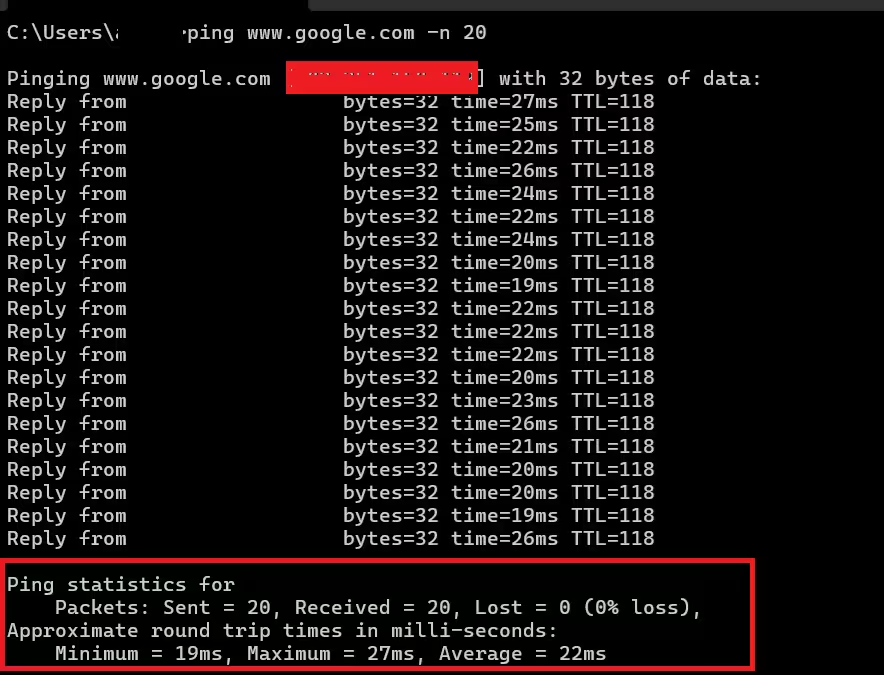
How to check:
- Open Command Prompt (press Windows + R, type
cmd, press Enter). - Run the following command:
ping www.google.com -n 20- Look at the results. The output shows how many packets were sent and how many were received. Any packet loss above 0% on a stable connection indicates a problem.
If you see consistent packet loss, contact your ISP. Running Roblox over Wi-Fi also increases packet loss. Switch to a wired ethernet connection if possible.
8. Disable or Whitelist Roblox in Your Antivirus
Third-party antivirus software can intercept Roblox’s data stream and block it. If you have antivirus software running, temporarily disable it and test whether the error disappears. If it does, add Roblox to the antivirus exclusion list rather than leaving the antivirus off.
The third-party software interfering with Roblox error is a related issue caused by the same category of software conflicts. Antivirus and overlay tools are the most common offenders.
9. Reset Browser Settings (Browser Players Only)
If you play Roblox through a web browser rather than the desktop app, corrupted browser data can cause Error Code 260. Reset your browser to clear the conflict.
Chrome:
- Open Chrome and click the three-dot menu in the top right.
- Go to Settings > Reset settings > Restore settings to their original defaults.
- Click Reset settings to confirm.
Microsoft Edge:
- Open Edge and go to Settings > Reset settings > Restore settings to their default values.
- Click Reset.
After resetting, relaunch the browser, go to Roblox.com, and try joining a game.
10. Reinstall Roblox
If none of the above fixes work, a fresh installation removes corrupted client files that may be causing the data sync failure.
- Press Windows + I to open Settings.
- Go to Apps > Installed Apps (Windows 11) or Apps & Features (Windows 10).
- Find Roblox in the list, click it, and select Uninstall.
- After uninstalling, visit roblox.com and download the latest Roblox installer.
- Run the installer and sign in again.
Frequently Asked Questions
What does Roblox Error Code 260 mean?
Error Code 260 means Roblox’s servers stopped receiving data from your client. The most common cause is Windows Firewall blocking Roblox’s UDP ports, though VPNs, login glitches, and packet loss also trigger it.
Can Error Code 260 mean I’m banned?
Yes. If the error appears on every server and every game, check your account status. A platform ban can surface as Error Code 260 instead of a clear ban message.
Does Roblox Error Code 260 only happen on PC?
No, but firewall and VPN-related causes are PC-specific. Mobile players typically encounter this error due to unstable connections or account issues.
What is the Roblox UDP port for firewall rules?
Roblox uses UDP ports 49152 through 65535 for outbound game traffic. Adding these as an allowed outbound rule in Windows Firewall is the primary fix for most cases of Error Code 260.

