Your router sits between your family and the open internet. Phones, laptops, smart TVs, cameras, and doorbells all pass through it. If an attacker takes control of that one box, they can watch your traffic, redirect you to fake websites, and borrow your internet connection for crimes you never see.
Most people set up a router once and never open its settings again. Attackers count on that. This guide shows you why criminals want your router, how they break in, and which settings close the door.
Why Hackers Target Home Routers (and What They Do With Them)
A hacked router rarely feels dramatic. Your Wi-Fi still works, and nothing pops up on screen. Behind the scenes, attackers use your device in several ways:
- Disguise for other attacks. Security teams flag logins from unusual countries or known VPN servers. Attackers route their traffic through a hijacked home router in the victim's own city, so the login looks like a normal employee working from home.
- Storage for malware. They park malicious files on your router and let infected machines download them from there.
- Traffic tampering. A compromised router can change what your browser loads. Attackers use this to steal passwords or inject ads into pages.
- Botnet muscle. They link thousands of routers, cameras, and smart plugs together to flood websites with fake traffic.
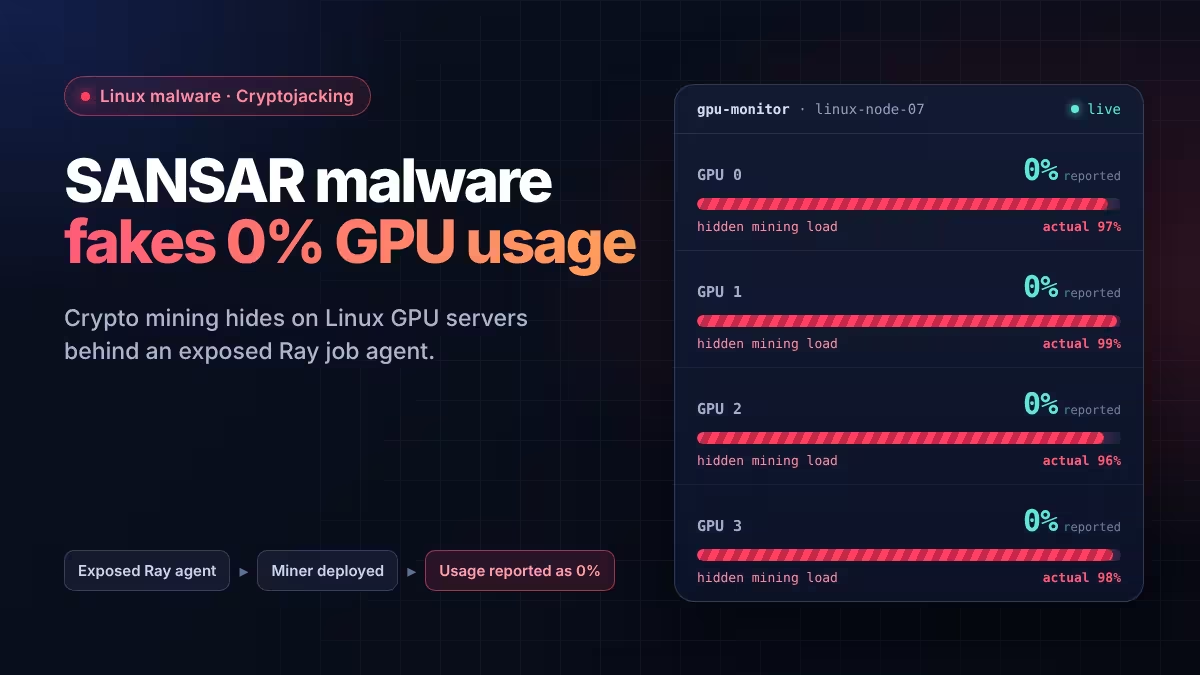
- Free crypto mining. Routers mine slowly, but the attacker pays nothing for the hardware or the power.
U.S. agencies, including CISA, have warned more than once that state-backed groups use consumer routers this way. Your router does not need to hold valuable data to be valuable to them.
How Routers Get Hacked: Weak Passwords and Unpatched Firmware
Most router hacks start with one of two entry points.
Guessing the admin password. Many routers still ship with a login like "admin" for both username and password. Owners who change it often pick something weak such as 123456. Automated tools try these combinations against thousands of routers an hour.
Using known software flaws. Attackers scan the internet, identify your router's brand and model, and test published vulnerabilities one after another. If you skipped a firmware update, the flaw stays open.
Can a Firmware Update Remove a Router Backdoor? The ASUS SSH Attack Explained
A recent router hack against ASUS home routers shows why a firmware update does not always clean up a hack. The attackers used several flaws to bypass the login, then switched on the router's built-in SSH remote access. They added their own cryptographic key, which gave them a permanent way back in. That access survived reboots and later firmware updates, so the router stayed compromised even after the vendor patched the original holes.
Researchers linked the same style of attack to about 60 types of home and office hardware, including cameras, NAS boxes, and VPN servers. If you ever ran a vulnerable router, check these items now:
- Open your admin panel and look for an enabled SSH server. In this campaign it listened on port 53282.
- Check the list of authorized SSH keys. The attacker's key began with the characters
AAAAB3NzaC1yc2EA. - Disable SSH and delete any key you did not add.
- If those menus confuse you, run a full factory reset and set the router up again from scratch.
Few people ever open the SSH or key pages, so this kind of access can sit unnoticed for years.
Signs Your Router Has Been Hacked
A compromised router gives away small clues. Watch for these:
- Your slow WiFi has no clear cause.
- The router runs hot or its lights blink nonstop when nobody uses the network.
- Your device list shows gadgets you do not recognize.
- The DNS settings point to servers you never entered.
- Your admin password stops working.
- The settings contain port forwards, user accounts, or SSH keys you did not create.
One clue alone may mean a simple glitch. Two or more together deserve a full check of the router.
12 Router Security Settings to Change Right Now
Log in to your router's admin page (usually 192.168.1.1 or 192.168.0.1) and work through this router security checklist. The whole job takes under an hour.
1. Change the admin login
Replace the default username and password. Pick a long passphrase that you use nowhere else. If the router lets you rename the admin account, do that too.
2. Use a different Wi-Fi password
Your admin password and your Wi-Fi password must not match. Anyone who knows your Wi-Fi key should still stay out of your settings.
3. Switch to WPA3
Open the wireless settings and pick the strongest mode on offer. Here is how the common options compare:
| Mode | Verdict |
|---|---|
| WEP | Broken. Never use it. |
| WPA and WPA2 with TKIP | Weak. Turn it off. |
| WPA2 with AES | Acceptable minimum |
| WPA3 | Best choice |
WPA3 resists offline password-guessing far better than WPA2. If an older gadget cannot join, use the mixed WPA2/WPA3 mode until you replace it.
4. Update the firmware and turn on auto-updates
Firmware patches close the holes attackers use. Enable automatic updates if your router offers them. If it does not, check manually every few months. When your router has gone 12 to 18 months without a single update, the maker has probably stopped supporting it. Replace it.
5. Turn off remote management
Remote management lets anyone on the internet reach your login page. Disable it for every channel, including HTTPS, SSH, and Telnet. You can manage the router from inside your home.
6. Disable WPS
Wi-Fi Protected Setup uses short PINs that attackers brute-force. Switch it off. You lose a convenience button and gain real safety.
7. Turn off UPnP
Universal Plug and Play lets devices open ports on your firewall without asking you. Malware loves that. Disable UPnP and forward a port by hand on the rare occasion you need one.
8. Skip the router's mobile app if you can
Phone apps for router control add a cloud service to the chain, and that service becomes another target. If you do not need remote control, turn the feature off.
9. Build a guest network for visitors and smart devices
Put guests, smart bulbs, cameras, and cheap gadgets on a separate network. If one of them falls to malware, the infection stays away from your laptop and your banking sessions. Give the guest network its own password and switch on client isolation.
10. Pick a trusted DNS provider
Attackers sometimes change your DNS settings to send you to fake sites. Set DNS manually to a respected public resolver such as Cloudflare or Google, and recheck it if your browsing starts behaving strangely.
11. Audit your router every quarter
Spend 15 minutes on the full settings menu. Look for port forwards you did not create, user accounts you do not recognize, and unfamiliar keys or credentials. If you find something odd, search for it online with your router model. When nothing documents it as a normal feature, delete it.
12. Control who can physically touch it
Anyone who can press the reset button can wipe your security settings in seconds. Keep the router out of reach of casual visitors.
Common Router Security Mistakes
Even careful people leave gaps. These four mistakes show up most often:
- Treating setup as a one-time job. New flaws appear every month, so home network security needs regular attention.
- Trusting every device inside the home. Cheap smart gadgets often have weak security and rarely get updates. Keep them on the guest network.
- Leaving default settings alone. Public lists of default logins make these routers easy targets.
- Keeping an old router too long. A model that no longer receives firmware updates stays vulnerable forever, no matter how strong your password is.
Router Security Myths: Hidden SSID, MAC Filtering, and VPN-Only Protection
Some popular advice sounds smart and does very little.
- Hiding your network name. Scanning tools find hidden networks in seconds. A strong passphrase protects you far better, so spend your effort there.
- MAC address filtering. Attackers can fake a MAC address easily. Treat it as a small extra layer at best.
- Changing your Wi-Fi password every 90 days. A long, random password does not need a rotation schedule. Change it after a suspected breach, a stolen device, or when you shared it too widely.
- Relying on a VPN alone. A VPN encrypts traffic between your device and the VPN server. It cannot protect you from a hijacked router that tampers with your network before the tunnel opens. Fix the router first, then consider a VPN as an extra.
How to Choose a Secure Router With Long-Term Updates
Your hardware matters as much as your settings. Skip the cheapest model and the free box from your internet provider if you can. Look for one of the best WiFi routers released in the last year or two, because newer models receive security updates for longer. Check the maker's support policy and its record of firmware releases. A brand that ships fixes often and publishes a support end date beats one that goes silent after launch.
What to Do If Your Router Is Hacked
Move fast, and follow this order:
- Disconnect the router from the internet.
- Run a factory reset.
- Install the latest firmware before you do anything else.
- Set a new admin password and a new Wi-Fi passphrase.
- Turn off WPS, UPnP, and remote management.
- Change the passwords for your email, banking, and internet provider accounts from a clean device.
Frequently Asked Questions
Is my router safe straight out of the box?
Not always. Default passwords are public knowledge, and some routers ship with risky features switched on. Change the login and review the settings on day one.
Does WPA3 really matter for a home network?
Yes. WPA3 makes password-guessing attacks much harder than WPA2 does. Enable it whenever your devices support it.
Will a firmware update remove a hacker's backdoor?
Often it will, but not always. Persistent backdoors, like the SSH key trick used against ASUS routers, can survive updates. Check for rogue keys and services, or do a factory reset.
How often should I check my router settings?
Review the full configuration about once a quarter, and check for firmware updates at least a few times a year.
Is a guest network worth the effort?
Yes. It keeps visitors and low-security gadgets away from your computers and phones, and setup takes a few minutes.
Should I use my internet provider's router?
You can, but you give up control and often get slow updates. Buying your own modern router, and your own modem if your provider allows it, gives you better security options.
Can a VPN replace router security?
No. A VPN adds a layer of privacy, but a compromised router can still harm your network. Secure the router first.
Related Guides
- Home Network Security: A Practical Checklist to Lock Down Your WiFi Router
- Router Security Checklist: 9 Settings to Lock Down Your Home Wi-Fi
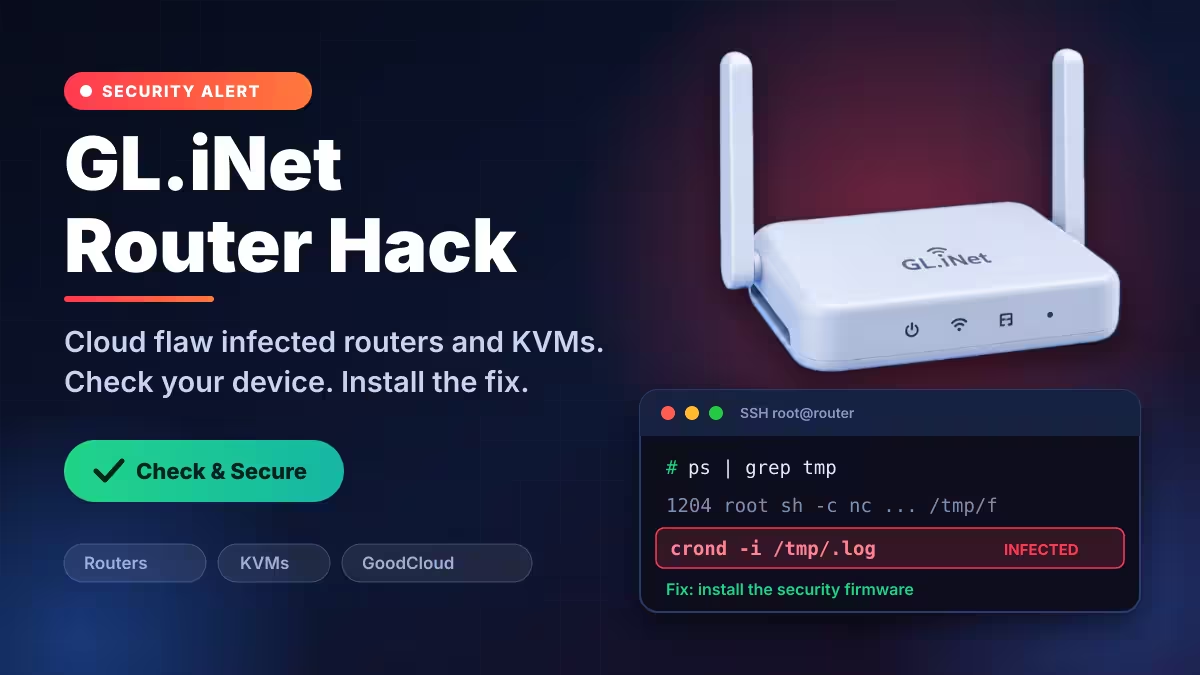
- GL.iNet Router Hack: How to Check If Your Router or KVM Is Infected and Install the Security Firmware
- How to Fix Slow WiFi: 14 Proven Methods to Speed Up Your Connection
- Best WiFi Routers: Top 5 Picks for Every Home and Budget