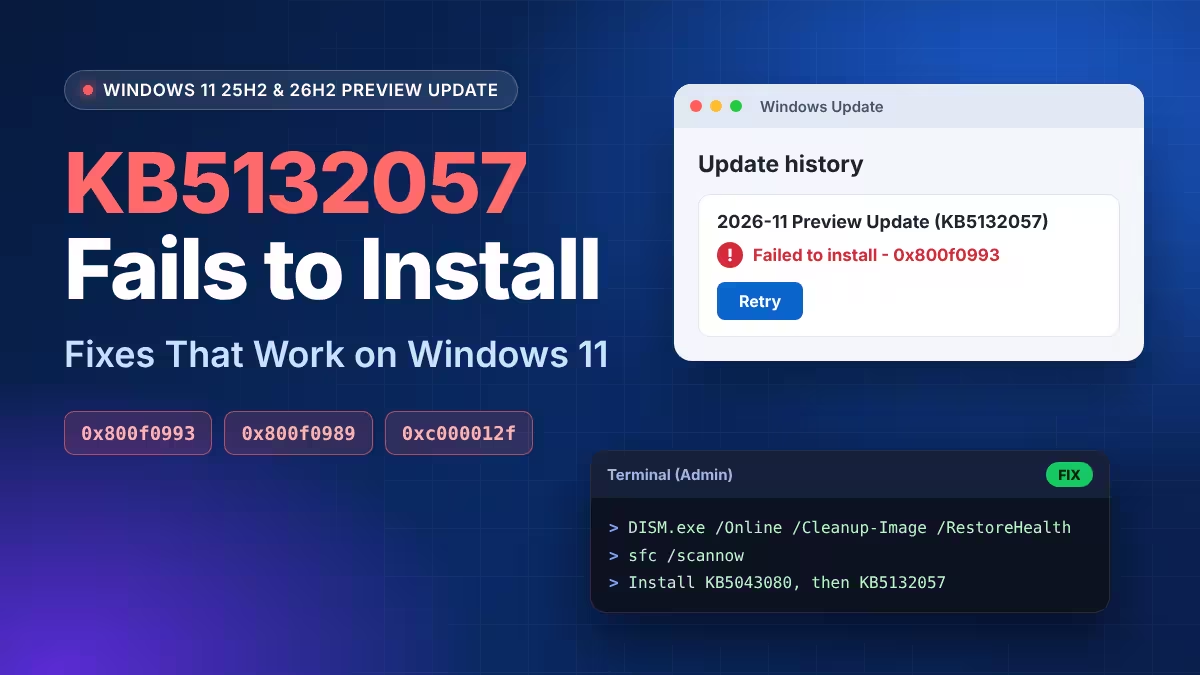
Microsoft pushed KB5132057 to Windows 11 PCs on November 19 as an optional preview update, and a growing number of users now see it fail with codes like 0x800f0993, 0x800f0989 and 0xc000012f. Some PCs try it several times in a row and give up each time.
Because this update has no security patches, you can safely skip it. If you want its new features now, a few repair steps usually get it installed.
What Is KB5132057 and Does Your PC Get It?
KB5132057 is a non-security preview cumulative update for Windows 11 versions 25H2 and 26H2. It raises 25H2 to build 26200.10075 and 26H2 to build 26300.10075. You can confirm your version and build by pressing Win + R, typing winver, and pressing Enter.
The update brings a few headline changes:
- A redesigned Windows Search with one unified results list, file previews and inline quick actions
- A modern Run dialog you enable under Settings > System > Advanced
- A Windows Hello option that briefly brightens the screen for face sign-in in dark rooms
- Fixes for Sage 50 Accounting crashes, Miracast dropping to low resolution, the false "Someone else is using this PC" warning, File History restore problems, and the Android passkey "Something went wrong" error
Windows 11 24H2 Home and Pro PCs won't see this update at all, and 26H1 devices get a separate package, KB5132265. If a new feature doesn't show up after you install the update, you can switch it on with ViVeTool.
KB5132057 Error Codes: 0x800f0993, 0x800f0989 and 0xc000012f
| Error code | Where users report it | What it usually looks like |
|---|---|---|
| 0x800f0993 | 25H2 and 26H2 | Install fails after download, often on repeat attempts |
| 0x800f0989 | 26H2 | Install fails, and the Windows Update troubleshooter fails too |
| 0xc000012f | 26H2 | Install never finishes, sometimes with a "bad image" popup |
| 0x800f081f | Isolated reports | Missing source files during servicing |
Microsoft hasn't added any of these codes to the known issues section of its official KB5132057 release notes. The only known issue it lists involves SQL Server linked server connections staying open, which affects servers, not home PCs.
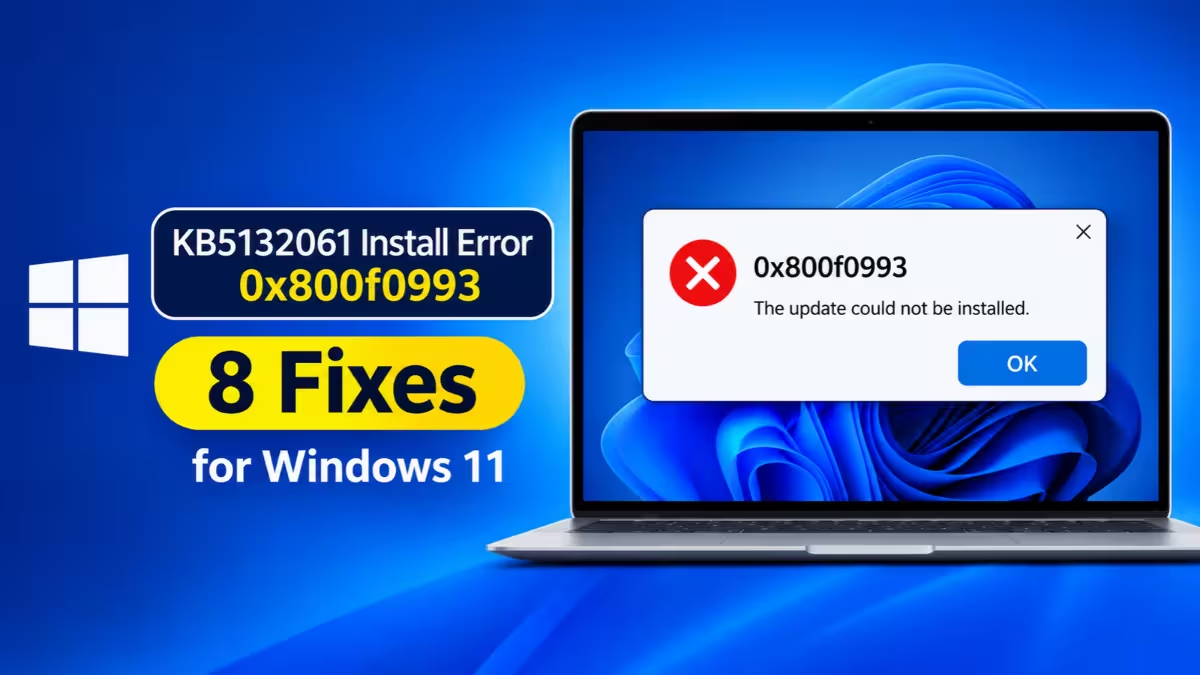
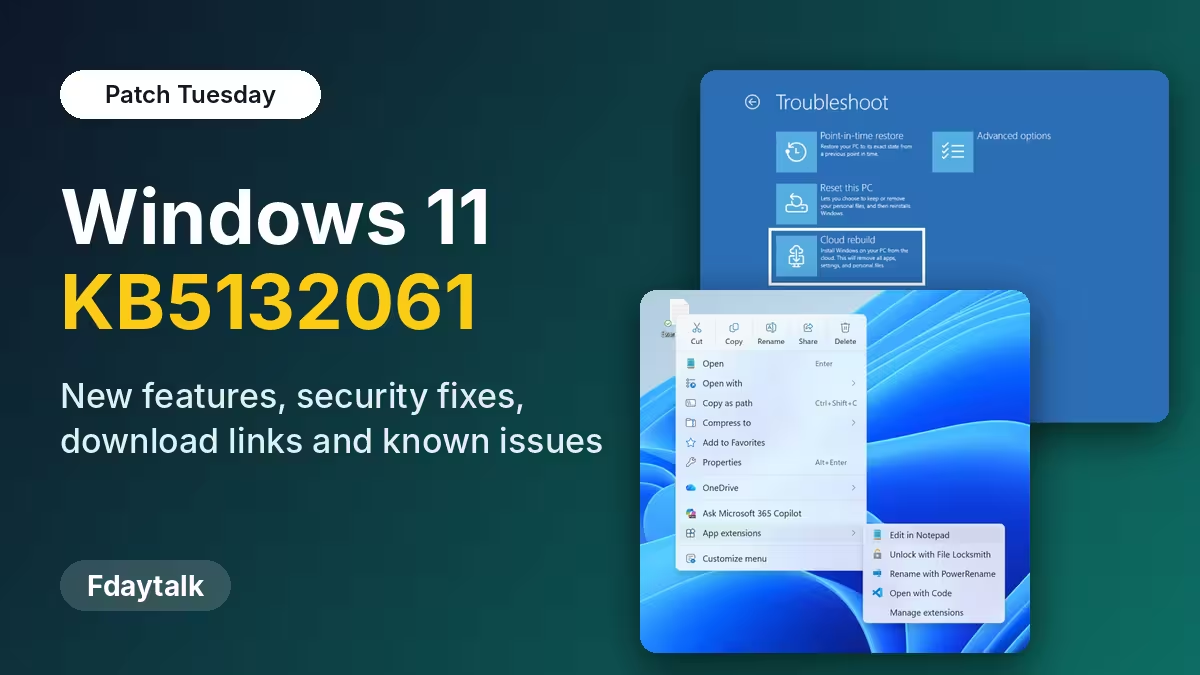
Don't confuse this with KB5132061, the November 10 security update. Microsoft confirmed install trouble with that one separately. If KB5132061 is the update stuck on your PC, follow our KB5132061 install error guide instead.
Fix 1: Skip KB5132057 by Turning Off Early Updates
Since KB5132057 is optional, the simplest fix is to stop Windows from chasing it.
- Open Settings > Windows Update.
- Turn off Get the latest updates as soon as they're available.
- Restart your PC.
On many PCs, the failed entry disappears and the update moves back into the Optional updates list, where it stays until you pick it. Security updates keep installing normally with this toggle off.
You lose almost nothing by waiting. Microsoft rolls preview changes into the next monthly security update, which lands on Patch Tuesday, December 8. Microsoft also skips the December non-security preview, so this is the last optional release before the holidays.
Fix 2: Meet the 25H2 and 26H2 Prerequisites
If you want the update now, start by confirming your PC meets Microsoft's requirements.
- Run
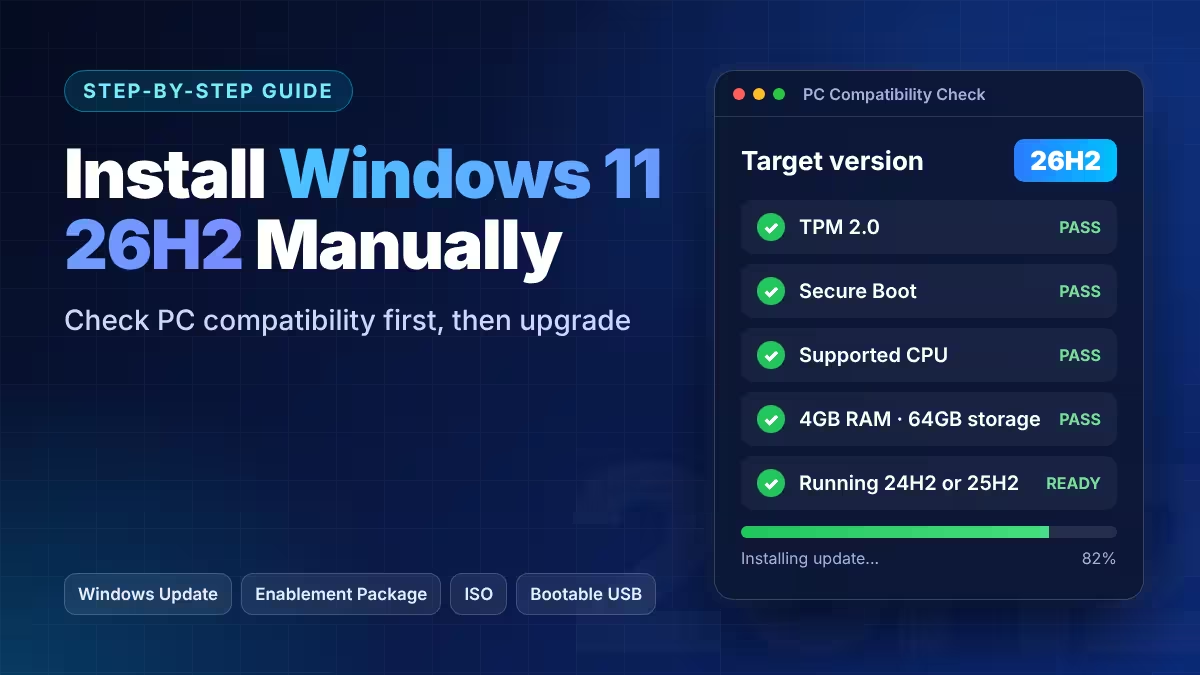
winverand confirm you're on 25H2 or 26H2. If you're still on 24H2, install Windows 11 26H2 manually first. - Open Settings > Windows Update > Update history.
- On 25H2, check that an update from June 10, 2025 or later (such as KB5060842) appears in the list.
- Go back to Windows Update, click Check for updates, and install every servicing update offered so the latest servicing stack is in place.
- Restart and retry KB5132057 from Advanced options > Optional updates.
Also free up disk space before you retry. The full offline package weighs in at around 5 GB.
Fix 3: Run the Windows Update Troubleshooter
- Open Settings > System > Troubleshoot > Other troubleshooters.
- Click Run next to Windows Update.
- Let it finish, restart, and try the update again.
If the troubleshooter itself fails (a common pattern with 0x800f0989), skip ahead to the next fix.
Fix 4: Repair KB5132057 Errors With DISM and SFC
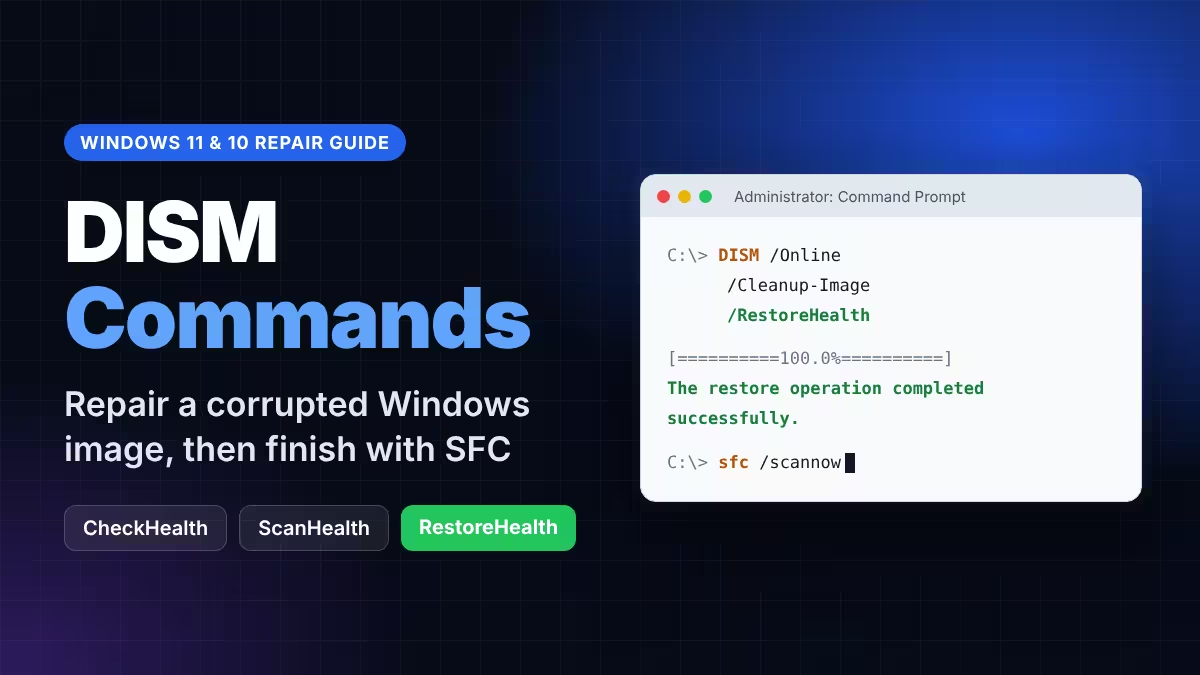
Corrupt servicing files cause many 0x800f-series errors. Two built-in commands repair them.
- Right-click Start and choose Terminal (Admin).
- Run this command and wait for it to reach 100%:
DISM.exe /Online /Cleanup-Image /RestoreHealth- Then run:
sfc /scannow- Restart and retry the update.
Keep the PC online while DISM runs, because it pulls replacement files from Windows Update. Run this pair once or twice at most. If it doesn't help after that, repeating it won't change the outcome. Our DISM commands guide explains CheckHealth, ScanHealth and RestoreHealth in more detail.
Fix 5: Install KB5132057 Manually From the Microsoft Update Catalog
A manual install skips the Windows Update client entirely, which sometimes gets around a stuck download.
- Open Settings > System > About and note your System type (x64 or Arm64).
- Search for KB5132057 in the Microsoft Update Catalog.
- Pick the package that matches both your Windows version and your processor type. The catalog lists four separate packages.
- Create an empty folder, such as
C:\Packages, and download every .msu file the KB page lists for your package into it. Put nothing else in that folder. - Install the checkpoint update KB5043080 first, then KB5132057. If Windows says the checkpoint is already installed, move on.
You can also let DISM handle the order for you. Open an admin terminal and run:
DISM /Online /Add-Package /PackagePath:"C:\Packages"DISM detects the checkpoint package and installs it before the main update. When it finishes, restart and check winver for the new build number.
Never grab .msu files from third-party download sites. Stick to the Microsoft Update Catalog.
Fix 6: Reinstall Windows 11 Without Losing Files
If nothing else works and you still need a fix from this update, Windows can repair itself with an in-place reinstall.
- Back up your important files first.
- Go to Settings > System > Recovery.
- Under Fix problems using Windows Update, click Reinstall now.
- Keep the PC plugged in and online until it finishes.
This rebuilds the current Windows version while keeping your apps, files and settings. Treat it as a last resort for an optional update.
What Not to Do When KB5132057 Fails
- Skip registry hacks posted on forums for 0x800f0989. Microsoft hasn't verified any of them, and they can break future updates.
- Don't uninstall the KB5132061 security update to clear a preview problem.
- Don't install a preview on a work machine you need today without a backup. An image backup to an external drive takes little time and saves a lot of trouble.
- Work or school PCs may follow IT policies that override your settings, so check with your admin before forcing anything.
How to Uninstall KB5132057
If the update installs but something breaks afterward, open Settings > Windows Update > Update history > Uninstall updates, find KB5132057, click Uninstall, and restart.
Frequently Asked Questions
Is it safe to skip KB5132057?
Yes. It contains no security fixes, and its changes arrive with the December 8 security update.
Why does KB5132057 keep failing on my PC?
Microsoft hasn't named a cause yet. Corrupt servicing files, a missing servicing stack update, or low disk space trigger most of these errors, so the DISM, SFC and prerequisite checks above fix many cases.
Will turning off the early updates toggle stop security patches?
No. That toggle only controls optional previews. Monthly security updates still install on schedule.
Does a manual install fix 0x800f0993 and 0x800f0989?
It works for some users, but no one guarantees it. Try it after the DISM and SFC repair, and install the KB5043080 checkpoint first.
I installed it but don't see the new Search or Run dialog. Why?
Microsoft rolls out most new features gradually. Two PCs on the same build can look different for days or weeks. The Run dialog toggle only appears once the feature reaches your PC.
What is error 0xc0430001 with KB5132057?
That error only affects Windows installation media that someone updated with the package but left out the boot.stl file. Rebuilding the media with that file included fixes it. It has nothing to do with installs through Windows Update.
Related Guides
- KB5132061 Install Error 0x800f0993 in Windows 11: 8 Ways to Fix It
- DISM Commands to Repair Windows 11 and 10: CheckHealth, ScanHealth, RestoreHealth and SFC
- How to Enable New Features in Windows 11 December 2026 Update (KB5132057) with ViVeTool
- How to Install Windows 11 26H2 Manually and Check PC Compatibility (Step-by-Step Guide)
- Best Way to Back Up Windows 11: 5 Methods to Back Up and Migrate Your PC