Windows 10 reached end of support in October, and many laptops cannot upgrade to Windows 11. You do not need to buy a new machine. A lightweight Linux distro gives that laptop a safe, supported system and often makes it feel faster than it did on Windows.
The right choice depends on three things: how much RAM you have, whether your CPU is 32-bit or 64-bit, and how comfortable you feel with Linux. This guide matches each of those to a specific distro so you can skip the trial and error.
Why Switch an Old Windows 10 Laptop to Linux?
A laptop that loses Windows 10 security updates puts your passwords, banking and files at risk every time you go online. Linux distros receive regular security patches, and the lightweight ones run on hardware that Windows 11 rejects. You keep a machine that works, you avoid the cost of a replacement, and you keep one more device out of the landfill.
Linux fits best when you do not depend on Windows-only software. Browsing, email, office documents, music and video all work well. Before you switch, make sure the apps you need have a Linux version or a good alternative such as LibreOffice.
How to Choose the Best Linux Distro for Your Old Laptop
Start with two quick checks. Open a terminal on any Linux live USB, or on your current system, and run the commands below.
Run free -h to see your installed RAM. Run uname -m to see your CPU type. If the result says x86_64, you have a 64-bit processor and can use almost any distro. If it says i686 or i386, you have a 32-bit processor, and your list shrinks to a handful of options such as antiX and MX Linux.
Then look at your storage. A slow spinning hard drive hurts more than a slow processor, so note whether you have an HDD or an SSD. Finally, decide how much Linux experience you want to bring. Beginners do best with Mint, Zorin OS Lite or Linux Lite. Experienced users can take on antiX or Debian with LXQt.
Which Linux Distro Fits 1 GB, 2 GB, 4 GB or 8 GB of RAM?
Use this table to jump straight to the right distro for your memory.
| Your RAM | Best starting point |
|---|---|
| 1 GB or less | antiX |
| 2 GB | Lubuntu, MX Linux Xfce or Linux Lite |
| 4 GB | Linux Mint Xfce or Xubuntu |
| 8 GB or more | Linux Mint Cinnamon, Zorin OS Lite or Fedora Xfce |
Treat these as starting points rather than guarantees. Your real workload matters most, so open your usual browser tabs and apps in a live session and watch the memory use before you commit.
Linux Mint Xfce: Best Linux Distro for Old Laptops Overall
Linux Mint Xfce gives you the easiest path from Windows to Linux. The desktop looks familiar, the Software Manager installs apps with a few clicks, and Firefox and LibreOffice come ready to use. Mint also handles older Wi-Fi chips, touchpads and integrated graphics well.
Choose the Xfce edition over the default Cinnamon edition if your laptop has 4 GB of RAM or less. Xfce uses noticeably less memory, and you keep Mint's tools and layout. Mint sits on an Ubuntu base, so you also get a huge software library and long update support.
Mint works best on laptops with at least 2 GB of RAM, and 4 GB feels much better.
Lubuntu: Best Linux Distro for Old Laptops With 1 GB to 2 GB RAM
Lubuntu pairs the LXQt desktop with the full Ubuntu software library. LXQt keeps memory use low, so the system stays responsive on laptops that struggle with heavier desktops. You get a taskbar, start menu and system tray that Windows users recognize right away.
The look is plainer than Mint or Zorin, but you trade a little polish for speed. If your laptop dates from around 2010 to 2015 and has 2 GB of RAM, Lubuntu should be your first test. It also runs well on 4 GB machines with several browser tabs open.
antiX: Best Linux Distro for 32-bit and Very Old Laptops
antiX targets the hardware most other distros abandoned. It runs on 32-bit and 64-bit processors, works with as little as 256 MB of RAM when you set up swap, and recommends 512 MB. A hard disk install needs roughly 7 GB.
It reaches those numbers by using lightweight window managers such as IceWM and Fluxbox instead of a full desktop. The interface looks plain and takes some learning, and a few tasks need the terminal. Still, if your laptop has 1 GB of RAM or an old 32-bit CPU, antiX is the most realistic choice. It sits on Debian Stable, so you get a dependable base with ongoing security updates.
MX Linux Xfce: Best Lightweight Distro for 2 GB to 4 GB RAM
MX Linux uses a Debian Stable base with a clean Xfce desktop. It runs lighter than Mint and still feels complete. The built-in MX Tools collection handles snapshots, package installs and system settings through simple graphical windows, so you rarely need the command line.
Pick MX Linux when Mint Xfce feels a bit heavy on your 2 GB to 4 GB laptop. It also offers a Fluxbox version for hardware that needs the lowest possible overhead.
Zorin OS Lite: Best Windows-Like Linux for Old Laptops
Zorin OS Lite runs on Xfce and copies the Windows 10 layout closely, so it works well when you set up a laptop for a family member who has never used Linux. It comes with Firefox, LibreOffice and a software center, and it builds on Ubuntu LTS for stable updates.
Expect it to use slightly more memory than MX Linux or antiX. The free Lite edition covers everyday needs, so you do not need the paid Pro version.
Linux Lite: Best Linux Distro for Beginners on Old Hardware
Linux Lite targets people who have never touched Linux. The installer is simple, the Xfce desktop looks like an older Windows version, and a built-in help manual walks you through common tasks. A tool in the toolbar runs system updates, so you do not need the terminal to stay current.
It uses more memory than Lubuntu or MX Linux, but it suits first-time users on machines with 2 GB of RAM or more.
Other Lightweight Linux Distros Worth Trying (Xubuntu, Fedora Xfce, Debian LXQt)
Xubuntu gives you Ubuntu's documentation and package ecosystem with the Xfce desktop, which makes it a safe pick if you already know Ubuntu. The Fedora Xfce spin suits laptops with 4 GB of RAM or more, and users report better battery life on it than on heavier Fedora desktops. Debian with LXQt gives experienced users full control and a large package library, though the setup needs more decisions from you. Alpine and Tiny Core fit specialist projects, but beginners should avoid them for a daily laptop.
Best Lightweight Desktop Environments for Old Laptops
The desktop environment affects memory use as much as the distro itself. On laptops with 8 GB of RAM or less, stick with Xfce, LXQt, LXDE or MATE. Cinnamon, GNOME and Budgie sit in the middle and run fine on 8 GB if the rest of your hardware keeps up. KDE Plasma works best when you have 16 GB or more, so skip it on an old laptop.
Most distros ship several editions with different desktops. Mint, Fedora and Ubuntu all let you pick a lighter one, so you can keep a familiar distro and simply swap the desktop.
How to Test Linux on an Old Laptop From a USB Drive
Every distro above offers a live mode, so you can try it without touching your hard drive.
- Download the ISO from the official project site.
- Flash it to a USB drive with a tool such as balenaEtcher.
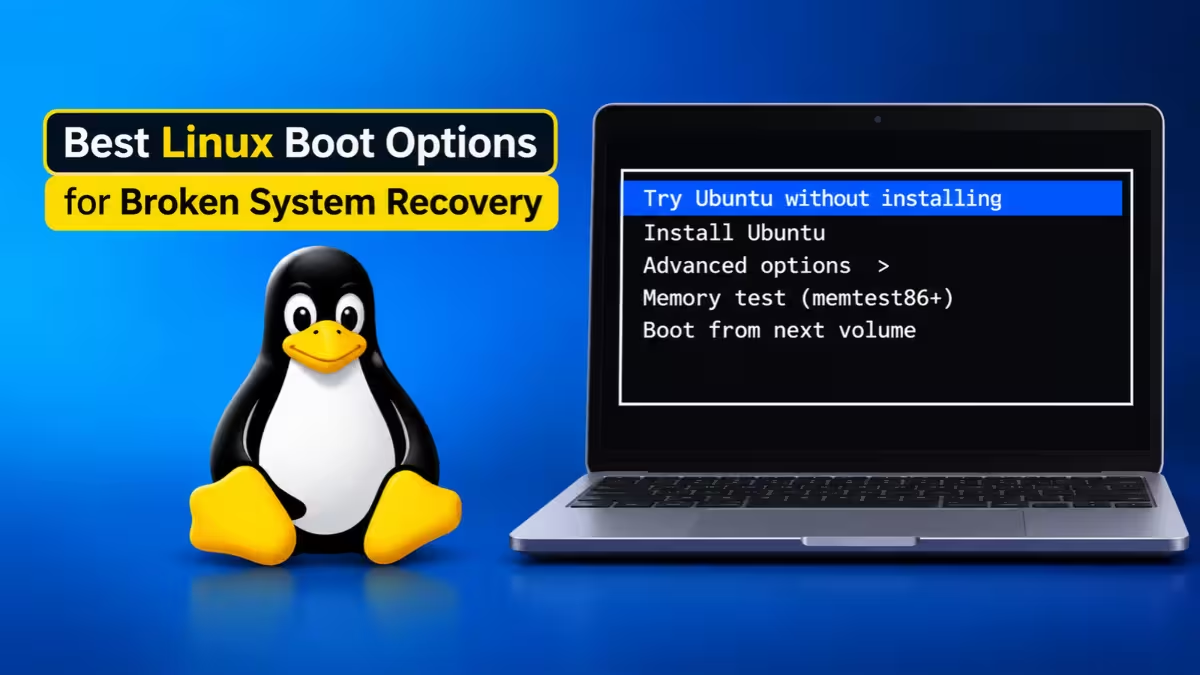
- Restart the laptop and press the boot menu key, usually F12, F2 or Esc. If the key does nothing, enter BIOS and move the USB drive to the top of the boot order.
- Select the USB drive and choose the live session.
- Test Wi-Fi, sound, brightness keys, the touchpad and suspend.
- Open the browser tabs and apps you use every day and watch your memory use.
Install only after the live session handles your real workload. If your first pick feels slow or misses a driver, flash another distro and repeat. Back up your files before you change any partitions.
Does an SSD Make Linux Faster on an Old Laptop?
Yes, and it often helps more than any software choice. A slow spinning hard drive makes boot times and app launches drag no matter which distro you run. Swapping it for an inexpensive SSD usually delivers the largest single improvement, and it beats switching between two lightweight desktops. Back up first and confirm which drive interface your laptop uses before you buy.
What Limits Should You Expect From Linux on Old Laptops?
A lightweight distro cuts background overhead, but it cannot change what your hardware can do. Modern websites, video calls and high-resolution streaming still demand a lot from the CPU and RAM. Keep your tab count low, tame Chrome high memory usage, use an ad blocker, and lower video quality if playback stutters. Older Broadcom Wi-Fi chips can also need an extra driver step, so keep a phone or second computer nearby to download firmware if needed.
Frequently Asked Questions
Which Linux distro is best for 2 GB of RAM?
Lubuntu, MX Linux Xfce and Linux Lite all run well on 2 GB. Keep browser tabs to a minimum, because the browser uses more memory than the desktop.
Which Linux distro is best for 4 GB of RAM?
Linux Mint Xfce and Xubuntu fit 4 GB well. Lubuntu and MX Linux also run smoothly and leave more memory free for your apps.
Which Linux works on 32-bit computers?
antiX and MX Linux still offer 32-bit images, along with Void Linux and Alpine. Most mainstream distros now ship only 64-bit versions, so check the download page before you flash a USB drive.
What is the lightest Linux distro?
antiX and Puppy Linux run in well under 1 GB of RAM. Lubuntu, Xubuntu, Linux Lite and MX Linux use more memory but give you a more complete desktop.
Is Linux Mint good for old laptops?
Yes. Choose the Xfce or MATE edition for laptops with 4 GB of RAM or less. Both use less memory than the Cinnamon edition and keep Mint's familiar layout and tools.
Can Linux make an old laptop faster?
In most cases it can. A lightweight desktop uses less memory than Windows 10 or 11, and an SSD upgrade adds a bigger boost on top.
Can I keep Windows and install Linux on the same laptop?
Yes, through dual booting, and every installer above offers it. On a laptop with limited storage, a single Linux install leaves you more free space.