AI security scams used to announce themselves. A strange sender name, clumsy spelling, or a poorly copied logo were usually enough to stop you before any damage happened. In 2026, that early warning is fading fast.
Generative AI now gives criminals a faster way to write clean emails, tailor scams to specific roles, and build convincing sequences around fake Microsoft 365 sign-ins, QR codes, CAPTCHAs, and urgent workplace requests. The signs are still there, but they have changed. Spotting an AI-assisted scam today means looking beyond the wording and asking what the message is actually trying to make you do.

This guide covers every new tactic in active use, the Microsoft tools that help block them, and the habits that reduce your risk regardless of which platform you use.
AI Scams No Longer Look Like Scams
The old phishing stereotype still exists, but it no longer tells the full story.
Attackers now use AI tools to polish rough messages, mimic internal emails, and create believable prompts around invoices, HR policies, security checks, and shared files. The result is a scam that can feel much closer to an ordinary working day.
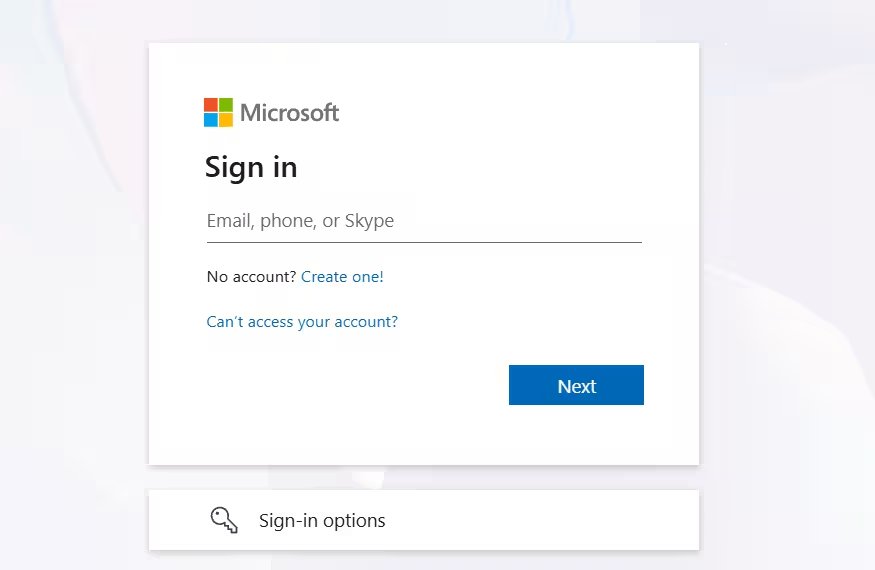
A fake Microsoft 365 sign-in page might follow a plausible email about a document review. A QR code might appear in a message that looks like a routine account update. A security alert might mention your actual company name. None of these details confirm the message is legitimate, and none of them were easy for attackers to produce at scale until recently.
For employees and everyday users, the core lesson is simple: a message can look professional and still be dangerous. The real warning sign is often the action the message asks you to take, not the way it looks.
The New Warning Signs to Watch For
Once spelling and layout look convincing, the clearest warning signs tend to show up in the process a message puts you through.
Unusual steps before a simple action: Be cautious if a message routes you through extra steps before you can open a file, check an account, or complete a task. Legitimate services rarely add friction for routine actions.
QR codes in email: A QR code in an email should raise questions, especially when a normal clickable link would have worked. Attackers use QR codes because they are harder to inspect before you follow them, and because many email security filters scan links but not image-embedded URLs.
CAPTCHAs before a login page: A verification step before a Microsoft 365 sign-in can signal a fake page. Attackers place CAPTCHAs on credential-harvesting pages to make them look more trustworthy and to frustrate automated detection systems.
Urgency and pressure: Scams consistently push toward quick action: approve this request, pay this invoice, review this policy. That pressure is manufactured. Slowing down is usually enough to see through it. Legitimate employers, banks, and services do not require split-second approvals through unexpected messages.
Requests for payment, credentials, or account access from unexpected channels: Verify these through a separate channel every time. Call the sender directly using a number you already have, or open the relevant service yourself rather than following any link in the message.
Why Attackers Target Your Sign-In
Many modern AI security scams care less about infecting one device than stealing the credentials that unlock a wider account or platform.
A password, session token, MFA approval, or recovery code can give attackers a path into email, cloud storage, payment systems, and internal documents. That is why fake Microsoft 365 sign-in pages remain so common. The first message may look like a shared file or an HR update, but the destination is usually the same: a page built to capture credentials or trick someone into approving access.
Attackers who obtain valid credentials can bypass your security tools entirely. A recent wave of intrusions tracked as Storm-2949 showed how a single hijacked Microsoft account, obtained through a phishing flow, led to large-scale data theft from cloud environments. You can read a full technical breakdown in the guide on how to detect and stop Azure SSPR abuse attacks.
Treat any unexpected sign-in step as a red flag. Open the service directly in your browser or app, check whether the request is actually waiting there, and report the original message if anything feels off.
How to Protect Your Inbox, Teams, and Shared Files
Email is still the most common starting point for scams, but the risk no longer stops at the inbox.
A convincing lure can lead to a shared file, a Teams message, a fake document portal, or a link that turns malicious after it passes a quick glance. Attackers count on the fact that most people make decisions about links and attachments while doing other things.
Microsoft Defender for Office 365 covers this broader working environment. It provides protections for phishing, impersonation, suspicious links, and unsafe attachments across Microsoft 365 services. Safe Links checks URLs at the moment you click them, and Safe Attachments inspects files before they reach your inbox.
For anyone managing a Microsoft 365 environment, the dedicated guide on how to secure your Microsoft 365 account against data theft attacks walks through the full configuration checklist.
Good security also needs good habits alongside the tools. Report suspicious messages, be careful with unexpected files, and treat any unusual request for payment, credentials, or account access as something to verify through a separate channel before you act.
Move Beyond Passwords and SMS Codes
Passwords were built for a simpler internet, and AI-assisted scams are now very effective at steering people toward fake sign-in pages, bogus recovery flows, and urgent approval prompts designed to capture them.
Passwords still have a role, but stronger alternatives exist and reduce your exposure significantly.
Passkeys replace passwords with a device-bound cryptographic key that never leaves your hardware. A fake sign-in page cannot harvest a passkey because there is nothing to type. Microsoft now pushes passkeys for personal accounts alongside phishing-resistant MFA, Microsoft Authenticator, and Microsoft Entra. The step-by-step setup process is covered in the guide on how to set up a passkey for your Microsoft account and remove SMS authentication.
SMS codes are increasingly weak. Attackers can phish them, intercept them, or target them through SIM-swap fraud. Moving away from SMS is one of the simplest individual steps you can take to cut risk. The same weakness applies to legacy MFA configurations in enterprise environments. Researchers have demonstrated working MFA bypass techniques against SSL-VPN appliances that attackers are already using in the wild.
If your organization still relies on SMS codes or basic password authentication for remote access, updating that configuration now removes a large category of AI-assisted attack from the table.
Use AI Tools to Fight AI Scams
AI is already part of the defensive toolkit, especially for security teams dealing with a high volume of reported messages.
In Microsoft Defender, the Phishing Triage Agent can classify user-reported phishing emails, separate likely threats from false positives, and reduce the time analysts spend on repetitive checks. This matters because volume is one of the attacker’s biggest advantages. Even a small number of convincing scams can generate significant noise for IT teams, especially when users do the right thing and report anything suspicious.
Microsoft Security Copilot can help teams investigate incidents faster, surface context across signals, and prioritize responses. It works best alongside clear reporting processes and users who know when to pause rather than click.
Keeping Defender itself current is equally important. Researchers have confirmed that attackers now probe Defender installations directly for vulnerabilities. Staying on the latest patches closes the attack surface before it becomes a liability. The current state of actively exploited Defender flaws is documented in the guide covering CVE-2026-41091 and CVE-2026-45498.
Running periodic scans also helps catch threats that slipped through before detection signatures caught up. The Microsoft Defender virus scan guide covers the full range of scan types and when to use each one.
What to Do When Your Browser Raises an Alert
Scareware works by making a normal browser window feel like an emergency.
The page may claim your device is infected, play an alarm, lock the screen, or display a fake support number that looks official. The goal is panic. A panicked user is more likely to call the number, install something, or hand remote access to a stranger.
Microsoft Edge Scareware Blocker addresses this at the browser level. When enabled, Edge runs a local machine learning model that detects suspicious full-screen behavior in real time. If a page matches known scam patterns, Edge exits full-screen mode, silences any audio, and shows a warning with the option to close the page or continue.
The feature is enabled by default on devices with more than 2 GB of RAM and at least four to five CPU cores. You can confirm its status by opening Edge, going to Settings, then Privacy, Search, and Services, then Security, and checking the Scareware blocker toggle.
Microsoft Defender SmartScreen works alongside it by checking visited sites against a dynamic list of reported phishing and malicious software sites, analyzing page behavior for suspicious patterns, and evaluating downloaded files against known malicious software lists. SmartScreen covers Windows 10, Windows 11, and Microsoft Edge and applies to files that any app attempts to download, including third-party browsers and email clients.
The CypherLoc scareware campaign that affected 2.8 million browsers in 2026 is a documented example of exactly this tactic. Understanding how these attacks work makes them easier to recognize before the pressure builds.
If a browser alert appears and you are not certain it is real, the practical response is straightforward: do not call the number, do not install anything, and do not hand control of your device to a stranger. Close the tab or restart the browser. The Microsoft Defender error code scam guide explains how to tell a real Windows alert from a fake one designed to push you toward a phone call.
Slow the Scam Down
In 2026, AI-assisted scams are built to make a fake process feel normal, urgent, and just convincing enough to complete without questioning.
The email looks polished. The sign-in page feels familiar. The next step seems easier to complete than to investigate.
Pause there. Rushing is a mistake.
- Open the service directly in your browser or app instead of following any link
- Check any payment or credential request through a separate channel before acting
- Avoid approving anything you did not initiate yourself
- Report suspicious messages to your IT team or through your email platform’s built-in reporting
Microsoft’s security tools can block, detect, and triage many of these attacks, but the most reliable first line of defense is a moment of friction. The more pressure a message creates, the more attention it deserves before you click anything.

