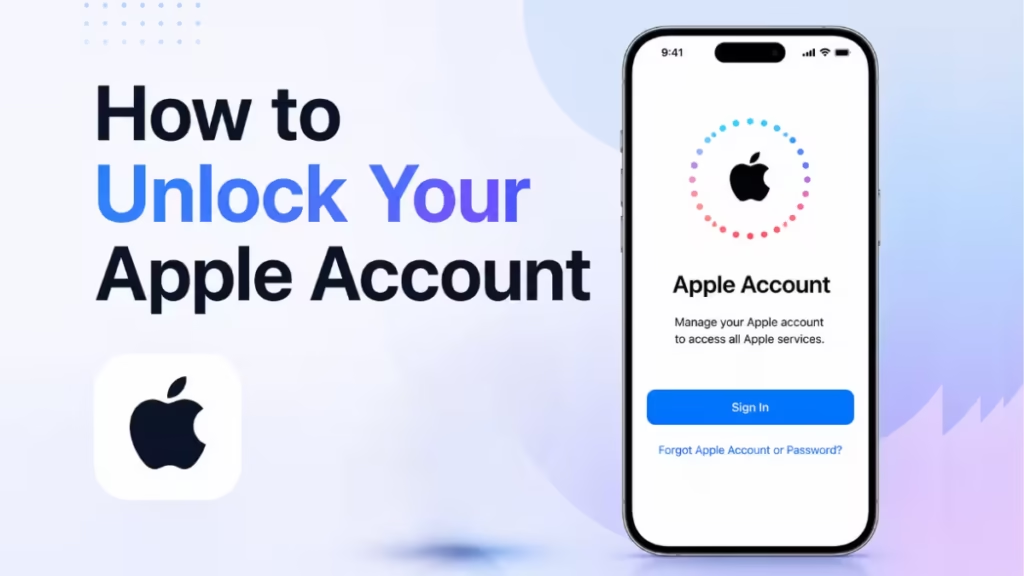
A locked Apple Account blocks your iCloud, App Store, Apple Music, FaceTime, and every service tied to your sign-in. Apple usually locks the account to protect it, not to punish you, and most people get back in within a few minutes by resetting the password. This guide walks you through every working method, from a quick reset on a trusted device to account recovery when you own no Apple hardware nearby.
Why Apple Locks Your Account
Apple locks an account when its security systems spot something risky. The most common trigger is too many wrong password attempts, either from you or from someone trying to break in. You will often see the message "This Apple Account has been locked for security reasons."
Other triggers include suspicious sign-in activity, a payment or billing problem that disables your Media and Purchases access, or an account that Apple marks as inactive after long disuse. The lock type decides which fix you need, so read the exact on-screen message before you act.
Reset Your Password to Unlock Your Apple Account
For a security lock, resetting your password unlocks the account in one move. Apple ties the lock to your old credentials, so a fresh password clears it.
Reset from a trusted iPhone, iPad, or Mac you already use:
- Open Settings on iPhone or iPad, or System Settings on a Mac.
- Tap your name at the top, then tap Sign-In and Security.
- Tap Change Password.
- Enter your device passcode when prompted.
- Type a new password, confirm it, then tap Change.
Your account unlocks the moment the new password saves, and your other devices sign back in once you enter the new password on each.
Reset Your Password From the Web or a Borrowed Device
If no trusted device sits in front of you, run the reset from a browser or a friend's iPhone.
From any browser, go to iforgot.apple.com, enter your Apple Account email or phone number, and follow the prompts. Apple sends a verification code to your trusted phone number or device, and you set a new password after you confirm the code.
From a borrowed iPhone or iPad, install the Apple Support app from the App Store, open it, tap Reset Password, then choose A different Apple Account. Enter your address and follow the steps. Deleting the app afterward removes your details from that device.
Unlock Your Apple Account With a Trusted Phone Number
Two-factor authentication routes the unlock through your trusted phone number. When you start a reset, Apple texts or calls that number with a six-digit code. Enter the code, confirm a device passcode if asked, then create your new password. Keep the SIM for that number active, because the whole flow depends on receiving that code.
Use Your Recovery Key
If you turned on a recovery key in the past, you can unlock the account with it instead of a trusted phone. Start the reset at iforgot.apple.com, choose the recovery key option, then enter your 28-character key exactly as Apple issued it. After Apple verifies the key, you set a new password and regain access. Skip this method if you never generated a key, because Apple cannot look it up for you.
Use Account Recovery When You Own No Apple Device
Account recovery exists for the hardest case, where you have no trusted device, no trusted phone number, and no recovery key. Start at iforgot.apple.com, enter your account, and request account recovery when the option appears.
Apple then runs a waiting period that often lasts several days. This delay protects you, since it blocks an attacker from rushing the same process. Apple sends a text and an email when your account is ready, so add a reachable phone number and avoid signing in elsewhere during the wait, because new attempts can reset the timer.
Unlock an Inactive or Disabled Apple Account
Some accounts show "not active" or "disabled" rather than a security lock. Tap Request Access straight from the alert if you see that button, since it often restores the account on the spot.
If no button appears, go to iforgot.apple.com/unlock and submit a request to reactivate the account. Apple reviews the request and replies by email. A disabled Media and Purchases account usually shows a Continue button that walks you through reactivation, so try that path first when only your store access fails.
When Apple Says the Account Can't Be Used
A small number of users see "This Apple Account is locked and can't be used." Apple applies this permanent lock for serious policy or legal reasons, and the standard reset tools will not open it.
Contact Apple Support directly through getsupport.apple.com and ask them to explain the status. If Apple confirms the lock stands, your remaining route is a new Apple Account. For a device stuck on the old account, you can file an Activation Lock support request and supply the original purchase receipt that shows the serial number, which lets Apple clear the lock on the hardware.
How to Prevent Your Apple Account From Locking Again
A few habits keep you out of the lockout loop:
- Store your password in your device keychain or a trusted password manager so you never trigger a lock by guessing.
- Keep two trusted phone numbers on the account, so a lost SIM never strands you.
- Generate a recovery key and save it somewhere offline and safe.
- Update your trusted devices list and remove old phones you no longer own.
- Treat any "verify your account" email or text with suspicion, since fake links cause many forced lockouts.
With a current password manager entry, a backup phone number, and a recovery key on hand, you can clear a future lock in minutes instead of days.