Microsoft released PowerToys v0.100 and this is the biggest update in several release cycles. Version 0.100 ships a completely rebuilt Shortcut Guide, a new Extension Gallery for Command Palette, multi-monitor Dock support, a .NET 10 upgrade, and a smaller installer. If you run PowerToys on Windows 11, this update delivers real improvements across the board.
Here is everything that changed in PowerToys v0.100 and how to get it.
What Is New in PowerToys v0.100
Redesigned Shortcut Guide
Microsoft rebuilt Shortcut Guide from scratch in v0.100. The new version appears as a pane that slides in from the side of your screen instead of a full-screen overlay. When you invoke it, Shortcut Guide automatically detects the active application and shows keyboard shortcuts relevant to what you are doing at that moment.
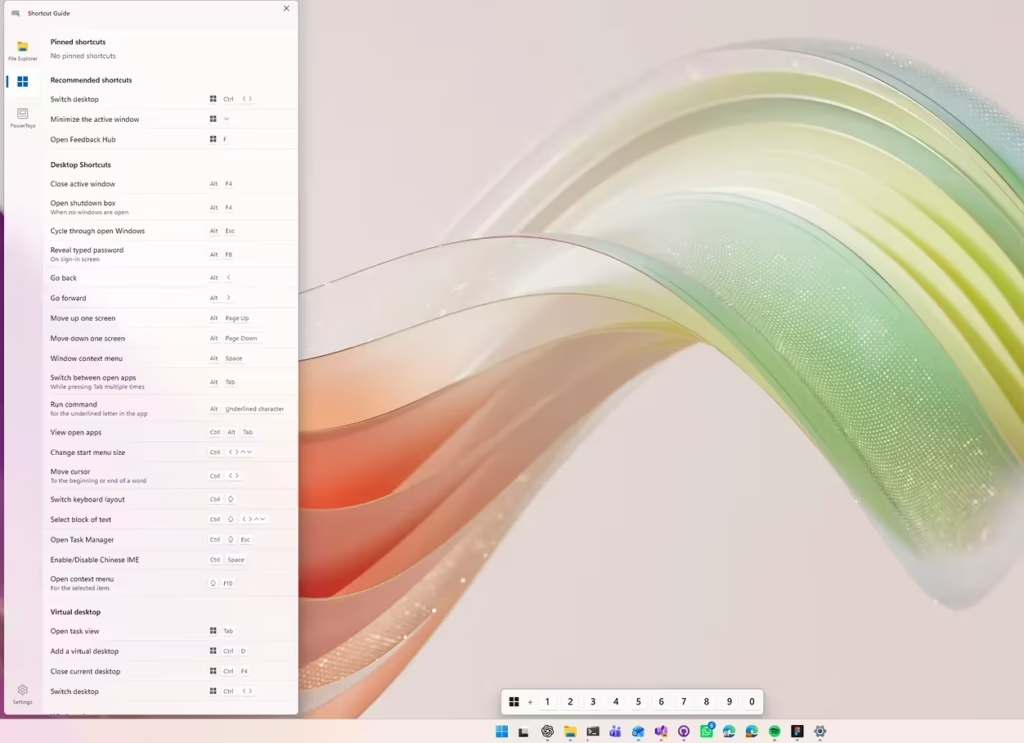
Beyond app-specific shortcuts, the pane also displays Windows system shortcuts and shortcuts from any PowerToys utilities you have enabled. The result is a context-aware reference tool rather than a static cheat sheet.
If your favorite application is not yet supported, Microsoft welcomes pull requests or GitHub issues with a link to the app's shortcut documentation.
Command Palette: Extension Gallery
Command Palette now includes an Extension Gallery, accessible directly from Command Palette Settings. The gallery lets you browse, discover, install, update, and remove extensions without leaving the application.
Previously, finding and installing Command Palette extensions required hunting across the Microsoft Store and WinGet separately. The Extension Gallery centralizes that entire process into one place.
Command Palette: Multi-Monitor Dock Support
The Dock in Command Palette received a major upgrade in this release. Each monitor can now carry its own independent Dock configuration. You can choose which monitors display a Dock from Command Palette Settings, and the updated Pin to Dock experience lets you specify exactly where each command should appear on each display.
The Performance Monitor extension inside Command Palette also gains a new Battery widget. It shows your current charge level, charging status, and estimated time remaining. You can also pin individual metrics including CPU, Memory, GPU, Network, and Battery directly to the Dock.
Power Display Improvements
Power Display starts significantly faster in v0.100. Monitor identification is more reliable across reboots, and per-monitor settings persist more consistently through restarts and monitor reordering.
Microsoft also added a new Max Compatibility Mode for displays that do not properly advertise DDC/CI capabilities. This setting helps Power Display work with a wider range of monitors that standard DDC discovery would otherwise skip.
Other usability changes in Power Display:
- Press Escape to dismiss the flyout
- Mouse wheel adjusts brightness, contrast, and volume sliders
- Displays automatically rescan when your PC wakes from sleep
ZoomIt: Webcam Overlay and Multi-Clip Recording
ZoomIt now supports a webcam overlay while you record your screen. This makes it easier to create demos, tutorials, and presentations that include a camera feed.
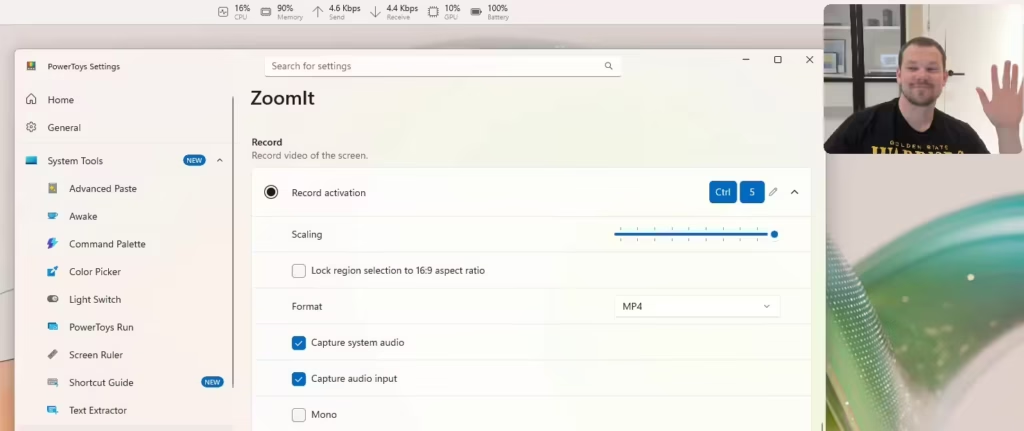
ZoomIt v0.100 also adds support for appending multiple clips with transitions. You can stitch recordings together inside ZoomIt without switching to an external editor.
.NET 10 Upgrade and Smaller Installer
Microsoft upgraded the entire PowerToys project to .NET 10 in this release. The upgrade brings the latest platform improvements, faster runtime performance, and modern tooling support.
The installer footprint dropped by 15 percent as a result. Downloads are smaller and installations complete more quickly.
Improved Auto-Update
Auto-update is more reliable in v0.100. PowerToys now properly relaunches after an update completes and shows a clear success notification. Before applying an update, PowerToys automatically backs up your configuration files. If corruption is detected after an update, it can restore your settings from that backup.
Other Notable Changes in v0.100
- Keyboard Manager: The new WinUI 3 editor is now enabled by default.
- Mouse Without Borders: A new Refresh Connections action lets you quickly reconnect devices without restarting the utility.
- Image Resizer: Settings changes now apply automatically without restarting the tool.
- Quick Accent: Fixed sizing, positioning, and selection issues on high-DPI and multi-monitor setups. Added Greek Polytonic as a supported language.
- Peek: Added a toggle in Behavior settings to disable the on-hover file preview tooltip.
- PowerToys Run: The calculator now returns a friendly error for complex-number expressions such as sqrt(-1) instead of crashing.
- Workspaces: Dropped ControlzEx and ModernWpf in favor of native WPF Fluent styling with updated typography, spacing, and Mica background.
How to Install or Update PowerToys v0.100
If you already have PowerToys installed:
- Open PowerToys Settings.
- Go to General.
- Click Check for updates.
- Install the update when it appears.
PowerToys will now relaunch automatically after the update completes.
If you are installing PowerToys for the first time:
Option 1: Microsoft Store
- Open the Microsoft Store on Windows 11.
- Search for Microsoft PowerToys.
- Click Get or Install.
Option 2: WinGet (Command Line)
- Open Terminal or Command Prompt.
- Run the following command:
winget install Microsoft.PowerToysOption 3: GitHub Releases
- Go to the PowerToys v0.100.0 release page.
- Download the
.exeinstaller under Assets. - Run the installer and follow the on-screen steps.
Tip: The GitHub installer is the same build Microsoft distributes through the Store and WinGet. Use whichever method fits your workflow.
What Changes After You Install PowerToys 0.100
Once you install v0.100, the new Shortcut Guide replaces the old version automatically. You can invoke it with Win + Shift + / by default, or reassign the shortcut from PowerToys Settings.
To access the Extension Gallery, open Command Palette and go to Settings, then look for the Extension Gallery section.
For Power Display users, the Max Compatibility Mode option sits in Power Display Settings. Enable it if your monitor does not appear or respond to controls under normal detection.
For the complete list of bug fixes and pull request credits, see the official PowerToys 0.100 release notes on the Microsoft Dev Blog.
If you are new to PowerToys or want a full overview of every tool in the suite, check out our guide to Microsoft PowerToys on Windows 11.