A single still photo can now become a short moving clip in under a minute. You upload the picture, type how it should move, and an AI video generator fills in the motion. Sellers use it for product ads, creators use it for Reels and Shorts, and families use it to bring old portraits to life.
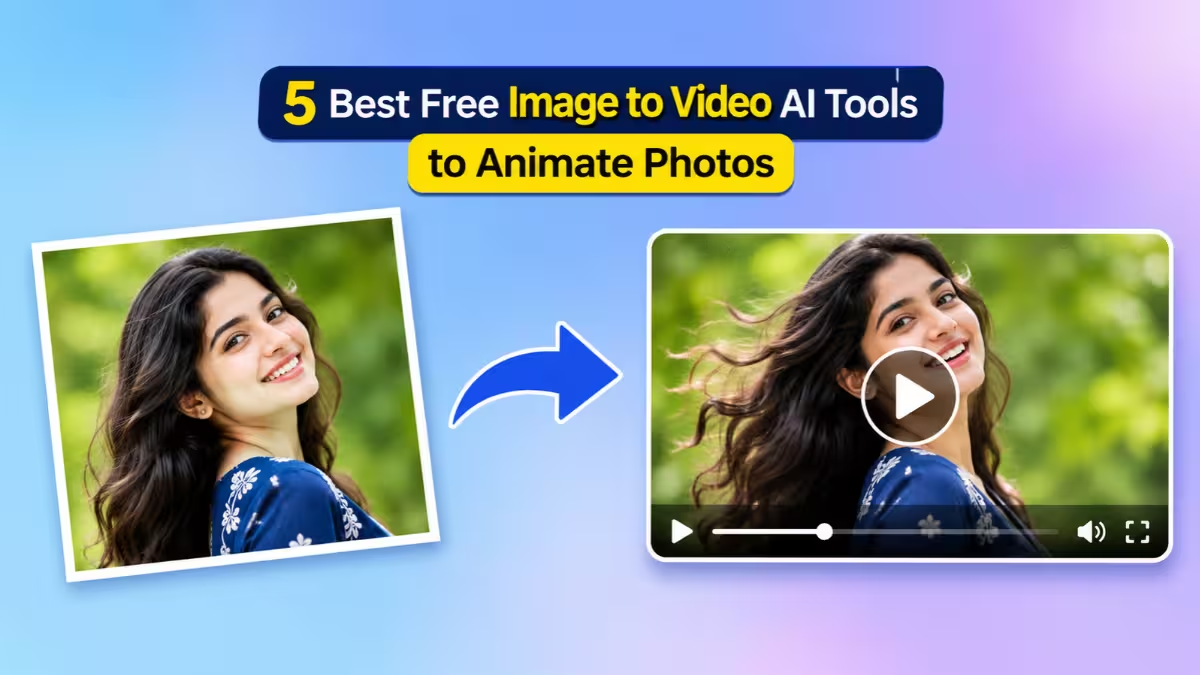
The tricky part is choosing a tool. Some apps give you 4K output, some skip the watermark, and some let you copy a dance move from a real video onto your character. We compared the main options and picked five that each win at something specific.
5 Best Image to Video AI Tools to Animate Photos
| Tool | Best For | Free Plan | Watermark on Free | Max Quality |
|---|---|---|---|---|
| Adobe Firefly | Commercial and pro editing work | Yes | Varies by plan | Up to 4K |
| Kapwing | Social teams and product ads | Credit based | Plan dependent | Up to 1080p |
| VEED | Quick social clips and brand graphics | Yes | Yes | Plan dependent |
| Viggle AI | Character motion and dance trends | Daily credits | Yes | Up to 1080p |
| Free.ai | Watermark-free free clips | Yes, no sign-up | No | Matches your image ratio |
How We Tested the Best Image to Video AI Generators
We looked at five things that matter when you turn a photo into video:
- Motion control: Can you direct the camera and the subject, or does the AI guess?
- Output quality: Resolution, smoothness and how well the tool keeps the original look.
- Free access: Whether you can test it without a card, and whether the free export carries a watermark.
- Editing after generation: Can you trim, caption and add music in the same place?
- Model choice: Tools that offer several AI models give you more ways to get a good result.
1. Adobe Firefly: Best Image to Video AI for 4K and Commercially Safe Videos
Adobe Firefly suits anyone who plans to use the video in client work or paid ads. Adobe trains the Firefly model only on licensed and public domain content, so you face fewer worries about usage rights.
You set camera motion before you generate. Firefly offers zoom, pan and tilt controls, plus preset shot sizes from extreme close-up to long shot and angles from aerial to low angle. After generation, you can apply cinematic effects or pick a motion style, then arrange clips on a built-in timeline.
Key features:
- Video output up to 4K
- Preset shot sizes and camera angles
- Timeline editor for trimming and reordering clips
- Direct handoff to Premiere and After Effects
Best for: Agencies, video editors and brands that need B-roll, inserts and cutaways that blend with real footage.
Limitation: You get the most value if you already work inside Adobe Creative Cloud.
2. Kapwing: Best AI Image to Video Generator With a Built-In Editor
Kapwing combines generation and a full editor on one canvas. You animate the photo, then add your logo, price text, subtitles, voiceover and music without opening another app.
It gives you a choice of models, including Veo, MiniMax, Seedance and Kling motion control. Kapwing recommends Seedance or Kling for general results and Veo when you want to set a start and end frame. Most clips finish in under 30 seconds.
Key features:
- Several leading AI models in one place
- Storyboards to plan multi-scene videos
- Aspect ratios from 9:16 to 21:9
- Batch exports, shareable links and live client comments
Best for: Marketing teams, agencies and ecommerce sellers who turn a product catalog into TikTok and Meta ads.
Limitation: Kapwing runs on credits, so heavy use pushes you toward the Pro plan. Output tops out at 1080p.
3. VEED: Best Free Image to Video AI for Quick Social Clips
VEED keeps the process simple: upload, type the motion, click generate. The finished clip drops straight into the VEED editor as a scene, where you can add captions, text and graphics.
The tool accepts JPG, PNG and WebP files. VEED also gives you access to models like Kling, LTX, Luma Ray, MiniMax and Sora 2 through its wider AI playground.
Key features:
- Three-step workflow with no learning curve
- Clips land directly in a full video editor
- Extra AI tools such as avatars, voice cloning and an image generator
- Free account to test results before you pay
Best for: Creators and small brands that want animated logos, profile intros and product teasers quickly.
Limitation: Free exports carry a watermark. You need a paid plan to remove it and keep using the tool.
4. Viggle AI: Best Photo to Video AI for Dance and Character Motion
Viggle AI works differently from the rest. Instead of guessing motion from a prompt, its Mix feature maps real movement from a video onto your photo. Pick one of more than 10,000 templates or film your own clip, and your character copies the exact moves.
This approach handles difficult motion such as flips, spins, breakdancing and boxing, which prompt-based tools often get wrong. It also works on cartoons, anime art, 3D renders and mascots. For prompt-driven scenes, Viggle offers a separate Video mode with models like Minimax H3, Veo 3.1 and Seedance.
Key features:
- Motion transfer from any reference video
- 10,000+ community motion templates
- Strong character consistency across clips
- Android and iPhone apps
Best for: Meme makers, dance trend creators and anyone animating a cartoon or mascot.
Limitation: Free clips include a watermark. Pro starts at $7.99 per month billed yearly.
5. Free.ai: Best Free Image to Video AI Without a Watermark
Free.ai lets you try image to video without signing up, and the free MP4 comes with no watermark or logo. It also locks the output aspect ratio to your input image, so you avoid odd crops and black bars.
You write a short motion cue and choose one of eight presets: gentle, dramatic, zoom in, zoom out, pan left, pan right, loop cycle and fantasy reveal. The default model runs on Free.ai's own GPUs, and you can upgrade to Kling, Seedance or PixVerse for better motion. Developers can also call the tool through an API.
Key features:
- No sign-up needed to try it
- No watermark on free output
- Eight motion presets
- API access for automation
Best for: Users who want quick watermark-free clips of old photos, artwork or product shots.
Limitation: Uploads cap at 10MB, and busy hours mean a queue before your clip renders.
Which Image to Video AI Tool Is Right for You?
- Pick Adobe Firefly if you need 4K output and safe commercial use.
- Pick Kapwing if you want to build branded ads and work with clients in one place.
- Pick VEED if you want the simplest path to a finished social clip.
- Pick Viggle AI if you want precise character motion or dance trends.
- Pick Free.ai if you want a free clip with no watermark and no account.
How to Turn an Image Into a Video With AI (Step by Step)
The steps look almost the same in every tool:
- Upload your image. Use a JPG, PNG or WebP file. Sharp, high-resolution photos with a clear subject give the best results.
- Pick a model or motion style. Tools with several models let you test the same photo on more than one engine.
- Set the aspect ratio. Use 9:16 for Reels and TikTok, 1:1 for feeds and 16:9 for YouTube.
- Write a specific prompt. "Camera slowly zooms in on the face" works better than "make it move."
- Keep the motion realistic. Ask for one or two actions per clip, not five.
- Generate and review. Most clips finish in under a minute. If the motion looks off, adjust the prompt and try again.
- Edit and export. Trim the clip in any AI video editing tool, add captions or music, then download the MP4.
Only upload images you own or have permission to use, and never place real people in misleading scenes.
Best Uses for Image to Video AI: Product Photos, Old Photos and AI Art
- Product photos: Turn a flat shot into a short spin, zoom or reveal for TikTok Shop, Reels and store listings. Kapwing and Free.ai both handle this well.
- Old family photos: Gentle motion makes a portrait breathe, moves hair in the wind and adds life to a keepsake.
- AI-generated art: Images from AI image generators like Midjourney, DALL-E or Stable Diffusion often animate cleanly because their style stays consistent.
- Illustrations and concept art: Artists use AI animation tools to add drifting clouds, flickering light or a slow camera push for portfolio posts.
- Cartoons and mascots: Viggle AI maps real human motion onto stylized characters.
- B-roll and cutaways: Editors turn stills into inserts that blend with live footage, a strong fit for Adobe Firefly.
Free vs Paid Image to Video AI: Watermarks, Limits and Pricing
Free plans work well for testing, but they differ in what you get:
| Tool | Free Access | Main Catch |
|---|---|---|
| Free.ai | No sign-up, no watermark | Short clips, upload size cap, queue at busy times |
| VEED | Free account to try | Watermark on free exports |
| Viggle AI | Daily refreshed credits | Watermark on free exports, premium models need a paid plan |
| Kapwing | Free to start | Credit system limits heavy use |
| Adobe Firefly | Free to try | Check current plan limits before you commit |
If you post for a business, plan to pay for a clean export. If you only make clips for fun or testing, Free.ai covers most needs without a card.
Frequently Asked Questions
What is image to video AI?
It is a tool that takes a still image as the first frame and generates motion from it. You describe the movement in a prompt, and the AI produces a short video clip.
Can I turn a photo into a video for free?
Yes. Free.ai, VEED, Viggle AI and Kapwing all let you try it free. Free.ai gives watermark-free output, while VEED and Viggle add a watermark on free exports.
How long are AI image to video clips?
Most tools generate clips between 4 and 8 seconds. For longer videos, generate several clips and join them in an editor.
Which image formats work best?
JPG, PNG and WebP work on almost every tool. Use a high-resolution image with a clear subject for the best result.
Can I use AI-generated images from Midjourney or DALL-E?
Yes. AI art often animates well because it has clean details and a consistent style.
Which tool is best for product videos?
Kapwing and Adobe Firefly lead here. Kapwing lets you add logos and pricing text, and Firefly offers 4K output with commercially safe training data.