If your Roku device suddenly forces a software update, gets stuck, and displays:
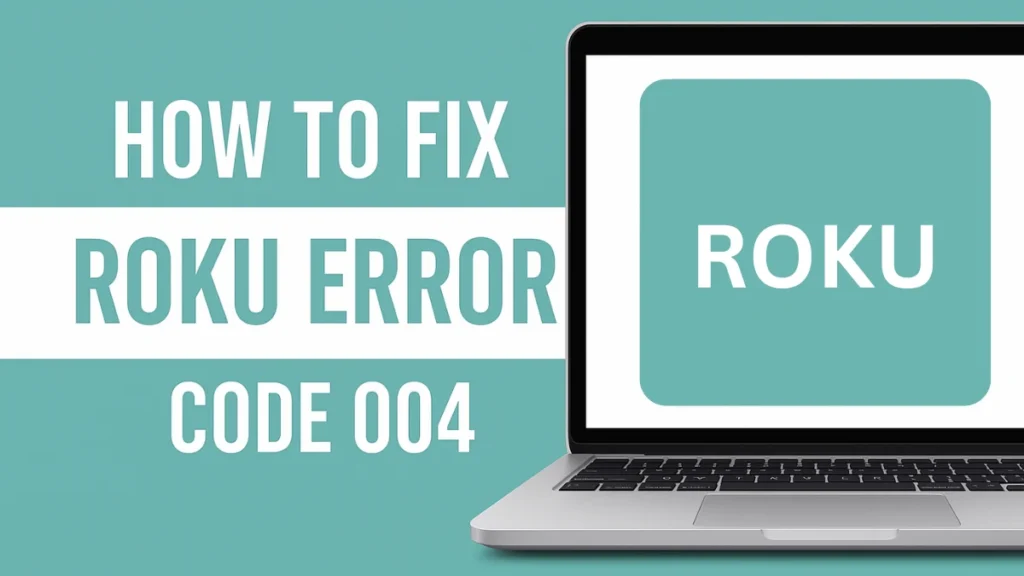
“Can’t update software. Please try again later. Error 004.”
This common issue has affected thousands of Roku users—often leaving them with a frozen purple screen, no access to apps, and no way to skip the update. Fortunately, you can fix Roku Error 004 in under 5 minutes with the right steps.
What Causes Roku Error Code 004?
Roku Error 004 usually occurs when:
- Your device fails to connect properly to Roku’s update server
- There's an interruption during a software update (often stuck at 77% or 82–100%)
- Your Roku is downloading from the beta server instead of the release server
- There’s a network or power-related glitch, especially when powered by a TV USB port
- Temporary or corrupted system files are blocking the install
How to Fix Roku Error 004 in 5 Minutes
1. Restart Your Roku & Router (30 Seconds)
This clears network glitches and is the fastest first step:
- Unplug your Roku device from power.
- Unplug your modem and router.
- Wait for 30–60 seconds.
- Plug in your modem → router → Roku.
- Try checking for updates: Settings > System > System Update > Check Now
Tip: If you were using the Roku USB port on your TV, switch to a wall power adapter to ensure enough power during updates.
2. Switch Software Update Server
Many users resolved Error 004 by accessing Roku’s secret menu:
Remote button sequence:
Press Home (5x) → Fast Forward (3x) → Rewind (2x)
Then:
- Navigate to "Cycle software update server"
- If available, switch from Beta to Release server
- Exit the menu and retry the update
3. Use a Different Network or Mobile Hotspot
Sometimes your ISP may block Roku update servers or your home network might be unstable.
Try:
- Connecting to a mobile hotspot or a friend’s Wi-Fi
- Using an Ethernet cable if your Roku model supports it
Many users fixed the error simply by using a new network.
4. Manually Check for Updates
If you're able to access the settings screen:
- Go to Settings > System > System Update
- Tap “Check Now”
- Let Roku download and reboot if updates are available
5. Reset Network Connection
If you suspect Roku’s network configuration is corrupt:
- Navigate to Settings > System > Advanced System Settings
- Select Network Connection Reset
- Choose Reset Connection and reconnect to Wi-Fi
6. Factory Reset Roku (Last Resort)
Only use this if nothing else works. Note: this erases all channels, settings, and preferences.
Steps:
- Settings > System > Advanced System Settings > Factory Reset
- Enter the confirmation code shown on screen
- Reboot Roku and try setup again
7. Use USB Firmware Update (Advanced)
If your screen is stuck/frozen, you can use a USB flash drive to update Roku manually:
- Download the correct firmware from Roku’s Software Update page
- Follow the instructions to install the firmware via USB
- Restart the device once complete
Tip: This method is for tech-savvy users or when the UI is inaccessible.
Still Not Working? Try These Extra Fixes
- Use a wall adapter instead of TV USB – unstable power causes failed updates
- Long-press the reset button for 30+ seconds – this can enter Recovery Mode
- Wait 5–10 minutes after powering back on – sometimes Roku resumes updates silently
Final Thoughts
You can resolve Roku Error 004 in just a few minutes using the right sequence:
- Restart Roku and your router
- Switch to release update server via secret menu
- Try a different network or mobile hotspot
- Factory reset as a last resort
If you’re still stuck, contact Roku Support, and share your model number, serial number, and software version.