Until now, Gemini forced a tough trade. If you wanted Google to save your chat history, you also had to let Google use those chats to train its AI models. One switch, called Keep Activity, controlled both. Turning it off protected your data but wiped out your history.
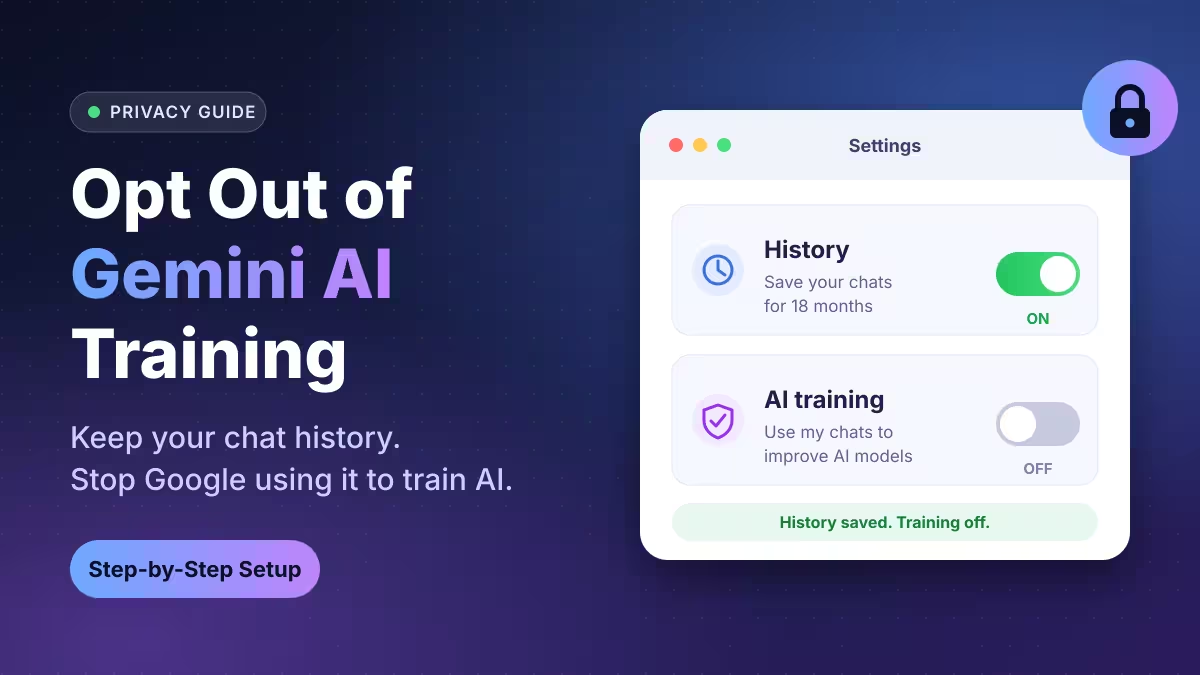
Google has finally broken that link. The Gemini app now gives you two separate controls: one for History and one for AI training. You can save every conversation and still tell Google to keep its hands off your content for model training.
This guide shows you how the new settings work, how to set them up, and what Google still keeps no matter which options you pick.
Gemini Now Separates Chat History From AI Training
Google announced the update on its official Gemini blog and started emailing users about it. The rollout reaches all countries over the coming weeks, so your account may not show the new layout yet.
Here is the new structure:
- History decides whether Gemini saves your chats and how long it keeps them. With History on, Gemini deletes chats after 18 months by default, and you can shorten that window.
- AI training decides whether Google can use your chat content, including text and uploaded files, to train its generative AI models.
The two switches work independently. You can turn History on and AI training off, which is the combination most privacy-minded users wanted from the start.
The old Keep Activity switch covered more than just your typed prompts. It also governed photos, files, audio, location details, and data pulled from connected apps like Gmail and Drive. The new AI training control now handles that content separately.
How to Turn Off Gemini AI Training and Keep Your Chat History
Once the update reaches your account, follow these steps on the web or in the Gemini app:
- Open Gemini and sign in with your Google account.
- Go to Settings and select History.
- If History shows Off, click it. Read the disclosures Google displays, then click Turn on.
- Google now asks which settings you want to turn on. Turn on History so Gemini saves your chats.
- Leave the box next to Chat content including text & uploads unchecked. This box controls AI training on your conversations.
- Leave the box next to Improve Google services with your audio and Gemini Live videos & screenshares unchecked too, if you use Gemini Live.
- Click Turn on to save your choices.
That's it. Gemini now stores your chat history, and Google can't feed those chats into model training.
You can also visit My Activity for Gemini to review saved chats, delete individual conversations, or change the auto-delete window.
What to Do If Keep Activity Is Already Off
If you switched off Keep Activity before the update, Google respects that choice. When the change lands on your account, both History and AI training start in the off position. You don't need to do anything to stay opted out of training.
If you want your chat history back without training, follow the steps above and turn on only History.
Gemini Now Keeps Chats for Two Months When History Is Off
Google paired this update with a change most users will not like. If you turn History off completely, Gemini now holds on to your future chats for around two months.
Under the old system, Gemini kept chats for just 72 hours when saving was off. Google says it needs the longer window to respond to you, process your feedback, and protect Google, its users, and the public. Human reviewers can take part in that process.
So turning History off no longer means your chats vanish within three days. If you want the shortest possible footprint, you now face a choice:
- History on, AI training off: You keep and control your chats, and you can delete them yourself at any time.
- History off: You lose your chat list, but Google still keeps recent chats for about two months.
For many users, the first option now makes more sense. You get your history, you skip training, and you can manually delete anything sensitive the moment you finish. Saved history also lets you share Gemini chats via Google Drive whenever you need to.
Does Gemini Feedback Override Your Privacy Settings?
Watch out for the thumbs up and thumbs down buttons. Even with History off, sending feedback on a Gemini response lets Google use that feedback along with your last 24 hours of chats. That bundle includes attachments and data from connected apps, and Google uses it to improve Gemini.
If you don't want any of your conversations to reach Google's improvement pipeline, skip the feedback buttons entirely.
Temporary chats offer another safety net. Google does not use temporary chats to train its AI models, so they work well for one-off questions you don't want saved.
Extra Steps to Protect Your Gemini Data
- Repeat the setup for every account. Gemini settings apply per Google account, not per device. If you use a personal and a work account, configure each one.
- Shorten auto-delete. With History on, change the 18-month default to a shorter period on the My Activity page.
- Clear old chats. Delete conversations you saved before the update, especially any that contain personal details.
- Check connected apps. Review which apps Gemini can access in Settings and turn off anything you don't use, including features like Gemini Daily Brief on Android. A Gemini calendar data leak already showed how a hidden prompt can expose private meetings.
- Recheck after the rollout. Settings menus sometimes look different from Google's email. Open your Gemini settings once the update arrives and confirm both toggles.
- Keep sensitive data out. No privacy toggle beats simply not typing bank details, medical records, or confidential work files into a chatbot.
Does Gemini Train on Google Workspace Work and School Accounts?
If your employer or school manages your Google account, Google does not use your Gemini data to train its models by default. Your admin controls these settings, so you may see greyed-out toggles. Contact your Workspace administrator if you need a different configuration.
Frequently Asked Questions
Can I keep my Gemini chat history and opt out of AI training?
Yes. The new settings split History and AI training into separate controls. Turn on History and leave the "Chat content including text & uploads" box unchecked.
Is Gemini AI training on or off by default after the update?
Google sets AI training to off by default under the new settings. If you had Keep Activity turned off before the update, both History and AI training start off.
How long does Gemini keep chats if I turn History off?
Gemini now keeps future chats for around two months when History is off. The old limit was 72 hours.
Does giving feedback in Gemini share my chats?
Yes. Submitting feedback lets Google use that feedback plus your last 24 hours of chats, including attachments and connected app data, to improve Gemini, even with History off.
Does Google train AI on temporary chats?
No. Google does not use temporary chats to train its AI models.
Why don't I see the new History and AI training settings?
Google is rolling the change out gradually over several weeks. Check your Gemini settings again later or look for Google's email notice about the update.