You set up a Minecraft server, a Plex library or a security camera at home. It works perfectly on your Wi-Fi. Then you try to reach it from your phone on mobile data, and nothing loads. Your router is doing its job: it blocks connections that nobody inside your network asked for.
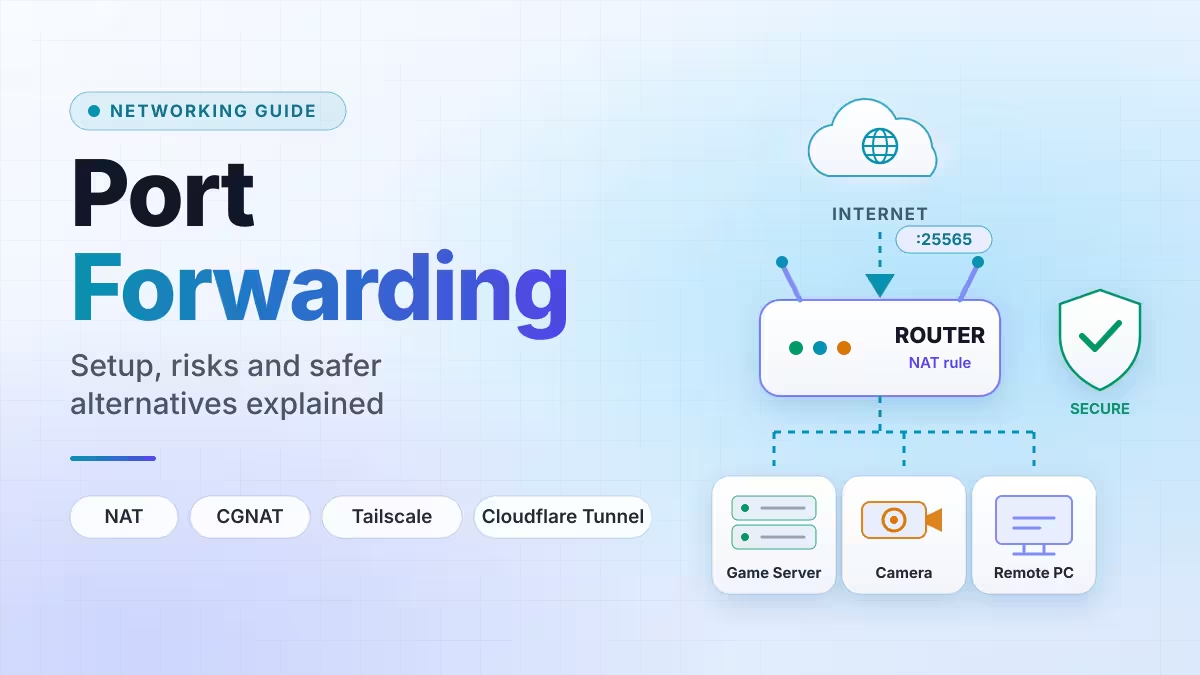
Port forwarding is the rule that tells your router to let one specific type of incoming traffic through and hand it to one specific device. This guide explains how that rule works, how to create one, why it often fails, and when a modern tool like Tailscale or Cloudflare Tunnel serves you better.
What Is Port Forwarding?
Port forwarding is a router rule that sends traffic arriving on a chosen public port to a chosen device and port inside your private network.
Think of your router as the front desk of an apartment building. Every resident has a private room number, but visitors only know the building's street address. Without instructions, the front desk turns away anyone who shows up unannounced. A port forwarding rule is a note at the desk saying, "Anyone asking for door 25565 goes to room 192.168.1.50."
Why Your Router Blocks Incoming Connections (NAT Explained)
Every device on your home network gets a private IP address, such as 192.168.1.50. The internet never sees these addresses. Instead, all your devices share one public IP address that your ISP assigns to the router.
Your router uses Network Address Translation (NAT) to manage this sharing. When your laptop opens a website, the router records which device made the request, swaps in its public IP, and sends the request out. When the reply comes back, the router checks its NAT table and delivers the reply to your laptop.
This system handles outgoing traffic flawlessly. Incoming traffic is a different story. When a friend tries to join your game server, their connection lands on your public IP with no record of which device should receive it. The router has no answer, so it drops the connection.
That default behavior protects you. Random scanners on the internet cannot reach your laptop directly. But it also blocks the connections you actually want.
How Does Port Forwarding Work?
A port forwarding rule fills that gap in the NAT table ahead of time. Here is the full journey of a forwarded connection:
- A remote user connects to your public IP on a specific port, for example
203.0.113.42:25565. - Your router receives the request and checks its forwarding rules.
- The router finds a match, rewrites the destination to the private address (
192.168.1.50:25565), and passes the packet into your network. - The target device processes the request and sends a reply.
- The router rewrites the source back to its public IP and sends the reply out. The remote user only ever sees your public address.
Without a matching rule, step 3 never happens and the router silently discards the packet.
What a Port Actually Is
A port is a numbered channel on a device. Numbers run from 0 to 65,535, and different services listen on different numbers. Web traffic uses 80 (HTTP) and 443 (HTTPS). Windows Remote Desktop uses 3389. SSH uses 22. A single device can run several services at once because each one listens on its own port.
TCP vs UDP Port Forwarding: Which Protocol to Choose
Each forwarding rule also needs a protocol, and TCP and UDP keep completely separate port spaces. Forwarding 8080/TCP does nothing for 8080/UDP.
| Protocol | Behavior | Typical uses |
|---|---|---|
| TCP | Connection-based, confirms delivery and order | Websites, SSH, RDP, FTP, Plex |
| UDP | Sends packets without confirmation, lower overhead | Online games, voice calls, DNS, WireGuard VPN |
| Both | Rule covers the same port on each protocol | Many game servers, SIP phones |
Always check the official documentation of your app. A rule with the wrong protocol looks correct in the router but passes no traffic.
Common Port Forwarding Ports
| Service | Port and protocol |
|---|---|
| Minecraft Java server | TCP 25565 |
| Valheim server | UDP 2456-2458 |
| Counter-Strike 2 server | UDP 27015 |
| Plex Media Server | TCP 32400 |
| Jellyfin | TCP 8096 |
| WireGuard VPN | UDP 51820 |
| OpenVPN | UDP 1194 |
| Remote Desktop (RDP) | TCP 3389 |
| VNC | TCP 5900 |
| SSH | TCP 22 (often moved to a custom port) |
You never need port forwarding for outbound activity. Netflix, Zoom, web browsing and most online games as a player all work without it, because your router already tracks the conversations your devices start.
Types of Port Forwarding: Static, Range, Triggering, DMZ and UPnP
Router menus and networking guides mention several variations. Here is what each one does:
- Static port forwarding: A permanent rule that maps one external port to one internal device and port. Most home setups use this.
- Port range forwarding: One rule covers a block of ports, such as 6881-6889 for a BitTorrent client.
- Port triggering: The router opens an inbound port only after it sees outgoing traffic on a "trigger" port, then closes it when the activity stops. Some older games and voice apps rely on it.
- DMZ host: The router sends every unmatched inbound connection to a single device. This removes nearly all NAT protection for that device. Avoid it.
- UPnP and PCP: These protocols let apps on your network create forwarding rules automatically. Game consoles love UPnP, but so does malware, because UPnP performs no real authentication.
- SSH local, remote and dynamic forwarding: These tunnel traffic through an authenticated SSH session. They share the name but do not involve opening a router port.
Different brands also label the same feature differently. Look for "Port Forwarding," "Virtual Server," "NAT Forwarding," "Port Mapping" or "Applications & Gaming."
How to Set Up Port Forwarding on Your Router (Step by Step)
The screens vary between Asus, TP-Link, Netgear, Linksys and ISP-supplied gateways, but the process stays the same. Collect two details first: the port and protocol your app uses, and the local IP address of the device that runs it.
Step 1: Confirm the Service Works Locally
Start the app and connect to it from another device on the same Wi-Fi using its private IP. If it fails here, no router rule will fix it. On Linux, run sudo ss -ltnp to see which ports have a listening service. On Windows, use netstat -an | findstr 25565 (swap in your port).
Step 2: Reserve a Fixed Local IP
Your router hands out local addresses through DHCP, and those addresses can change after a reboot. If the device's IP changes, your rule points at nothing or at the wrong machine. Create a DHCP reservation tied to the device's MAC address in the router, or set a static IP outside the DHCP pool on the device itself. A reservation usually takes less effort.
Step 3: Log In to the Router
Open a browser and enter your gateway address, most often 192.168.1.1 or 192.168.0.1. Sign in with the admin credentials. Many routers print the defaults on a label underneath. If you still use the default password, change it now.
Step 4: Create the Rule
Find the port forwarding section, usually under Advanced, NAT or Firewall. Click Add and fill in these fields:
- Name: Something clear like "Minecraft Server" so you recognize it during later audits.
- External port: The port internet users connect to.
- Internal IP: The reserved address of your target device.
- Internal port: The port the app listens on. It usually matches the external port, but you can map a different one, such as external 8080 to internal 80.
- Protocol: TCP, UDP or both, based on the app's documentation.
- Source IP (optional): Some routers let you limit the rule to specific remote addresses. Use it for admin services whenever you can.
Step 5: Allow the Port in the Device's Firewall
The router rule and the device firewall are separate gates. Both must allow the traffic. On Linux with ufw, run sudo ufw allow 25565/tcp. On Windows, add an inbound rule in Windows Defender Firewall. On macOS, check the firewall options under System Settings.
Step 6: Save and Test From Outside
Save the rule. Most routers apply it immediately, while a few need a reboot. Then test it from a network that is genuinely external, as the next section explains.
How to Test Whether Port Forwarding Is Working
Never test from inside your home network. Many routers do not support NAT hairpinning (also called NAT loopback), so connecting to your own public IP from your Wi-Fi fails even when the rule works fine.
Use one of these methods instead:
- Turn off Wi-Fi on your phone and connect over mobile data.
- Ask a friend to connect from their home.
- Use an online port checker such as canyouseeme.org, which probes your public IP from its own servers.
- From an outside Linux or macOS machine, run
nc -vz YOUR_PUBLIC_IP 25565. - From an outside Windows machine, run
Test-NetConnection YOUR_PUBLIC_IP -Port 25565in PowerShell.
These probes confirm TCP reachability only. UDP has no handshake, so a UDP port checker can mislead you. For UDP services, test with the actual app, such as joining the game server.
Why Port Forwarding Is Not Working: Causes and Fixes
A rule can look perfect in the router dashboard and still pass zero traffic. Two of the biggest causes, CGNAT and double NAT, get their own sections below. These causes account for most of the rest.
The Device Firewall Blocks the Port
The router forwards traffic correctly, but Windows Defender, ufw or another firewall on the target rejects it. This is a frequent reason Remote Desktop fails even with a correct router rule.
Nothing Is Listening on the Port
The app crashed, did not start, or listens on a different port than you entered. Check with ss -ltnp or netstat -an.
The Device's Local IP Changed
If the rule works one day and fails the next, DHCP probably assigned your device a new address. Add a reservation.
Your ISP Blocks the Port
Residential plans often block inbound traffic on port 25 (email) and sometimes 80 and 443 (web). Your ISP's support pages usually list restricted ports. Run the service on a different external port instead.
Your Public IP Keeps Changing
Most home connections get a dynamic public IP that changes from time to time. The rule keeps working, but your friends lose the address. Set up Dynamic DNS through a provider like DuckDNS or No-IP. You get a fixed hostname such as myhome.duckdns.org that tracks your current IP, and most routers include a built-in DDNS client.
Quick Troubleshooting Table
| What you see | Likely cause | Fix |
|---|---|---|
| Works on Wi-Fi, fails on mobile data | CGNAT, double NAT or ISP filtering | Check the WAN IP, use bridge mode, or use a tunnel |
| Fails even on the local network | Wrong IP or port, app not running, host firewall | Verify the listener and firewall on the device |
| Works by private IP but not public IP from home | No NAT hairpinning | Test over mobile data |
| Works sometimes, breaks randomly | Device IP changed via DHCP | Add a DHCP reservation |
| Rule forwards TCP, app needs UDP | Protocol mismatch | Match the protocol to the app's documentation |
| Access breaks after a few days | Public IP changed | Set up Dynamic DNS |
Resist the urge to "fix" a failing rule by disabling the firewall, enabling DMZ or forwarding a huge port range. Those moves widen your exposure and rarely reveal the real fault.
Port Forwarding Behind CGNAT: How to Check and What to Do
Many ISPs now use Carrier-Grade NAT (CGNAT), which places several customers behind one shared public IP. Your ISP adds its own NAT layer above your router, and that layer knows nothing about your rules. Mobile carriers, fixed wireless home internet and some fiber and Starlink setups commonly use it.
To check, open your router's WAN or Internet status page and note the IP address. Compare it with the address an external "what is my IP" site shows. If they differ, or if the WAN IP falls between 100.64.0.0 and 100.127.255.255, you are almost certainly behind CGNAT.
No router setting can fix this. You have three practical options:
- Ask your ISP for a dedicated public IPv4 address, which some providers offer for a fee.
- Use a tunnel-based tool such as Cloudflare Tunnel, or a mesh VPN such as Tailscale, which only need outbound connections.
- Rent a small VPS and run a reverse proxy there.
Port Forwarding With Double NAT: Two Routers, One Fix
Double NAT happens when your ISP gave you a combined modem-router and you connected your own router behind it. Traffic from the internet then passes through two NAT layers. A rule on your inner router never sees the traffic because the outer box drops it first.
You can solve this in two ways:
- Bridge mode: Switch the ISP gateway to bridge mode so it passes the public IP straight to your own router. Check your provider's guidance first.
- Forward on both devices: Create a rule on the outer router that points to the inner router's WAN address, then add a second rule on the inner router that points to the final device.
Unlike CGNAT, you control both routers in a double NAT setup, so you can fix it yourself.
Does IPv6 Need Port Forwarding?
Often, no. With native IPv6 on both ends, every device on your network can hold a globally routable address, so NAT and port forwarding disappear. Your router's stateful firewall still decides which unsolicited inbound connections it allows, so you open a firewall rule for the device instead of a NAT mapping.
Do not copy an IPv4 rule into IPv6 blindly. First confirm that your ISP supports inbound IPv6, that the device has a global IPv6 address, and that the service listens on it. Many ISPs still offer only partial IPv6, so test before you rely on it.
Is Port Forwarding Safe? Risks and How to Reduce Them
Port forwarding is not a vulnerability by itself. It does not open your entire network, and it does not touch any service you did not map. What it does is make one service reachable by anyone on the internet, and automated bots scan the entire IPv4 address space constantly looking for exactly that.
Some people run forwarded ports for years without trouble. Others see login attempts within hours. The risk depends on what sits behind the port.
The Main Risks
- Brute-force logins: Bots hammer exposed RDP and SSH ports nonstop. Security agencies like CISA repeatedly flag exposed RDP as a top ransomware entry point.
- Unpatched software: An outdated NAS, IP camera, Plex server or router firmware with a known flaw becomes an easy target once it faces the internet. Attackers already hit exposed servers and exposed GPU job agents at scale.
- Weak or default passwords: A forwarded port in front of
admin/adminis an open door. - No encryption: Port forwarding adds no TLS. If the app sends logins in plain text, anyone on the path can read them.
- Lateral movement: An attacker who compromises one device can often reach other devices on the same network.
- Botnet recruitment and DDoS: Hijacked devices can join botnets and attack others, and an exposed service can also become a DDoS target itself.
- Every extra port adds risk: Each rule adds one more door to watch.
How to Reduce the Risk
If you must forward a port, follow this checklist:
- Forward only the single port the app needs, never a broad range.
- Keep the app, the device and the router firmware fully updated.
- Replace every default password with a long, unique one.
- Turn on two-factor authentication wherever the app supports it.
- Use SSH keys instead of passwords and add Fail2ban or similar brute-force protection.
- Move services like SSH to a high, non-standard external port. It will not stop a determined attacker, but it cuts automated noise sharply.
- Restrict the rule by source IP if you only connect from known locations.
- Add TLS to any service that handles logins.
- Log connections and review them now and then.
- Turn off UPnP if you do not fully trust every device on your network, and add rules by hand.
- Audit your rules once or twice a year and delete anything you no longer use.
Never expose admin dashboards, databases or router management pages directly to the internet.
Port Forwarding Alternatives: Tailscale, Cloudflare Tunnel and VPN
Port forwarding comes from a time when every service expected its own public address. Today, several tools give you remote access while keeping every inbound port on your router closed.
Mesh VPNs: Tailscale, ZeroTier, NetBird
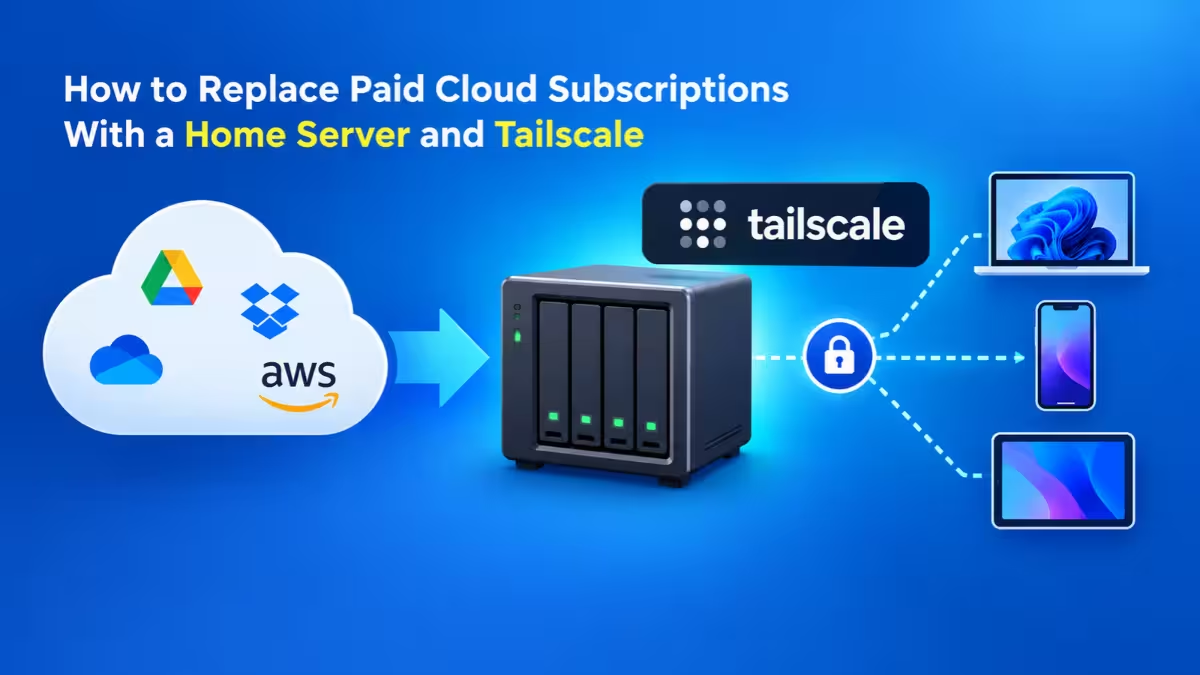
Tailscale builds a private encrypted network across all your devices. Install the client on your laptop, phone and home server, sign in with the same account, and every device gets a stable private address. Devices connect peer-to-peer when possible and fall back to Tailscale's relay servers when they cannot. You open no router ports, and it works behind CGNAT.
This is the best answer for reaching your own machines: remote desktop, SSH, file shares, Home Assistant or a private Plex library. The free personal plan covers most home users. See a full home server and Tailscale setup for a practical example. ZeroTier, NetBird and Nebula work on the same idea.
The limit: everyone who connects needs an account on your network. Tailscale grants broad access to a machine by default, so you must write access control lists (ACLs) to restrict users to a single service. It also cannot serve a public website that Google crawls or strangers visit. Tailscale Funnel can expose a node publicly, but it targets lighter use.
Reverse Tunnels: Cloudflare Tunnel and ngrok
Cloudflare Tunnel flips the connection around. A small daemon (cloudflared) on your home server opens an outbound connection to Cloudflare. You then link a domain, enter the local IP and port (for example 192.168.0.54:80), and Cloudflare routes visitors through that tunnel to your server.
Your router keeps every inbound port closed, CGNAT stops mattering, and Cloudflare also handles SSL certificates and replaces a separate reverse proxy. The free tier makes it the strongest choice for self-hosted websites, blogs, APIs and dashboards meant for the public. If visitors see a down page, check Cloudflare error 521.
One catch: Cloudflare's terms prohibit pushing heavy video streaming such as Plex or Jellyfin through its tunnels. Read the Cloudflare service terms before you host media. For developer testing, ngrok offers a quick temporary tunnel.
Self-Hosted VPN: WireGuard or OpenVPN
Run a WireGuard server at home and you can connect back into your whole network from anywhere. This option still needs one forwarded port (UDP 51820 for WireGuard), but it replaces many. Every other service stays hidden behind the VPN, and WireGuard ignores unauthenticated packets, so scanners see almost nothing. It does not work behind CGNAT.
Cloud Hosting
For anything that must stay online for the public, like a busy website or an always-on game server, a low-cost VPS or a hosted game server such as Palworld server hosting often beats running it from a home connection with a dynamic IP and limited upload speed.
Vendor Cloud Apps
Most modern security cameras and smart home devices include a manufacturer app that handles remote viewing through the vendor's servers. Use that instead of forwarding ports to the camera.
Port Forwarding vs Tailscale vs Cloudflare Tunnel: Which Is Best?
| Goal | Best choice |
|---|---|
| Remote desktop or SSH into your own PC | Tailscale or another mesh VPN |
| Access your whole home network from anywhere | Tailscale, or WireGuard if you have a public IP |
| Public website or blog on a home server | Cloudflare Tunnel |
| Plex or Jellyfin for yourself and family | Tailscale |
| Plex or Jellyfin for many outside users | Port forwarding with strict hardening |
| Minecraft or Valheim server for friends | Port forwarding, or paid Minecraft server hosting |
| BitTorrent connectivity | Port forwarding |
| Security cameras | The manufacturer's app |
| Smart home gadgets | Vendor cloud access, never a forwarded port |
| You are behind CGNAT | Cloudflare Tunnel or Tailscale |
Port forwarding still earns its place for game servers, torrent clients and self-hosted apps that a tunnel provider does not allow. For almost everything else, a closed router with a mesh VPN or a tunnel gives you the same access with far less exposure.
Frequently Asked Questions
Does port forwarding increase internet speed or lower ping?
No. Port forwarding controls whether inbound connections can reach a device. It does not change bandwidth or latency. In some games it allows a direct peer connection instead of a relay, which can feel smoother, but it is not a speed boost.
Can I forward the same external port to two devices?
No. Each external port and protocol pair can point to only one internal device. Use different external ports instead. For example, map external 2222 to device A on port 22 and external 2223 to device B on port 22.
What is the difference between an open port and a forwarded port?
An open port is a firewall rule that lets traffic pass. A forwarded port is a NAT rule that redirects traffic to a specific internal device. Most services need both: a forwarding rule on the router and an allow rule on the device firewall.
Can I use port forwarding without a public IP address?
Not through CGNAT. Your router rule never receives the traffic because your ISP's gateway drops it first. Request a public IP from your ISP, or use Cloudflare Tunnel, Tailscale or a VPS with a reverse proxy.
Why can't I reach my forwarded port from my own Wi-Fi?
Your router probably lacks NAT hairpinning support. Test from mobile data or an external port checker instead.
Should I keep UPnP enabled?
Only on a network where you trust every device. UPnP lets any local app open ports with no authentication, which malware can abuse. Disabling it and adding rules manually is the safer default.
Is DMZ the same as port forwarding?
No. DMZ forwards every unmatched inbound connection to one device, which strips away most of the router's protection. Port forwarding maps only the ports you choose.
Do traditional VPNs need port forwarding?
Self-hosted WireGuard and OpenVPN servers need one forwarded port. Mesh services like Tailscale and ZeroTier need none, since they connect through outbound connections and relay servers.