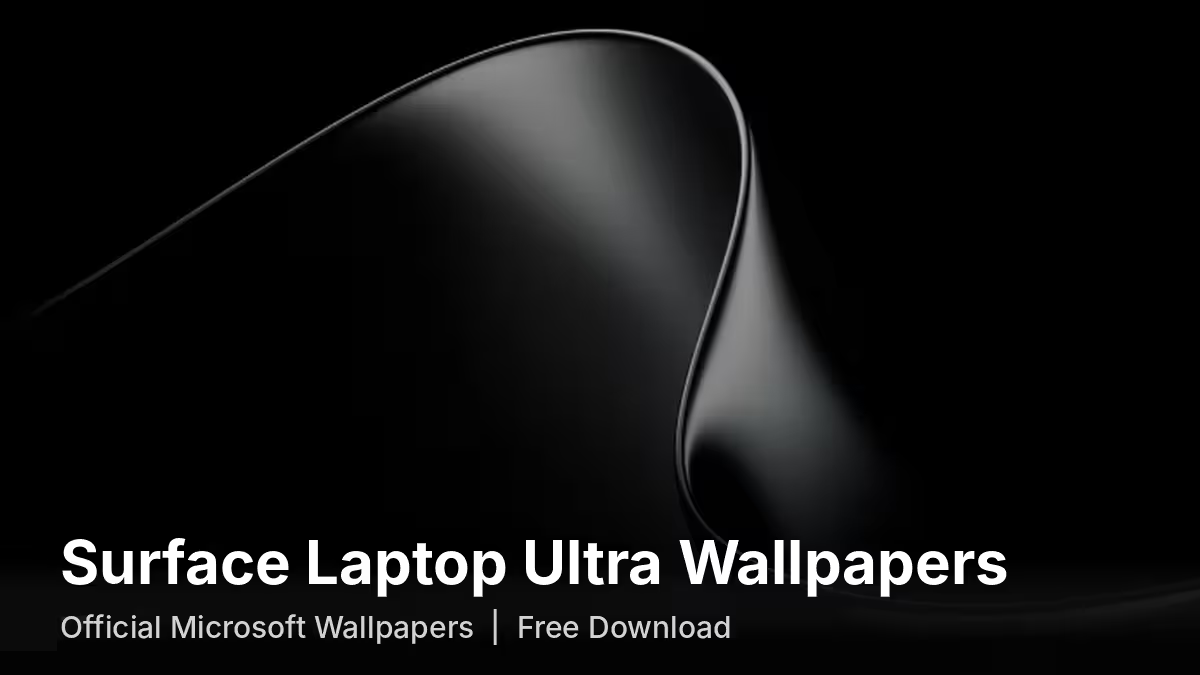
Microsoft has shared a fresh set of official wallpapers built around its Surface Laptop Ultra. Instead of the usual soft gradients and abstract blooms, this collection puts the laptop's engineering on display: fans, heat pipes, screws, cooling fins, and a sculpted black curve that looks like poured metal.
The best news is that you do not need the laptop to enjoy them. Any Windows 11 PC (or any screen, really) can run these backgrounds.
How to Download the Surface Laptop Ultra Wallpapers
The Surface team posted the collection on its official @surface account on X, inviting fans to grab their favorites. The post leans on short taglines about power, performance, and precision, which match the tone of the artwork.
To save an image from the post, open it in full view, right-click, and choose the save option.
What's Included in the Surface Laptop Ultra Wallpaper Pack
Each wallpaper focuses on a different part of the machine. Here is a quick breakdown:
| Wallpaper | What It Shows |
|---|---|
| Liquid metal curve | A glossy black abstract form with a polished, molten look |
| Internal schematic | A detailed blueprint of the laptop with a glowing Windows logo in the middle |
| Exploded view | The internal parts pulled apart, including dual fans and heat pipes |
| Screw close-up | A macro shot of the fine hardware details |
| Cooling fins | A clean, symmetrical pattern of the thermal fins |
| Color depth set | Four layered designs in silver, electric blue, forest green, and deep red |
The black-and-metal designs suit dark mode setups, while the four color variants work well if you want something brighter that still feels tied to the hardware.
What Makes These Wallpapers Different From Other Windows Backgrounds
Most Windows and Surface backgrounds rely on shapes and color. This set takes another route and treats the hardware itself as the art. Microsoft clearly wants buyers and fans to notice the work that went into the cooling system and build quality, and the wallpapers turn those parts into clean, gallery-style visuals.
Surface Laptop Ultra Specs and Price
Microsoft unveiled the Surface Laptop Ultra in May as its flagship machine for creators, developers, and people who build AI tools. Key details include:
- Platform: NVIDIA RTX Spark
- Memory: Up to 128GB of unified memory
- Display: 15-inch mini-LED touchscreen
- AI focus: Runs large AI models locally on the device
- Price: Starts at $2,599.99 in the US
With that price tag, the wallpapers give most people a free way to borrow the laptop's look without spending on the hardware.
How to Set the Surface Laptop Ultra Wallpaper on Windows 11
Once you have saved the image, follow these steps:
- Open Settings and click Personalization.
- Select Background.
- In the "Personalize your background" dropdown, choose Picture.
- Click Browse photos and pick the wallpaper you downloaded.
- Under "Choose a fit for your desktop image," select Fill for the cleanest result.
You can also right-click the image file in File Explorer and choose Set as desktop background for a faster route.
Tip: If you want to rotate through the whole collection, put all the images in one folder, pick Slideshow instead of Picture, and point Windows to that folder.
Is the Surface Laptop Ultra Wallpaper Pack Worth Using?
The Surface Laptop Ultra wallpapers stand out because they show off what sits inside the machine rather than hiding it behind color washes. Whether you prefer the dark liquid-metal curve or the bold color variants, the set gives your Windows 11 desktop a sharp, premium look at no cost.
Frequently Asked Questions
Do I need a Surface Laptop Ultra to use these wallpapers?
No. You can use them on any Windows 11 PC, laptop, or even other devices.
Where can I download the official wallpapers?
Microsoft shared them on the official Surface account on X. Open each image and save it to your device.
How many wallpapers are in the collection?
The set includes several hardware-themed designs plus four colorful depth variants in silver, electric blue, forest green, and deep red.
Can I use these wallpapers on Windows 10?
Yes. Windows 10 also lets you set any saved image as your background through Settings > Personalization > Background.
Related Guides
- Windows 11 Build 28120.3393 and 28020.3382 Bring Phone Link Search, Secure Cloud Rebuild and Dark Mode AutoPlay
- Copilot+ PC Branding Is Gone: Why Microsoft Quietly Dropped the Name
- Windows 11 WinUI Performance Update: Microsoft Tackles High RAM Usage in Native Apps
- Microsoft PowerToys v0.100: New Shortcut Guide, Extension Gallery, and Every Change on Windows 11
- Microsoft Releases Windows 11 Dynamic Updates KB5102558, KB5095615, and KB5095186