Forgetting your Windows 11 PIN locks you out of your own PC instantly. To make things worse, the login screen sometimes hides the password option, leaving you staring at a PIN field with no obvious way out. This guide walks you through every working method to recover access, from the quickest one-click option to deeper recovery tools.
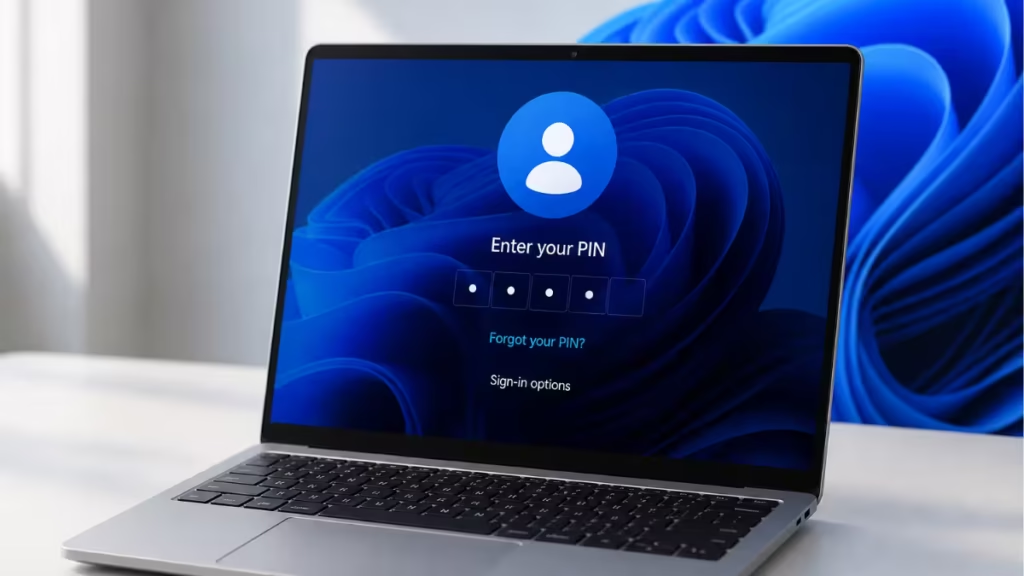
Check the Sign-In Options on the Login Screen
Before trying anything else, check the sign-in options directly on the login screen.
- On the Windows 11 login screen, look for Sign-in options just below the PIN entry field.
- Click it to expand available sign-in methods.
- You may see icons for Password, Fingerprint, or Face recognition.
- Select the Password icon (key symbol) and enter your Microsoft account password instead.
If you do not see the Password option at all, a recent Windows update may have caused the password sign-in option to disappear from the lock screen. Restarting the device once often brings it back. If it does not return, proceed with the methods below.
Use the “I Forgot My PIN” Link
Windows 11 includes a built-in PIN reset flow that works directly from the login screen.
- Click the PIN field on the login screen so the keyboard appears.
- Below the PIN entry box, click I forgot my PIN.
- Windows asks you to verify your identity using your Microsoft account password.
- Enter your Microsoft account password and click OK.
- A new window opens for you to set a new PIN.
- Enter your new PIN, confirm it, and click OK.
Windows unlocks the account and logs you in with the new PIN. This method only works if your device uses a Microsoft account. It does not work for local accounts.
Sign In With Your Microsoft Account Password
If the “I forgot my PIN” option does not appear, you can sign in using your Microsoft account password directly.
- On the login screen, click Sign-in options.
- Click the Key icon (Password).
- Type your Microsoft account password and press Enter.
Once inside Windows, you can reset your PIN from Settings:
- Open Settings > Accounts > Sign-in options.
- Under PIN (Windows Hello), click I forgot my PIN.
- Follow the steps to create a new PIN.
If you have forgotten both your PIN and your Microsoft account password, use the account recovery steps in the guide on how to recover your Microsoft account on Windows PC.
Reset Your PIN From Another Administrator Account
If your PC has a second administrator account, you can use it to reset the PIN for the locked account.
- On the login screen, click the Other user option or select a different account from the bottom-left corner.
- Sign in with the second administrator account.
- Open Settings > Accounts > Family & other users.
- Select the locked account and click Change account type if needed.
- Ask the locked account user to sign in separately and reset their PIN from Settings > Accounts > Sign-in options.
This works when you share a PC with another person who has admin access.
Use Windows Recovery Environment to Reset PIN
When every login option fails, the Windows Recovery Environment (WinRE) lets you reset your account credentials without logging in.
- Force-restart your PC three times in a row (hold the power button until it shuts off, then power it back on). Windows enters recovery mode automatically after the third failed boot.
- On the Choose an option screen, select Troubleshoot.
- Select Advanced options > Startup Settings > Restart.
- After the restart, press 4 or F4 to boot into Safe Mode.
- In Safe Mode, sign in with your Microsoft account password or a local administrator account.
- Open Settings > Accounts > Sign-in options and reset your PIN from there.
Safe Mode loads only essential drivers, which often bypasses the sign-in issues that appear in normal mode.
Reset Your Microsoft Account Password Online
If you cannot sign in with your Microsoft account password either, reset the password from another device.
- On a phone or another PC, go to account.live.com/password/reset.
- Enter the email address linked to your Microsoft account.
- Choose a verification method: email, phone number, or authenticator app.
- Follow the on-screen steps to create a new password.
- Return to your locked PC and sign in using the new password via the Password sign-in option.
For a detailed walkthrough covering all scenarios, including a forgotten phone number, see the full guide on how to reset your Windows password.
Fix Face Recognition Not Working on the Login Screen
Some users find that Windows shows the face recognition option but refuses to complete the sign-in. This usually happens after a Windows update resets Hello settings.
- Sign in using your password or PIN first (use the methods above to regain access).
- Open Settings > Accounts > Sign-in options.
- Under Facial recognition (Windows Hello), click Set up or Improve recognition.
- Follow the wizard to re-register your face.
- Restart your PC and test face recognition on the login screen.
If the camera itself is not detected, open Device Manager (right-click Start > Device Manager), expand Cameras, and check for warning icons. Reinstall the driver if it shows an error.
When Nothing Works: Clean Reset With PIN Removal
If none of the above methods work and you cannot recover your Microsoft account, a clean Windows reset removes the PIN requirement entirely.
- Boot into WinRE using the forced restart method described above.
- Select Troubleshoot > Reset this PC.
- Choose Keep my files to preserve personal data, or Remove everything for a full wipe.
- Follow the on-screen steps to complete the reset.
After the reset, Windows asks you to set up a new PIN during the first-time setup. For a complete walkthrough of all reset and recovery options, see How to Reset Windows Password on Windows 10 & 11 (All Methods).

