Windows 11 KB5094126 (Build 26200.8655) released as part of the June 2026 Patch Tuesday cycle. The update patches over 200 security flaws, including 33 critical vulnerabilities and five zero-day bugs, and delivers new features like the Low Latency Profile for audio. However, the rollout has triggered a wave of confirmed bugs affecting HP and Dell laptops, OneDrive in File Explorer, Word integration in business apps, custom folder icons, and the installation process itself.
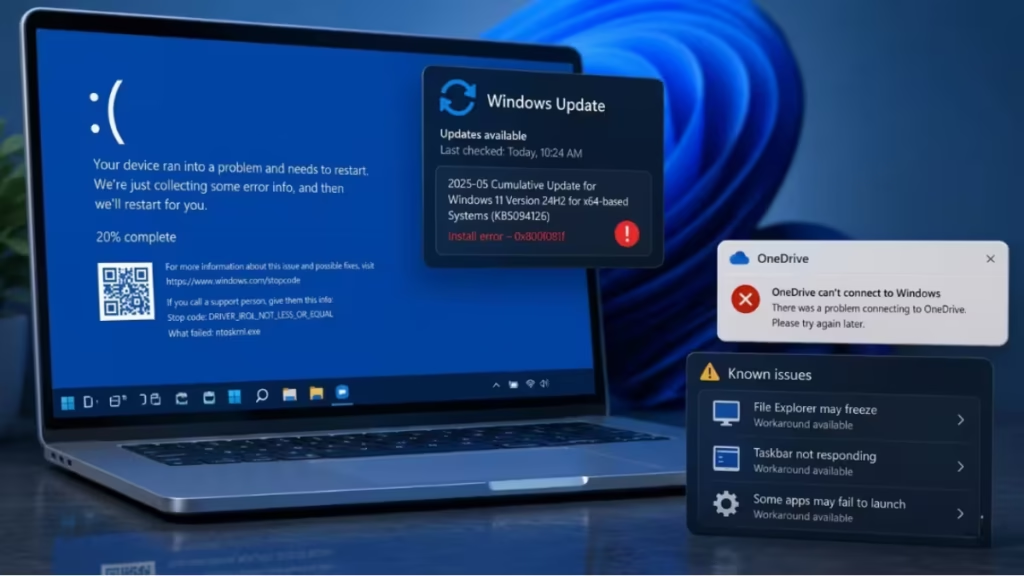
This article covers every confirmed issue with KB5094126 and the working fixes for each one.
What Is Windows 11 KB5094126?
KB5094126 is Microsoft’s June 2026 cumulative update for Windows 11 versions 24H2 and 25H2. It installs automatically through Windows Update unless you deferred it before the download completed.
Alongside KB5094126, Microsoft also released Dynamic Updates for multiple Windows versions. These Dynamic Updates (KB5094149, KB5095185, KB5095971, KB5094156) target the Windows Recovery Environment (WinRE) and setup binaries. They deliver silently through Windows Update without requiring manual action.
Issue 1: BSOD and Boot Failure After Installing KB5094126
The most serious problem with KB5094126 is boot failure on certain HP and Dell hardware. After installing the June update, some PCs either show a Black Screen of Death (error code 0xc0430001) or drop into BitLocker Recovery Mode before Windows can load.
Affected models reported so far include:
- HP EliteBook 840 G10
- HP ProBook 460 G11
- HP Engage One Pro 15.6 G2 AiO POS
- HP ZBook (various)
- Dell Precision 7530
- Dell Precision (various)
Why This Happens
KB5094126 touches Secure Boot certificates, the Boot Manager, and EFI partition contents. On devices with a 100 MB EFI partition (common on older HP hardware), the update cannot write the required Secure Boot files. Event Viewer on affected machines shows TPM-WMI errors, including: “The secure boot update failed to update Boot Manager (2023) due to the error: insufficient disk space.”
HP devices store firmware recovery files (such as EFI\HP\DEVFW) on the EFI partition, which reduces available space further. An outdated BIOS or UEFI version also increases the chances of a conflict with the Secure Boot certificate changes in the June update.
How to Fix the BSOD
If your PC still boots into Windows occasionally, work through these steps:
Step 1: Back up your BitLocker recovery key
Sign in to account.microsoft.com/devices/recoverykey and save your key before doing anything else.
Step 2: Enter BIOS and disable Secure Boot
- Restart your PC and press Esc (on HP) or F2/Del (on Dell) before the OEM logo appears.
- Navigate to the Secure Boot setting and disable it.
- If BitLocker prompts you for a key, enter the recovery key from your Microsoft account.
- Save changes and exit BIOS.
Step 3: Boot into Windows and update
- Let Windows load normally.
- Open Settings > Windows Update > Check for updates and install KB5094126.
- Allow the update to complete and let Windows reboot.
Step 4: Re-enable Secure Boot
- Restart into BIOS again.
- Turn Secure Boot back on.
- Save and exit.
Step 5: Update your BIOS/UEFI firmware
Visit your manufacturer’s support site (HP Support or Dell Support) and install the latest BIOS version for your model. An outdated BIOS is the most likely root cause of the conflict.
If your PC cannot boot at all and gets stuck in a recovery loop even after entering the BitLocker key, disable Secure Boot first, then reinstall the update once you regain access to Windows.
Issue 2: OneDrive Not Opening in File Explorer
After installing KB5094126, some users cannot open OneDrive from the File Explorer sidebar or the system tray icon. Right-clicking the OneDrive tray icon and selecting the Explorer option produces no response. Dropbox and iCloud Drive have shown the same behavior on some systems.
The underlying cause appears to be a break in Explorer’s cloud storage shell integration. The issue seems more common on systems with User Account Control (UAC) disabled and a local administrator account.
How to Fix OneDrive in File Explorer
Fix 1: Switch to a Microsoft account and enable UAC
- Open Settings > Accounts > Your info.
- Select Sign in with a Microsoft account instead and follow the prompts.
- Open Settings > Privacy and Security > Windows Security.
- Enable User Account Control if it is currently disabled.
- Restart your PC and test OneDrive access through File Explorer.
Fix 2: Access files directly from the file path
If you need your cloud files immediately, navigate to them manually:
C:\Users\YourUsername\OneDriveThis path works even when the sidebar shortcut does not respond.
Fix 3: Uninstall KB5094126
If the workarounds above do not help, remove the update until Microsoft ships a fix:
- Open Settings > Windows Update > Update History.
- Select Uninstall updates.
- Find KB5094126 in the list and click Uninstall.
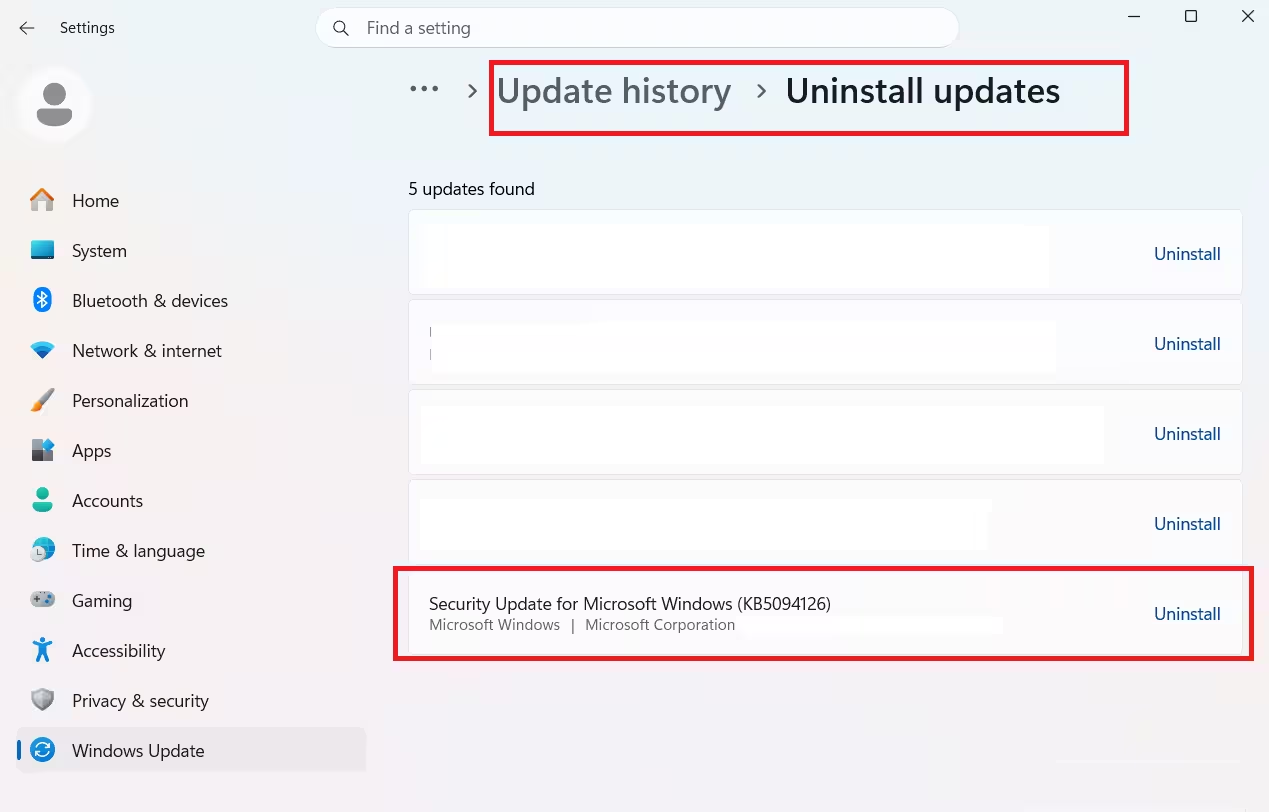
- Restart your PC when prompted.
Issue 3: Microsoft Word Integration Broken in Business Apps
KB5094126 breaks Microsoft Word automation in certain line-of-business applications. Affected users report that Word-dependent features inside dental software (Dentrix, Softdent, older Eaglesoft), accounting platforms (CCH ProSystem fx Engagement, CCH ProSystem fx Workpaper Manager), and neurology reporting tools stop working after the June update.
Word itself opens documents normally. The problem affects apps that embed Word or automate it programmatically to open documents inside their own interface.
The most likely explanation is that KB5094126 changed how Windows handles Office automation for third-party apps.
How to Fix Word Integration Issues
Microsoft has not released a patch for this yet. The only confirmed working fix is to uninstall KB5094126:
- Open Settings > Windows Update > Update History.
- Click Uninstall updates.
- Select KB5094126 and click Uninstall.
- Reboot your PC.
Test your business application after the reboot. If it works correctly, defer future updates until Microsoft confirms the bug is resolved.
Issue 4: Custom Folder Icons Not Showing (desktop.ini Change)
KB5094126 changed how Windows 11 handles desktop.ini files. Previously, Windows trusted desktop.ini files from third-party apps and downloaded sources for folder customization. After the June update, Windows ignores desktop.ini files unless they come from a verified trusted source. Custom folder icons, custom folder names, and other desktop.ini customizations may stop appearing.
This change does not block access to files or folders. It only affects how File Explorer displays those folders.
How to Fix Broken Folder Icons
Use PowerShell to unblock individual or all desktop.ini files in a folder.
Unblock a single desktop.ini file:
Unblock-File "C:\Your\Folder\Path\desktop.ini"Unblock all desktop.ini files inside a folder recursively:
Get-ChildItem "C:\Your\Folder\Path" -Recurse -Filter desktop.ini -Force | Unblock-FileReplace C:\Your\Folder\Path with the actual path to the folder where your customizations stopped working. Run PowerShell as an administrator before running either command.
Issue 5: KB5094126 Won’t Install (Error Codes 0x800F0823, 0x800f0922, 0x800705b9, 0x800f0915)
Some users cannot install KB5094126 at all. The update fails at various points and shows one of these error codes:
0x800F08230x800f09220x800705b90x800f0915
How to Fix Installation Errors
Fix 1: Install offline using the Microsoft Update Catalog
- Open catalog.update.microsoft.com.
- Search for KB5094126.
- Download the
.msufile that matches your Windows version and system architecture (x64 for most PCs). - Run the downloaded file and follow the installer prompts.
- Restart your PC when the installation finishes.
Fix 2: Run the Windows Update Troubleshooter
- Open Settings > System > Troubleshoot > Other troubleshooters.
- Find Windows Update and click Run.
- Follow the steps and retry the update after the troubleshooter finishes.
Fix 3: Reset Windows Update components
Open Command Prompt as an administrator and run these commands one by one:
net stop wuauserv
net stop cryptSvc
net stop bits
net stop msiserver
ren C:\Windows\SoftwareDistribution SoftwareDistribution.old
ren C:\Windows\System32\catroot2 catroot2.old
net start wuauserv
net start cryptSvc
net start bits
net start msiserver
After the commands finish, open Windows Update and try installing KB5094126 again.
Issue 6: Update Stuck at 0% or Looping During Install
Some users report that KB5094126 freezes at 0%, restarts multiple times, or enters a loop during the final installation stage. This appears to be related to the same Secure Boot and EFI partition conflicts causing the BSODs.
How to Fix a Stuck Update
Use the offline installer from the Microsoft Update Catalog (see Issue 5, Fix 1 above). Manual installation through the .msu file bypasses the Windows Update service and resolves the stuck or looping install in most cases.
If the update still loops after using the offline installer, check your EFI partition for free space. Open Disk Management and verify that the EFI System Partition shows available space. A full or near-full EFI partition on HP devices is a confirmed trigger for installation failures with this update.
Should You Install KB5094126?
KB5094126 patches critical security vulnerabilities, including five active zero-day exploits. Skipping it leaves your system exposed to real threats.
If your device is not HP or Dell hardware and you do not rely on custom folder icons or Word-integrated business apps, the update is generally safe to install. If you manage a fleet of HP EliteBook or ProBook devices, update your BIOS firmware first, confirm your BitLocker recovery keys are accessible, then proceed with the update with Secure Boot temporarily disabled as a precaution.
Microsoft has not yet confirmed most of these issues publicly, but reports on Reddit, the Microsoft Feedback Hub, and enterprise IT forums confirm they are real and widespread. A fix or out-of-band patch is expected in the coming days.

