7-Zip earned its place on millions of PCs by doing one job well. It compresses files into small 7z archives that save disk space, opens most formats, and costs nothing. Yet it also has clear gaps. The interface looks like it belongs to an older Windows era, it cannot repair a broken archive, and it ships without a password manager or any cloud features.
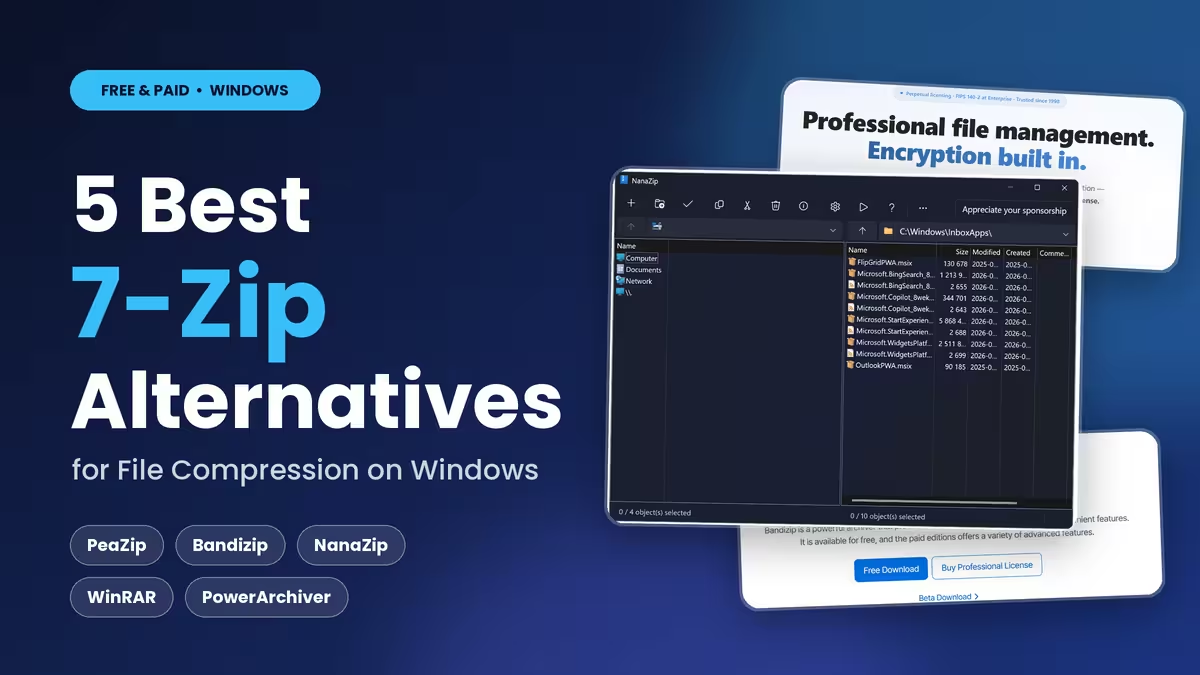
If those gaps slow you down, you have good options. The five tools below each fix a different 7-Zip weakness, from a cleaner layout to stronger encryption. Read the short breakdown for each one, then match it to the way you handle archives.
Why Windows Users Move Away From 7-Zip
Most people switch for one of three reasons. Some want a friendlier window with preview and drag-and-drop browsing. Others need features 7-Zip skips, such as repairing a damaged download or locking archives with a keyfile. A third group wants better Windows 11 integration, since 7-Zip still hides its commands behind the "Show more options" menu.
Keep 7-Zip if you mainly run command-line jobs and tune 7z settings by hand. For everyone else, one of these picks will feel like an upgrade.
Best 7-Zip Alternatives Compared: Price, Features, and Best Use
| Tool | Price | Best For | Standout Feature |
|---|---|---|---|
| PeaZip | Free | Format coverage and security | 200+ formats, keyfile support |
| Bandizip | Free tier, paid editions | Speed and daily use | Multi-core processing, malware scan |
| NanaZip | Free | Windows 11 users | Native right-click menu entry |
| WinRAR | Paid, with long trial | RAR files and repair | Recovery records and archive repair |
| PowerArchiver | Paid | Business and encryption | AES-256 encryption, FIPS 140-2 at Enterprise tier, backup tools |
1. PeaZip: Best Overall With a Modern Interface and Extra Security
PeaZip is the closest thing to a 7-Zip upgrade. It runs the 7-Zip engine and several other open source backends underneath, so your 7z and ZIP archives compress to similar sizes. The difference sits on top. You get a full file manager with an address bar, bookmarks, history, and a sidebar, and it feels more like File Explorer than a tiny utility window.
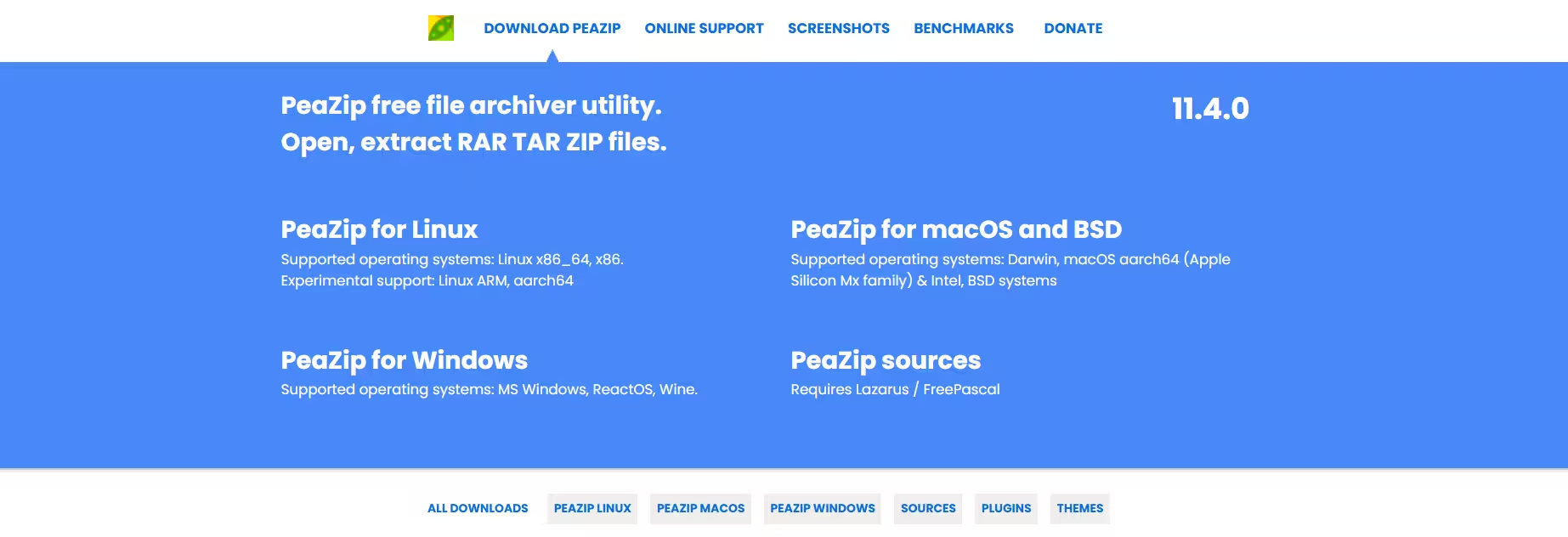
Format support goes far beyond 7-Zip. PeaZip opens close to 200 archive types and creates more than ten, including fast modern options such as Zstandard and Brotli. It also converts one archive type to another straight from the right-click menu, so you skip the extract and repack routine.
Security is where PeaZip pulls well ahead. You can lock an archive with a keyfile, pick Twofish or Serpent instead of plain AES-256, store passwords in the built-in manager, and securely wipe files you no longer want. 7-Zip needs separate tools for every one of those jobs.
You can also export any action you build in the interface as a command line or script, then run it through Windows Task Scheduler to back up Windows 11 files automatically. A portable build runs from a USB stick without installation, and the same app works on Linux and macOS.
Limitation: PeaZip favors speed in its default presets, so archives come out larger than 7-Zip's. Open the preset settings and choose a stronger compression level when size matters more than time.
Best for: Anyone who wants 7-Zip's compression with a modern layout and far more features.
2. Bandizip: Best for Speed and Built-In Malware Scanning
Bandizip targets people who open and create archives all day and hate waiting. It spreads compression and extraction across several CPU cores, which speeds up large jobs on modern processors. The window stays clean, and the right-click actions in Explorer cut the number of clicks for routine work.
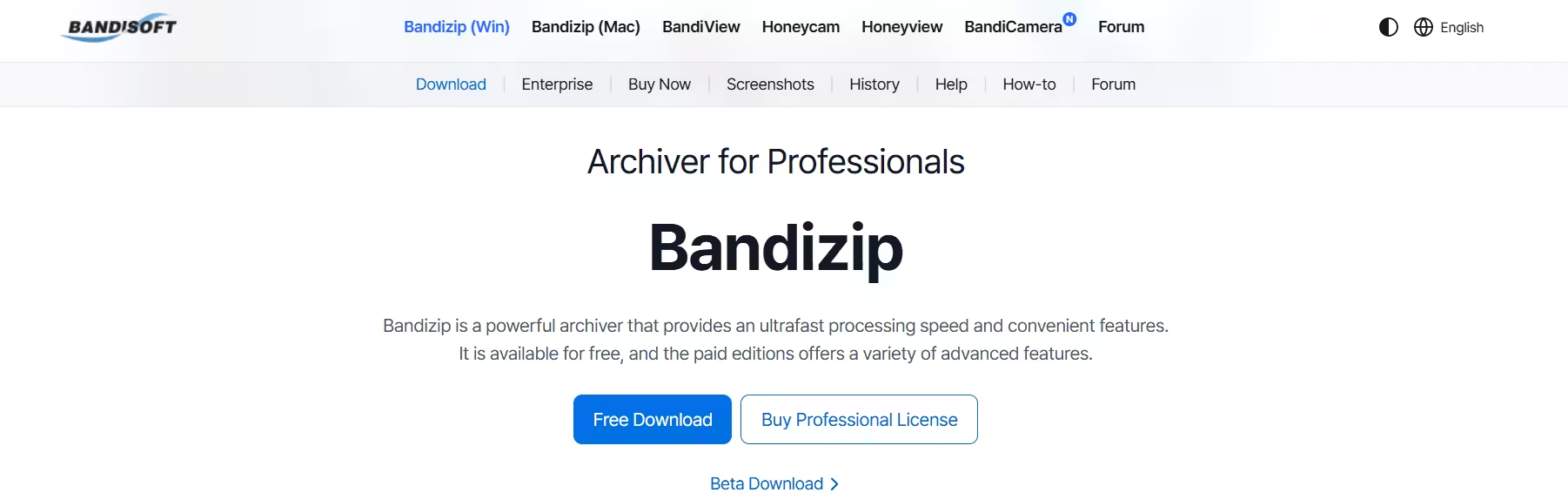
It handles over 30 formats, including ZIP, 7z, RAR, TAR, and ISO, and it also opens regional formats such as ALZ and EGG. A built-in antivirus scan checks a download before you extract it, which protects you when you unpack files from unknown senders. You can also preview thumbnails of images inside an archive without extracting anything.
The extras do not stop there. Bandizip includes archive repair, password recovery, a password manager, AES-256 encryption, and a command-line interface for people who still want some automation. The free edition covers the basics, and paid editions unlock the advanced tools.
Limitation: The settings menu feels dense at first, and the full feature set centers on the Windows edition. Its command-line options are lighter than what 7-Zip offers for heavy scripting.
Best for: Daily users who want a fast, polished archiver with built-in safety checks.
3. NanaZip: Best for Windows 11 Right-Click Menus
NanaZip is a fork of 7-Zip, rebuilt to fit Windows 10 and Windows 11. It reads the same formats as 7-Zip, stays lightweight and open source, and costs nothing. If you like 7-Zip's behavior but dislike how it fits into the newest Windows, this is the simplest fix.
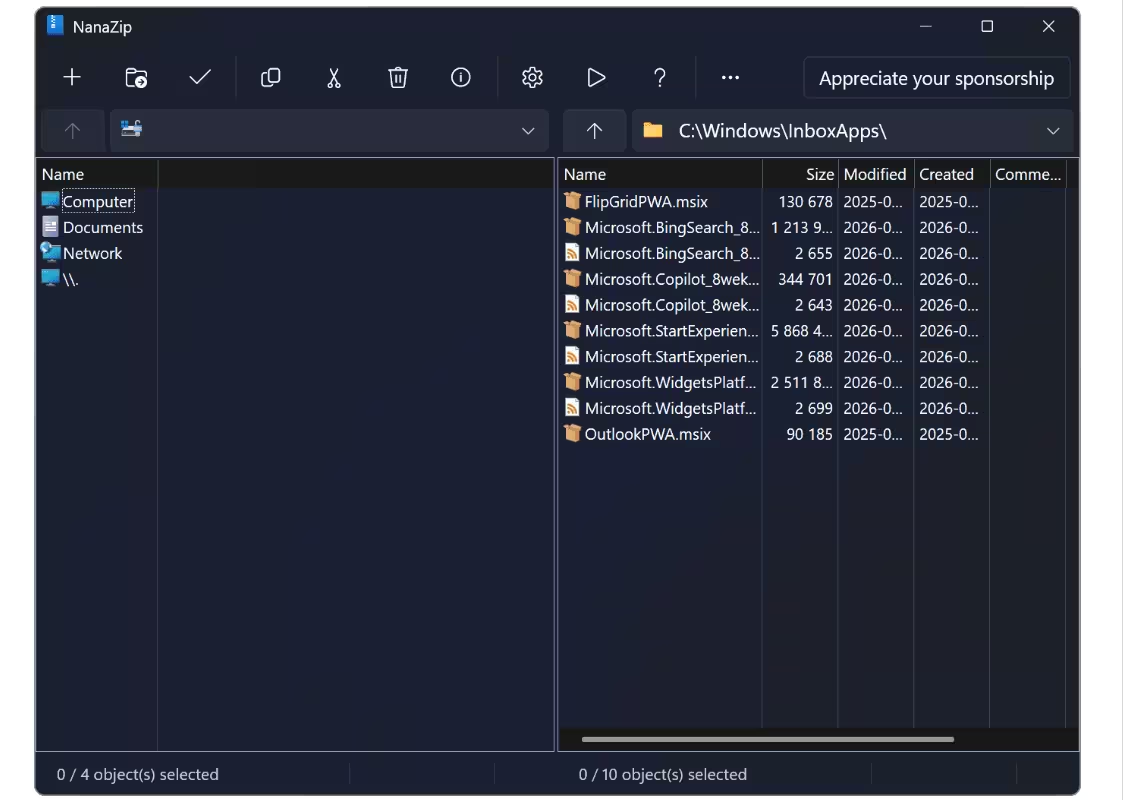
The big win is the context menu. NanaZip adds its commands directly to the Windows 11 right-click menu, so you no longer dig through extra options to reach Extract or Add to archive. You can install it from the Microsoft Store, which also handles updates for you.
Limitation: NanaZip keeps the classic 7-Zip layout, so the interface does not look newer. Pick it for better integration, not for a visual refresh or extra security tools.
Best for: Windows 11 users who want 7-Zip's strengths with a proper right-click menu.
4. WinRAR: Best for RAR Files and Repairing Damaged Archives
WinRAR remains the standard tool for RAR files, and it creates them natively, which 7-Zip cannot do. RAR often squeezes mixed data into smaller files than ZIP, and WinRAR also builds ZIP archives and opens many other formats, including Zstandard and ZIPX packages.
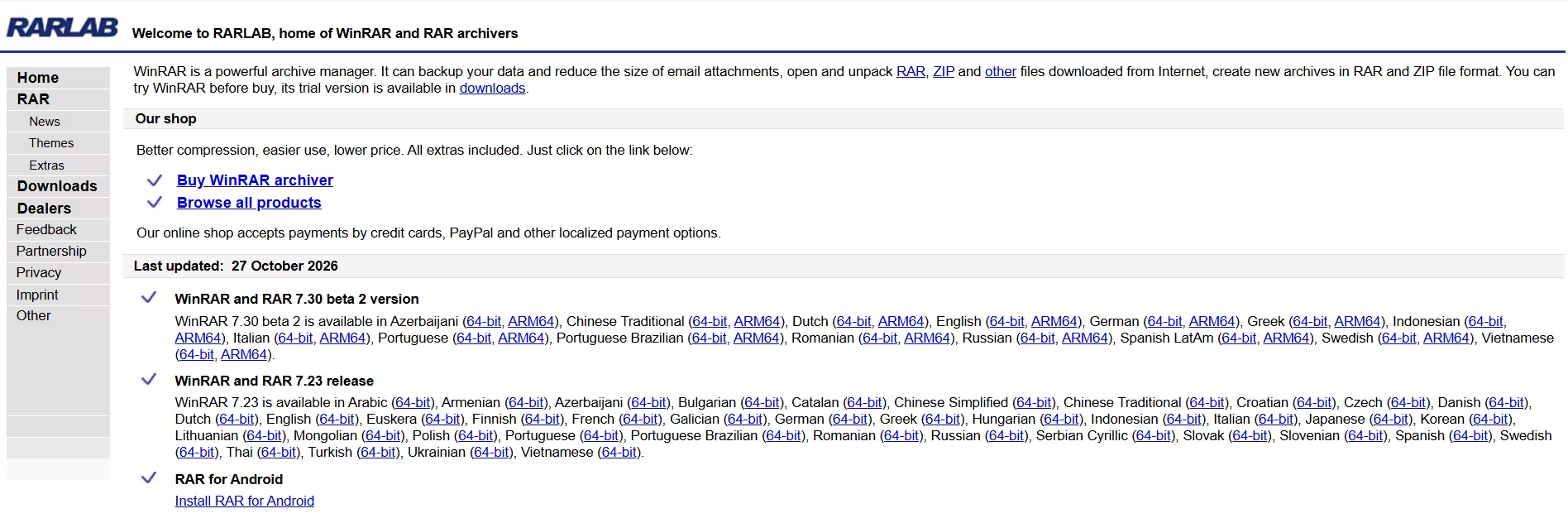
Its best trick is recovery. When a download breaks or a file arrives half corrupted, WinRAR can repair the archive, and recovery records let you protect important backups against future damage. It also splits large archives into parts for email limits, and it builds self-extracting archives that open on any PC without extra software.
WinRAR costs around $29 for a one-time license, but the trial keeps working long after it ends, so many people use it for free. Windows Explorer integration is smooth, and the layout feels familiar to anyone who has used an archiver before.
Limitation: Its 7z handling lacks the depth of 7-Zip, and the advanced options feel crowded. The tool also runs on Windows first, so Mac and Linux users get less.
Best for: Users who send and receive RAR files, or who often fight with damaged archives.
5. PowerArchiver: Best for Business Encryption and Backups
PowerArchiver goes after business users and anyone who treats archives as part of a larger workflow. It supports more than 60 formats and adds its own PA codec, which targets strong compression with data deduplication. The security side stands out. It offers 256-bit AES encryption, with FIPS 140-2 validation at the Enterprise tier, and supports OpenPGP formats for signing and verifying files.
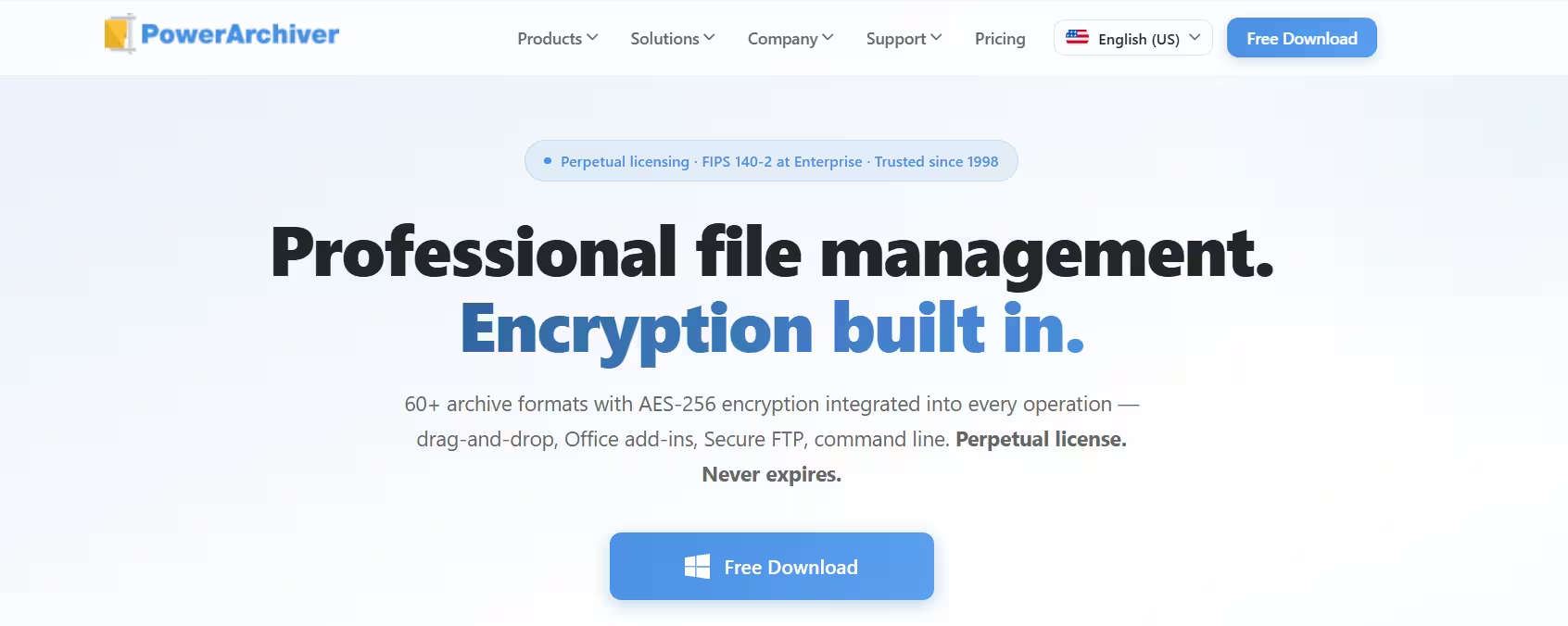
It also bundles tools that 7-Zip never tried to offer. You get a secure FTP client, backup features with shadow copy and network support, ISO mounting, and links to several cloud services. It can compress and encrypt files automatically inside Microsoft Office, which helps teams that handle sensitive documents.
Limitation: PowerArchiver costs money and runs on Windows only. If you only need to unzip a download now and then, the extra utilities add clutter you will never use.
Best for: Small businesses and IT teams that need encryption, backup, and archiving in one place.
When 7-Zip Is Still the Better Choice
Switching makes little sense if your work already fits 7-Zip. Stay with it when you run scripted compression jobs, tune 7z settings by hand, or only need a free, light tool that extracts and creates ZIP and 7z files reliably. Its command-line control still beats the GUI-first tools on this list.
How to Choose the Right 7-Zip Replacement
Match the tool to your biggest frustration:
- You want more features and a better look: Choose PeaZip.
- You want speed and a safety scan: Choose Bandizip.
- You run Windows 11 and want a cleaner right-click menu: Choose NanaZip.
- You work with RAR files or damaged downloads: Choose WinRAR.
- You need business-grade encryption and backup software: Choose PowerArchiver.
Install your pick next to 7-Zip first, test it on a few real archives, and then change your default archive app in Windows settings. That way you can switch back instantly if the new tool does not fit your routine.
Mistakes to Avoid When Switching From 7-Zip
- Judging by file types alone: Almost every tool opens ZIP and 7z. Compare the workflow instead, such as repair, encryption, or right-click speed.
- Dropping command-line habits: Scripts that worked in 7-Zip may not carry over to GUI-first tools. Test your automation before you uninstall anything.
- Expecting repair or encryption by default: Only some tools offer them. Check the feature list for what you actually need.
- Ignoring other platforms: If you share archives with Mac or Linux users, pick a tool such as PeaZip that runs there too.
Frequently Asked Questions
Is 7-Zip still worth using?
Yes. It stays free, light, and reliable, and its 7z format compresses better than standard ZIP. It works best for people who value command-line control and simple, stable performance over extra features.
Which 7-Zip alternative gives the best compression ratio?
PeaZip and NanaZip use the 7-Zip engine, so they match its ratios for 7z and ZIP. PeaZip defaults to fast presets, so raise the compression level in its settings if you want the smallest possible file.
Can any of these tools repair a damaged archive?
WinRAR and Bandizip both include repair features. WinRAR also lets you add recovery records so you can fix an archive later if it breaks.
Which option is completely free?
PeaZip and NanaZip cost nothing. Bandizip offers a free edition with paid upgrades, while WinRAR and PowerArchiver are paid products.
Which tool works best on Windows 11?
NanaZip adds its commands to the main Windows 11 right-click menu, which makes it the smoothest fit. Bandizip and PeaZip also run well on Windows 11, but they follow their own menu styles.
Can I keep 7-Zip installed alongside another archiver?
Yes. You can run two archivers on the same PC and choose which one opens each file type through your default app settings.
Related Guides
- How to Speed Up Windows 11: 14 Free Fixes and Smart Upgrades for a Slow PC
- Windows 11 Settings That Slow Down Your PC (and How to Fix Them)
- Best Backup Software for Windows 11 and 10 in 2026: 8 Top Picks for Every Need
- Best Antivirus for Windows PC in 2026: 7 Apps to Keep Your PC Safe
- 5 Best Free Disk Space Analyzers for Windows 11 and 10: Find Large Files Fast