A slow Windows 11 PC does not always mean you need new hardware. In many cases, the operating system itself holds your machine back. Microsoft ships Windows 11 with features that favor convenience and looks over raw speed, and many of them run quietly in the background from the moment you sign in.
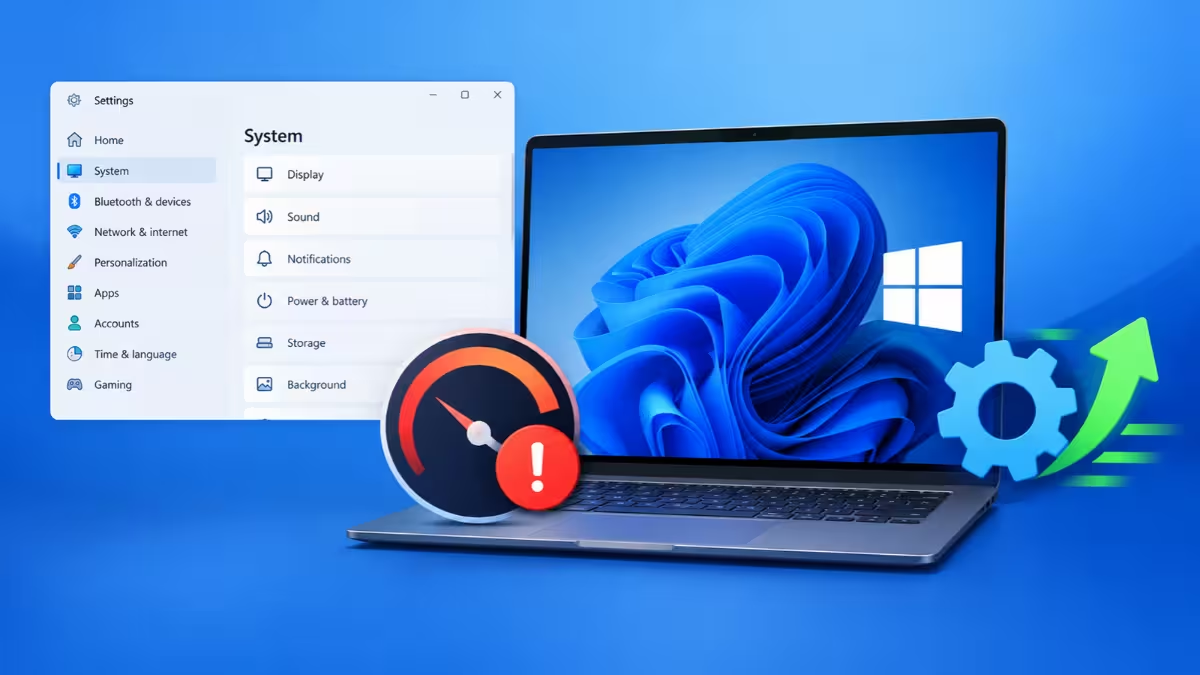
You can change most of these settings in a few minutes, and you don't need any paid cleaner app. This guide walks you through the settings that drag performance down, explains why each one matters, and shows you exactly how to fix it.
Find What Is Slowing Down Your PC in Task Manager
Before you change anything, spend two minutes finding the real culprit. Guessing wastes time, and Task Manager gives you the answer directly.
- Press Ctrl + Shift + Esc to open Task Manager.
- Stay on the Processes page.
- Click the CPU column header to sort apps by processor use. Repeat this for Memory and Disk.
- Watch the list for a minute while your PC sits idle.
If one app keeps climbing to the top while you do nothing, you have found your main suspect. Select it and click End task if you don't need it. If you don't recognize a process name, right-click it and choose Search online before you close it.
For deeper detail, open Resource Monitor by typing resmon in the Start menu. It breaks down disk, network, and memory activity per process and helps you spot apps that cause short freezes or stutters.
Turn Off Fast Startup and Do a Full Restart
Most people don't know this one. Windows 11 turns on Fast Startup by default. When you click Shut down, Windows does not close the kernel session. It saves it to disk and loads it back on the next boot. That makes startup quicker, but it also carries memory leaks and stuck processes from one day into the next.
Check how long your PC has really been running:
- Open Task Manager and go to Performance > CPU.
- Look at Up time below the graph.
If it shows several days even though you shut down every night, Fast Startup is the reason.
How to fix it:
- Use Restart instead of Shut down when your PC feels sluggish. A restart always performs a full boot.
- For a one-time full shutdown, hold Shift while you click Shut down.
- To disable Fast Startup permanently, open Control Panel > Power Options > Choose what the power buttons do, click Change settings that are currently unavailable, and untick Turn on fast startup.
Disable Startup Apps You Don't Need
Every app that starts with Windows grabs memory and CPU time before you even open it. Chat apps, game launchers, music players, and update helpers all love to add themselves to this list during installation.
How to fix it:
- Open Task Manager and click Startup apps in the left menu.
- Check the Startup impact column. Windows rates each entry as Low, Medium, or High.
- Right-click any app you don't need right away and select Disable.
You can also manage the same list from Settings > Apps > Startup, where each app has a simple toggle.
Disabling an app here does not uninstall it. You can still open it manually whenever you want. Keep your antivirus, audio drivers, and touchpad utilities enabled.
Tip: Click the small arrow next to the taskbar clock. Every icon in that tray is an app still running. Right-click the ones you don't need and choose Quit or Exit.
If you want a complete view of every auto-start entry, including ones Task Manager hides, Microsoft's free Sysinternals Autoruns tool lists them all. Untick an entry to disable it without deleting anything.
Stop Apps From Running in the Background
Closing a window does not always stop an app. Many Microsoft Store apps keep working in the background to fetch updates, sync data, or show notifications.
How to fix it for one app:
- Go to Settings > Apps > Installed apps.
- Click the three dots next to an app and select Advanced options.
- Under Background apps permissions, choose Never.
Not every app shows this option, so don't worry if you only find it on a few.
How to fix it for all Store apps at once: Open Terminal as administrator and run this command, then restart:
reg add "HKLM\SOFTWARE\Policies\Microsoft\Windows\AppPrivacy" /v LetAppsRunInBackground /t REG_DWORD /d 2 /fThis blocks background activity for Store apps only. Desktop programs like Chrome or Discord still need the Startup apps method above. To reverse the change, run:
reg delete "HKLM\SOFTWARE\Policies\Microsoft\Windows\AppPrivacy" /v LetAppsRunInBackground /fTurn Off Visual Effects and Transparency
Windows 11 looks polished thanks to animations, shadows, fades, and transparent surfaces. On a powerful machine you barely notice the cost. On an older laptop or a PC with integrated graphics, these effects make menus and windows feel heavy.
How to fix it:
- Open Start and search for Adjust the appearance and performance of Windows.
- On the Visual Effects tab, select Adjust for best performance.
- Turn two options back on so Windows stays usable: Show thumbnails instead of icons and Smooth edges of screen fonts.
- Click Apply, then OK.
For a quicker change, go to Settings > Accessibility > Visual effects and switch off Transparency effects and Animation effects.
Your desktop will look a little plainer, but it will respond noticeably faster.
Switch Power Mode to Best Performance
Windows often defaults to a power mode that saves energy by holding your processor back. Laptops in particular may ship set to Best power efficiency, which throttles background work and slows down apps.
How to fix it:
- Open Settings > System > Power & battery (just Power on some desktops).
- Open the Power mode dropdown.
- Select Best performance.
On a laptop, Best performance drains the battery faster and makes the machine run warmer. Use it when you plug in, and switch back to Balanced when you work on battery.
Desktop users who want every bit of speed can unlock the hidden Ultimate Performance plan. Run this in an elevated PowerShell window:
powercfg -duplicatescheme e9a42b02-d5df-448d-aa00-03f14749eb61Then select Ultimate Performance under Control Panel > Power Options.
Pause OneDrive Sync or Enable Files On-Demand
OneDrive backs up your Desktop, Documents, and Pictures folders and keeps them in sync with the cloud. While it uploads or downloads large batches, it keeps your disk and network busy, and other apps slow down.
How to fix it:
- Click the OneDrive cloud icon in the system tray, open Settings, and pause syncing when you need full speed.
- Under Account > Choose folders, untick folders you don't need on this PC.
- Turn on Files On-Demand so files stay in the cloud until you open them.
- If you use a different cloud service, select Unlink this PC to stop OneDrive entirely, or disable it in Startup apps.
Change Search Indexing From Enhanced to Classic
Windows indexes your files so search results appear instantly. The Enhanced mode scans your entire PC, which keeps the disk busy on older systems and slower drives.
How to fix it:
- Open Settings > Privacy & security > Searching Windows.
- Under Find my files, select Classic. This limits indexing to your libraries and desktop.
- Click Advanced indexing options, then Modify, and untick folders you never search, such as archive drives.
Avoid disabling the Windows Search service completely. It makes every search painfully slow, and most people notice the trade-off right away.
Free Up C Drive Space With Storage Sense
Windows needs free space on your system drive for temporary files, updates, and virtual memory. When the drive fills up, everything slows down.
How to fix it:
- Open Settings > System > Storage and check the usage bar for your C drive.
- Click Temporary files and let Windows scan.
- Tick the categories you want to clear, such as Windows Update Cleanup and thumbnails.
- Click Remove files.
Watch out for the Downloads box. On some PCs, the Downloads folder appears in this list. If you tick it, Windows deletes everything inside it. Leave it unticked unless you really want those files gone.
If you see Previous Windows installation(s) in the list, clearing it frees several gigabytes, but you can no longer roll back to the older Windows version.
Next, switch on Storage Sense on the same page. It clears temporary files automatically. Set the Recycle Bin cleanup interval with care, or simply choose Never, so you don't lose a file you deleted by mistake.
Also check Cleanup recommendations on the Storage page. It points out large files and apps you haven't touched in a while.
Leave the C:\Windows\WinSxS folder alone. It looks huge in File Explorer, but much of that size comes from hard links, and deleting anything inside it can break Windows.
Uninstall Unused Apps and Preinstalled Bloatware
New PCs often arrive loaded with trial software and manufacturer utilities. Old PCs collect programs you installed once and forgot. Many of them add startup entries, background services, and update checkers that you never asked for.
How to fix it:
- Open Settings > Apps > Installed apps.
- Sort the list by Size or Install date to spot the biggest and oldest entries.
- Click the three dots next to anything you don't use and select Uninstall.
Microsoft's free PC Manager app also helps here. It gathers temporary file cleanup, large file search, and startup management in one window, so you don't need to dig through several Settings pages.
Create a restore point before you remove anything you aren't sure about. Search for Create a restore point in Start, click Create, and give it a name.
Optimize Drives (HDD Only)
If your PC still uses a mechanical hard drive, file fragmentation slows it down. Windows splits large files into pieces and scatters them across the platter, so the drive head needs more time to read them.
How to fix it:
- Press Win + R, type
dfrgui, and press Enter. - Select your hard drive and click Analyze.
- If the tool reports heavy fragmentation, click Optimize.
Windows runs this on a weekly schedule by default, so most people never need to touch it. Gamers and people who run virtual machines should check it more often, because those workloads create very large files that fragment quickly.
Do not defragment an SSD. SSDs do not suffer from fragmentation, and Windows handles them with a different, safe maintenance routine automatically.
Turn Off Notifications, Tips, and Suggestions
Windows 11 pushes notifications, tips, and suggestions from apps and from Microsoft itself. Each one triggers a small amount of background work and pulls your attention away.
How to fix it:
- Go to Settings > System > Notifications and turn off notifications for apps you don't care about.
- Scroll to Additional settings and untick the options for tips and suggestions.
- Open Settings > Personalization > Device usage and turn off every toggle there to reduce Microsoft's personalized suggestions.
Turn Off Recall and Copilot Features You Don't Use
Microsoft keeps adding AI features to Windows. Most Copilot processing happens in the cloud, so it does not load your PC much. Copilot+ PCs work differently. They run some tasks locally on the NPU, including Recall, which takes snapshots of your screen and analyzes them.
How to fix it:
- Open Settings > Privacy & security > Recall & snapshots.
- Switch off Save snapshots to stop Recall from capturing your screen.
- Use the same page to delete existing snapshots and lower the storage Recall can reserve.
- To remove Recall entirely, press Win + R, type
optionalfeatures, untick Recall, and click OK.
If you never use Copilot, unpin its taskbar button and disable its startup entry in Task Manager.
Install Windows Updates and Optional Driver Updates
Microsoft regularly releases fixes that improve stability and speed, and hardware makers update drivers to fix bugs. Skipping updates leaves those improvements on the table.
How to fix it:
- Open Settings > Windows Update and click Check for updates.
- Go to Advanced options > Optional updates and install any driver updates listed.
- Set Active hours so Windows never restarts in the middle of your work.
If your PC slowed down right after a specific update, go to Update history > Uninstall updates and remove the problem patch.
Run a Full Malware Scan (and Skip Registry Cleaners)
Some malware mines cryptocurrency or sends data in the background, and it can max out your CPU without any visible sign.
How to fix it:
- Open Windows Security > Virus & threat protection > Scan options.
- Choose Full scan and click Scan now.
- If you still suspect an infection, run Microsoft Defender Antivirus (offline scan). It reboots your PC and checks files outside of Windows, where malware cannot hide.
Skip registry cleaners and "one-click optimizer" apps. Microsoft does not support registry cleaners, and they often cause more problems than they solve.
Repair Corrupted System Files With DISM and SFC
If your PC feels slow and also crashes apps or fails to open Settings pages, corrupted system files may be the cause. Open Terminal (Admin) and run these two commands in order:
DISM /Online /Cleanup-Image /RestoreHealth
sfc /scannow
DISM repairs the Windows component store first, and SFC then uses that store to fix individual system files. Restart your PC once both finish.
Check for HDD, Low RAM, and Drive Health Problems
Sometimes no setting helps because the hardware has hit its limit. Check two things in Task Manager under Performance:
- Disk type: If your system drive shows HDD and Active time sits near 100% even at idle, the hard drive cannot keep up with Windows 11. An SSD upgrade will transform your PC, and you can clone your existing drive without reinstalling Windows.
- Memory: Open your normal apps and check In use under Memory. If it stays around 90% or higher, Windows starts swapping data to the disk. Windows 11 officially needs 4 GB, but 8 GB works as a realistic minimum and 16 GB feels comfortable. The Slots used field tells you whether you have room for another stick.
You can also confirm drive health by running Get-PhysicalDisk in Terminal. The HealthStatus column should read Healthy. If it shows anything else, back up your files right away.
Laptops that slow down after a few minutes and get hot or loud usually throttle to protect themselves. Clean the vents and keep the laptop on a hard, flat surface.
Frequently Asked Questions
Which Windows 11 setting slows down a PC the most?
Startup apps usually cause the biggest slowdown, followed by a nearly full system drive. Disabling unneeded startup entries and freeing disk space often gives you the fastest improvement.
Is it safe to disable startup apps?
Yes. Disabling an app in Startup apps only stops it from launching automatically. The app stays installed, and you can open it any time. Keep security software and hardware utilities enabled.
Does turning off visual effects really make a difference?
On older PCs and laptops with integrated graphics, yes. Menus open quicker and windows respond faster. On a high-end gaming PC, the difference stays small.
Why is my PC still slow even though I shut it down every night?
Fast Startup keeps the Windows kernel session alive between shutdowns, so problems carry over. Use Restart instead, or disable Fast Startup in Power Options.
Should I turn off Windows Search indexing completely?
No. Switch to Classic mode and exclude folders you never search. That cuts background disk activity while keeping search usable.
Do these fixes delete any of my files?
None of them touch your personal files, except one case: if you tick the Downloads box in Temporary files, Windows clears your Downloads folder. Always review that list before you click Remove files.
Related Guides
- Best Backup Software for Windows 11 and 10: 8 Top Picks for Every Need
- How to Disable Automatic Driver Install on Windows 11 (5 Ways)
- How to Fix Kernel Data Inpage Error in Windows 10/11 (7 Fixes)
- How to Turn Off Bing Web Results in Windows 11 Search
- Tiny11 for Windows 11 26H2: How to Build a Safe Tiny ISO