Windows 11 S mode restricts app installation to the Microsoft Store. Microsoft designed it for security and performance on entry-level hardware, but most users eventually need full desktop access to install software not available on the Store.
Switching out should take one click. Instead, users run into several different failure states:
- The Microsoft Store shows “Something happened and we couldn’t start the upgrade”
- The Get button does nothing when clicked
- The Store opens a blank page or fails to load the S mode listing
- The switch appears to complete but S mode stays active
This guide covers every confirmed fix for all of these failure states, in the order most likely to resolve the issue quickly.
Before you proceed: Switching out of S mode is permanent. Once removed, you cannot switch back.
Why You Cannot Switch Out of S Mode in Windows 11
Windows does not remove S mode locally. The system sends a licensing request to Microsoft’s servers through the Microsoft Store. If that request fails for any reason, S mode stays active.
The switch fails when:
- Your Microsoft account is not signed in, or does not match across Settings and the Store
- Microsoft Store licensing servers return an error for your region or account
- The Store cache is corrupted from a previous failed attempt
- Required background Windows services are stopped or disabled
- A VPN or proxy is blocking Microsoft’s licensing endpoints
- The system clock is out of sync, breaking HTTPS authentication with Microsoft servers
- A Windows Update broke Store or licensing components
- The Microsoft account has broken entitlements from a previous installation or account transfer
Resetting Windows does not fix this issue because the failure happens on Microsoft’s servers, not your local system.
Start Here: Use the Correct Location in Windows
Most users try to switch from Settings and reach a broken page. The correct path bypasses that:
- Press Win + I → System → Activation
- Under Switch to Windows 11 Home, select Go to the Store
- The Microsoft Store should open directly to the Switch out of S mode listing
- Click Get
If this immediately shows an error or opens a blank page, work through the fixes below in order.
Fix 1: Confirm Your Microsoft Account Is Signed In
Windows blocks the S mode switch when you are using a local account.
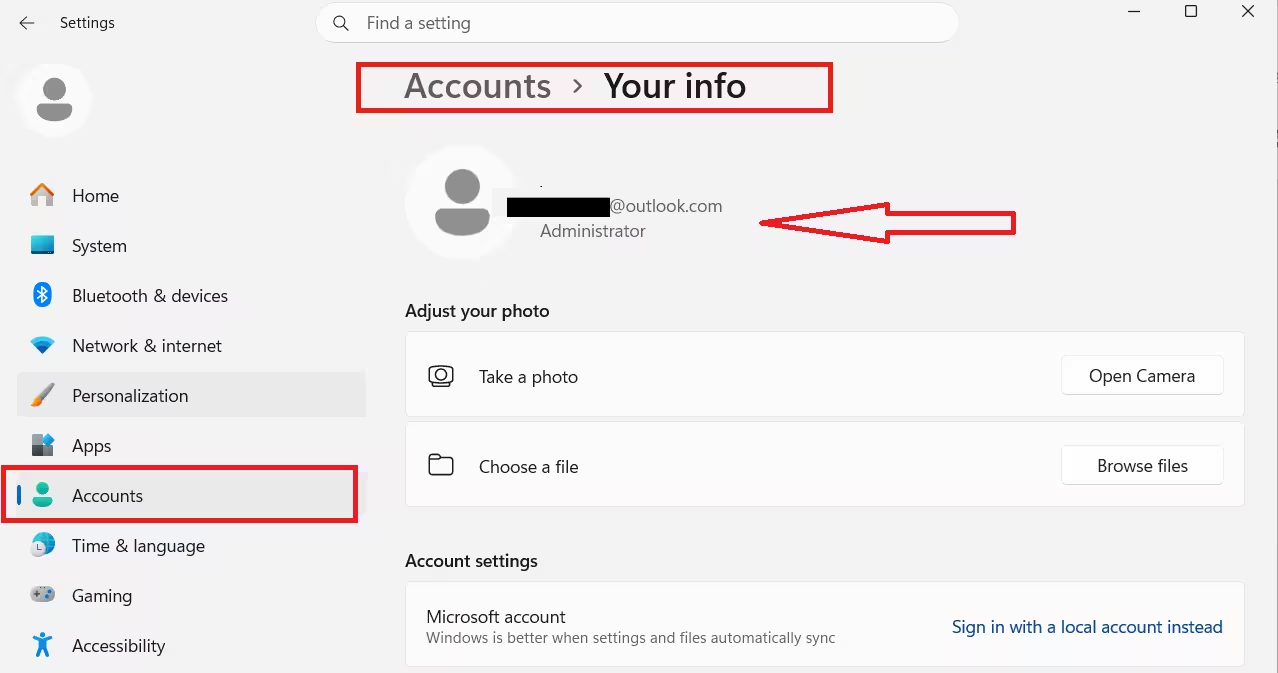
Steps:
- Press Win + I → Accounts → Your info
- Confirm you see your email address and not Local account
- If prompted, select Sign in with a Microsoft account instead
- Restart your PC
- Retry the S mode switch
If your Microsoft account is already signed in and the issue continues, move to Fix 2.
Fix 2: Verify the Same Account Appears in the Microsoft Store
The Store must be signed into the same account as Windows. If they differ, the license check fails silently.
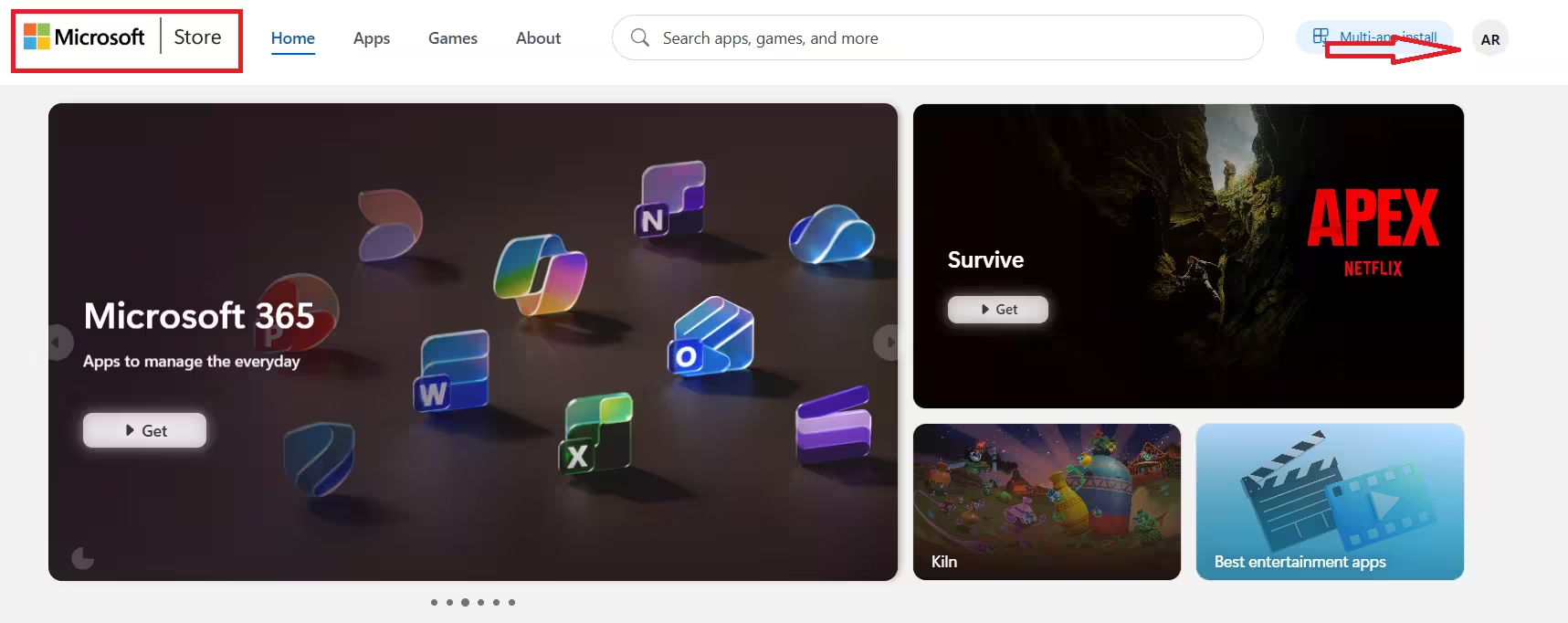
Steps:
- Open Microsoft Store
- Select the profile icon in the top-right corner
- Confirm the Microsoft account matches the one signed into Windows
- Open any free app listing and confirm the page loads correctly
- While in the Store, confirm whether Xbox or other Microsoft apps also fail to load. If they do, the issue is your Microsoft account connection, not S mode specifically.
If Store pages load correctly but the S mode switch still fails, move to Fix 3.
Fix 3: Check Your VPN, System Clock, and Connection Type
Three silent issues break Store authentication without showing a clear error message.
- VPN or proxy: Disable any active VPN or proxy before attempting the switch. Some VPN servers block Microsoft’s licensing endpoints, causing the switch to fail with a generic error.
- System clock: An incorrect date or time breaks the SSL certificate validation that the Store uses to verify your account. The Store fails quietly without explaining why.
To fix the system clock:
- Press Win + I → Time & Language → Date & Time
- Enable Set time automatically
- Enable Set time zone automatically
- Click Sync now
- Retry the S mode switch
Metered connection: If your internet connection is set as metered, the Store may block licensing operations entirely. Go to Settings → Network & Internet → Wi-Fi (or Ethernet) → Properties and confirm Metered connection is turned off.
Fix 4: Reset the Microsoft Store Cache
Resetting the Store cache clears corrupted temporary data without removing installed apps or account information.
Steps:
- Press Win + R
- Type wsreset.exe and press Enter
- Wait for the Microsoft Store to reopen automatically
- Do not close the window while the reset runs
If the Store reopens cleanly but the switch still fails, background services need to be verified.
Fix 5: Update the Microsoft Store App
An outdated Store app can fail to communicate with Microsoft’s licensing servers correctly, causing the switch request to fail before it even reaches Microsoft’s backend.
Steps:
- Open Microsoft Store
- Select Library in the bottom-left corner
- Click Get updates
- Let all pending updates install completely
- Restart the Store and retry the S mode switch
Fix 6: Verify Required Windows Services Are Running
The S mode switch depends on background services that Windows Updates or third-party system cleaners sometimes disable.
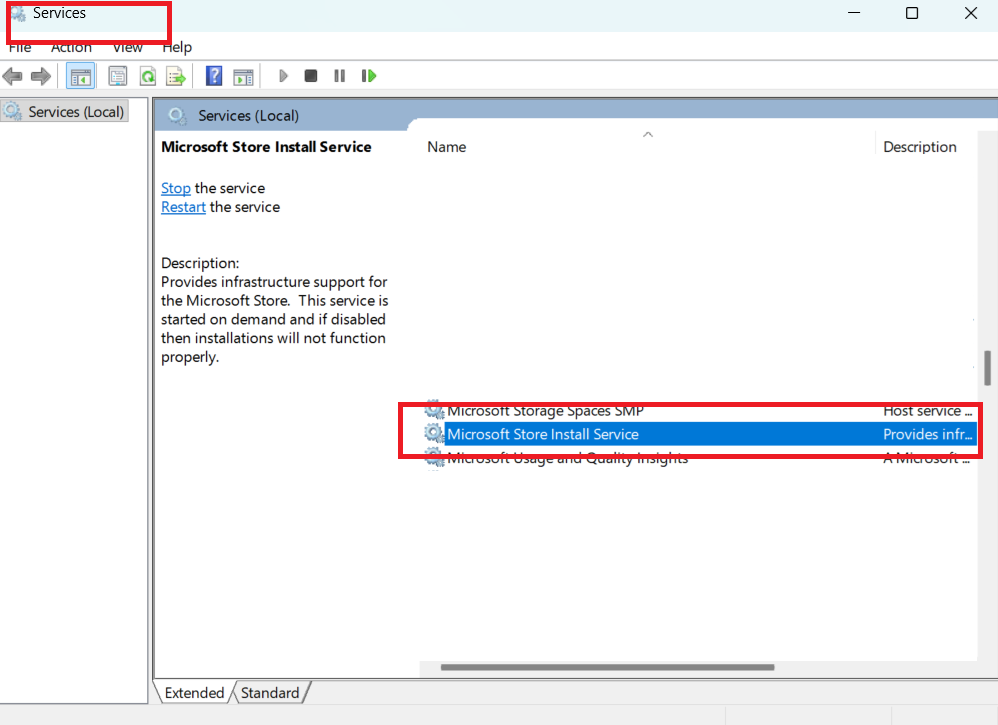
Steps:
- Press Win + R, type services.msc, and press Enter
- Locate Microsoft Store Install Service
- Confirm Status shows Running and Startup type shows Manual
- Repeat for Windows Update
- If either service is stopped, right-click it and select Start
- Retry the switch
If both services are running and the issue continues, move to Fix 7.
Fix 7: Change the System Region Temporarily
Microsoft ties S mode licensing to Store regions. If your region has a licensing mismatch on Microsoft’s backend, changing it temporarily forces the server to issue a clean license.
Steps:
- Press Win + I → Time & Language → Language & Region
- Under Country or region, select United States
- Restart your PC
- Open Microsoft Store, search Switch out of S mode, and open the official listing
- Click Get
You can revert your region after the switch completes. This fix resolves the issue for many users outside the US where Store region licensing behaves differently.
Fix 8: Repair System Files Using SFC
If the switch continues to fail, Windows system files that the Store and licensing components depend on may be corrupted.
Steps:
- Press Win + S, type Command Prompt
- Right-click it and select Run as administrator
- Run:
sfc /scannow- Wait for the scan to complete
- Restart your PC and retry the switch
If SFC reports no issues or repairs files but the switch still fails, the Windows image itself needs repair.
Fix 9: Repair the Windows Image Using DISM
DISM repairs the underlying Windows image files that the Store and licensing components depend on.
Steps:
- Open Command Prompt as administrator
- Run:
DISM /Online /Cleanup-Image /RestoreHealth- Wait for the process to complete
- Restart Windows
- Retry the S mode switch
If the issue continues after DISM, the problem is not local system corruption. The fix lies at the account level.
Fix 10: Create a New Microsoft Account
Many S mode failures trace back to broken entitlements tied to the existing Microsoft account. A new account forces a completely clean license request that the existing broken account cannot generate.
Steps:
- Create a new Microsoft account at account.microsoft.com
- Press Win + I → Accounts
- Sign out of the current account
- Sign in with the new Microsoft account
- Open Microsoft Store and confirm the new account is signed in
- Search Switch out of S mode and click Get
This method resolves the issue on most Windows 11 Home laptops when all Store-based fixes have failed.
Fix 11: Clean Install Windows 11 (Removes S Mode Permanently)
If every Store-based fix fails, a clean installation removes S mode permanently. A standard Windows 11 installation does not include S mode by default.
This method deletes all files and apps. Back up your data before starting.
Steps:
- Download the Windows 11 Media Creation Tool from Microsoft
- Use the tool to create a bootable USB drive
- Boot from the USB drive
- Select Windows 11 Home during setup
- Complete the installation
Alternatively, download a Windows 11 25H2 ISO directly and create bootable media manually using Rufus.
If Windows Setup reports your hardware is not compatible with Windows 11, that is a separate hardware compatibility issue unrelated to S mode.
The installed system will not include S mode.
Important Note for Lenovo, HP, Dell, and Other OEM Laptop Users
Laptop manufacturers cannot disable S mode. BIOS changes, driver updates, and factory resets have no effect on S mode licensing.
Only Microsoft Store licensing removes S mode. If your device is managed by a school, university, or workplace, Group Policy or Mobile Device Management may lock the S mode switch entirely. In that case, none of the Store-based fixes will work. Contact your IT administrator.
What Will Not Fix This Issue
Avoid spending time on these steps. They address local system problems, not the server-side licensing failure that keeps S mode active:
- wsreset.exe alone without verifying account and services first
- Reset this PC, this does not change Microsoft’s server-side entitlements
- Windows Update service restarts alone
- BIOS updates, OEM manufacturers have no control over S mode licensing
- Antivirus scans, S mode failure is a licensing issue, not a malware infection
- Reinstalling Microsoft Store through PowerShell, Store reinstallation does not reset server-side entitlements
FAQs
Why can’t I switch out of Windows 11 S Mode?
The switch fails because Windows sends a licensing request to Microsoft’s servers through the Store. If your account, region, internet connection, Store cache, or system files have any issue, the request fails and S mode stays active. The error “Something happened and we couldn’t start the upgrade” confirms the failure is server-side.
Is switching out of Windows 11 S Mode free?
Yes. Switching out of S mode is completely free and does not require a product key or any payment.
Why does the Microsoft Store Get button not work in S Mode?
The Get button may not respond if the Store cache is corrupted, required background services are stopped, your system clock is incorrect, a VPN is active, or Windows system files are damaged.
Will switching out of S Mode delete my files or apps?
No. Switching out of S Mode does not delete personal files or installed applications. Only a clean install removes files.
Can I switch back to S Mode after disabling it?
No. Once you switch out of Windows 11 S Mode, the change is permanent and cannot be reversed.

