You go to your Microsoft account to grab your BitLocker recovery key, and it simply is not there. No key listed, nothing under Devices, or the key ID shown on your locked screen does not match anything in your account. This is one of the most frustrating positions to be in, but it has fixable causes in most cases.
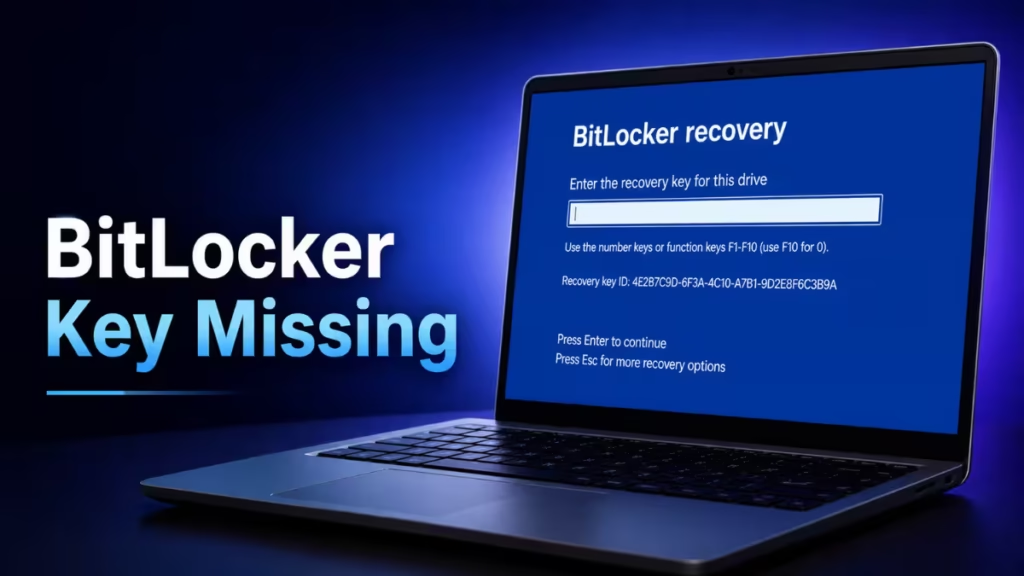
This guide covers every reason your BitLocker recovery key may be missing from your Microsoft account and what to check next.
Why Your BitLocker Recovery Key Is Not Showing
Before jumping to fixes, it helps to know why the key disappears from your account in the first place.
- The device was set up under a different Microsoft account: Windows saves the BitLocker recovery key to whichever Microsoft account was active when BitLocker first activated. If a retailer, employer, family member, or previous owner set up the PC, the key went to their account, not yours.
- You signed in with a local account: BitLocker only backs up the recovery key to Microsoft automatically when you use a Microsoft account during setup. Local accounts do not trigger automatic cloud backup.
- The device was enrolled in a work or school organization: If the PC was ever signed into a workplace or school account, the organization controls where the key gets stored. It lands in Azure Active Directory, not your personal Microsoft account.
- You opted to save the key locally: During BitLocker setup, Windows gives you the option to save the key to a file or print it instead of uploading it to your Microsoft account. If someone chose that path, the key never reached the cloud.
- The key was deleted: Microsoft account recovery key pages allow users to delete stored keys. If someone removed it, it will no longer appear.
Fix 1: Make Sure You Are Checking the Right Microsoft Account
This is the most common reason the key appears missing. You are signed into the right portal, but with the wrong account.
- Open a browser on a phone or a separate device
- Go to account.microsoft.com/devices/recoverykey
- Sign in with the Microsoft account used to first set up the device, not necessarily your current everyday account
- Look for your device in the list and expand it to see the recovery key
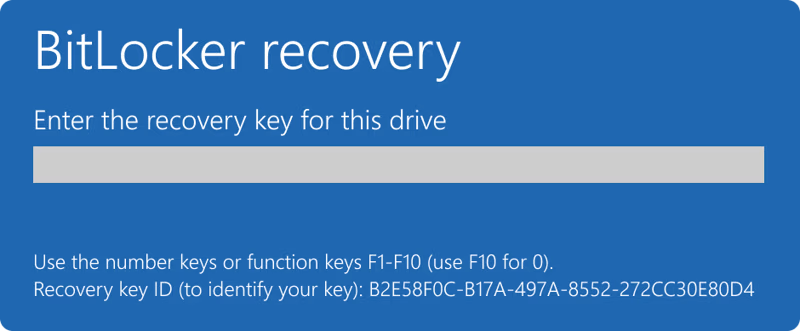
- Match the Key ID shown on your locked screen to the Key ID in the list
If you are unsure which account set up the device, try every Microsoft account you own or have used in the past. Starting with Windows 11 version 24H2, the BitLocker recovery screen shows a partial hint of the Microsoft account that holds the key, which makes it easier to identify the right one.
Fix 2: Check Your Work or School Account
If your device was ever connected to a workplace or school organization, your IT team may hold the key in Azure Active Directory.
- On another device, go to https://aka.ms/aadrecoverykey
- Sign in with your work or school email address
- Select Devices and find your locked PC in the list
- Expand the device entry and select View BitLocker Keys
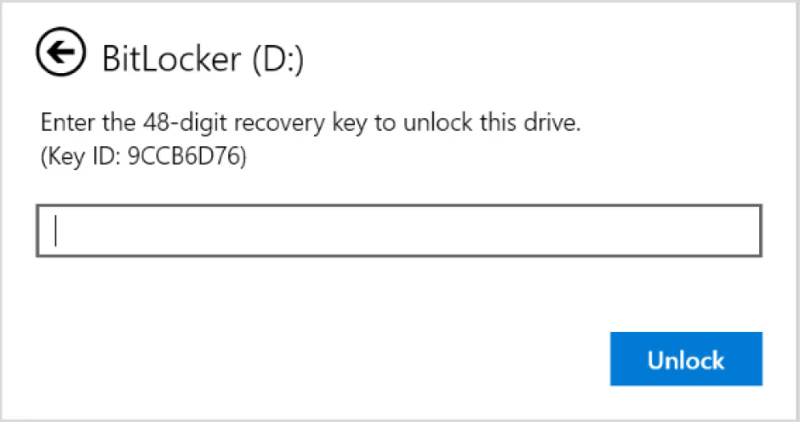
- Match the Key ID and copy the 48-digit recovery key
If you do not see the key there, contact your IT administrator directly and give them the Key ID from your recovery screen. They can look it up on the domain controller side.
Fix 3: Check a Saved File or USB Drive
When you or someone else activated BitLocker, Windows offered three save options: Microsoft account, print, or save to file. If the cloud backup option was skipped, the key may still exist locally.
Check these locations:
- A printed sheet stored with PC paperwork, receipts, or device documentation
- A
.txtfile saved on a USB flash drive during BitLocker setup - A PDF or document in the Downloads, Documents, or Desktop folders on another device
- A file named something like
BitLocker Recovery Key XXXXXXXX.txtwhere the Xs match the Key ID on your screen
If you find a USB drive from around the time the device was set up, plug it into a different PC to read the file.
Fix 4: Contact IT Support (Organization-Managed Devices)
If your organization manages the device through Active Directory rather than Azure AD, the recovery key sits on the company’s domain controller. You cannot access it yourself. Give your IT administrator the Key ID from the recovery screen and ask them to retrieve the matching key.
What Happens If the Key Is Truly Gone
Microsoft Support cannot retrieve, provide, or recreate a lost BitLocker recovery key. Once you have exhausted every option above and still cannot find it, your only remaining path is a full device reset.
A reset erases all files on the encrypted drive. There is no way around this.
Steps to reset from the BitLocker recovery screen:
- On the recovery screen, look for a Skip this drive or recovery options link at the bottom
- Follow the on-screen prompts to reach Windows Recovery Options
- Select Reset this PC
- Choose Remove everything
- Complete the reset process
After the reset, Windows reinstalls fresh and the drive starts without encryption. You lose all files that were not backed up elsewhere.
If KB5083769 triggered your BitLocker recovery screen, check the KB5083769 BitLocker fix before resetting. That update caused BitLocker prompts on certain Windows 11 machines and has a targeted fix that may restore access without a full reset.
How to Back Up Your BitLocker Recovery Key After You Regain Access
Once you get back into Windows, back up your recovery key immediately so this does not happen again.
- Sign in with a Microsoft account if you are not already using one
- Press Windows + S, search for BitLocker, and open Manage BitLocker or Device Encryption
- Select Back up your recovery key
- Choose Save to your Microsoft account
- Also choose Save to a file and store it on a USB drive you keep in a safe place
- Optionally, choose Print the recovery key and file it with your device paperwork
Saving the key to at least two separate locations means a single point of failure cannot lock you out permanently.
If you want to prevent the recovery screen from appearing repeatedly in the future, read Fix BitLocker Recovery Key Prompt on Every Boot in Windows 11 for the full troubleshooting steps.
Frequently Asked Questions
Can Microsoft Support give me my BitLocker recovery key?
No. Microsoft Support cannot retrieve, provide, or recreate a lost BitLocker recovery key. This is by design. If the key is not in your account or saved locally, Microsoft cannot help.
Why does the Key ID on my screen not match any key in my Microsoft account?
The key was saved to a different Microsoft account, a work or school account, or not saved to the cloud at all. Try every account you have ever used on that device.
Does a factory reset remove BitLocker encryption?
Yes. When you reset the device through Windows Recovery Options and choose Remove everything, the process wipes the encrypted drive and reinstalls Windows without BitLocker active.
Can I recover files from a BitLocker-encrypted drive without the key?
No. BitLocker encryption means the drive data is unreadable without the correct 48-digit recovery key. Without the key, the files are inaccessible.
Should I be concerned about BitLocker security vulnerabilities on my device?
If you use BitLocker on a device running Windows 11, keep your system updated. A recent BitLocker vulnerability CVE-2026-27913 allows attackers to bypass Secure Boot and access encrypted data on unpatched systems.

