The Minecraft network protocol error blocks you from joining a server because your client and the server run different protocol versions. Minecraft prints the mismatch directly in the error message, usually as “Outdated client!” or “Outdated server!” followed by the version number you need to match. This error affects both Java Edition and Bedrock Edition players.
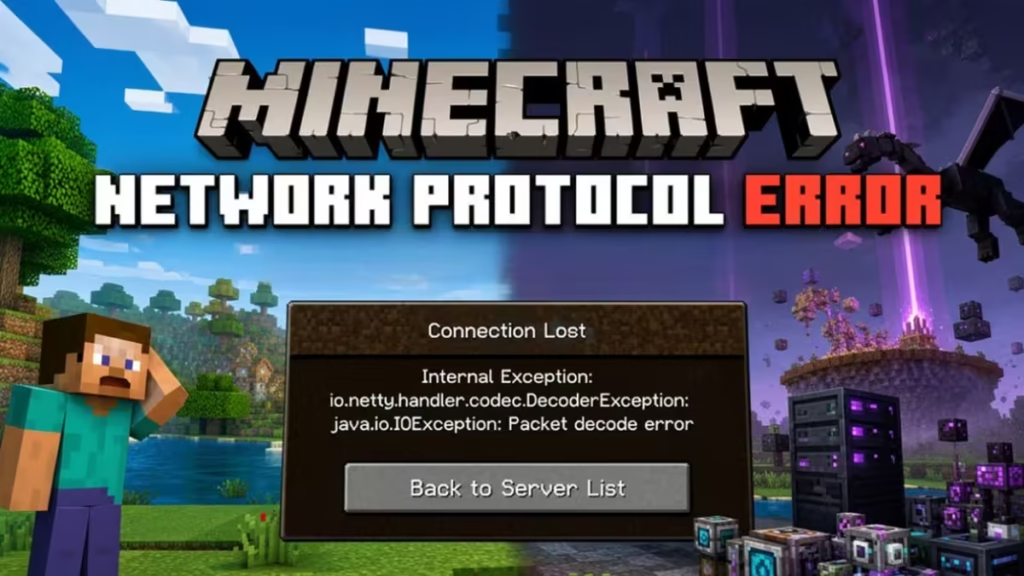
What Is the Minecraft Network Protocol Error?
Each Minecraft update changes the underlying network protocol. When your client and the server use different protocols, the handshake fails and the connection drops before you can load into the world. A 1.20.4 client cannot join a 1.20.1 server, and the same rule applies in reverse.
Typical symptoms include:
- “Connection Lost: Disconnected due to network protocol error”
- Repeated disconnects right after joining a server
- The error string
io.netty.channel.abstractchannel$annotatedconnectexceptionin the game log - Getting stuck on “Encrypting” or “Loading terrain” before the game disconnects
- Being kicked from one specific server while others work fine
What Causes the Minecraft Network Protocol Error
- Client and server version mismatch is the top cause. With Minecraft releasing multiple updates through 2025 and into 2026, players who do not update immediately get locked out of servers that have already moved to the latest version.
- Modded server loader mismatch adds another layer. The Forge or Fabric version must match exactly, down to the patch number. One wrong build still triggers the protocol error even when the base Minecraft version is correct.
- Firewall or antivirus blocking the connection is a common cause that players overlook. Major Windows 11 cumulative updates in 2026 have reset firewall rules for many users, blocking Minecraft until they re-added the exceptions manually.
- Conflicting or outdated mods can corrupt the handshake even when the loader version matches. Content mods and anything that modifies network packets are frequent culprits.
- Corrupt game files from an interrupted update or sudden crash leave incomplete data that prevents a clean connection to servers.
- Network routing issues from a VPN or an unstable ISP connection can corrupt the protocol handshake even when all version numbers match perfectly.
- Bedrock-specific account issues including Xbox Live authentication failures and Microsoft account sync errors cause protocol disconnects on consoles and mobile devices.
Fix 1: Match Your Minecraft Version to the Server
Read the full error message first. Minecraft tells you exactly which version the server runs inside the error text. That number is the version you need to install.
Java Edition:
- Open the Minecraft Launcher.
- Click Installations at the top.
- Click New installation.
- Open the Version dropdown and select the exact version shown in the error.
- Name the profile something clear, like “Server 1.20.1”.
- Click Create, then launch that profile.
Bedrock Edition:
- Open the Microsoft Store (Windows/Xbox), App Store (iOS), or Google Play (Android).
- Search for Minecraft and tap Update if one is available.
- After updating, relaunch the game and try the server again.
This single fix resolves more than 80% of network protocol errors. If the launcher itself fails to load version data during this step, see how to fix Minecraft Launcher won’t connect to services before continuing.
Fix 2: Install the Correct Forge or Fabric Version
Modded servers reject vanilla clients and any loader build that does not match exactly.
- Ask the server admin for the exact loader version, for example Forge 47.2.0 for Minecraft 1.20.1.
- Download the installer from files.minecraftforge.net or fabricmc.net.
- Run the installer and select Install client.
- Open the Minecraft Launcher and select the new Forge or Fabric profile.
- Copy the full mod pack the server uses into your mods folder.
The mods folder lives at:
- Windows:
%appdata%\.minecraft\mods - Mac:
~/Library/Application Support/minecraft/mods - Linux:
~/.minecraft/mods
Every mod inside this folder must match what the server runs. One outdated mod triggers the protocol error just as reliably as a wrong Minecraft version. If you run your own modded Minecraft server and manage versions for others, the linked guide covers version control across hosting environments.
Fix 3: Configure Firewall and Antivirus Settings
Overly strict security software can block Minecraft’s connection to servers without showing a clear warning.
- Open Control Panel and go to System and Security, then Windows Defender Firewall.
- Click Allow an app or feature through Windows Defender Firewall.
- Find Java Platform SE Binary and Minecraft Launcher in the list.
- Make sure both Private and Public checkboxes are checked for each.
- Click OK and restart Minecraft.
If you use third-party antivirus software like Norton, Avast, or Bitdefender, open its settings and add Minecraft and Java as exceptions, or temporarily disable real-time protection and test the connection.
Major Windows 11 cumulative updates in 2026 have reset firewall permissions automatically for many players. Re-adding the exceptions fixed the protocol error immediately.
Fix 4: Repair or Reinstall Minecraft
Corrupt game files from an interrupted update or a sudden crash leave broken data that blocks the server handshake.
Java Edition:
- Back up your saves folder from
%appdata%\.minecraft\saves. - Open the Minecraft Launcher and click Installations.
- Select your profile and click the folder icon to open the game directory.
- Delete the versions folder only, then relaunch. The launcher downloads fresh version files.
- If the error persists, fully uninstall Minecraft, then download a fresh installer from minecraft.net.
Bedrock Edition:
- On Windows, open Settings, go to Apps, find Minecraft, and click Advanced options.
- Click Repair first. If that does not work, click Reset.
- On Xbox or PlayStation, uninstall the game and reinstall it from your library.
Fix 5: Remove Conflicting Mods
If you already have the correct Minecraft version and loader but still see the error, a conflicting mod is the most likely cause.
- Open your mods folder.
- Move all mods to a backup folder on your desktop.
- Launch the game and try connecting with no mods loaded.
- If the connection succeeds, add mods back one at a time and test after each. The mod that brings the error back is the conflict.
Keep only mods that the server expects or that the admin explicitly allows. Performance mods like Sodium are generally safe because they do not touch network behavior. Content mods, client-side gameplay overhauls, and anything that modifies packets can corrupt the handshake.
Fix 6: Flush Your DNS Cache
Outdated DNS entries can prevent Minecraft from reaching the correct server address, which produces a protocol error even when your version matches.
- Press Windows + R, type
cmd, and press Ctrl + Shift + Enter to open Command Prompt as administrator. - Type the following command and press Enter:
ipconfig /flushdns- Wait for the “Successfully flushed the DNS Resolver Cache” message.
- Restart your PC and try connecting again.
On Mac, open Terminal and run sudo dscacheutil -flushcache && sudo killall -HUP mDNSResponder.
Fix 7: Use Direct Connect Instead of the Server List
The multiplayer server list caches connection data that can become outdated and cause handshake failures.
- Open Minecraft and go to Multiplayer.
- Click Direct Connect instead of selecting a server from the list.
- Enter the server’s full IP address and port, for example
play.example.com:25565. - Click Join Server.
This method bypasses the cached server list and connects directly. Players in 2026 continue to report that Direct Connect fixes their connection to community servers when the server list is timing out or returning incorrect version data.
Fix 8: Update Java to the Correct Version
Minecraft Java Edition relies on the installed Java runtime. An outdated or mismatched Java version causes connection instability with newer servers.
Minecraft 1.21 and later requires Java 21 LTS. Using Java 8 or Java 11 on a modern server often triggers protocol errors.
- Open the Minecraft Launcher.
- Click Installations and then select your profile.
- Click More Options and check the Java Executable path.
- If it points to an outdated Java version, download Java 21 from adoptium.net.
- Update the Java Executable path in the launcher to the new installation.
The Minecraft Launcher includes a bundled Java version for most profiles. If you use a custom profile with an external Java runtime, this step is especially important.
Fix 9: Clear the Launcher Version Cache
A corrupted version cache forces the launcher to load an old protocol even after you switch profiles. Deleting the cache forces a clean rebuild.
- Close the Minecraft Launcher completely.
- Press Windows + R, type
%appdata%\.minecraft, and press Enter. - Delete the versions folder inside that directory. The launcher rebuilds it on the next launch.
- Reopen the launcher, select your profile, and try connecting again.
The first launch after deleting the versions folder takes longer because the launcher downloads fresh version files.
Fix 10: Disable VPN and Switch Network
Some VPNs and ISPs route Minecraft packets through unstable nodes, which corrupts the protocol handshake even when your client and server versions match perfectly.
- Disconnect any active VPN.
- Restart your router by unplugging it for 30 seconds.
- Switch from Wi-Fi to a wired Ethernet connection if possible.
- Try connecting again.
If the error only appears on one specific network, the problem sits with that network’s routing, not your Minecraft installation. Switching to a mobile hotspot as a test confirms whether the issue is network-side.
Note: some servers block VPN connections for anti-cheat reasons. If reconnecting without a VPN resolves the error, keep it disabled for that server.
Fix 11: Bedrock Edition Fixes
Bedrock players on Xbox, PlayStation, Switch, iOS, and Android face platform-specific causes that Java Edition fixes do not address.
Check Xbox Live and Microsoft account status:
- Visit xbox.com/status and verify that all services show green.
- If Xbox Live authentication is down, wait for Microsoft to restore it. False protocol errors occur when authentication servers are unavailable.
- Sign out of your Microsoft account in the Minecraft app, then sign back in.
Clear console cache:
- Fully shut down your Xbox or PlayStation. Do not use sleep mode.
- Unplug the console from power for 30 seconds.
- Plug it back in and restart. Cached data resets on a full power cycle.
Clear app cache on mobile:
- Open Settings on your Android device.
- Go to Apps, find Minecraft, and tap Storage.
- Tap Clear Cache.
- Relaunch Minecraft and try the server again.
Check NAT type:
On Xbox, go to Settings, then Network, then Current Network Status. Aim for an Open NAT type. A Strict NAT type blocks connections to some servers. If your NAT is strict, contact your ISP or enable UPnP on your router.
Fix 12: Install the Network Protocol Disconnect Mod
If every version matches and the error still appears on specific servers, the Network Protocol Disconnect mod is the most targeted fix available. It intercepts the disconnect that the protocol error triggers and allows the client to negotiate the connection instead of aborting it.
- Download the mod from Modrinth or CurseForge by searching “Network Protocol Disconnect”.
- It supports Fabric, NeoForge, and Quilt.
- Install it the same way as any client-side mod, then launch with the profile you use for that server.
This mod works best when the server owner cannot update their server version and you need to bridge a minor protocol difference on your end.
How to Avoid the Minecraft Network Protocol Error
- Keep Minecraft and your server on the same version: Check the server’s website or Discord before and after every Minecraft update. Most public servers like Hypixel update within 24 to 48 hours of a Mojang release. Connecting too early after an update almost always triggers the mismatch error.
- Keep mods and plugins compatible: Before updating Minecraft, check whether your mod pack is updated to match the new release. Platforms like CurseForge and Modrinth show compatibility status for every mod. One incompatible mod can break the entire connection.
- Whitelist Minecraft and Java in your firewall: After any major Windows update, verify that your firewall exceptions are still in place. Windows 11 cumulative updates in 2026 have reset firewall rules for many users, and re-adding the exceptions was the only fix.
- Use a wired Ethernet connection: Wi-Fi packet loss causes handshake failures that look identical to version mismatch errors. A wired connection eliminates this variable entirely.
- Flush your DNS cache monthly: Players who switch networks frequently accumulate stale DNS entries that cause intermittent protocol errors. Running
ipconfig /flushdnstakes seconds and prevents a common source of random disconnects.

