The Wither Rose error in Minecraft Bedrock shows up on the main menu and cuts off access to the Marketplace and multiplayer. You can still load into a world, but online features stop working until you resolve it. The error is vague by design since Mojang uses flower names to categorize different failure types.
This guide covers every confirmed fix, starting with the fastest options.
What Causes the Wither Rose Error in Minecraft?
Before jumping into fixes, it helps to know what triggers this error:
- Network connection issues: The most common cause. Network congestion or a dropped connection stops Minecraft from reaching its servers.
- Minecraft server downtime: If Mojang’s servers are under maintenance or experiencing an outage, the error appears for all users regardless of their setup.
- Corrupted cache data: Cache files that accumulate over time can become corrupt and break the game’s ability to authenticate or load properly.
- Outdated Minecraft client: Running an older version of Minecraft Bedrock can trigger compatibility errors, including the Wither Rose error.
- Windows Defender Firewall blocking the game :Firewall rules sometimes flag Minecraft’s network traffic and block outgoing connections.
How to Fix the Minecraft Wither Rose Error
Fix 1: Restart Your Router
A simple router restart clears network congestion, refreshes your IP address, and resets the connection between your device and Minecraft’s servers.
- Unplug your router from the power outlet.
- Wait at least 30 seconds for it to fully shut down.
- Plug it back in and wait for the connection to restore.
- Open Minecraft and check if the error is gone.
This fix resolves the error in many cases where the cause is a temporary network problem. Always try this first before moving to more involved steps.
Fix 2: Check Minecraft Server Status
If Mojang’s servers are down, no fix on your end will work. The error clears on its own once the servers come back online.
- Open a browser and visit the Minecraft service status page.
- Check if any services show as degraded or down.
- If servers are down, wait for Mojang to resolve the issue and try again later.
Mojang recommends waiting at least one hour before retrying if the error persists after server maintenance.
Fix 3: Close Background Apps
Apps running in the background consume bandwidth and can interfere with Minecraft’s connection. Closing them frees up network resources before you launch the game.
- Press Ctrl + Shift + Esc to open Task Manager.
- Click the Processes tab.
- Right-click any browser, streaming app, or download manager and select End Task.
- Restart Minecraft and check if the Wither Rose error appears.
Pay special attention to apps that actively download or stream data, as they compete directly with Minecraft for bandwidth.
Fix 4: Reset the Microsoft Store Cache
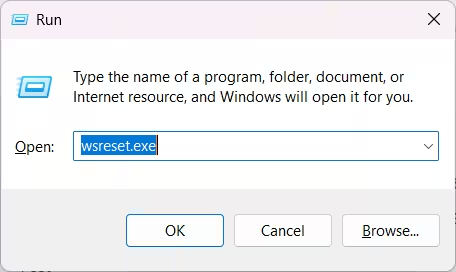
Corrupt Microsoft Store cache is a well-known trigger for Minecraft errors on Windows. Running the wsreset tool clears this cache without affecting your installed apps or game data.
- Press Windows + R to open the Run dialog.
- Type
wsreset.exeand press Enter.
- A black command prompt window opens. Wait for it to close automatically.
- The Microsoft Store opens on its own once the reset finishes.
- Restart your PC and open Minecraft.
This process removes corrupt cache files that cause problems with Minecraft’s authentication and launch sequence.
Fix 5: Update Minecraft
Running an outdated version of Minecraft Bedrock can cause the Wither Rose error. Minecraft is supposed to update automatically when you launch it, but this does not always happen correctly.
- Click the Start button and search for Microsoft Store, then open it.
- Click Library in the left sidebar.
- Select Get updates to check for pending updates.
- Wait for Minecraft to finish updating if an update is available.
- Relaunch the game and check for the error.
If the update does not download through the Store, you can uninstall and reinstall Minecraft to force the latest version to install.
Fix 6: Disable Windows Defender Firewall Temporarily
Windows Defender Firewall can block Minecraft’s outgoing connections, which triggers the Wither Rose error. Disabling the firewall temporarily confirms whether it is the cause.
- Click the Start button, type Control Panel, and open it.
- Click Windows Defender Firewall.
- Select Turn Windows Defender Firewall on or off from the left pane.
- Under both Private network settings and Public network settings, select Turn off Windows Defender Firewall (not recommended).
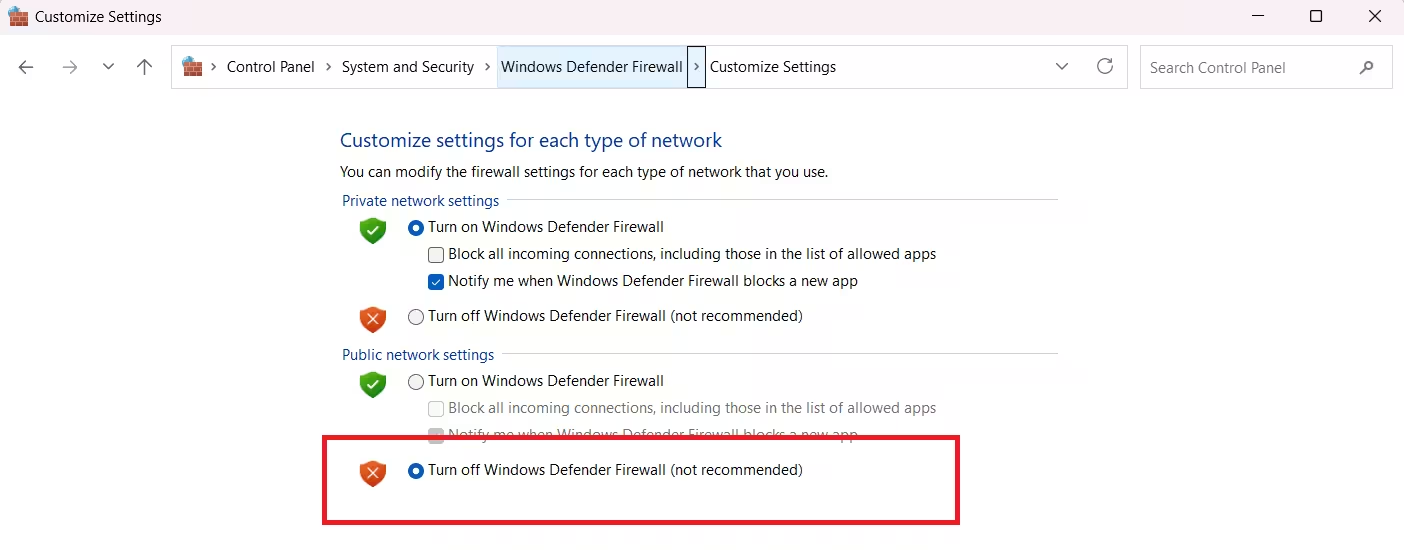
- Click OK and restart your PC.
- Open Minecraft and check if the error appears.
If disabling Windows Defender Firewall fixes the error, you need to add Minecraft as an allowed app in the firewall settings rather than leaving it disabled permanently.
To add Minecraft as an exception:
- Open Windows Defender Firewall from the Control Panel.
- Click Allow an app or feature through Windows Defender Firewall.
- Click Change settings, then Allow another app.
- Browse to the Minecraft executable and add it.
- Re-enable the firewall and test the game.
Fix 7: Reinstall Minecraft
If none of the fixes above work, reinstalling Minecraft replaces any corrupted game files and ensures you are running the latest version with a clean install.
- Press Windows + I to open Settings.
- Go to Apps and find Minecraft in the list.
- Click it and select Uninstall.
- Open the Microsoft Store, search for Minecraft, and reinstall it.
- Sign in with your Microsoft account and launch the game.
Reinstalling preserves your Microsoft account data and purchases, so you do not lose your worlds or Marketplace content tied to your account.
Which Fix Should You Try First?
| Fix | Best For |
|---|---|
| Restart your router | Network connection drops |
| Check server status | Mojang outages |
| Close background apps | Bandwidth congestion |
| Reset Microsoft Store cache | Corrupt cache data |
| Update Minecraft | Outdated game version |
| Disable Windows Defender Firewall | Firewall blocking game traffic |
| Reinstall Minecraft | Corrupt game files |
Work through these fixes in order. The router restart and server status check resolve the error for most users. If those do not work, the Microsoft Store cache reset or a Minecraft update usually handles it.

