If MLB The Show 26 keeps throwing a network error screen the moment you try to load in, the issue is a server authentication failure rather than a problem with your home internet. This happens most often during peak periods like launch weekends and after major updates when server load spikes. Before spending time on hardware troubleshooting, check whether the servers are currently down. If they are up, work through the fixes below in order until one gets you in.
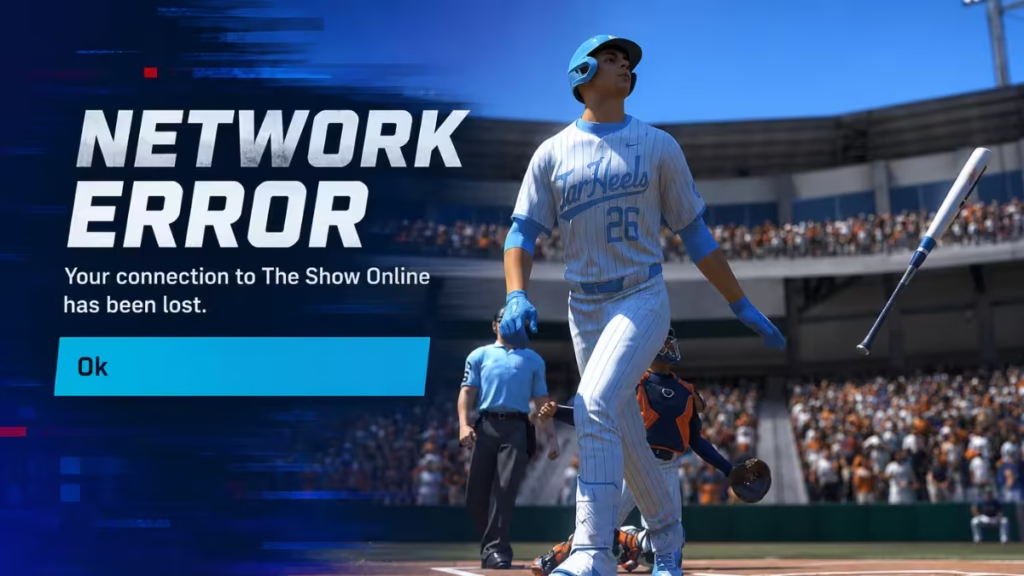
MLB The Show 26 Network Error: Check Server Status First
Before touching your console settings, confirm the problem is not on SDS’s end. If the servers are down, no amount of local troubleshooting will fix it.
- Official Twitter: Check @MLBTheShow for maintenance notices or outage announcements.
- Downdetector: Visit Downdetector and search MLB The Show to see if other players are reporting the same problem in real time.
- Xbox Network Status: If you are on Xbox, check the Xbox Support Status page to confirm Xbox Live services are fully operational.
If the servers are up and running, move on to the fixes below.
Method 1: Let the Game Sit and Exit Demo Mode
This method has the highest reported success rate among players dealing with the network error.
- Launch MLB The Show 26 and land on the main menu.
- Do not press anything. Let the game sit idle until it automatically enters demo mode.
- As soon as the demo starts playing, press the button to exit out of it.
- The game should now load you past the network error screen.
The idle trigger appears to reset the connection attempt in the background. Once demo mode kicks in and you exit, the game re-establishes the server connection cleanly.
Method 2: Disconnect and Reconnect the Internet
This forces a fresh connection attempt and works on both PlayStation and Xbox.
- Exit MLB The Show 26 completely from the main menu.
- Go to your console’s network settings and disconnect from the internet.
- Relaunch MLB The Show 26 and wait for it to reach the main menu.
- Reconnect your console to the internet while you are still on the main menu.
- The game should now authenticate successfully and let you in.
Timing matters here. Reconnecting while the game is already running on the main menu forces MLB The Show 26 to re-attempt the server handshake with a clean slate.
Method 3: Play a Different Online Game First
This one sounds unusual but has been confirmed to work by multiple players. The theory is that refreshing your PSN or Xbox Live session through another game resolves the authentication issue MLB The Show 26 is struggling with.
- Close MLB The Show 26.
- Open any other online game such as Rocket League or Fortnite.
- Play through at least one match or session until the game confirms your connection is stable.
- Close that game and relaunch MLB The Show 26.
- The network error screen should no longer appear.
Players who tried everything else for hours reported that this method finally got them in after a single match in another title.
Method 4: Use the Account Offline Trick
This is one of the fastest workarounds available and does not require a full game restart.
- While on the MLB The Show 26 main menu, navigate to your profile icon.
- Select Account Offline.
- Log back into your account immediately after.
- The game will re-establish the server connection and let you through.
Method 5: Hard Reset Your Console
A standard restart is not enough here. A full power cycle clears the cached network state that can block authentication.
PlayStation:
- Hold the power button until the console fully powers off.
- Unplug the power cable from the wall for 60 seconds.
- Plug it back in and restart.
Xbox:
- Press and hold the Xbox button on your console for 10 seconds until it shuts down.
- Unplug the power brick for 30 seconds.
- Plug it back in and restart.
Do not use Rest Mode or Instant-On. A full power-down is required for this to work.
Method 6: Power Cycle Your Router and Modem
If console fixes do not resolve the issue, reset your home network hardware.
- Unplug both your router and modem from the wall.
- Wait at least 60 seconds before plugging them back in.
- Allow the router to fully reconnect before launching MLB The Show 26 again.
Method 7: Change Your DNS Settings
Switching to Google’s DNS servers can reduce latency and improve authentication reliability. This fix is especially effective for players on T-Mobile Home Internet, which has known compatibility issues with the Show’s servers.
On Xbox:
- Go to Settings > General > Network Settings > Advanced Settings > DNS Settings.
- Select Manual.
- Set Primary DNS to 8.8.8.8 and Secondary DNS to 8.8.4.4.
- Save and restart the game.
On PlayStation:
- Go to Settings > Network > Set Up Internet Connection.
- Choose your connection type and select Custom.
- Set Primary DNS to 8.8.8.8 and Secondary DNS to 8.8.4.4.
- Complete the setup and relaunch MLB The Show 26.
If you are using T-Mobile Home Internet and experiencing persistent errors, try switching to a mobile hotspot temporarily to confirm whether your ISP is the root cause.
Method 8: Clear Reserved Game Data (Xbox Only)
Corrupted reserved storage can interfere with the game’s ability to connect to servers.
- From the Xbox home screen, highlight MLB The Show 26.
- Press the Menu button and select Manage Game & Add-ons.
- Go to Saved Data and find the reserved space entry.
- Select it and choose Clear Reserved Space.
- Relaunch the game.
Method 9: Clear Persistent Storage (Xbox Only)
This clears cached Blu-ray and disc data that can sometimes conflict with game authentication.
- Go to Settings > Devices & Connections > Blu-ray.
- Select Persistent Storage.
- Choose Clear Persistent Storage.
- Restart your console and relaunch MLB The Show 26.
Method 10: Switch to a Wired Ethernet Connection
MLB The Show 26 is sensitive to packet loss. A wireless connection introduces instability that can cause repeated network errors even when your speeds look fine.
Connect your console directly to your router using an Ethernet cable and relaunch the game. Most players who make this switch see a significant drop in disconnects and failed authentication attempts.
Method 11: Disable Cross-Play
Some players report more stable connections after turning off cross-platform play.
- Go to Settings inside MLB The Show 26.
- Find the Cross-Play option and disable it.
- Return to the main menu and attempt to connect again.
Why MLB The Show 26 Shows a Network Error
The network error screen appears when MLB The Show 26 fails to complete its authentication handshake with SDS servers. Your internet connection may be perfectly fine, but the game times out before the handshake completes. This happens most often during peak periods such as launch weekends, major updates, or after scheduled server maintenance. The fixes above work by either resetting your local session, forcing a fresh authentication attempt, or improving the quality of your connection so the handshake succeeds on the next try.
Related Game Error Fixes
- How to Fix “Failed to Accept the Family Invite” Error on Steam
- How to Fix PS5 Internet Connection Failed Error (15 Working Fixes)
- Escape The Backrooms Mic Not Working: How to Fix It
- How to Fix the Failed to Get Minecraft Access Error (Too Many Requests and Transferring Server)
- How to Fix Escape from Tarkov 1000 Backend Error

