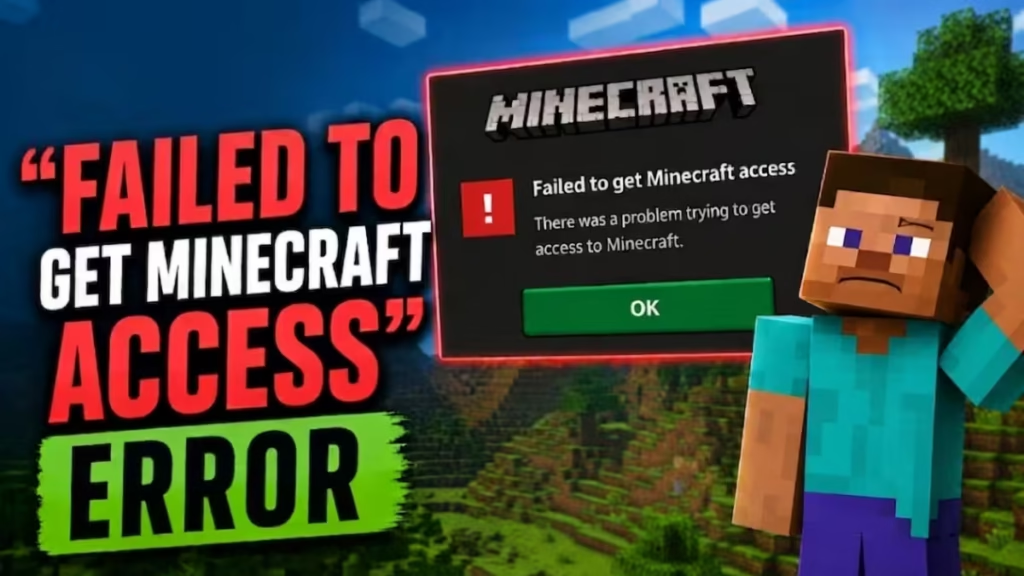
The “Failed to Get Minecraft Access” error stops the game before it even loads. You click Play, the launcher tries to sign you in, and the request to Minecraft’s servers fails. This guide covers every working fix in order, from the fastest to the deeper resets. Follow the steps top to bottom and stop as soon as the game launches.
What Is the “Failed to Get Minecraft Access” Error?
This error appears during authentication, the handshake between your launcher and Minecraft’s backend. Your launcher first requests a Microsoft token, then trades that token with Minecraft Java services to confirm you own the game. If any step in that chain fails, the launcher reports that it could not get your access token.
You will see this on the official Minecraft Launcher and on third-party launchers like Prism Launcher, MultiMC, and PolyMC. You may also see related messages including “Error Transferring Server,” “Too Many Requests,” “Service Unavailable,” or “Server replied: Status Code 429.” These all trace back to the same broken authentication chain.
Why You See the “Failed to Get Minecraft Access” Error
This error usually comes from one of these:
- Rate limiting (Status 429): Minecraft’s auth servers limit how many requests one IP can send. If you retry the login too fast, the backend temporarily blocks you.
- Expired or corrupted tokens: Launchers cache your sign-in data locally. When that data goes stale or breaks, the launcher keeps sending a token that no longer works.
- Wrong system clock: Secure tokens depend on accurate time. A clock that drifts even a few minutes breaks token validation.
- DNS or network issues: A bad DNS path, a VPN, or a flaky router can block the request before it reaches Microsoft.
- An outdated launcher build: Microsoft changes its auth endpoints often. Older launcher builds sometimes fall behind and trigger repeated auth failures.
Check If Minecraft Servers Are Down
Before you change any settings, confirm the problem is on your side and not Mojang’s. If Minecraft’s authentication servers are down, no local fix will help and waiting is the only answer.
Check the live server status at mcsrvstat.us or mcstatus.io. Enter the server IP and look at the response. If the checker shows the servers as offline or unreachable for everyone, take a break and retry once they recover. If the servers are up and responding normally, continue with the fixes below.
Fix 1: Wait Before You Retry
If you have clicked the login button multiple times, you likely tripped the rate limit. Each failed retry extends the block.
Close the launcher and wait 15 to 30 minutes before trying again. For a heavy lockout from many repeated attempts, give it a few hours. Spamming the button only makes the block last longer.
Fix 2: Sign In to the Xbox App First (Windows)
Signing in to the Xbox app refreshes the Microsoft tokens that Minecraft reuses. This single step clears the error for a large share of Windows users.
- Open the Xbox app on Windows.
- Sign in with the same Microsoft account that owns Minecraft.
- Wait for it to finish loading your profile.
- Open the Minecraft Launcher and try again.
If the Xbox app itself gets stuck, sign out and back in, then retry.
Fix 3: Sync Your System Date and Time
An incorrect clock breaks token validation silently, so this fix is easy to miss.
- Open Settings and go to Time and language.
- Turn on Set time automatically and Set time zone automatically.
- Click Sync now.
- Confirm your region is correct, then relaunch the game.
Fix 4: Flush Your DNS and Renew Your IP
A stale DNS cache or a stuck IP lease can block the auth request. Open Command Prompt as administrator and run these commands one at a time:
ipconfig /flushdns
ipconfig /release
ipconfig /renew
Restart the launcher after the last command finishes.
Fix 5: Switch Your DNS Server or Disable Your VPN
If your IP or DNS path is the real problem, resetting your account will not help. A VPN, a proxy, or a slow ISP DNS server is often the culprit.
- Turn off any VPN or proxy and try again.
- Switch your DNS to a public resolver. Set your preferred DNS to
1.1.1.1(Cloudflare) or8.8.8.8(Google), save, then reconnect. - If you are on shared or public Wi-Fi, try a different network such as a phone hotspot to rule out a blocked IP range.
Fix 6: Remove and Re-Add Your Microsoft Account
Stale account data forces the launcher to send a token that no longer validates. Removing the account wipes that cache and rebuilds it from scratch.
On Prism Launcher, MultiMC, or PolyMC:
- Open Accounts or the account manager in the launcher.
- Select your Microsoft account and click Remove.
- Restart the launcher.
- Click Add Microsoft account and sign in again through the browser.
On the official Minecraft Launcher:
- Go to Settings > Accounts, then open Settings > Email and accounts in Windows.
- Under Accounts used by other apps, remove your Microsoft account.
- Restart your PC, then add the account again to refresh the shared token.
Fix 7: Clear Stuck Authentication Tokens (Windows)
When a broken token sits in your Windows credential store, sign-in keeps failing until you delete it.
- Press Win + R, paste the path below, and press Enter. Delete everything inside the folder:
%localappdata%\Packages\Microsoft.XboxIdentityProvider_8wekyb3d8bbwe\AC\TokenBroker- Open Control Panel > Credential Manager > Windows Credentials.
- Remove any entries named
Xbl|DeviceKeyandXbl|GrtsDeviceKey. - Reboot, sign in to the Microsoft Store, then the Xbox app, then launch Minecraft.
To clear the identity cache as well, open Command Prompt as administrator and run:
net stop clipsvc
del /S /Q C:\ProgramData\Microsoft\IdentityCache\*
net start clipsvc
Fix 8: Reset Microsoft Store and Gaming Services
Corrupted sign-in components in the Store or Gaming Services break the handoff to Minecraft.
- Open the Microsoft Store, go to Library, and click Get updates so Gaming Services, the Xbox app, and the Minecraft Launcher all update.
- Open Settings > Apps > Installed apps.
- Find Gaming Services and the Xbox Identity Provider, open Advanced options, and click Reset.
- If the Xbox Identity Provider is missing, install it from the Microsoft Store.
- Reboot and try again.
Fix 9: Update or Switch to the Development Build (Prism Launcher and MultiMC)
This step is for third-party launchers. Microsoft changes its auth endpoints often, and stable builds sometimes lag behind. Development builds usually receive the auth fix first.
- Update your launcher to the latest stable release and try again.
- If the error persists, open Settings inside the launcher and switch the update channel to Development.
- Apply the update, restart the launcher, and add your account again.
Many players report success immediately after switching channels on both Prism Launcher and MultiMC.
FAQs
Does this error mean my Minecraft account is banned?
No. If the official Minecraft website or the official launcher works, your account is in good standing. This is an authentication handshake failure, not a ban.
Why does the official launcher work but Prism Launcher or MultiMC does not?
Third-party launchers store authentication data locally and sometimes lag behind Microsoft’s backend changes. The official launcher updates its auth flow more frequently.
Will clearing the metadata cache or renaming accounts.json delete my worlds?
No. Those steps only affect authentication data. Your worlds are stored separately and are not touched.
Can a VPN cause this error?
Yes. VPNs change your public IP, which can either bypass or trigger Minecraft’s IP-based rate limiting depending on the VPN server’s reputation. Try disabling the VPN first.
How long should I wait after hitting the rate limit?
Wait 15 to 30 minutes after fixing the root cause. For repeated failed login attempts over a short period, the block can last a few hours. Avoid retrying during the wait.
Why does the error show “Too Many Requests” or “Status Code 429”?
That code means Minecraft’s authentication servers received too many failed requests from your IP and applied a temporary block. The fix is the same as above: stop retrying, fix the root cause, then wait.
Can an incorrect system clock cause this error?
Yes. Microsoft authentication tokens use time-based validation. A clock that is even a few minutes off can cause token checks to fail silently. Syncing your clock under Time and language settings fixes this.
Most cases of the “Failed to Get Minecraft Access” error come down to three things: a rate limit from too many retries, a broken or expired authentication token, or a network path blocking the request. Work through the fixes in order, give each one a moment to take effect, and avoid clicking the login button repeatedly between attempts. One of these steps will get you back into the game.

