Safe Mode loads Windows 11 with only the essential drivers and services. You use it to troubleshoot driver conflicts, software crashes, or startup problems. Once you fix the issue, you need to exit Safe Mode and return to normal mode.
Most users exit Safe Mode with a simple restart. Some PCs stay stuck because a setting locks Safe Mode permanently. This guide covers every method to exit Safe Mode, including the fix for when nothing else works.
Exit Safe Mode With a Restart
If you entered Safe Mode through the Power menu (Shift + Restart) or the Advanced Startup option in Settings, a normal restart usually fixes it.
- Open Start.
- Click the Power button.
- Select Restart.
Windows 11 restarts and boots into normal mode. If the desktop still shows the Safe Mode watermark in the corners, move to the next method.
Exit Safe Mode Using MSConfig
If you enabled Safe Mode through System Configuration (msconfig), a restart alone won’t remove it. You need to disable the Safe Boot option manually.
- Press
Win + R, typemsconfig, and press Enter. - Click the Boot tab.
- Clear the Safe boot checkbox under Boot options.
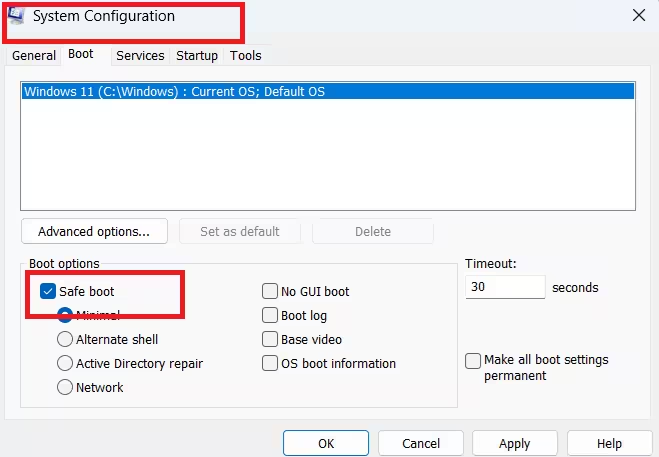
- Click Apply, then click OK.
- Restart your computer.
Windows 11 boots normally once you restart. If you’re stuck in a command prompt only version of Safe Mode, type msconfig directly in that prompt to open System Configuration and follow the same steps.
Exit Safe Mode Using Command Prompt (BCDEdit)
If you changed Boot Configuration Data (BCD) settings using BCDEdit, you need to reverse that command to exit Safe Mode.
- Open Start.
- Search for Command Prompt, right-click the top result, and select Run as administrator.
- Type this command and press Enter:
bcdedit /deletevalue {default} safeboot- Restart your computer.
The system removes the Safe Mode flag and starts normally on the next boot.
PIN Setup Error Stuck in Safe Mode? Here’s the Fix
Some users hit a specific problem after enabling Make all boot settings permanent in MSConfig while Safe Boot (without networking) stays active. After a restart, the sign-in screen shows the error “Something happened, and your PIN isn’t available. Click to set up your PIN again.”
Clicking Set up my PIN fails because Safe Mode without networking blocks the internet connection the setup process needs. This leaves you locked out with no normal way to exit Safe Mode. This issue has been reported on Windows 11 24H2 builds, so it isn’t an isolated case.
Fix Using Windows Recovery Environment (WinRE)
When MSConfig and the PIN setup both fail, use WinRE to run the BCDEdit command outside the broken environment.
- Force the PC into recovery mode by interrupting startup. Turn the device off and on two or three times right as Windows starts to load.
- Once WinRE loads, open Command Prompt from the recovery menu.
- Run the same command:
bcdedit /deletevalue {default} safeboot- Restart the system and let it boot normally.
This command clears the Safe Mode restriction directly from the boot configuration, even when the desktop environment itself is unreachable.
Exit Safe Mode From System Recovery Options
You can also reach the same Command Prompt environment through Settings instead of forcing a recovery boot.
- Go to Settings > System > Recovery.
- Under Advanced startup, click Restart now.
- Navigate to Troubleshoot > Advanced options > Command Prompt.
- Type the following command and press Enter:
bcdedit /deletevalue {current} safeboot/- Type
exit, press Enter, then select Continue to reboot.
If your PC can’t reach Settings because it’s stuck in a command prompt only Safe Mode, boot from a Windows 11 installation USB and access the same recovery options from there.
Quick Checklist
Use this order when troubleshooting:
- Restart normally first. This fixes most cases.
- Check MSConfig and uncheck Safe boot if the restart doesn’t work.
- Use the BCDEdit command from an administrator Command Prompt if you changed boot settings manually.
- Use WinRE or a recovery USB when the desktop and Command Prompt are both unreachable.
How to Tell You’re Still in Safe Mode
Windows 11 displays “Safe Mode” watermarks in all four corners of the desktop. If you only see a black screen with a command prompt and no desktop, you’re in the networkless command-line version of Safe Mode, and you’ll need the MSConfig-from-prompt or WinRE method above.
Why BCDEdit Sometimes Fails
If the bcdedit /deletevalue {default} safeboot command returns an error, try the {current} identifier instead, since the active boot entry isn’t always labeled as default:
bcdedit /deletevalue {current} safebootRunning the command from WinRE instead of a normal Command Prompt session also resolves most failures, since WinRE has direct access to the boot configuration store.
Related Guides
- How to Fix CRITICAL_SERVICE_FAILED (0x5A) on Windows 11 Without Safe Mode
- How to Enable Quick Machine Recovery on Windows 11 (3 Methods)
- How to Roll Back Your PC to an Earlier State Using Point-in-Time Restore on Windows 11
- Best Disk Management Tools for Windows 11 (Free and Paid)
- How to Enable Hidden CPU Boost Mode on Windows 11

