Microsoft designed ReFS as a storage-focused alternative to NTFS, built around self-healing data, better handling of massive volumes, and stronger protection when things like power loss or hardware faults threaten your files. This article walks through the actual formatting steps and covers what to do if Windows hides the ReFS option on your system.
What Is ReFS and When to Use It
ReFS solves specific storage problems that NTFS struggles with at scale.
- ReFS automatically detects and repairs data corruption without manual intervention.
- It performs better with large volumes and Storage Spaces configurations.
- It separates user data from metadata, which makes it more resistant to corruption.
- It works well for Hyper-V environments and backup targets where reliability matters more than legacy compatibility.
ReFS also comes with limitations you should know before formatting a drive.
- Windows cannot boot from a ReFS volume, so never format your system drive (usually C:) to ReFS.
- ReFS support is missing on Windows 10 Home and Windows 11 Home editions.
- Many older applications and backup tools only recognize NTFS.
- Formatting a drive to ReFS erases everything on it, so back up your data first.
Check Windows Compatibility Before Formatting
ReFS support depends on which Windows edition you run.
ReFS works on Windows Server 2012 and later, along with Windows 8.1 and newer client editions. On the desktop side, only Windows 10 Pro for Workstations, Enterprise, and Education support ReFS formatting. Windows 10 Home and standard Windows 10/11 Pro editions typically hide the ReFS option, even though the registry keys may still exist on the system.
If your edition supports ReFS but the option still doesn’t show up, see the Enable ReFS Formatting via Registry Editor section below.
Method 1: Format ReFS via Disk Management
Disk Management is the built-in Windows tool most people reach for first.
- Right-click the Start menu icon and select Disk Management.
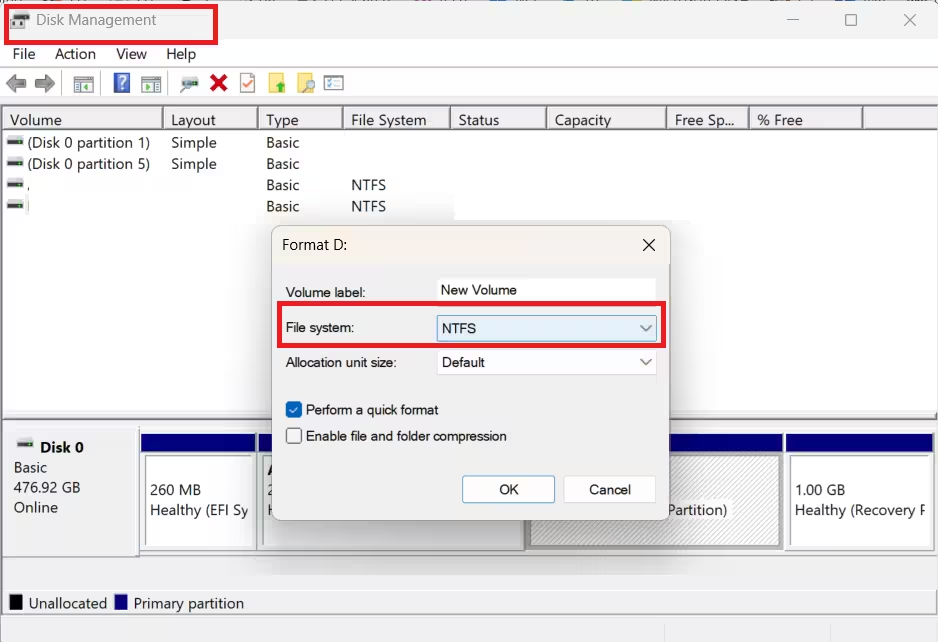
- Right-click the target drive partition and select Format.
- In the Format window, select ReFS from the file system dropdown menu.
- Set the allocation unit size and volume label if needed, and tick Perform a quick format if you want a faster process.
- Click OK and confirm the warning to start formatting.
On a Windows 10 or 11 Home machine, this dropdown simply won’t list ReFS at all, no matter which drive you select, since Home editions don’t ship with ReFS support.
Method 2: Format ReFS via Command Line
Command Prompt gives you a faster route if Disk Management doesn’t show ReFS as an option on your supported edition.
- Search for Command Prompt in the Taskbar search box and open it as an administrator.
- Type diskpart and press Enter.
- Type list disk to see all connected disks.
- Type select disk X, replacing X with the number of the disk containing your target partition.
- Type list partition to view partitions on that disk.
- Type select partition Y, replacing Y with the partition you want to format.
- Type format fs=refs quick and press Enter to format the partition to ReFS.
Method 3: Format ReFS via File Explorer
File Explorer offers a simpler path if you prefer a graphical option outside Disk Management.
- Press
Win + Eto open File Explorer. - Go to This PC, right-click the target drive, and select Format.
- In the format window, select ReFS from the file system dropdown menu.
- Tick Quick Format if you want a faster format, then click Start.
- Click OK to confirm the operation.
Enable ReFS Formatting via Registry Editor
If none of the methods above show ReFS as an option, you likely need to enable it manually through the registry first. Back up your registry before making these changes, since incorrect edits can cause system instability.
- Press
Win + R, type regedit, and press Enter. - Navigate to HKEY_LOCAL_MACHINE\SYSTEM\CurrentControlSet\Control\FileSystem.
- Look for a value named RefsDisableCompression. If it doesn’t exist, right-click the empty space, select New > DWORD (32-bit) Value, and name it RefsDisableCompression.
- Double-click the value and set it to 0 to enable ReFS, or 1 to disable it.
- Close Registry Editor and restart your PC for the change to take effect.
If ReFS still doesn’t appear as a format option after this change, you can try forcing availability with a second registry key.
- Open Registry Editor again and navigate to HKEY_LOCAL_MACHINE\SYSTEM\CurrentControlSet\Services\Refs\Parameters. Create the Parameters key if it doesn’t exist.
- Right-click the Parameters key, select New > DWORD (32-bit) Value, and name it RefsFormatEnabled.
- Set the value to 1 to force the ReFS format option to appear, or 0 to hide it.
- Close Registry Editor and restart your computer.
Keep in mind these registry keys have no effect on Windows Home editions. ReFS remains unavailable there regardless of what values you set.
Before You Format ReFS Drive on Windows: Key Notes
A few details matter beyond the format steps themselves.
- Enabling ReFS doesn’t disable or interfere with your existing NTFS volumes; both file systems work independently on the same system.
- A drive may still need to meet minimum size requirements before ReFS becomes available as an option.
- ReFS volumes can never serve as a Windows system or boot drive under any circumstance.
For deeper technical details on ReFS architecture and supported scenarios, refer to Microsoft’s official ReFS overview.
Formatting a drive to ReFS comes down to picking the right tool for your situation. Disk Management and File Explorer work well for quick graphical formatting, while Command Prompt gives you more control when the GUI doesn’t cooperate. If ReFS isn’t showing up at all, the registry method usually resolves it, provided your Windows edition actually supports the file system.
Frequently Asked Questions
Should I choose ReFS over NTFS for my drive?
It depends on your use case. ReFS offers stronger data resiliency and better scalability for large volumes, while NTFS remains more widely compatible and is the better choice for most everyday systems.
Is Microsoft phasing out NTFS in favor of ReFS?
No. ReFS is not designed to replace NTFS as the default Windows file system. NTFS still handles boot drives, broad software compatibility, and general daily use better than ReFS.
Does Windows 10 Home support ReFS formatting?
No. Home editions of Windows 10 and 11 lack ReFS support at the operating system level, so creating or modifying the related registry values has zero effect. The feature simply isn’t built into these editions.
What causes the format window to freeze on ReFS selection?
A freeze or crash during ReFS selection generally traces back to a buggy or outdated ReFS driver on your system. Install any pending Windows updates first, since Microsoft periodically patches formatting-related issues, then try the format again after restarting.
Why does a ReFS volume stop showing up after a restart?
A few culprits usually explain this: an unclean shutdown, a storage controller that Windows doesn’t fully support, or disk encryption software from a third party interfering with the volume. Open Event Viewer to look for storage-related errors around the time of the reboot, and confirm no group policy setting is silently blocking the ReFS driver from loading.

