BitLocker encryption can make a drive show up as RAW. It can also block normal access from File Explorer. If your goal is to wipe the drive completely, you don’t need to unlock it first. Command Prompt can format a BitLocker encrypted drive directly, using either DiskPart or the format command.
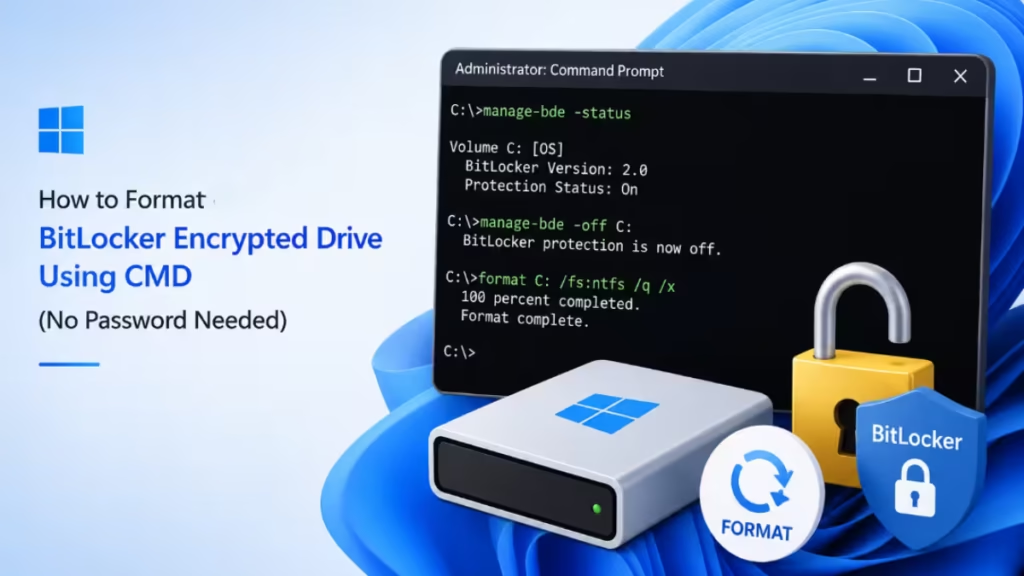
You also don’t need your BitLocker password or recovery key for this. Many tutorials tell you to unlock the drive first. But DiskPart and the format command skip that step entirely. They work directly on the drive itself, so the encryption doesn’t get in the way.
Before You Start
Formatting erases all data on the drive permanently, along with the BitLocker encryption itself. Back up any files you need before proceeding, since this process cannot be undone once it completes.
Method 1: Format a BitLocker Drive With DiskPart
DiskPart gives you full control over disk selection and works reliably even when a drive shows as locked or RAW.
- Press
Win + Xand select Terminal (Admin) or Command Prompt (Admin). - Type
diskpartand press Enter. - List all connected disks by typing
list disk. - Identify your target disk from the list, then select it using
select disk X, replacing X with the correct disk number. - Type
list volumeto see all volumes on that disk and confirm which one holds the BitLocker encrypted drive. - Select the volume using
select volume X, replacing X with the correct volume number. - Format the volume by typing
format fs=ntfs quick. - Once the format completes, type
exitto close DiskPart.
Method 2: Format a BitLocker Drive With Format Command
This method works well when you already know the drive letter assigned to the encrypted drive.
- Press
Win + Xand select Terminal (Admin). This opens a command window with full permissions. - Type the following command and press Enter. Replace X with your actual drive letter:
format X: /fs:ntfs /q- Type Y and press Enter when prompted to confirm.
- Wait for the format to finish. This can take a few minutes depending on the drive size.
Which File System Should You Choose
The file system you pick depends on how you plan to use the drive afterward.
- Use
/fs:ntfsfor internal drives or drives you mainly use with Windows. - Use
/fs:exfatfor external drives you move between Windows and macOS. - Use
/fs:fat32for older devices that need broad compatibility. Keep in mind that FAT32 does not support single files larger than 4GB.
Frequently Asked Questions
Do I need to unlock BitLocker before formatting?
No. DiskPart and the format command work directly on the drive itself. They don’t need the BitLocker password or recovery key.
Will formatting remove BitLocker encryption completely?
Yes. Formatting wipes everything on the drive, including the file system and the encryption. Once it’s done, the drive is empty and no longer encrypted.
Can I recover data after formatting a BitLocker drive?
It becomes very hard to recover your files after a full format. This is even more true with quick format, since it also clears the information Windows uses to find your old files. Back up anything important before you format.
What if DiskPart shows the drive as “protected”?
Some BitLocker drives show up as protected in DiskPart, which can block the format command. If this happens, type attributes disk clear readonly and press Enter before you select the volume. This removes the block so you can format normally.
Can I disable BitLocker instead of formatting?
Yes, if you want to keep your files and just remove the encryption. Open Control Panel, select BitLocker Drive Encryption, then click Turn off BitLocker next to the drive. This removes the encryption without deleting any files, but it takes longer than formatting since Windows has to decrypt everything on the drive first.

